


Blank, unclikable top of the page

Hi,
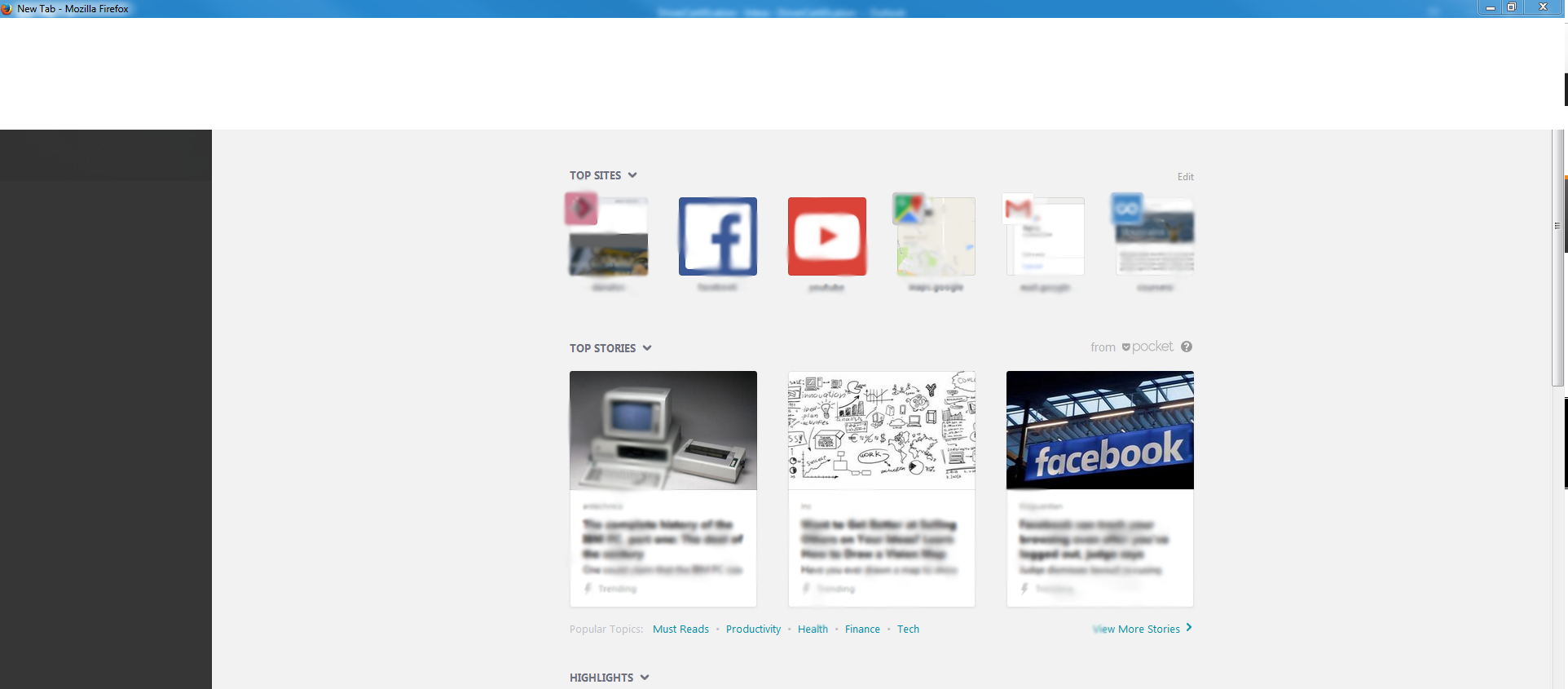
I'm having issues to use Firefox since this morning : the top of the page is blank and I'm not able to click on it or see any options. If I click on the white space it selects the windows in the background. i.e if I have outlook opened in the back and I click on the top left side of Firefox it's selecting something on Outlook directly. I'm using the beta add-ons on firefox but can't remember which one exaclty.
I can't seem to load the picture, hopefully I can add in a comment
Thank you
Chosen solution
Thanks for the screenshot, I think that is the "Activity" screen from the Test Pilot add-on.
But the main issue is that your entire toolbar area is missing!
Could you test in Firefox's Safe Mode? In its Safe Mode, Firefox temporarily deactivates extensions, hardware acceleration, and some other advanced features to help you assess whether those might be causing the problem.
If Firefox is not running: Hold down the Shift key when starting Firefox.
If Firefox is running: You can restart Firefox in Safe Mode using either:
- "3-bar" menu button > "?" button > Restart with Add-ons Disabled
- Help menu > Restart with Add-ons Disabled
and OK the restart.
Both scenarios: A small dialog should appear. Click "Start in Safe Mode" (not Refresh).
Any improvement? (More info: Use Troubleshoot Mode in Firefox)
Read this answer in context 👍 1All Replies (7)
Screenshot
Chosen Solution
Thanks for the screenshot, I think that is the "Activity" screen from the Test Pilot add-on.
But the main issue is that your entire toolbar area is missing!
Could you test in Firefox's Safe Mode? In its Safe Mode, Firefox temporarily deactivates extensions, hardware acceleration, and some other advanced features to help you assess whether those might be causing the problem.
If Firefox is not running: Hold down the Shift key when starting Firefox.
If Firefox is running: You can restart Firefox in Safe Mode using either:
- "3-bar" menu button > "?" button > Restart with Add-ons Disabled
- Help menu > Restart with Add-ons Disabled
and OK the restart.
Both scenarios: A small dialog should appear. Click "Start in Safe Mode" (not Refresh).
Any improvement? (More info: Use Troubleshoot Mode in Firefox)
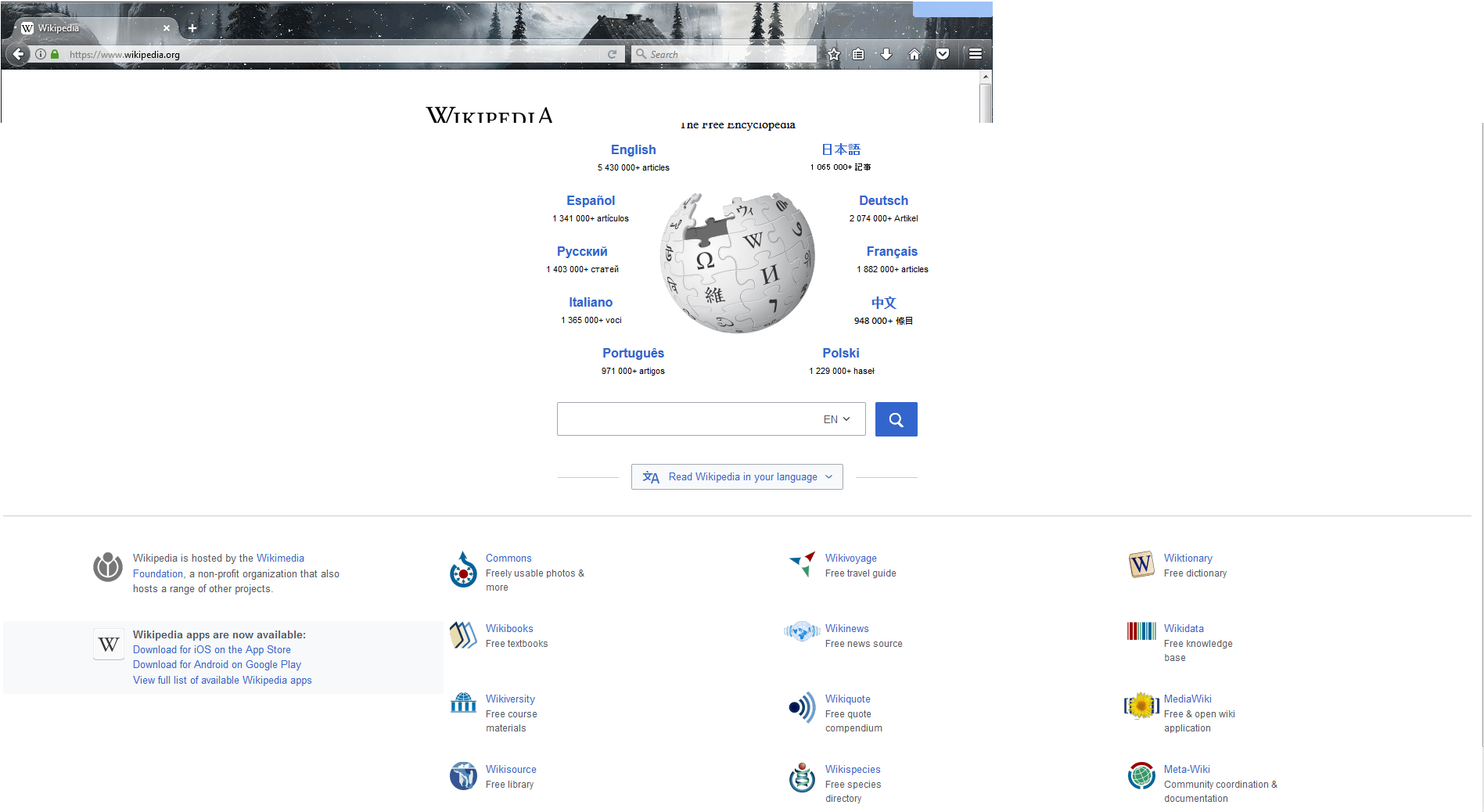
Thank you for the quick reply jscher2000 , I tried the safe mode. It seemed to be working on the small window (toolbar is back) but when I clicked to expand the window, I got a blank white page with nothing or a cut page. Should I deinstall and re-install Firefox ?
I can't explain that. If the program files are corrupted, this method usually helps:
Clean Reinstall
We use this name, but it's not about removing your settings, it's about making sure the program files are clean (no inconsistent or alien code files). As described below, this process does not disturb your existing settings. It's not essential to uninstall Firefox, but you can if you like, saying No to any request about removing personal data.
It only takes a few minutes.
(A) Download a fresh installer for Firefox to a convenient location. You can choose between:
Regular version for Windows 7-10 https://www.mozilla.org/firefox/all/ Note: only runs Flash, no other legacy plugins "Windows" version is standard 32-bit version, which is generally recommended; to take advantage of more memory, you could switch to the 64-bit version, see: How to switch from 32-bit to 64-bit Firefox
Extended Support Release for Windows XP-10 https://www.mozilla.org/firefox/organizations/all/ Note: Windows (32-bit) runs legacy plugins that ran in Firefox 51; 64-bit runs Flash and Silverlight. (If anyone reading this is thinking of switching to the 64-bit version, see: How to switch from 32-bit to 64-bit Firefox)
(B) Exit out of Firefox (if applicable).
(C) Using Windows Explorer/My Computer, rename the program folder as follows:
64-bit Windows users with 32-bit Firefox: Rename
C:\Program Files (x86)\Mozilla Firefox
to
C:\Program Files (x86)\OldFirefox
Other Windows configurations: Rename
C:\Program Files\Mozilla Firefox
to
C:\Program Files\OldFirefox
(D) Run the installer you downloaded in step (A). It should automatically connect to your existing settings.
Note: Some less used files may exist only in that OldFirefox folder, so I suggest retaining them for a few days in case we need to go looking for something in there.
Any improvement?
I tried your method, twice, with no success unfortunately. I might have to contact our IT departement, maybe it is something on the computer itself... ?
Not to sound like a cliché, but if you haven't shut down and restarted Windows since this problem began, you definitely should try that before doing anything too drastic.
Sometimes the file that stores windows sizes and positions becomes corrupted with nonsense values, You can rename the file and Firefox will generate a new one using default values. Here's how:
Open your current Firefox settings (AKA Firefox profile) folder using either
- "3-bar" menu button > "?" button > Troubleshooting Information
- (menu bar) Help > Troubleshooting Information
- type or paste about:support in the address bar and press Enter
In the first table on the page, click the "Open Folder" button. This should launch a new window listing various files and folders in Windows Explorer.
Leaving that window open, switch back to Firefox and Exit, either:
- "3-bar" menu button > "power" button
- (menu bar) File > Exit
Pause while Firefox finishes its cleanup, then rename xulstore.json to something like xulstore.old. If you see a file named localstore.rdf, rename that one to localstore.old.
Start Firefox back up again. Any improvement?
This process turns off the optional toolbars. To turn different bars on and off, you can use one of these methods to show the toolbar list and select the desired bars there:
- right-click a blank spot on the tab bar (or the "+" button)
- tap the Alt key to activate the classic menu bar > View > Toolbars
- in Customize mode > Show/Hide Toolbars (see: Customize Firefox controls, buttons and toolbars)
To turn on the Menu Bar, Bookmarks Toolbar, or other bars, click it on the list.
Hello jscher2000, I followed your steps, and restarted the computer and now it looks like it is working fine. Maybe a little bit slow but the top of the page with the toolbar is back.
Thank you again for your assistance, have a great weekend.