I WANT TWO SESSIONS OF FIREFOX PINNED TO MY TASK BAR WITH TWO DIFFERENT HOME PAGES

EVERY DAY AT WORK I HAVE TO OPEN TWO WINDOWS OF FIREFOX TWO DIFFERENT HOME PAGES. i HAVE ONE PINNED TO MY TASK BAR BUT I CAN NOT PIN THE SECOND. EXAMPLE ONE WINDOW WOULD HAVE HONDA'S DEALER SITE THE SECOND WOULD BE DEALER TRACK.
All Replies (2)
Maybe you'll like this: pin the page to the "jump list" for the pinned Firefox shortcut. Here's how:
(1) Load the page you want and resize the Firefox window so you can see some of your desktop
(2) Click and drag from the little "circled i" icon at the left end of the address bar and drop it on the desktop -- a shortcut to the page should be created.
Optional: You can right-click > Rename the shortcut to something short and sweet for easier reference
(3) Drag the shortcut to a blank area of the Windows Task Bar and Windows should show "Pin to Mozilla Firefox" -- drop it here
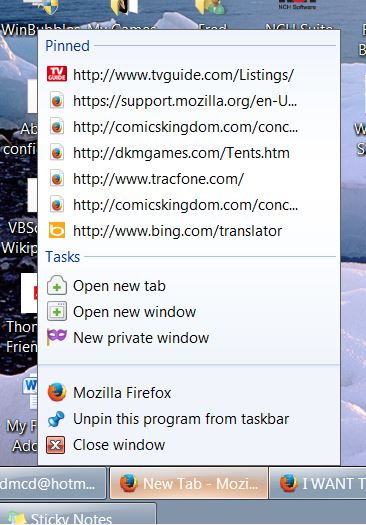
Now, you can load that shortcut by right-clicking the pinned Firefox icon and clicking the shortcut in the "Pinned" section at the top of the jump list.
What do you think?
Note: if this opens a new tab instead of a separate window, you could modify how external links open in Firefox so they ALL open in a new window. To give that a try:
(1) In a new tab, type or paste about:config in the address bar and press Enter/Return. Click the button promising to be careful.
(2) In the search box above the list, type or paste link.o and pause while the list is filtered
(3) Double-click the browser.link.open_newwindow.override.external preference and change the value to 2 and click OK
The options for this preference are:
-1 = follow the "Open new windows in a new tab instead" setting under Tools > Options (default) 3 = open external links in a new tab in the last active window 2 = open external links in a new window 1 = open external links in the last active tab replacing the current page

Also, you can pin a link to the Firefox pinned taskbar button.