How fo I get rid of the WindowShopper add-on?

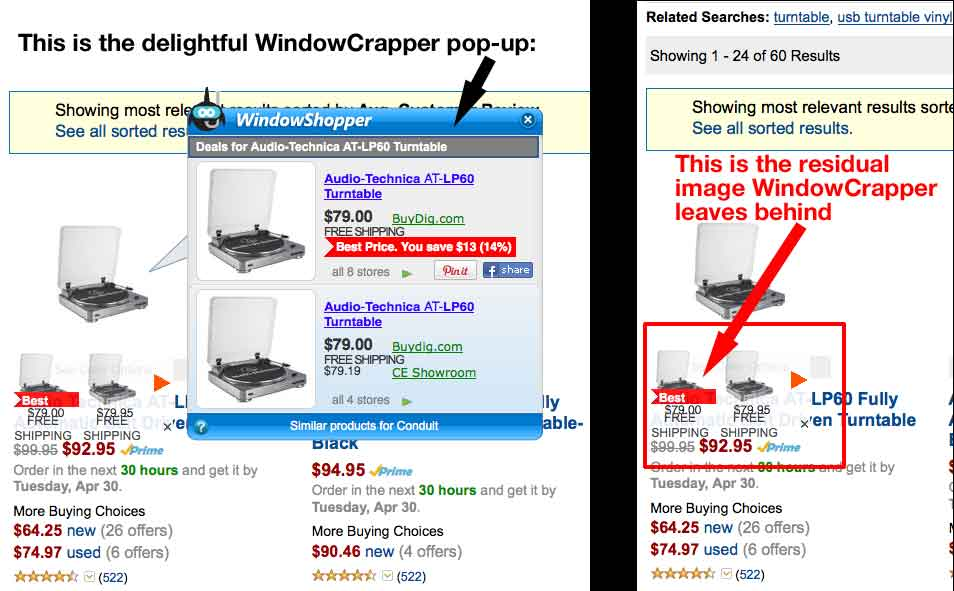
I have an add-on called "WindowShopper" that somehow recently turned up in Firefox (v20.0, Mac OS X 10.7.5). I don't know how it got into Firefox -- *I* certainly didn't add it -- and I can't find it anywhere in "Tools > Add-Ons," "Extensions," "Preferences," or anywhere else. If I could find it, I'd delete it. It's maddening, I loathe it, it's buggy (its "helpful" pop up screens tend to "stick," obscuring the product underneath), and it seems the only way to get rid of it is to go back to using Safari, which I'd rather not do.
Please tell me how I can get rid of this "WindowShopper" add-on.
Chosen solution
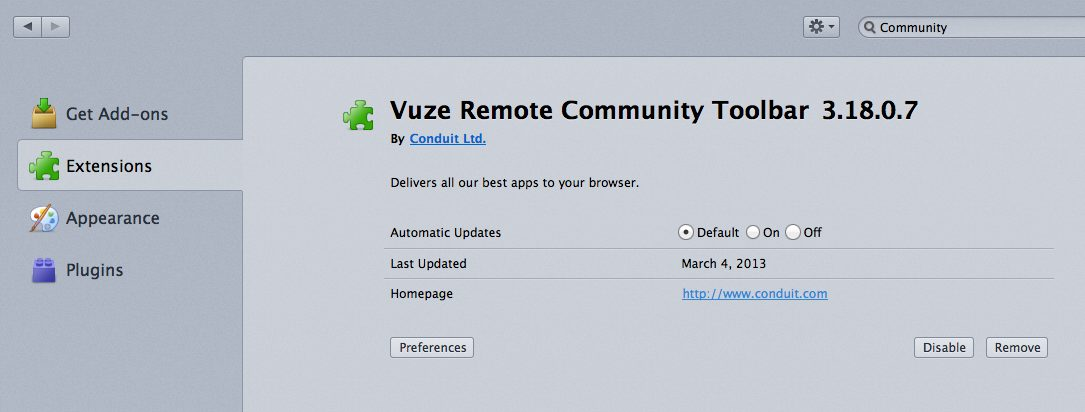
Hi bartbrn, I noticed the word "Conduit" in the screenshot you posted. I associate Conduit with numerous Community Toolbar extensions. If you have anything along those lines, try disabling it.
Read this answer in context 👍 3All Replies (4)

In order to uninstall a possibly unwanted extension, please do the following:
- From the Firefox window click the Firefox button at the top left and select Add-ons, or, if the Firefox button is not shown, click the Tools menu and click Add-ons.
- Once the Add-on Manager has opened in a new tab, click the Extensions button on the left side of the window.
- You should now see a list of your installed extensions on the right side together with buttons on the right side of each extension.
- To remove an extension from Firefox, simply click the Remove button. You should see a message that informs you about the successful removal of the add-on.
- Note that some add-ons require a Firefox restart to be removed completely. To perform a Firefox restart after the add-on removal, click the Restart now link in the message.
You can find further information about uninstalling extensions in the following articles:
Remove a toolbar that has taken over your Firefox search or home page
_______________________________________________________________________________
Hello,
The Reset Firefox feature can fix many issues by restoring Firefox to its factory default state while saving your essential information. Note: This will cause you to lose any Extensions, Open websites, and some Preferences.
To Reset Firefox do the following:
- Go to Firefox > Help > Troubleshooting Information.
- Click the "Reset Firefox" button.
- Firefox will close and reset. After Firefox is done, it will show a window with the information that is imported. Click Finish.
- Firefox will open with all factory defaults applied.
Further information can be found in the Refresh Firefox - reset add-ons and settings article.
Did this fix your problems? Please report back to us!
Thank you.
"In order to uninstall a possibly unwanted extension, please do the following:
"From the Firefox window click the Firefox button at the top left and select Add-ons"
No Firefox button at the top left of ANY Firefox page
"or, if the Firefox button is not shown, click the Tools menu and click Add-ons.
   Once the Add-on Manager has opened in a new tab, click the Extensions button on the left side of the window.
   You should now see a list of your installed extensions on the right side together with buttons on the right side of each extension.
   To remove an extension from Firefox, simply click the Remove button. You should see a message that informs you about the successful removal of the add-on.
   Note that some add-ons require a Firefox restart to be removed completely. To perform a Firefox restart after the add-on removal, click the Restart now link in the message."
I removed a few other "shopping pop-up" add-ons -- none of which I installed in the first place -- but "WindowShopper" did NOT show up in the list of installed extensions. I performed "a Firefox restart" after an add-on (NOT WindowShopper, which I still cannot find) removal. After the restart, the add-ons I removed were gone, but I still could not find WindowShopper." It wasn't anything in Preferences, either.
The nuclear "Restart Firefox" option is not the way I want to go, as I do have several "Extensions, Open websites, and some Preferences" that I do NOT wish to have to spend the day restoring.
I really do wish that Firefox would not be so overly-user-"friendly" that it adds unwanted add-ons like this POS.
Chosen Solution
Hi bartbrn, I noticed the word "Conduit" in the screenshot you posted. I associate Conduit with numerous Community Toolbar extensions. If you have anything along those lines, try disabling it.
jscher2000 -- Thank you from the bottom of my heart! THAT was the problem. I didn't know Vuze was made by Conduit (never looked), and had never even heard of Conduit until just now.I used to use Vuze as a torrent D/Ler, and, apparently, when Vuze underwent its recent major overhaul, it installed this "Vuze Remote Community Toolbar," which I never looked at, as I'm not too quick, and I knew I had Vuze components. Had I opened the Extension I would have seen the dead-giveaway phrases "Delivers all our best apps to your browser" and "Automatic Updates" at "Default."
Removing this extension and restarting Firefox did the trick -- WindowShopper is gone.
Thanks again, really appreciate it!
Bart Brown