


In Firefox, why does a blank pop-up box pop up and then close for no reason?
The blank pop-up box appears in a Firefox session several times, without warning, closing again in less than a second.
All Replies (12)
That seems suspicious...
There are times that websites will launch pop-up windows with advertising content and move them behind your main window, but those "pop-under" windows would still be there if you went looking for them, they don't close themselves.
Sometimes when you click to download, Firefox will launch a new window or tab until it realizes that it is a content type that needs to be saved or handled by another program, and then Firefox closes that window or tab and handles the download normally. But if this is not that scenario, then it probably isn't relevant.
If you check the Library dialog, which you can open to history using either Ctrl+Shift+h or "Show All History" from the menu, do you see any addresses for the mystery windows listed? If there is a pattern of sites, that may provide a clue to the source of the windows.
Finally, you could test in Firefox's Safe Mode. That's a standard diagnostic tool to deactivate extensions and some advanced features of Firefox. More info: Use Troubleshoot Mode in Firefox.
If Firefox is not running: Hold down the Shift key when starting Firefox.
If Firefox is running: You can restart Firefox in Safe Mode using either:
- "3-bar" menu button > "?" button > Restart with Add-ons Disabled
- Help menu > Restart with Add-ons Disabled
and OK the restart.
Both scenarios: A small dialog should appear. Click "Start in Safe Mode" (not Refresh).
Any difference?
Thanks jscher2000
I have tried the All History suggestion: I looked at the history after 2 pop-ups had appeared and closed: there was no record in History of any sites other than those visited intentionally.
I then tried with Fireox in Safe Mode - this made no difference, as a pop-up box appeared and closed almost immediately.
I don't know if it is relevant that there is another odd behaviour (on Windows 8.1 rather than in Firefox) which I feel is some sort of virus: Windows Scrpt Host records an error, again without any apparent reason. It says it can't find a file (c:\ProgramData\....\lola.txt).
I also had a previous problem with both Firefox and Chrome involving some advertising sites hijacking pages (E.g. bbc.co.uk) with advertising pages that popped up over the top of the correct page, and which had to be closed (including some with a delay: like the youtube ads that you have to watch 10 seconds of) before you could continue. This seemes to be related to AdAware - I had uninstalled AdAware, and when I reinstalled it, the browser hijacking stopped.
Sorry - this is all a bit complicated! Thanks for your support!!
That is very odd. As a test, could you make IE or another browser your default browser at the Windows level and see whether that makes any difference?
For Firefox, I suggest this next:
Clean Reinstall
We use this name, but it's not about removing your settings, it's about making sure the program files are clean (no inconsistent, corrupted, or alien code files). As described below, this process does not disturb your existing settings. Do NOT uninstall Firefox, that's not needed.
(1) Download a fresh installer for Firefox 39.0 from https://www.mozilla.org/firefox/all/ to a convenient location. (Scroll down to your preferred language.)
(2) Exit out of Firefox (if applicable).
(3) Rename the program folder, either:
(64-bit Windows folder names)
C:\Program Files (x86)\Mozilla Firefox
to
C:\Program Files (x86)\OldFirefox
(32-bit Windows folder names)
C:\Program Files\Mozilla Firefox
to
C:\Program Files\OldFirefox
(4) Run the installer you downloaded in #1. It should automatically connect to your existing settings.
Any reduction in mystery windows?
Note: Some plugins may exist only in that OldFirefox folder. If something essential is missing, look in these folders:
- \OldFirefox\Plugins
- \OldFirefox\browser\plugins
Also, I'm not sure what steps you used for your malware cleanup, but if you didn't try these, I suggest trying them at this point:
(1) Open the Windows Control Panel, Uninstall a Program. After the list loads, click the "Installed on" column heading to group the infections, I mean, additions, by date. This can help surface undisclosed bundle items that snuck in with some software you agreed to install. Be suspicious of everything you do not recognize/remember, as malware often uses important or innocent sounding names to discourage you from removing it. Take out as much trash as possible here.
(2) Scan for remaining troublesome programs with the scanning/cleaning tools listed in our support article: Troubleshoot Firefox issues caused by malware. These on-demand scanners are free and take considerable time to run. If they finish quickly and especially if they require payment, you may have a serious infection. I suggest the specialized forums listed in the article in that case.
(3) Remove any user.js file in your Firefox profile folder. You can access that folder while Firefox is closed by pasting the following into the Start menu search box and pressing Enter:
%APPDATA%\Mozilla\Firefox\Profiles
Here you should find one or more semi-randomly-named folders. Click into each and check for a file named user.js and unless you created it yourself, delete it.
Note: by default, Windows hides the .js file extension. To work with files accurately, I suggest setting Windows to show all file extensions. This article has the steps: http://windows.microsoft.com/en-us/windows/show-hide-file-name-extensions
Are things better?
Thanks again, jscher 2000:
1. At this stage – no rogue pop-ups on Chrome.
2. No new programmes showing in Control Panel
3. Scanned with AdwCleaner
4. Did clean reinstall, but no immediate change.
5. There was one user.js file, in Old Firefox Data\973hl4ca.default, but deleting it (not surprisingly!) has not stopped the pop-ups.
Rogue pop-ups still appearing.
...oh dear...!
Is there any pattern regarding which sites have these self-closing pop-ups?
Is there any pattern as to moving the mouse or other activities associated with the pop-ups?
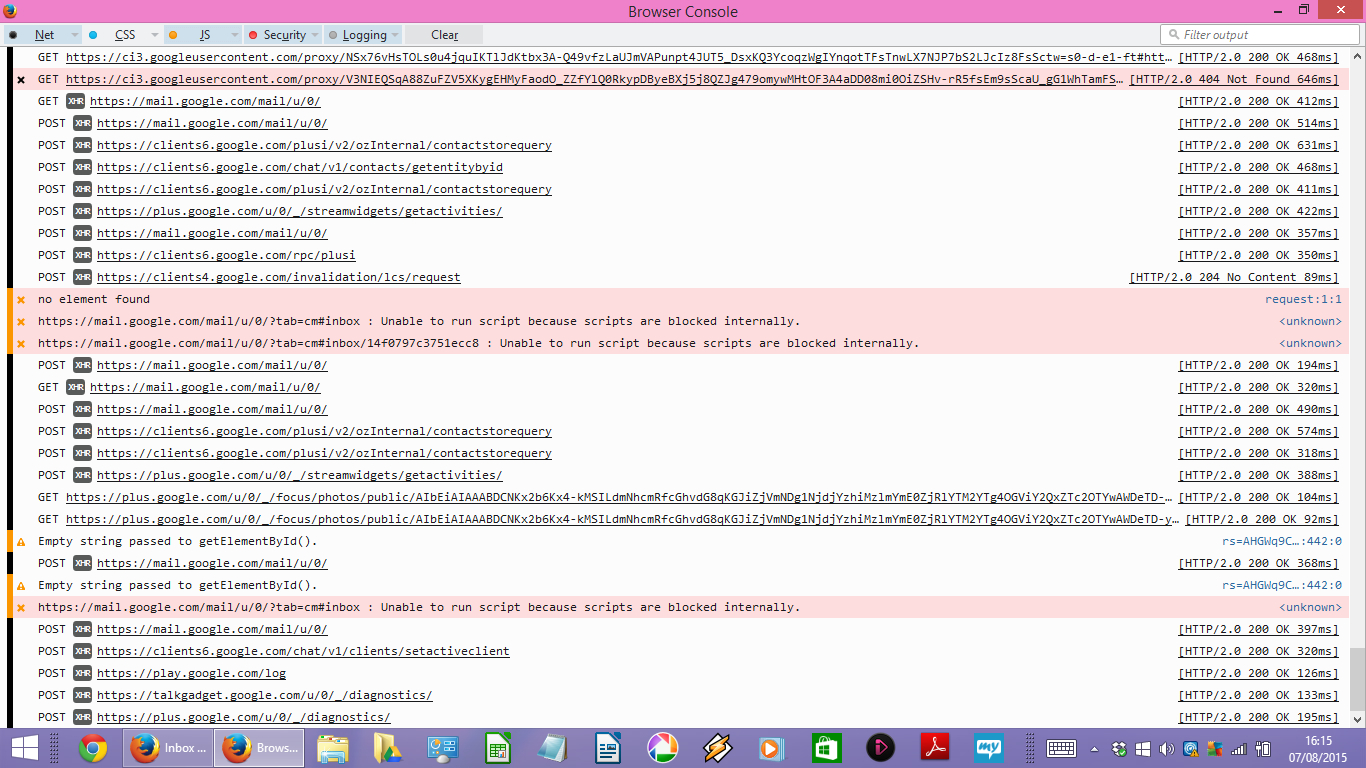
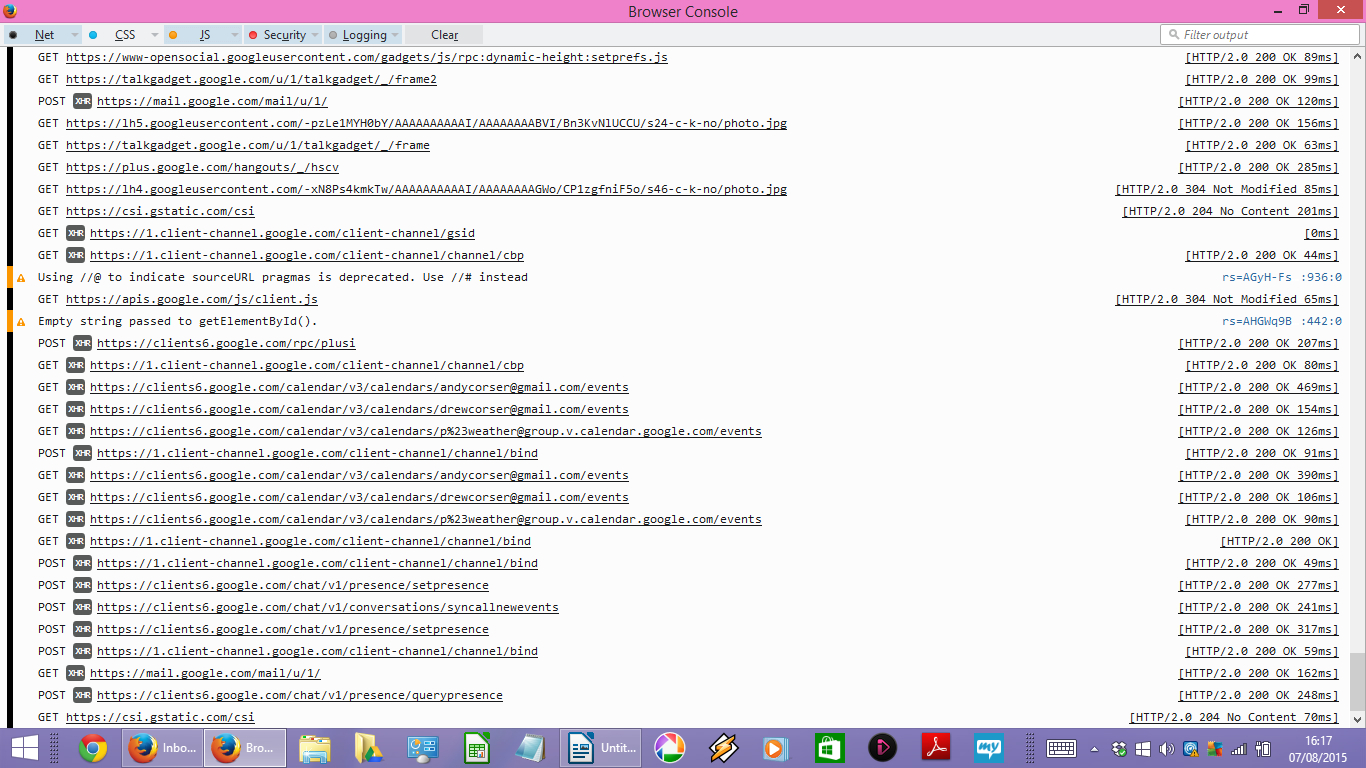
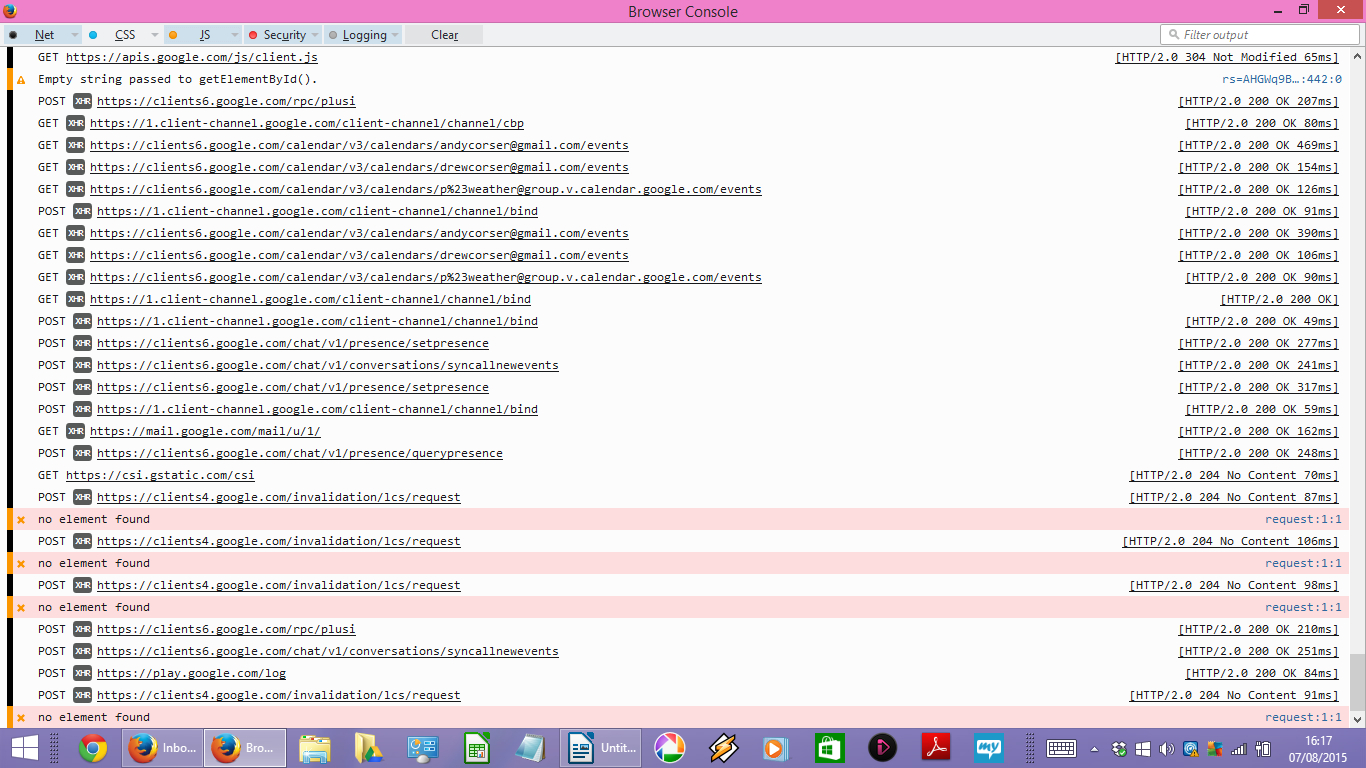
Could you keep the Browser Console open in the background? That is a window which collects various error messages and warnings, and also a list of URLs loaded. You can open it using either:
- Ctrl+Shift+j
- Developer menu
I'm not sure whether the Browser Console shows ALL URLs by default, but you can click the Net button at the upper left corner a couple times to make sure everything on that list is selected. You also can turn off CSS messages as those are not likely to be relevant and cause a lot of clutter.
Does the Browser Console help in figuring out those windows? You'll need to check soon after the window shows/closes as the console has a limited capacity and discards older information.
Can I save the console log? I don't really understand how it is logging things: I have used PRTSC to capture these three screens, but I can't see them now looking at the console window...
Anyway, I captured the first, and then there was a rogue pop-up, so I captured the second - I reacted a bit slowly, so there is no continuity between the two screens.
There was another rogue pop-up almost straight away, and I captured the third, which IS continuous with PRTSC2. This means that there is one rogue pop-up somewhere on PRTSC2 and PRTSC3.
Do these mean anything to you? Nothing obvious to me, except that Google seems to dominate...
I don't know whether the console can save to disk as it goes; that would be handy if it can.
Those all look like Google addresses, some for mail, some for chat / talk / hangouts / social features, and some calendar.
Assuming the problem is one of those Google windows (or the code generating it), if you haven't already, try clearing your Firefox cache and deleting your saved cookies for google.com:
(1) Bypass Firefox's Cache
Use Ctrl+Shift+r to reload the page fresh from the server.
Alternately, you also can clear Firefox's cache completely using:
"3-bar" menu button (or Tools menu) > Options > Advanced
On the Network mini-tab > Cached Web Content : "Clear Now"
If you have a large hard drive, this might take a few minutes.
(2) Remove the site's cookies (save any pending work first). While viewing a page on the site, try either:
- right-click the page and choose View Page Info > Security > "View Cookies"
- (menu bar) Tools > Page Info > Security > "View Cookies"
- click the padlock or globe icon in the address bar > More Information > "View Cookies"
In the dialog that opens, you can remove the site's cookies individually.
Then try reloading the page. You'll need to log into Gmail again. Does that help?
Er...sorry...no! If anything there are more rogue pop-ups. (Although, as I went through each of the Google sites - mail, contacts, drive, accounts, maps etc - and removed all cookies through Page Info, they went and then just reappeared immediately...)
Since we have no evidence so far that these are not caused by Google, I wonder whether Firefox is mis-handling some background requests (the kind that show XHR in the console) as downloads.
You've probably noticed from time to time that Firefox will open and then close a blank tab or window for some downloads.
When download settings go haywire, we generally suggest renaming a particular settings file and letting Firefox generate a new one. After doing that, you may need to re-setup some application preferences, such as your preferred PDF viewer. Here's how:
Open your current Firefox settings (AKA Firefox profile) folder using either
- "3-bar" menu button > "?" button > Troubleshooting Information
- (menu bar) Help > Troubleshooting Information
- type or paste about:support in the address bar and press Enter
In the first table on the page, click the "Show Folder" button. This should launch a new window listing various files and folders in Windows Explorer.
Leaving that window open, switch back to Firefox and Exit, either:
- "3-bar" menu button > "power" button
- (menu bar) File > Exit
Pause while Firefox finishes its cleanup, then rename mimeTypes.rdf to something like mimeTypes.old.
Start Firefox back up again and it should extract default application settings from the registry. Does this help at all?
To reset your preferred PDF viewer, if it isn't the built-on one, see this article: View and edit PDF files using Firefox’s built-in viewer.
Try to boot the computer in Windows Safe Mode with network support (press F8 on the boot screen).
Well, after a slight hiatus (and having been too busy to get round to trying out the two suggestions above) the rogue pop-ups seem to have disappeared.
One of the things I have done in the interim is "upgrade" to Windows 10 - which made no difference to start with (apart from other bugs with W10 itself) - but things seemed to have now settled down, including the fact that the rogue pop-ups have stopped.
(There was a WiFi problem with W10, which is partially sorted out. And there is still this odd appearance of Windows Script Host - nothing to do with Firefox, though._