


Profiles -

Hi,
When I opened Firefox today, it asked me which profile I'd like to use. I named one Katy and then continued. Now, I can't see any of my bookmarks, none of my passwords are saved, none of my sites recognized. I've been using Firefox for years. Everything I have is saved there. I just want my old stuff back. I'm signed in on my account, but can't see another profile that I can choose. My phone still has all the passwords and bookmarks from before but I I can't see what profile I'm signed in under. Can anyone help?
Thank you!
Katy
All Replies (11)
Hi Katy,
- Try to go to about:profiles and open all the listed profiles one by one (by clicking Launch profile in new browser). Does one of them contain your data?
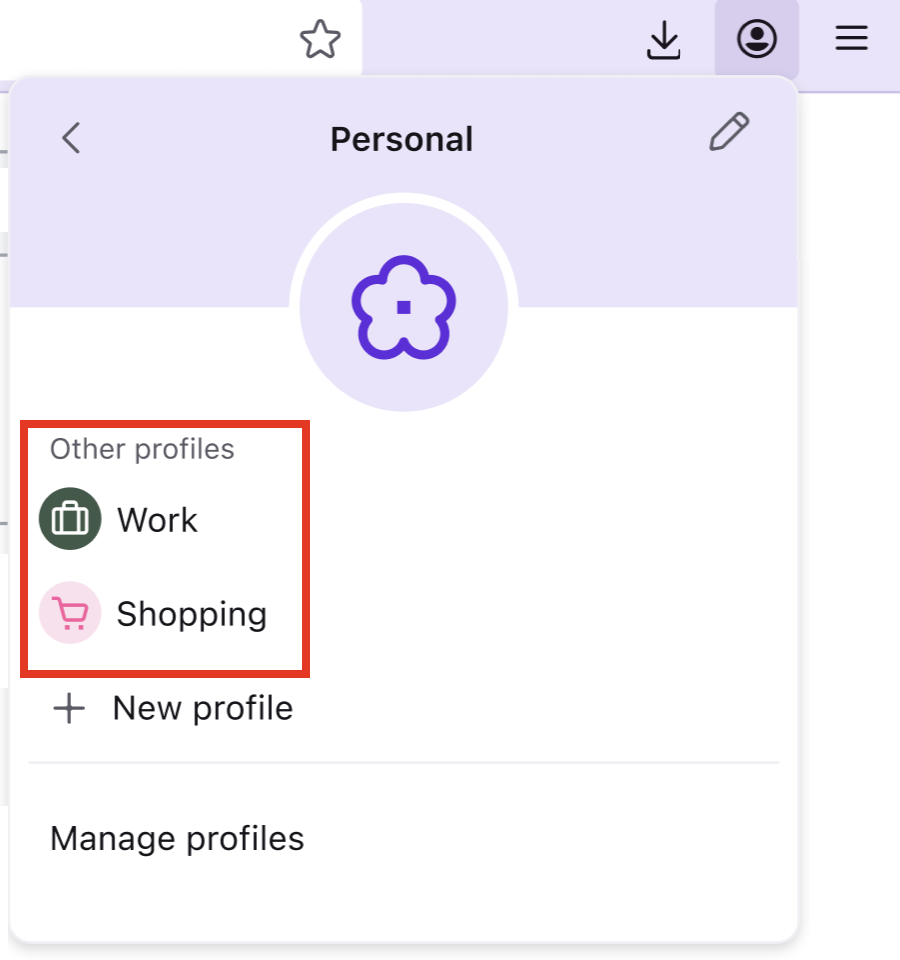
- Less likely, but you can also try to go to Firefox menu -> Profiles and check the profiles listed there.
Thanks for the response, Denys. I tried going to about: profiles. There is only the one I created yesterday. It's like the past years didn't happen, even though I'm still able to access everything--so far--via my Firefox on my phone, even though it's supposedly synched to my desktop.
Option 2 won't either.

More on Option 2, i case it helps, from Manage Firefox profiles Open an existing profile:
- In the toolbar, click the account icon
 .
.
- Click the name of your current profile.
- From the dropdown, just pick the profile you want to open.
Katylnicholson said
Thanks for the response, Denys. I tried going to about: profiles. There is only the one I created yesterday. It's like the past years didn't happen, even though I'm still able to access everything--so far--via my Firefox on my phone, even though it's supposedly synched to my desktop. Option 2 won't either.
To clarify, have you tried launching that single profile in about:profiles? From what I understand, that can't be the one you created recently (and, therefore, should be what you are looking for...) Note that profiles in menu->Profiles and on about:profiles are different profile types, and neither of the profiles is displayed in both locations.
Thanks, Denys.
I've attached a screenshot of what I see. It also shows what happens when I try to navigate between profiles in the upper right-hand corner. When I click both the root and local directories, all the files are dated no earlier than Feb 8, when the issue began.
Does that help at all?
Thanks for your continued assistance.
Katy
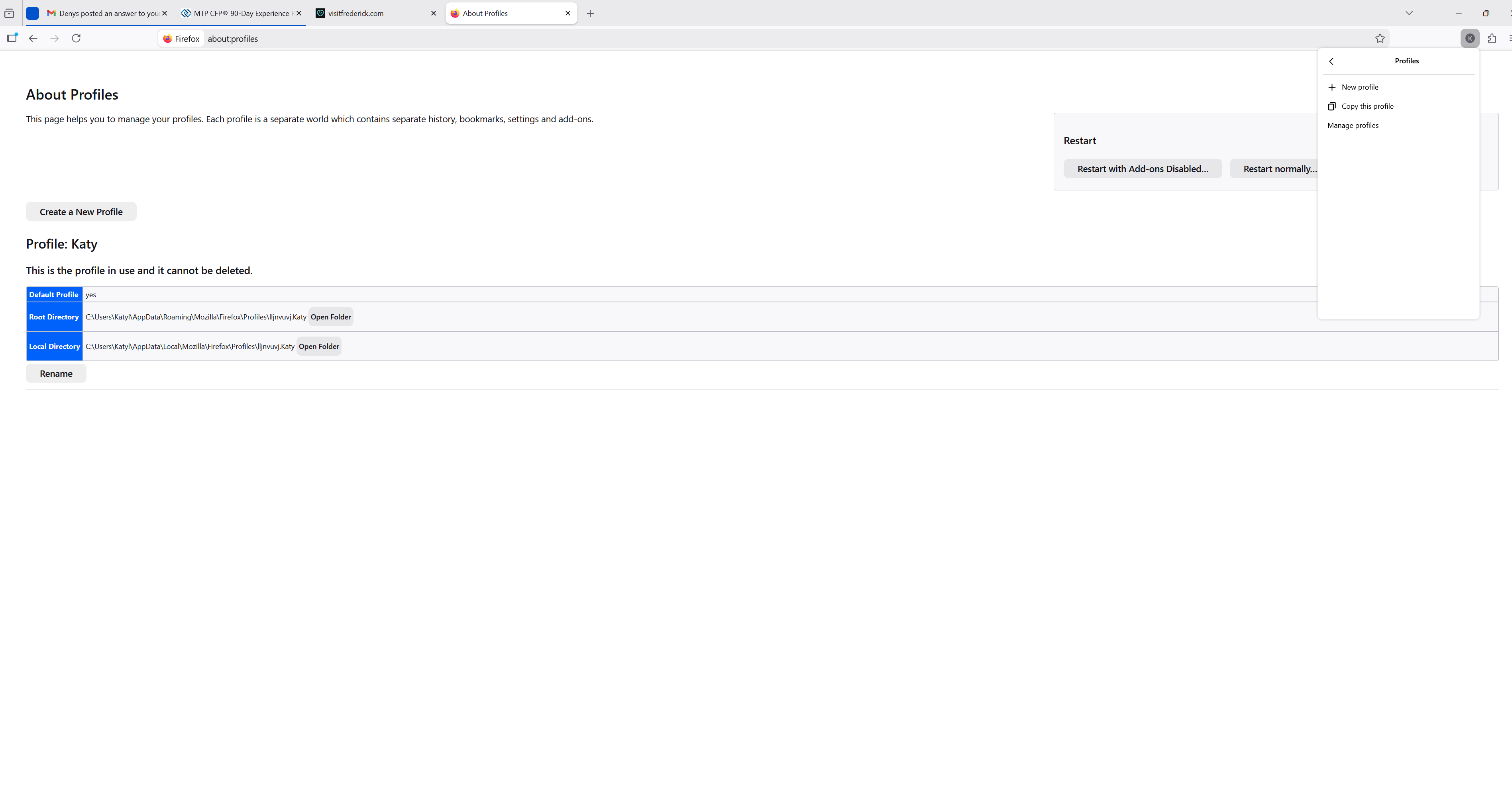
Yeah, that helps... Though it looks weird.
Don't you have an Old Firefox data folder on your desktop?
Also, the screen that asked you to create a profile... Did it look similar to the first screenshot in this block post? (Just trying to understand how you ended up here)
No, I don't have an old Firefox data folder on my desktop.
I don't remember any details of what the screen that asked me to create a profile looked like except that it was not the one in that block post. It seemed like it was from a different era. My browser had just crashed so I was in the Task Manager and ended the task. When I clicked on the Firefox icon, it made it seem like I had to create a named profile to proceed, then it started updating and when it reopened, I had no data.
Aha, now that makes sense... At least we are not dealing with brand-new profile, it's all about the legacy profile type.
So, a crash led to corruption (?) of your data. A couple of things you can additionally check:
- On the about:profiles page, click Open Folder next to Root Directory. In Windows Explorer, go one level above, to the Profiles folder. Are there any folders except the one you were viewing?
- (A random guess but) Is there anything in your Recycle bin? Are there any new folders on your desktop?
Apart from the above, we're safe to get your data to the new profile with Sync. In Firefox on your phone, go to Settings and check the entry under Account (it should be at the top of the page). It will have your name and email. Then you'll have to log in into the same Mozilla account on your desktop (using the same email). Then in Settings -> Sync you can specify types of the info you want to sync, if needed. (For reference, see this article.) I hope this will help you get (most of) your data back, at least.
(For the record) Someone else filed a bug report on the problem you experienced so it's a known issue: Bug 1977448 - Windows crashed and Firefox lost all data, profiles (new and old), and bookmarks
AliceWyman said
(For the record) Someone else filed a bug report on the problem you experienced so it's a known issue: Bug 1977448 - Windows crashed and Firefox lost all data, profiles (new and old), and bookmarks
Thank you, Alice!
Katy, if your issue is the same as in the mentioned bug, your old data may still be in the Profiles folder (see the first check I suggested). In that case, you will be able to just copy the files to your new profile without any extra steps like setting up Sync. More details in this article (and this one tells what to copy).
Modified by Denys
Denys, you're welcome! If you don't mind, here is another route that we could try if Katy finds her old profile folder.
Katy, If you find your old profile folder (for example, xxxxxxx.default-release) in the AppData\Roaming\Mozilla\Firefox\Profiles location:
Instead of manually copying files, you could alternatively use the [Create a New Profile] button on the about:profiles page, as described here: Create a profile
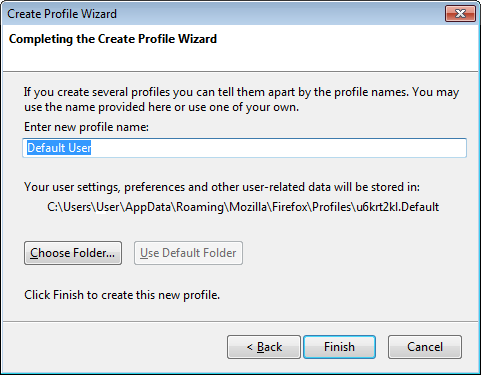
After entering a new profile name, you would use the [Choose Folder] button to select your old profile folder (example: xxxxxxx.default-release) so that the new profile will use the data in that folder.
To Denys: I tested it just now by removing one of my test profiles listed on about:profiles page, using the [Remove] button underneath it ... but I chose the "Don't Delete Files" option, so that the folder and its contents remained in the AppData\Roaming\Mozilla\Firefox\Profiles location.