


Restoring selected emails or folders from backup/export

How do I restore selected emails or folders from a backup made with Export? I only want to bring in 30 or so (which were accidentally deleted). I'm using a Windows 11 PC.
I'm nervous about reloading the backup because it was some time ago (and I *really* don't want it to download new emails).
All Replies (6)

Chosen Solution
I'm sure there are several ways to skin this cat. Here's how I would do it. This requires the addon, "Import ExportTools NG" ( https://github.com/thunderbird/import-export-tools-ng/releases ).
- Extract the file from your backup that represents the folder that contains the messages you want to recover into a temporary folder in a convenient place (Desktop?). It might be a pair of files called "Trash" and "Trash.msf".
- Create a temporary Local Folder in Thunderbird. Right-click on it and choose <ImportExportTools NG | Import mbox files | Individual mbox files> from the context menu. Navigate to the temporary folder that has your extracted files, select those files and click "Open".
- This will import all messages from the archived folder to your local folder. You can now delete everything you DON'T want, or copy or move the missing messages to their final destination.
- Delete the temporary local Thunderbird folder when you're done.

Hi Billy,
My guess is that someone unzipped the zip file. Now Thunderbird cannot import, not because files are missing, but because there is no zip file to import.
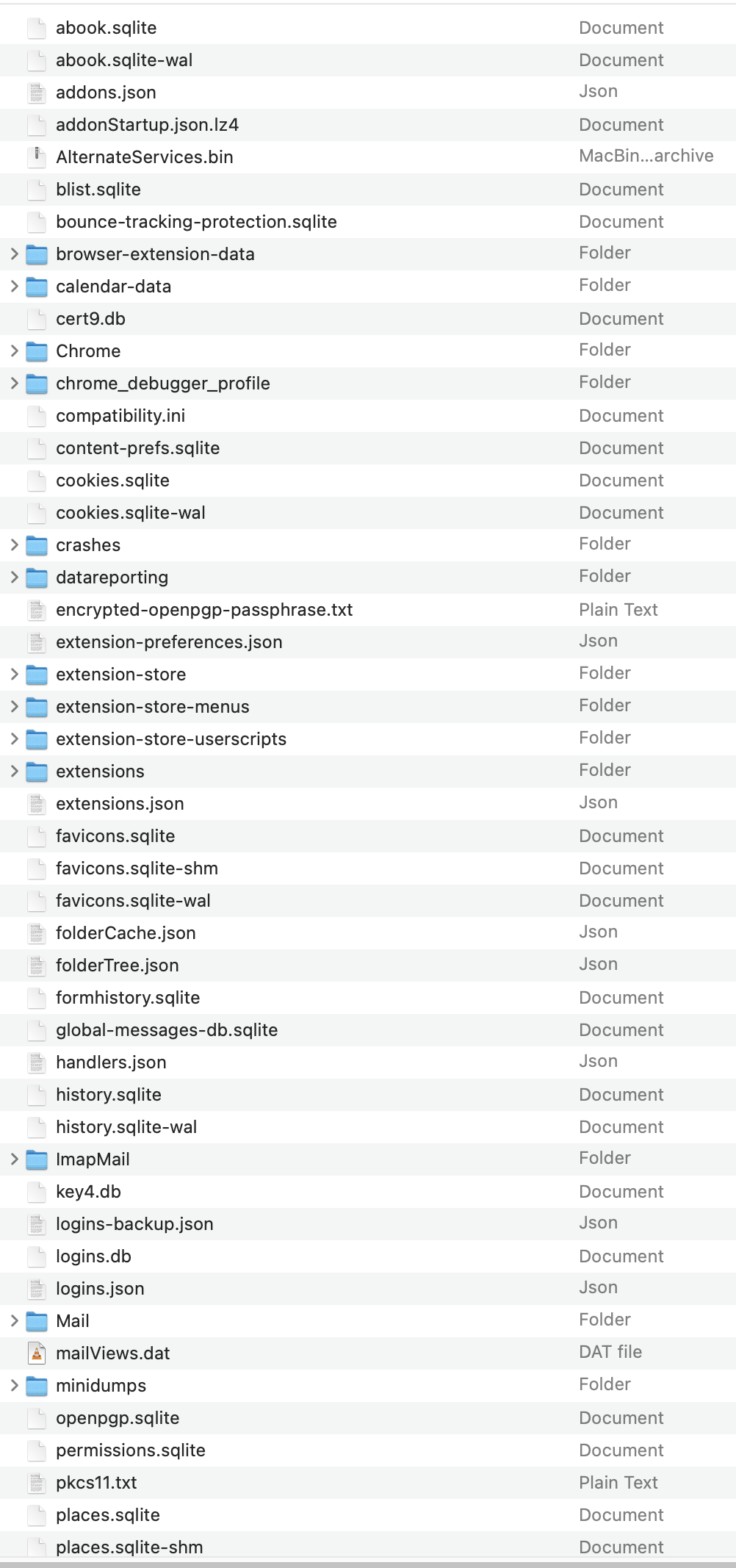
Is the .default thing a file or a folder? It is probably a folder with a profile. I ask only because you called it a file. Do its contents look like my attached image?
Are the "30 or so" things messages or folders? If they are messages, are they in one folder (which?) or many?
Your answers will determine what you should do next.
Good one, Lin, and well explained. I actually use this add-in already for other things.
I stumbled at first because I couldn't see the "Import mbox files" option in Import ExportTools NG. Then I re-read your advice and realised I'd missed that the new folder was *Local*. Then the option appeared.
Thanks for the speed and accuracy of this suggestion!!
Sheesh. I just discovered that I seemed to be responding to two different cases. No idea how I did that. I shouldn't do this stuff late in the evening. Sorry about the puzzling response.
No problem this end, Rick. I recognised your post for what it was - a mispost.
agabb said
No problem this end, Rick. I recognised your post for what it was - a mispost.
Thanks for your kindness.