


email body not opening properly

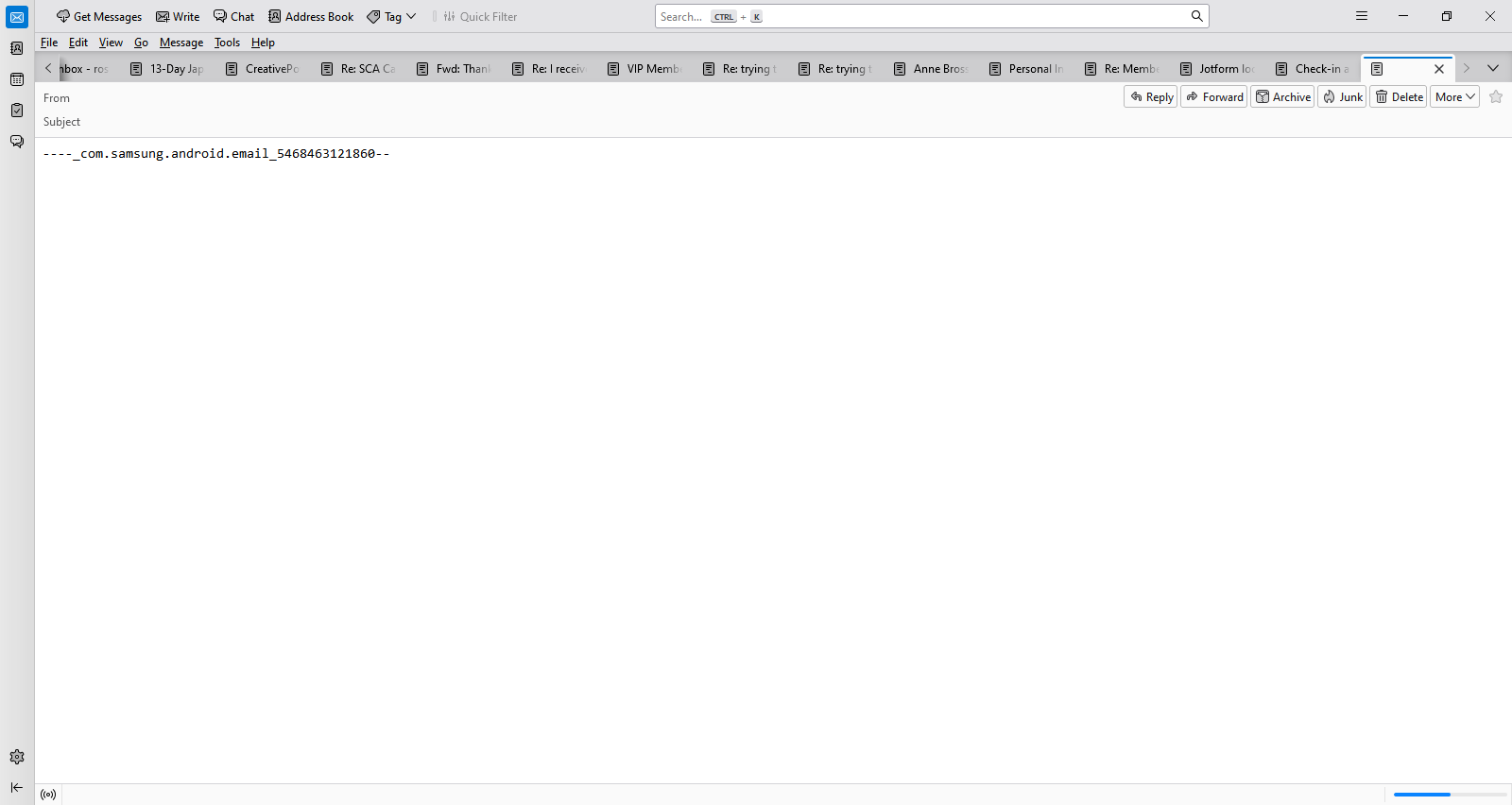
Hello When I open many of my emails, it shows nothing in the 'From' or 'Subject' and rather than having a message in the body, it says:
_com.samsung.android.email_5468463121860--
It is always the same no matter which email I open.
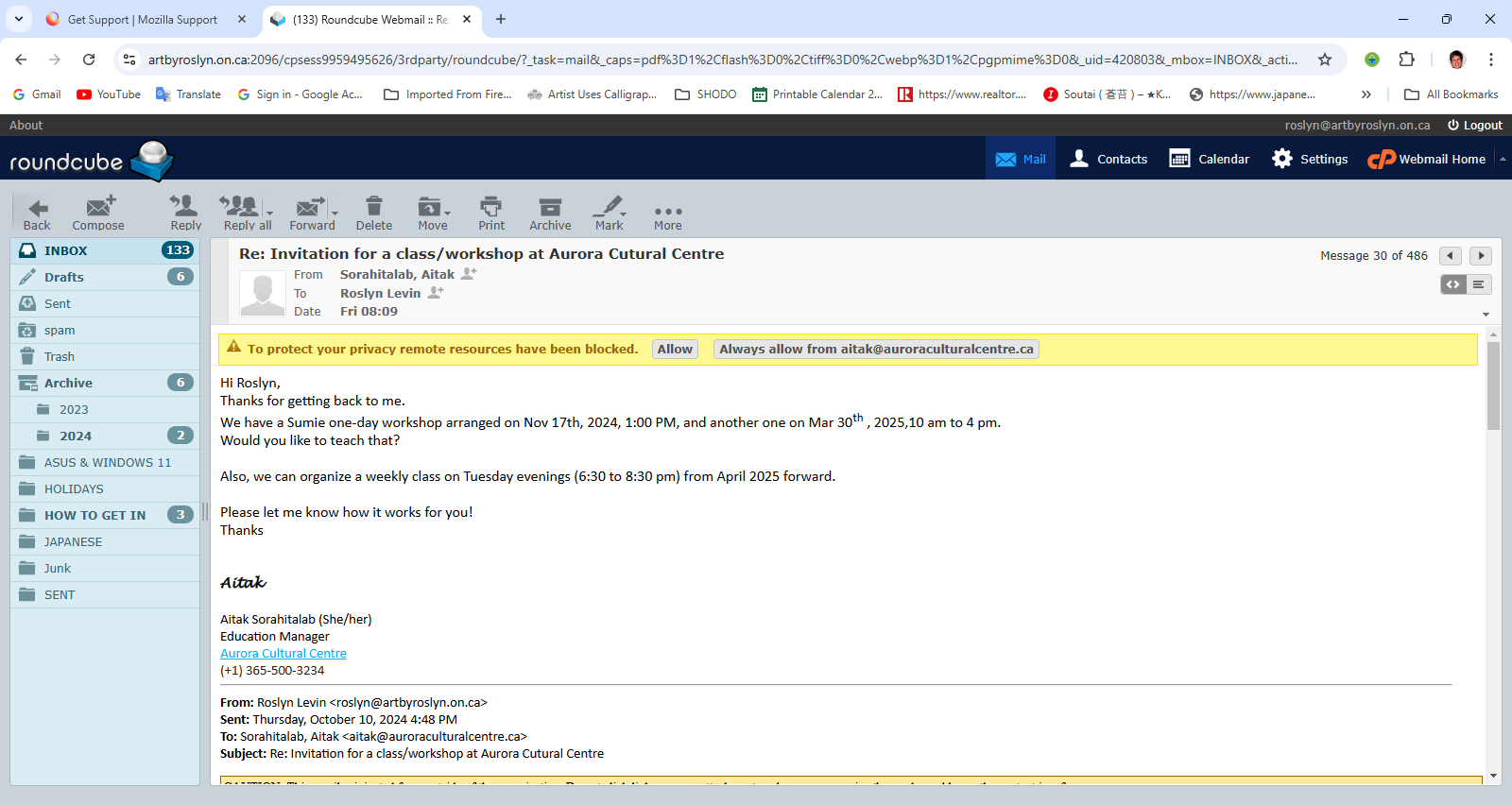
Yet when I open the same email using a path through my website host rather than Thunderbird, I get the message that is in the body instead!
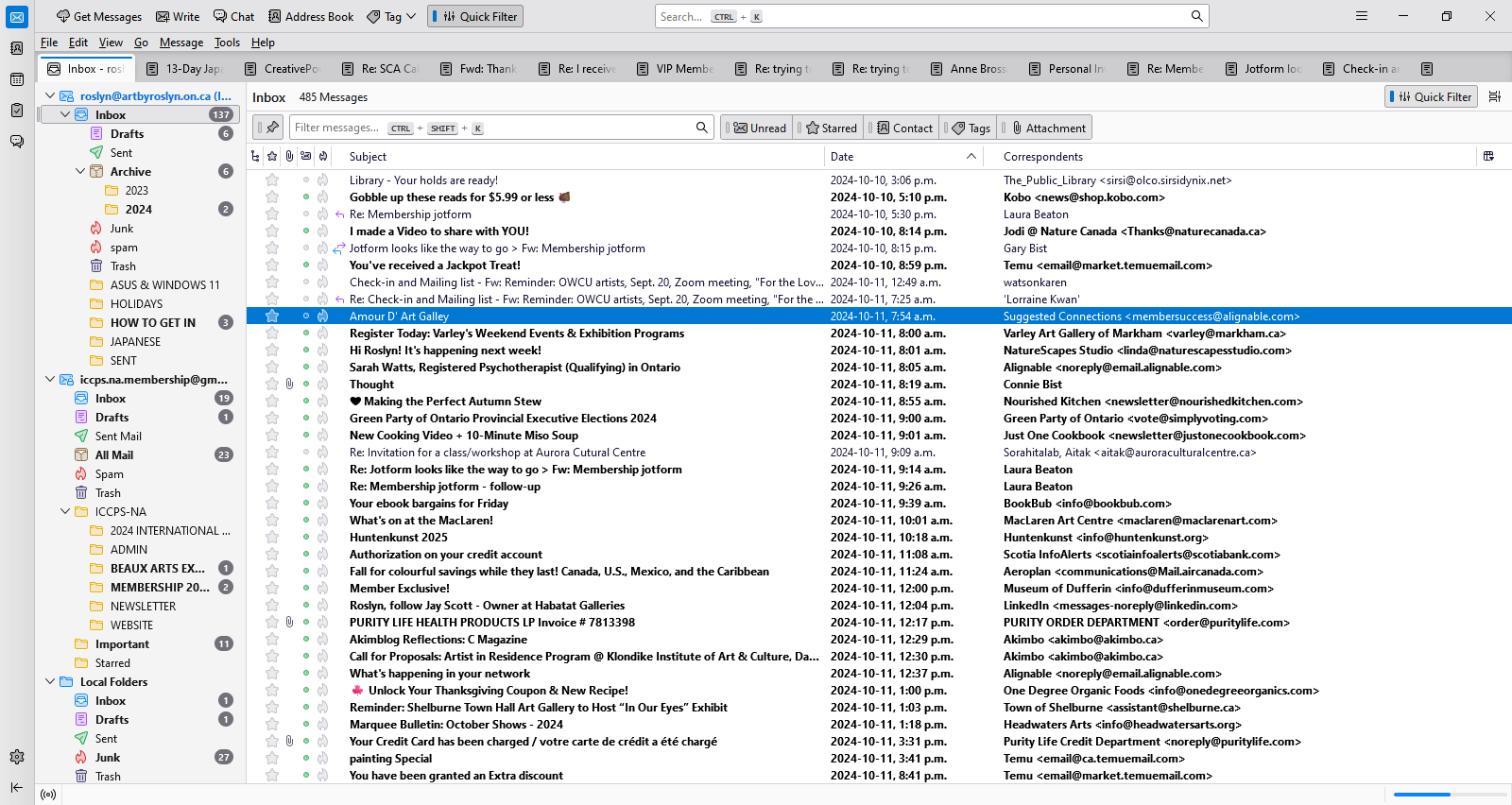
I have attached 3 screenshots. The first shows the email I wish to open The second shows what the email looks like in Thunderbird, when open. The third shows the same email when opened through my website host email program.
How can I fix Thunderbird so it works properly again? Blessings, Roslyn
Chosen solution
Thank you David I read your reply too quickly and totally missed the click on Properties bit.
It appears to have worked!
Read this answer in context 👍 0All Replies (5)
try this: - highlight folder, rightclick and select properties and then select repair
Hi David I tried what you suggest and the word 'repair' does not appear I tried it as well on one of the troubling emails and again, the word 'repair' does not appear.
Any other suggestions? Thank you, Roslyn
You are to highlight the message folder, not the message itself. Then, rightclick, select properties and then repair.
Chosen Solution
Thank you David I read your reply too quickly and totally missed the click on Properties bit.
It appears to have worked!
I was glad to assist. :)