


How can I replace to ">" button usage for overflown tabs with a new tab-bar to capture overflown tabs underneath a full tab-bar?

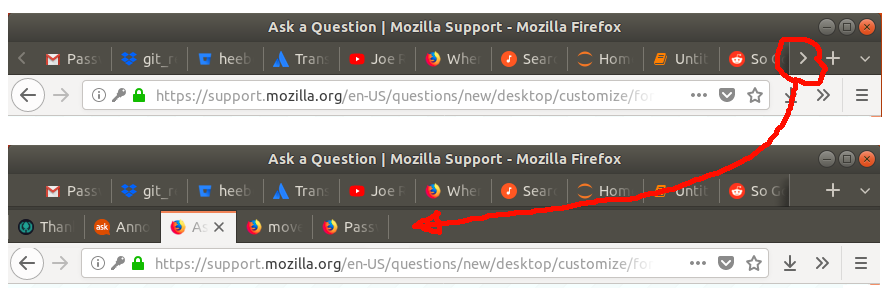
I am looking for a way to be able to see all open tabs without any tab hiding behind a "more tabs" type of button. Is there a way to generate a new tab-bar underneath the top tab-bar when the top bar gets filled, in order to capture the overflow?
Chosen solution
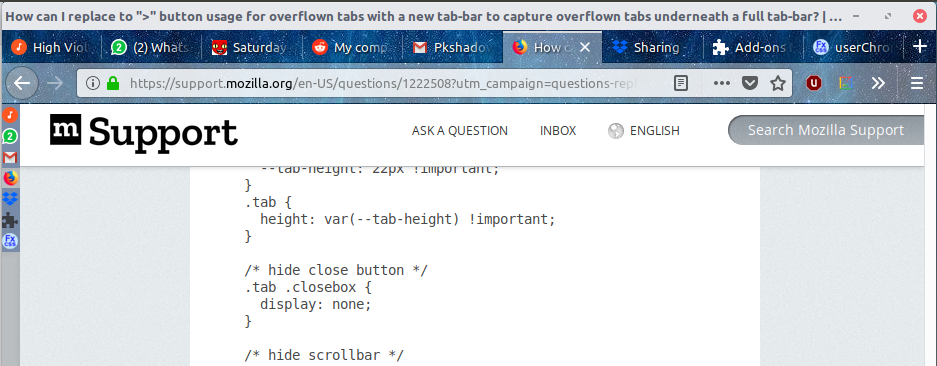
The best substitute for a solution I could find was to allow a thin bar of website icons tabs on the left of the browser. I successfully did this by adjusting the approach from https://www.reddit.com/r/FirefoxCSS/comments/7emhsq/my_compact_treestyletab_css_and_sidebar_hover/ :
A: Install and setup Tree-Tabs add-on to be as thin and slick as possible:
- Install https://addons.mozilla.org/en-US/firefox/addon/tree-style-tab/
- Set "indent tabs until" to "0" in about:addons -> Tree Style Tab -> preferences
- Inject the following settings into the text-box in about:addons -> Tree Style Tab -> preferences -> Advanced -> Extra style rules...
       :root {
           --color-background: rgba(120,140,170,1); /*choose according to color theme*/
           --color-transparent: rgba(0,0,0,0);
       }

       /* ################################################ */
       /* ##### SPACIAL SETTINGS ######################### */
       /* ################################################ */

       /* change tab height */
       :root {
         --tab-height: 22px !important;
       }
       .tab {
         height: var(--tab-height) !important;
       }

       /* hide close button */
       .tab .closebox {
         display: none;
       }

       /* hide scrollbar */
       #tabbar {
         overflow-y: scroll;
       }

       :root.left #tabbar,
       #tabContextMenu,
       #tabContextMenu ul {
         margin-left: -19px;
       }

       /* Hide .twisty and adjust margins so favicons go to the left. */
       .tab .twisty {
           visibility: hidden;
           margin-left: -12px;
       }

       /* Hide 'new tab' button. */
       .newtab-button {
           display: none;
       }

       /* ################################################ */
       /* ##### COLOR SETTINGS ########################### */
       /* ################################################ */
       .tab {
           background-color: var(--color-background);
           border-color: var(--color-transparent);
       }
       .tab:hover {
           background-color: var(--color-transparent);
           color: var(--color-transparent);
       }
       .tab.active {
           background-color: var(--color-transparent);
       }


       /* Rotate tab that has sound playing and make muted tabs transparent. */
       @keyframes spin {
           0% { transform: rotate(0deg); }
           100% { transform: rotate(360deg);}
       }
       .tab.sound-playing .favicon {
           animation: spin 7s linear 0s infinite;
       }
       .tab.muted {
           opacity: 0.5;
       }
B: Now add the ability to make the sidebar as narrow as the icons:
- Create a userChrome.css file: on linux under ~/.mozilla/firefox/<number>.default/chrome/userChrome.css, for other platforms see https://www.userchrome.org/
- Fill the file with the following code:
       /* Sidebar min and max width removal */
       #sidebar {
           max-width: none !important;
           min-width: 18px !important;
       }
       /* Hide splitter, when using Tree Style Tab. */
       #sidebar-box[sidebarcommand="treestyletab_piro_sakura_ne_jp-sidebar-action"] + #sidebar-splitter {
           display: none !important;
       }
       /* Hide sidebar header, when using Tree Style Tab. */
       #sidebar-box[sidebarcommand="treestyletab_piro_sakura_ne_jp-sidebar-action"] #sidebar-header {
           visibility: collapse;
       }
       /* Shrink sidebar until hovered, when using Tree Style Tab. */
       #sidebar-box[sidebarcommand="treestyletab_piro_sakura_ne_jp-sidebar-action"]{
           min-width: 18px !important;
           max-width: 18px !important;
       }
Read this answer in context
👍 0
All Replies (4)
Sorta but not really.
- https://addons.mozilla.org/en-GB/firefox/addon/tree-tabs/
- https://addons.mozilla.org/en-GB/firefox/addon/all-tabs-helper/
Please let us know if this solved your issue or if need further assistance.
The tree-tabs helper was the closest to a solution, but it takes up so much real estate on my interface. I "solved" this by adding the ability to make the sidebar arbitrarily narrow through adding this file:
~/.mozilla/firefox/<number>.default/chrome/userChrome.css
and fill it with the following:
   #sidebar-box {
       overflow-x: hidden !important;
   }
    #sidebar {
       min-width: 0px !important;
       max-width: none !important;
       overflow-x: hidden !important;
   }
Modified by heetbeet
Hi, please mark "your" answer as the solution. Glad you found something.
Chosen Solution
The best substitute for a solution I could find was to allow a thin bar of website icons tabs on the left of the browser. I successfully did this by adjusting the approach from https://www.reddit.com/r/FirefoxCSS/comments/7emhsq/my_compact_treestyletab_css_and_sidebar_hover/ :
A: Install and setup Tree-Tabs add-on to be as thin and slick as possible:
- Install https://addons.mozilla.org/en-US/firefox/addon/tree-style-tab/
- Set "indent tabs until" to "0" in about:addons -> Tree Style Tab -> preferences
- Inject the following settings into the text-box in about:addons -> Tree Style Tab -> preferences -> Advanced -> Extra style rules...
       :root {
           --color-background: rgba(120,140,170,1); /*choose according to color theme*/
           --color-transparent: rgba(0,0,0,0);
       }

       /* ################################################ */
       /* ##### SPACIAL SETTINGS ######################### */
       /* ################################################ */

       /* change tab height */
       :root {
         --tab-height: 22px !important;
       }
       .tab {
         height: var(--tab-height) !important;
       }

       /* hide close button */
       .tab .closebox {
         display: none;
       }

       /* hide scrollbar */
       #tabbar {
         overflow-y: scroll;
       }

       :root.left #tabbar,
       #tabContextMenu,
       #tabContextMenu ul {
         margin-left: -19px;
       }

       /* Hide .twisty and adjust margins so favicons go to the left. */
       .tab .twisty {
           visibility: hidden;
           margin-left: -12px;
       }

       /* Hide 'new tab' button. */
       .newtab-button {
           display: none;
       }

       /* ################################################ */
       /* ##### COLOR SETTINGS ########################### */
       /* ################################################ */
       .tab {
           background-color: var(--color-background);
           border-color: var(--color-transparent);
       }
       .tab:hover {
           background-color: var(--color-transparent);
           color: var(--color-transparent);
       }
       .tab.active {
           background-color: var(--color-transparent);
       }


       /* Rotate tab that has sound playing and make muted tabs transparent. */
       @keyframes spin {
           0% { transform: rotate(0deg); }
           100% { transform: rotate(360deg);}
       }
       .tab.sound-playing .favicon {
           animation: spin 7s linear 0s infinite;
       }
       .tab.muted {
           opacity: 0.5;
       }
B: Now add the ability to make the sidebar as narrow as the icons:
- Create a userChrome.css file: on linux under ~/.mozilla/firefox/<number>.default/chrome/userChrome.css, for other platforms see https://www.userchrome.org/
- Fill the file with the following code:
       /* Sidebar min and max width removal */
       #sidebar {
           max-width: none !important;
           min-width: 18px !important;
       }
       /* Hide splitter, when using Tree Style Tab. */
       #sidebar-box[sidebarcommand="treestyletab_piro_sakura_ne_jp-sidebar-action"] + #sidebar-splitter {
           display: none !important;
       }
       /* Hide sidebar header, when using Tree Style Tab. */
       #sidebar-box[sidebarcommand="treestyletab_piro_sakura_ne_jp-sidebar-action"] #sidebar-header {
           visibility: collapse;
       }
       /* Shrink sidebar until hovered, when using Tree Style Tab. */
       #sidebar-box[sidebarcommand="treestyletab_piro_sakura_ne_jp-sidebar-action"]{
           min-width: 18px !important;
           max-width: 18px !important;
       }
Modified by heetbeet