


userChrome.css with code for permanently opened findbar don't work in FF15

Hello, as described somewhere in web I tried to have a permanently opened findbar: - copied userChrome-example.css to <myprofile>/chrome/userChrome.css - added code .findbar-container > * { display: -moz-box !important; } - restarted firefox but it don't work.
I also tried: - different code: #FindToolbar { display: -moz-box !important; } - about:config with accessibility.typeaheadfind;true accessibility.typeaheadfind.autostart;true - did everything in a default profile without any add-ons (FF 15) nothing works.
firefox -P <myprofile> -new-instance -jsconsole shows no error. other code in userChrome.css works
Any idea?
All Replies (8)
It is easy to turn it on. Use Ctrl-F.
yeah, I know this short-key
but I want to have the findbar openened from the beginning and in the past the code worked
so any further ideas?
You probably need to make your rule more specific due to the way CSS prioritizes conflicting style rules. Try this:
#FindToolbar[hidden="true"] {display: -moz-box !important;}
If you have an otherwise blank userChrome.css file, this needs to go at the top:
@namespace url(http://www.mozilla.org/keymaster/gatekeeper/there.is.only.xul);
If you find that you are tinkering with style rules a lot, try the Stylish extension; it has a Preview button which is way faster than repeatedly restarting Firefox. https://addons.mozilla.org/en-US/fire.../stylish/
Hi Jefferson,
thanks also for your reply.
I tried
- FindToolbar[hidden="true"] {display: -moz-box !important;}
and .findbar-container[hidden="true"] > * {display: -moz-box !important;} both don't work.
My @namespace url is OK.
I'm getting frustrated...
Is there a way to debug css?
The proper code would be this.
#FindToolbar {display: -moz-box!mportant;}
It doesn't work though and I do not see the find bar in the DOM Inspector until I open that bar manually and then the code works and the find bar can't be closed.
So I'm afraid that it is no longer possible to achieve this with code in userChrome.css and you will need an extension.
- Find Toolbar Tweaks: https://addons.mozilla.org/firefox/addon/find-toolbar-tweaks/
Modified by cor-el
I tested my rule in Stylish and it worked for me. I don't know whether I have some other special setting that makes it work.
(I can restart in a blank profile and see whether it works...)
Edit: My rule works once the Find toolbar has been displayed at least once. It doesn't work "out of the box" because the hidden attribute is not set at startup.
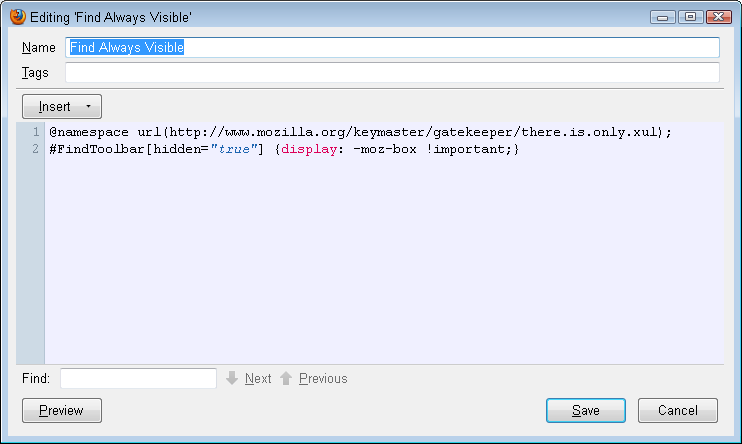
Modified by jscher2000 - Support Volunteer
The Find toolbar isn't in the DOM when you start Firefox, so you will never succeed in displaying it unless you run code in an extension at startup to show the Find bar (gFindBar.onFindCommand();).
Hi cor-el,
I'll try to use userChrome.js and code 'gFindBar.onFindCommand();'
found a hit on this: http://forum.userstyles.org/discussion/16909/is-there-anyway-to-make-the-find-bar-always-show-when-firefox-starts/p1
test needs some time, cause I'm away for a while