


Copying Thunderbird to new laptop

Hello. I have followed the instructions to copy the profile file to a drive and take it to the new computer so my Thunderbird will be the same on both laptops.
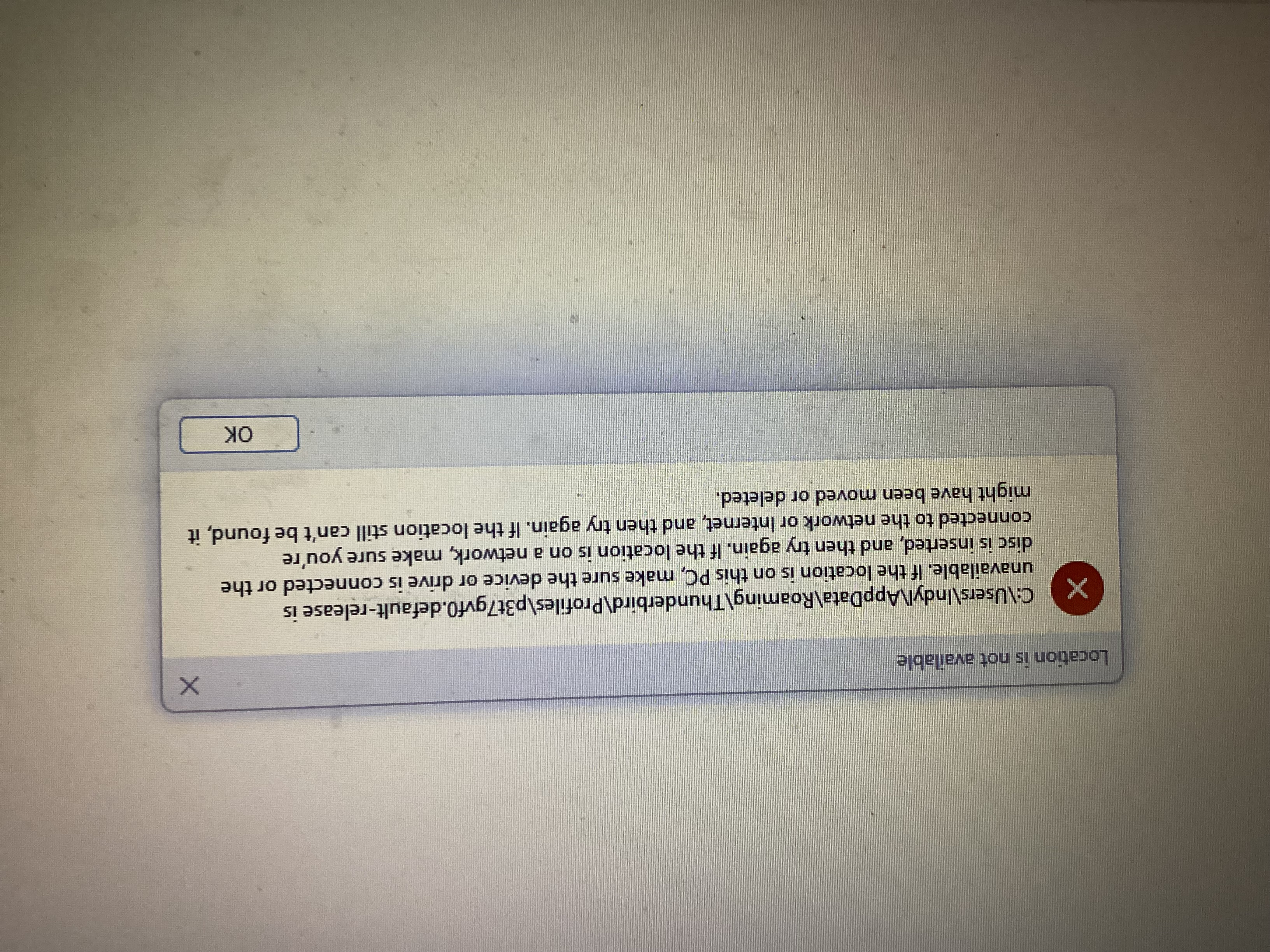
BUT I get a message that the profile file is not available. And I searched for the file by name and found nothing!
The actual message is attached.
I need to copy my emails to the new laptop.
All Replies (3)

Try this; it preserves your whole existing setup.
1. Copy TB files from the old PC
- launch TB on the old PC
- go to TB menu > Help > Troubleshooting Information
- click the Application Basics > Profile Folder 'Open Folder' button
- the profile folder will open
- navigate three levels up to the AppData\Roaming folder
- close TB
- copy the AppData\Roaming\Thunderbird folder to a flash drive
---
2. Paste the copied TB files to the new PC
- open the AppData\Roaming folder on the new PC like you did above
- delete the Thunderbird folder
- replace it with the Thunderbird folder from the flash drive
- launch TB
Hi Ed,
Your response is good but I attached the message which says it cannot find my Profile File! See my original post.
I have searched all the c drive on the old laptop and cannot find the file.
Lucille
Indylu7 said
Hi Ed, Your response is good but I attached the message which says it cannot find my Profile File! See my original post. I have searched all the c drive on the old laptop and cannot find the file. Lucille
Did you install TB on the new PC before you tried to copy the profile over? If so, you should at least see C:\Users\Indyl\AppData\Roaming\Thunderbird. If so, that's what you want to remove and replace.
If you don't see C:\Users\Indyl\AppData\Roaming\Thunderbird and you have installed TB, uninstall it > reinstall it > let it create a new profile (set it up as minimally as possible), then do the procedure I mentioned.