


Help with Thunderbird pls

Hi! I am trying to use the Thunderbird application to help me view a huge '.mbox' file from an email account that is no longer active. I have the entire file saved to my computer as I downloaded it before the account was closed. Can you help me access those files? I am working on a huge project and really need to look for date sand times of emails sent in the mailbox so that i can piece together the timeline of the project. I would greatly appreciate this!!!
All Replies (12)

Hi Chris,
The process is simple. It will take a little effort if you are new to Thunderbird. Conceptually:
- Find your profile folder, then the local folders directory of it.
- Copy your mbox file into that directory.
To find your profile folder:
- Open Thunderbird.
- Help menu in the application menu or click on the ≡ button at top right then "Help" > Troubleshooting information > Profile Folder > Show in [...]
- Navigate to the "Mail" folder, then to the "Local Folders" folder within it. That's your destination.
Now:
- Close Thunderbird.
- Copy your mbox file to that "Local Folders" directory.
- Open Thunberbird and look in the Local Folders account for that folder of imported messages.
Hi Rick! Thanks for the reply. It's still giving me the same error message. I even closed the app and re opened it and it still says the same message. Is there something I'm doing wrong? BTW thanks for the very clear instructions you made it very easy to follow along.
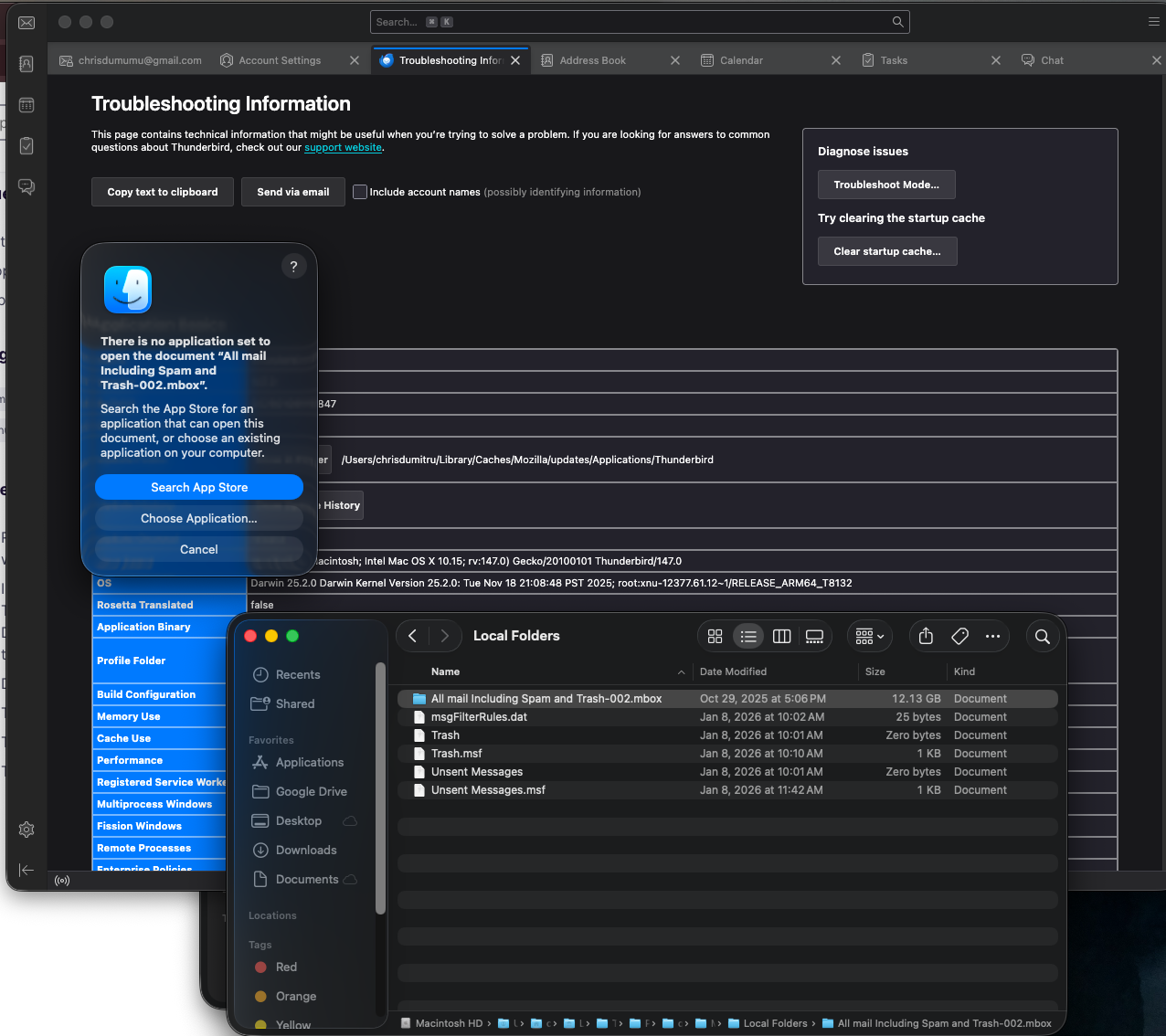
Modified by Chris Dumitru
Oh, I left out one important instruction: remove the file extension (.mbox).
You don't want to open this file. Just open Thunderbird.
Did you copy the mbox file (and not move it)? Copying is better.
By the way, did you really want your allmail folder? You could have gotten more and smaller mbox files from Google Takeout and separate trash and spam files, so you would not have to import everything into Thunderbird. But your gmail account is no longer active, so you don't have that option now?
I am still having trouble opening this :/ I've removed the extension.mbox and still nothing. Same thing pops on my screen as before. And yeah I no longer have access to that account to separate everything out. Are you able to call me about this tomorrow?
Hi Chris,
Support by phone is not available.
If that same message is popping up, then you must be trying to open the file. You don't want to open the file.
Let's start by describing the current situation and go a step at a time. Please confirm or deny each of my statements/questions about what you have done.
You got a file from Google takeout. It was compressed (zipped), right? Did you unzip it?
Then you had an mbox file with a filename extension. You removed that extension, right? If you "get info" (command-I) on that file, does the window that appears show that there is an extension but it is hidden or does it show that there is no extension?
Then you copied that file into a Thunderbird profile, right?
The full path to that file should now be ~/Library/Thunderbird/Profiles/[name of preferrred profile]/Mail/Local Folders
Is that where your file is?
If you have done all these things and that is where your profile is, what have you tried to do next?
1-yeah i unzipped the file 2-photo attached is what happens when i command i the file 3- im still going through the help/troubleshooting info/profile folder(show in finder)/ then click the file 'qjit802x.default-release', then click 'mail', then 'local folders', then the file 'All mail Including Spam and Trash-002" which then shows the pop up "There is no application set to open the document “All mail Including Spam and Trash-002”."
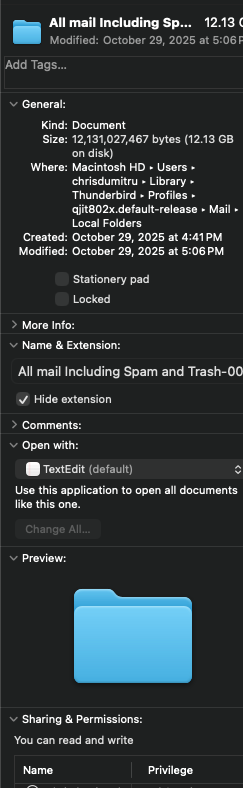
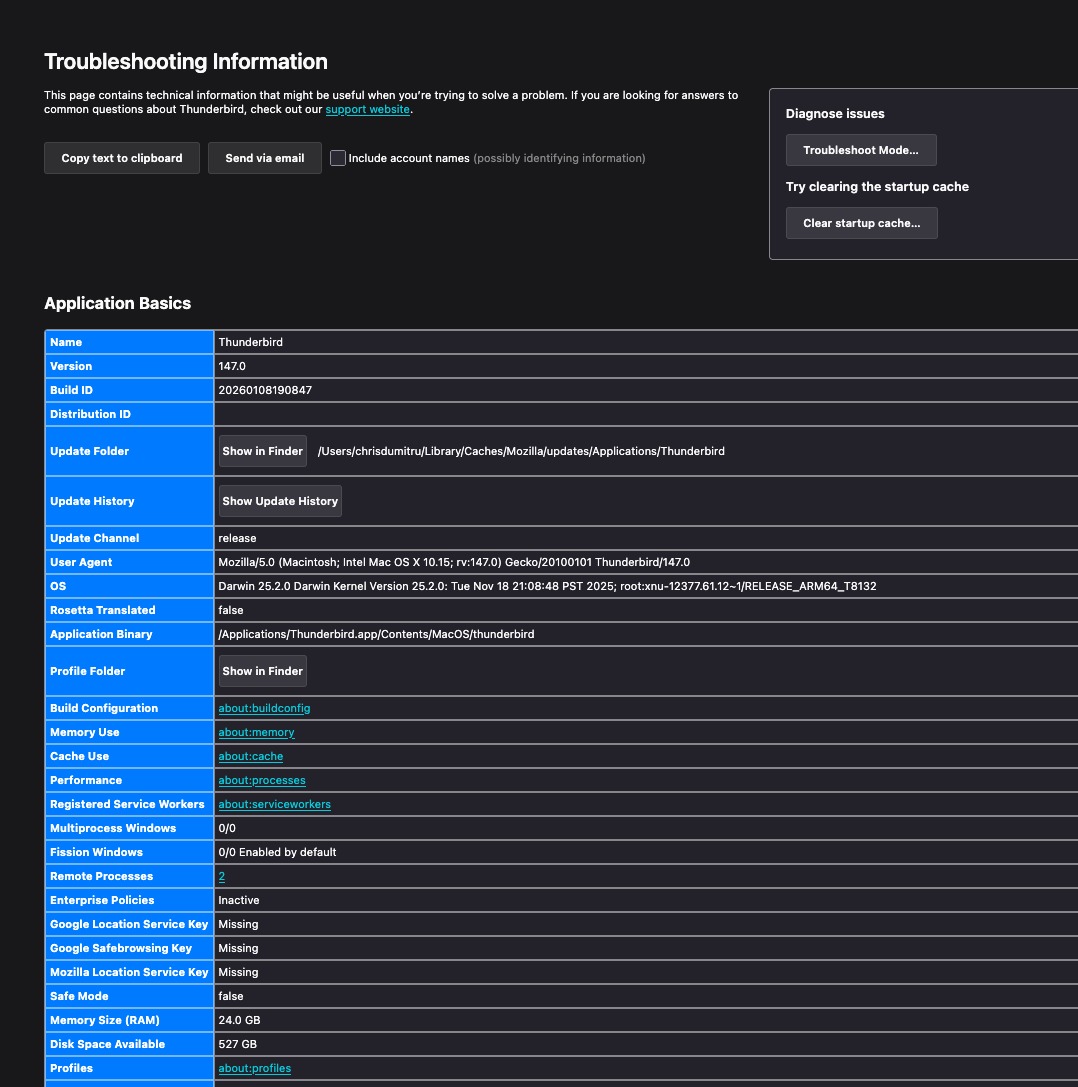
Hi Chris, please open the folder "All mail including Spam and Trash-002.mbox" and show a screenshot of its contents. This is a folder and not an mbox file, so you should be able to display its contents.
Mapenzi, macOS gives files with an .mbox extension a folder icon. I don't think that file is a folder. Note that get info calls it a "document" and has TextEdit as the default application. It's an mbox file from gmail takeout. The "get info" window that Chris posted shows that the extension is hidden.
Chris, "get info" on that file again. Turn off "hide extension", then click on the file name and delete the period and everything that comes after it.
Apparently, that file is already in your local folders directory, so all you have to do next is re-start Thunderbird and give it some time to index all the messages in that huge file.
It should be that simple, but I have seen it fail occasionally. Let us know if you can see that file/folder within Thunderbird.
Rick said
Mapenzi, macOS gives files with an .mbox extension a folder icon.
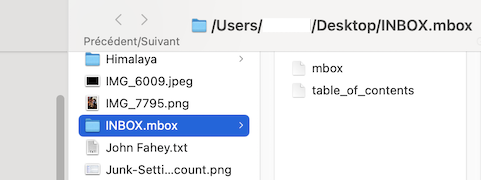
This is rather odd and it didn't strike me before, although when I export an Inbox folder from Apple Mail I always get an INBOX.mbox document with a folder icon on my Desktop. And when I double-click on INBOX.mbox its contents are an mbox file and an index file (image)
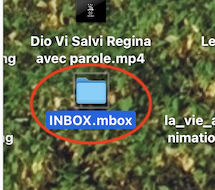
Modified by Mapenzi