


message grouping display

I recently updated from Windows 10 to Windows 11 and have been using Thunderbird for my 4 email accounts for about a decade. Since the update, all my sent messages have a > sign next to them which I have to click on to view the various messages sent to the same person, with the latest message chronologically displayed near the bottom of the grouping. My thread option has been unselected. This is a new and unwanted layout and I only wish to see my emails displayed individually and chronologically, with the most recent near the top. How do I remove these groupings with the > icons and just see each message displayed individually? My frantic research only points to installing/selecting an 'add on' perhaps. I just want to see my sent emails individually like I have for the last decade as well as in my folders from previous years. SEND HELP!
Chosen solution
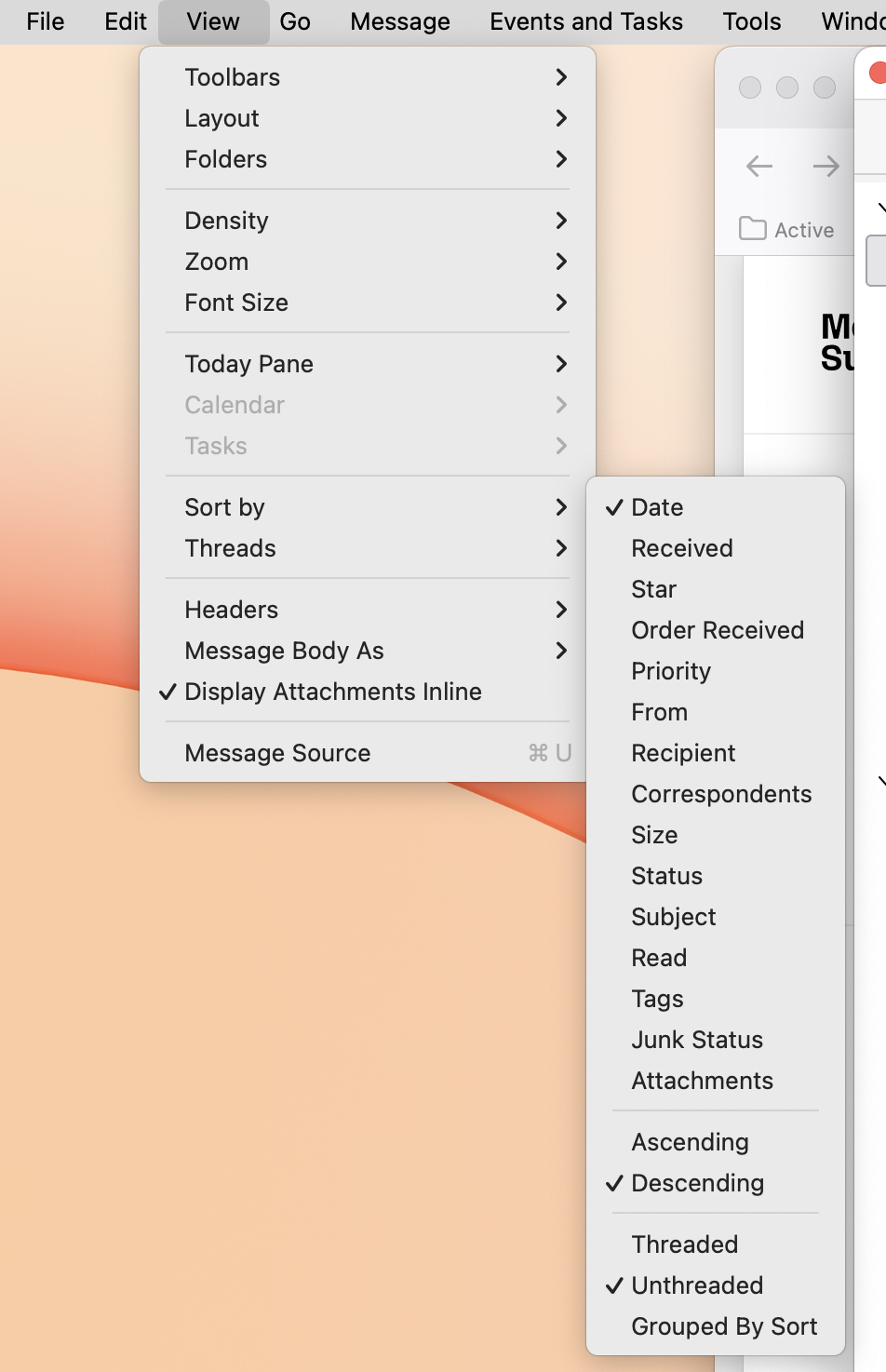
Again: Select a folder with a threaded view. Then: View > Sort by > Unthreaded
Not View > Threads
Read this answer in context 👍 0All Replies (9)

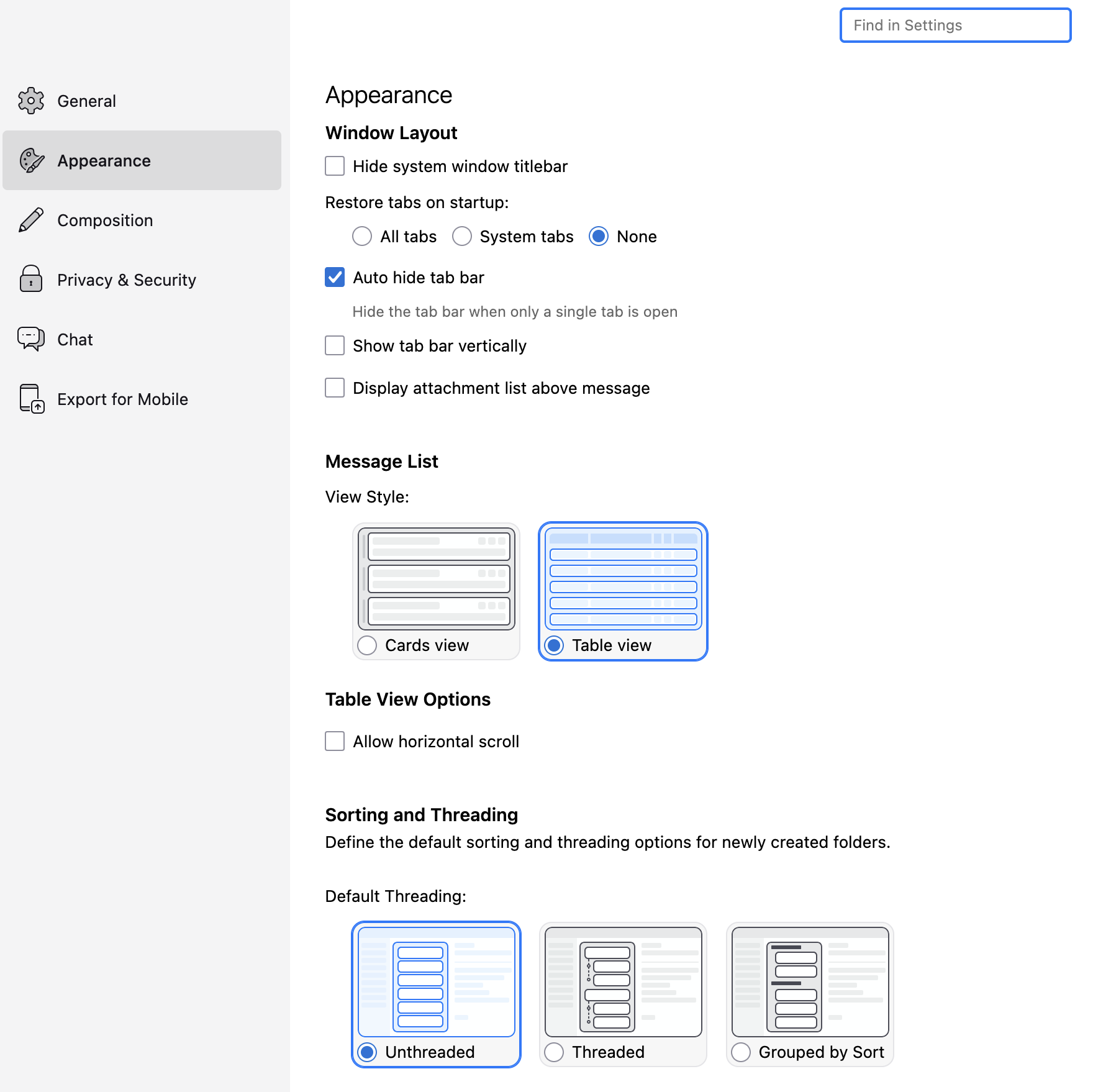
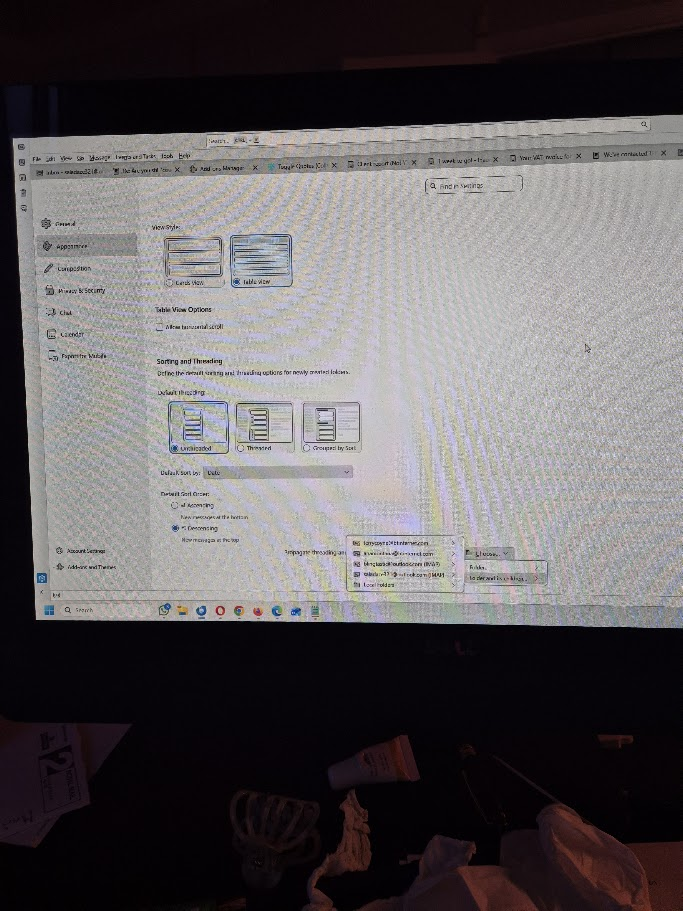
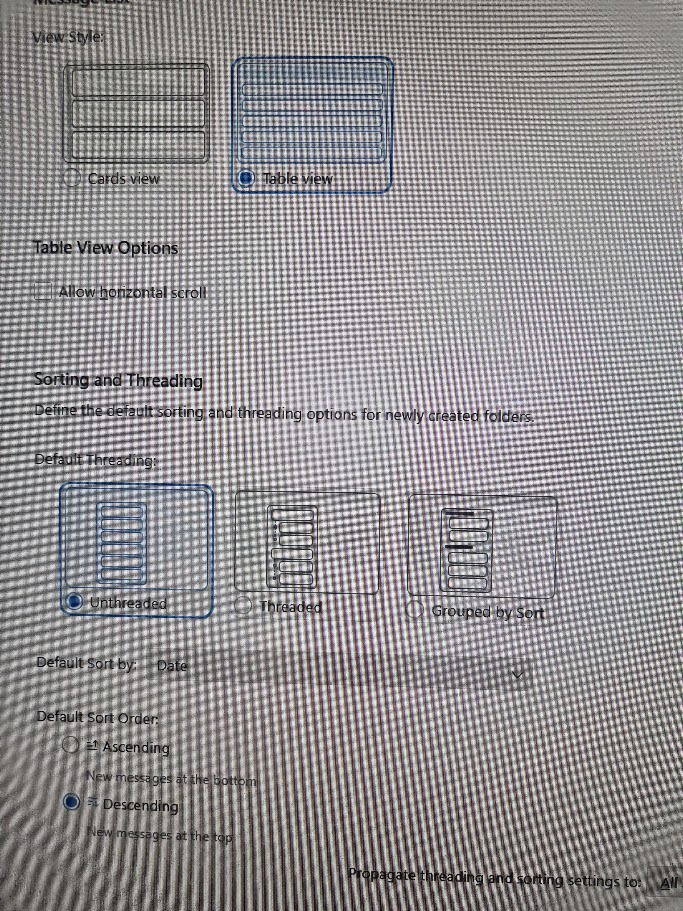
- Change the default setting to unthreaded for new folders in Settings > Appearance.
- Change one of the existing folders in View > Sort by > Unthreaded.
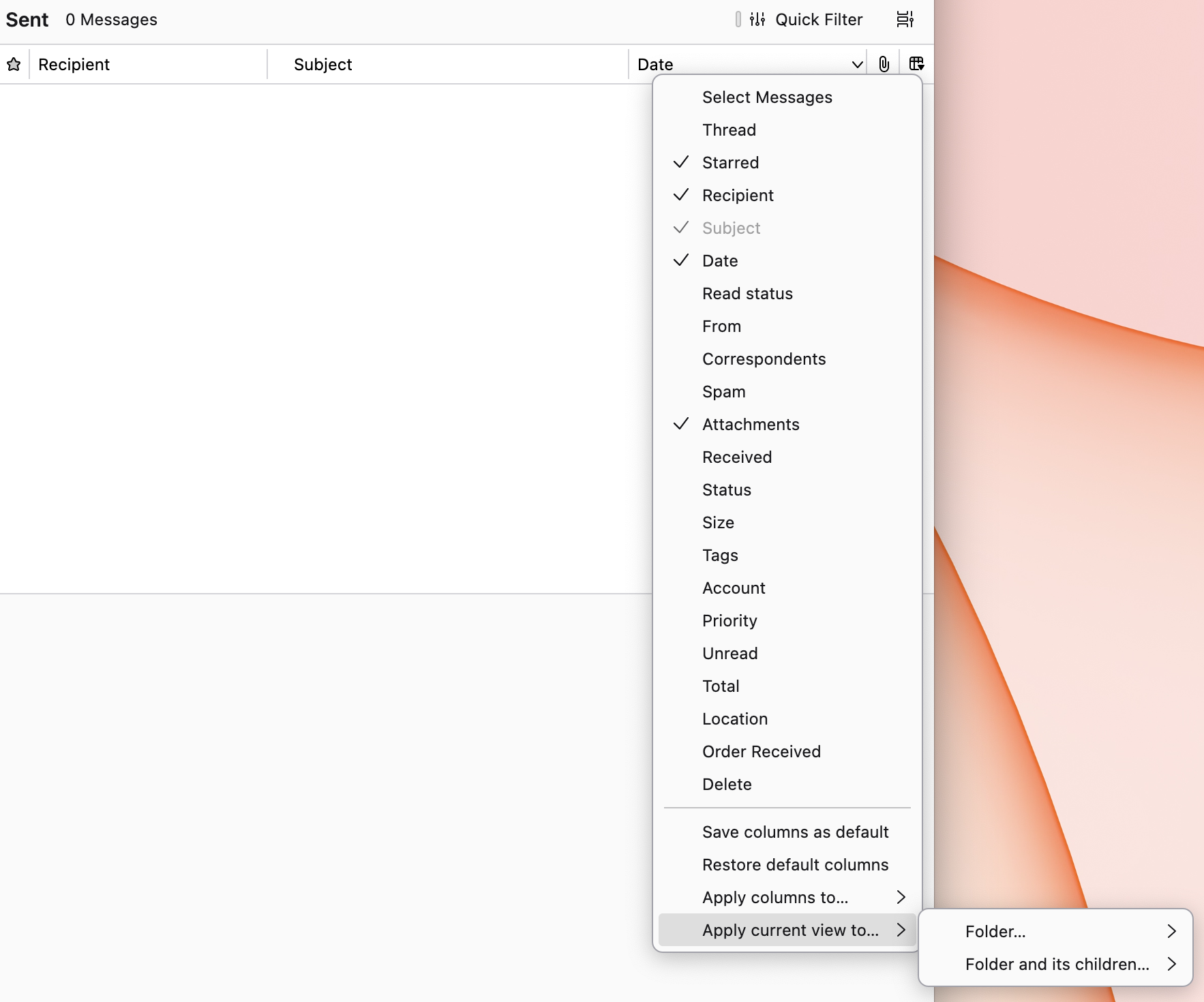
- Copy that setting to other existing folders by clicking on the icon on the far right of the column headings in table view and choosing "Copy current view to".
Modified by Rick
Hi Rick, Thank you for your very prompt reply! I am obvs technically challenged, as I have tried this, but nothing changes... Would you be able to show screenshots of the steps please? Sorry for the hassle Many thanks, Sal
saladaze321 said
Hi Rick, Thank you for your very prompt reply! I am obvs technically challenged, as I have tried this, but nothing changes... Would you be able to show screenshots of the steps please? Sorry for the hassle Many thanks, Sal
Attached.
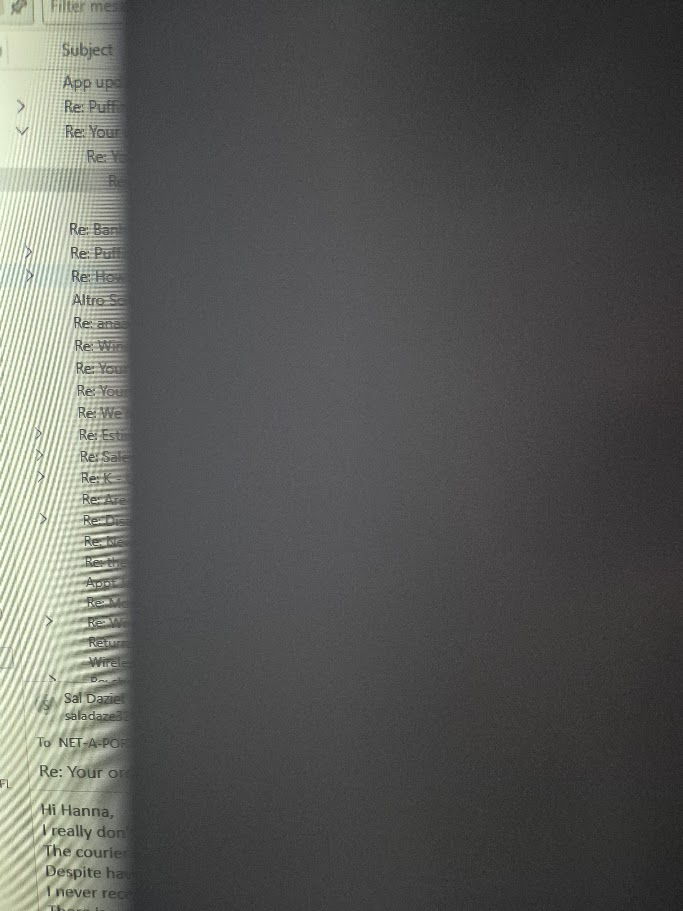
I should have also said: what you are seeing is a threaded view. My suggested steps turn off threading for new folders and change your current views to unthreaded.
Hi again Rick, Thanks for prompt reply again:) As I said in my original post, the THREADED option is unselected in all four email addresses and the thread icon is not visible. However, I cannot get rid of the > sign in the first column after attachments and there does not appear to be a way to select/unselect this icon. Thank you
Where is the threaded option unselected?
Your sent messages are threaded. Have you changed the View > Sort by setting in that folder to unthreaded?
Would you please post a screen image?
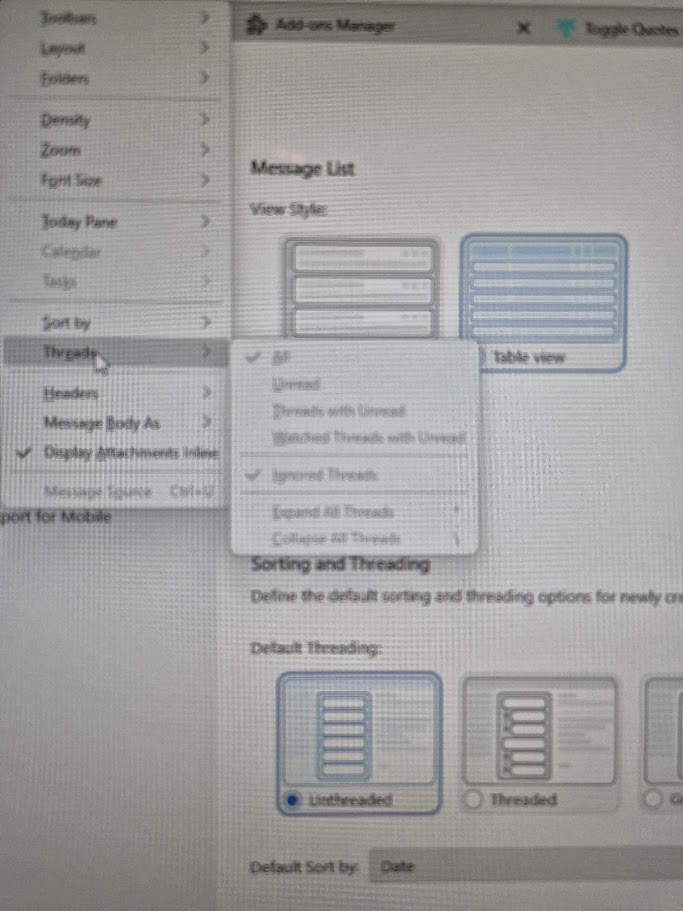
Hi, Pardon the poor quality of the photos, hope you can make out the images. I'm in the UK btw. Thank you
Chosen Solution
Again: Select a folder with a threaded view. Then: View > Sort by > Unthreaded
Not View > Threads
Yay, this worked. Sorry if I'm a bit slow, excellent and thank you for your persistence and patience:)
You're welcome and you're fine. Sorry that I'm feeling impatient today. It's probably time for a break from support.