


Release 139.0.2 (64-bit) does not bring my prior account information and files forward.

I just installed this release and it set me up as a completely new user. It did not bring anything forward from my existing release 128.11.1esr (64-bit).
Chosen solution
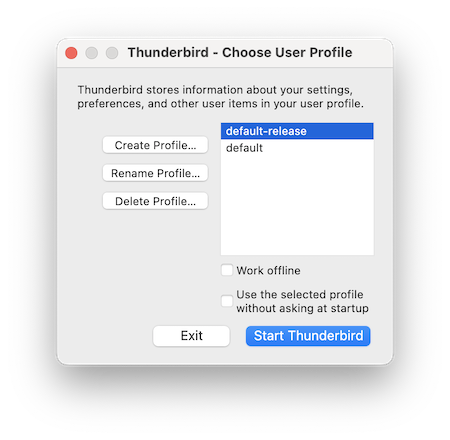
First make a backup copy of your actual profile folder. Then - Thunderbird closed - start the Thunderbird profile manager as described here https://support.mozilla.org/en-US/kb/profile-manager-create-and-remove-thunderbird-profiles#w_start-the-profile-manager-when-thunderbird-is-closed In the profile manager box select the name of your old profile and click "Start Thunderbird" (see image) The name of your old profile probably is default-esr
Read this answer in context 👍 0All Replies (15)
When you open Thunderbird do you see the following window (see picture) with a demand to "Set Up Your Existing Email Address"?
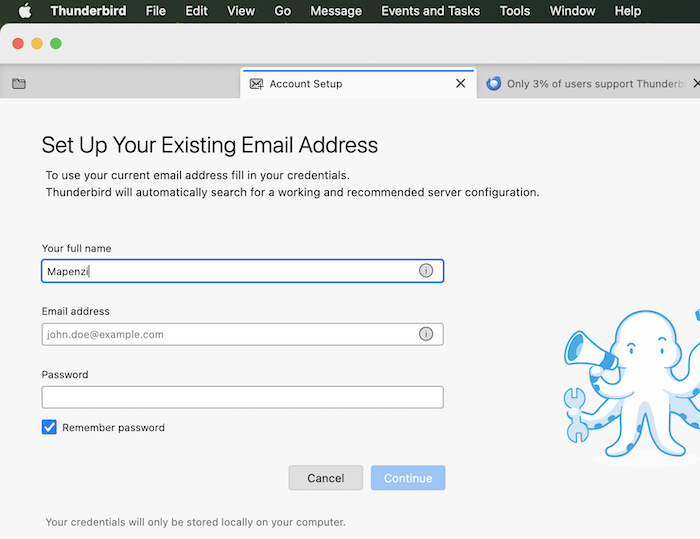
Yes it does.

Help > Troubleshooting Information > go to and click on About:Profiles
Which profile name shows as "Default Profile ... yes" ?
Is a "default-release" shown?
Is there a "Set as default profile" button below it? If so, click it and restart Thunderbird
Modified by Wayne Mery
I just did a test: start TB 139.0.2 in a profile which had been used by TB 128.11.1esr and the old profile opened without any problem in the higher version. So I think that the prefs.js file in your profile is gone corrupt. This file contains all account settings and when it is damaged TB renames it in prefs-x.js and creates a new virgin prefs.js file which doesn't contain any account setting. Since TB on startup doesn't find any of your accounts you see this invitation to setup your existing email address.
Go to Help > Troubleshooting information > Profile folder > Open folder, then quit TB. In the profile folder search for a prefs-1.js (or invalidprefs.js) file with the actual date. If the new prefs.js file has a size of 6 to 7 kB (much less than a prefs-1.js size of 30 to 50 kB) my diagnostic of a corrupt prefs.js file is confirmed. If you have a recent backup copy of your Thunderbird profile the solution is simple: copy the prefs.js file from the backup and - Thunderbird closed - paste it in the actual profile folder, thus replacing the present prefs.js file.
Mapenzi said
So I think that the prefs.js file in your profile is gone corrupt.
We should not assume this until we know whether the proper THunderbird profile directory is being used.
A related question to the reporter - did you at some point set the profile directory location to something other than default?
I found my active profile on the old version. Made it the default and no change. The new version wanted to set me up as a new user.
"So I think that the prefs.js file in your profile is gone corrupt. " Then is my old version running just fine???
Alos, I recently upgraded from Win 10 to Win 11...
Wayne Mery said
We should not assume this until we know whether the proper THunderbird profile directory is being used.
You're right, Wayne! I just repeated my test but with a newly created 128.11.1esr profile which I then started with TB 193.0.2 To my surprise TB opened the same window as shown in my first reply. So TB really had created a new profile. I then started the profile manager, choose the 128.11.1esr profile and everything was there in version 139.0.2
From this, I am not sure what to do. Also, why didn't the update find my prior release and replace it?
In the new account setup screen, you should allow the customer to import an export.zip file...
dasSchramm said
Also, why didn't the update find my prior release and replace it?
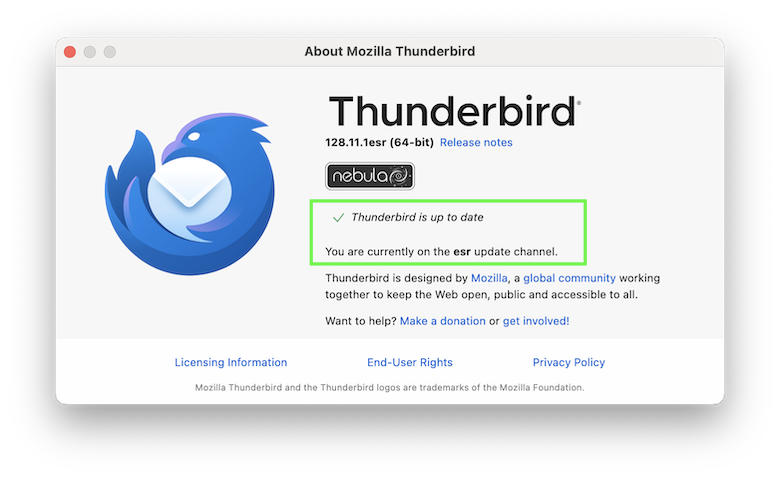
How did you "update" from v128.11.1esr to v139.0.2? As a matter of fact actually you cannot update from v128.11.1esr because this in the newest (latest) version in the esr update channel (see image) So, did you download and install v139.0.2 and then started it in your old profile?
Modified by Mapenzi
I did not know there was any distinction between the two names. Yes I did download and install the 139 version. As noted, it has not recognized my old profile.
Chosen Solution
First make a backup copy of your actual profile folder. Then - Thunderbird closed - start the Thunderbird profile manager as described here https://support.mozilla.org/en-US/kb/profile-manager-create-and-remove-thunderbird-profiles#w_start-the-profile-manager-when-thunderbird-is-closed In the profile manager box select the name of your old profile and click "Start Thunderbird" (see image) The name of your old profile probably is default-esr
Modified by Mapenzi