Colored icons for folders
Dear Sirs,
Is there any possibility to have the colored icons back in Thunderbird 78.x?
It helped me a lot to differentiate between folders and other stuff. Now with the black and white display only, it is for me more difficult.
Sincerely,
Jens Wickinger
All Replies (36)
Thanks Toad-Hall I have added the phoenity icons extension and now the folders look so much better, just like Thunderbird 68 , and so much easier !
Friends, please help! I wrote above, help with the folder color settings, it does not work.
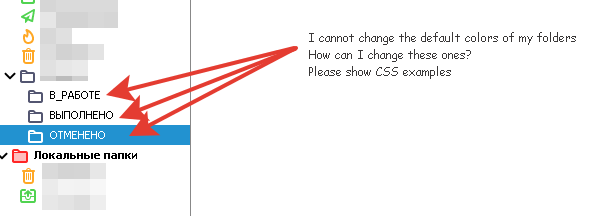
Modified by eav

Toad-Hall said
There is an addon that offers some coloured icons. As with all addons, they are written by someone and not an employee of Thunderbird. It takes a lot of time and effort to put code together. It is not that simple. Here is an addon that you might prefer to use: https://addons.thunderbird.net/en-US/thunderbird/addon/phoenity-icons/
@Toad-Hall,
Thanks for the suggestion. I have already tried Phoenity Icons, but I really wasn't enamored with the icons that the add-on uses and I don't want the toolbar icons changed. The add-on really doesn't offer any way to customize any of this.
So I looked and played around and found a way in CSS to change the folder, tab, and menu icon colors on the default icons. I actually like the results fine.
I was hoping there was a way through CSS to color the icons in the Contact list. Is there a way to do that that you are aware of? I tried using the developer tools in TB, but couldn't figure out the correct element names and syntax to use.
Thanks, Bill
eav said
Friends, please help! I wrote above, help with the folder color settings, it does not work.
I use this code to change the color for all the folders.
/*----------------------------------------------------------------------------------------------*/ /* color for all folders including non-special folders */ /*----------------------------------------------------------------------------------------------*/
.tabmail-tab[type="folder"] .tab-icon-image {
fill: steelblue !important;
} treechildren::-moz-tree-image(folderNameCol, ) {
fill: steelblue !important;
} .folderMenuItem {
fill: steelblue !important;
}
The first changes the icon color in the tab, the second in the folder list, and the third in the menus.
If you want to change the special folders (Inbox, Sent, etc.) the code must be placed after this code or to say that a bit differently, this code must be placed before the code to change the special folders.
Modified by BillH
BillH said
eav said
Friends, please help! I wrote above, help with the folder color settings, it does not work.I use this code to change the color for all the folders.
/*----------------------------------------------------------------------------------------------*/ /* color for all folders including non-special folders */ /*----------------------------------------------------------------------------------------------*/
.tabmail-tab[type="folder"] .tab-icon-image {
fill: steelblue !important;} treechildren::-moz-tree-image(folderNameCol, ) {
fill: steelblue !important;} .folderMenuItem {
fill: steelblue !important;}
The first changes the icon color in the tab, the second in the folder list, and the third in the menus.
If you want to change the special folders (Inbox, Sent, etc.) the code must be placed after this code or to say that a bit differently, this code must be placed before the code to change the special folders.
This works for all folders at the same time. I need to change the color for each folder separately.
re:This works for all folders at the same time. I need to change the color for each folder separately.
Pre 78 Thunderbird only had one general yellow folder for regular folders. If you used the code to go back to previous setup then that is what you will see.
If you did not use the 'userChrome.css' method then you are offered the new method of being able to select each one individually. If you used the 'userChrome.css' method but only copied the code that related to 'special' folders - see my code in comment 3, then all the regular folders would still look like the default and offer the manual method - see comment 1.
If you want to change each non-special folder one at a time then remove the code in the css file to change all folders and then right click on each non-special folder, select Properties, and use the Icon Colors: option to change the color of the folder.
Modified by BillH
With lots of help I figured out how to color the icon for each contact in the address book.
treechildren::-moz-tree-image(GeneratedName) {
color: red !important;
}
Thanks, Bill
BillH said
If you want to change each non-special folder one at a time then remove the code in the css file to change all folders and then right click on each non-special folder, select Properties, and use the Icon Colors: option to change the color of the folder.
Thank you!
Thank you all very much for your help. I didn't think to look in the folder properties. Everything worked out! Thanks. I think this is what I need.

Toad-hall, I don't want to change folder icon colors, I want to have new mail produce a yellow star at the appropriate folder. I don't see how to get that done. Can you help? JimW
In version 68* the folder that displays a new star is a different icon that is forced to display if new mail. That info is included if you use the old folders.
The developers did not create an icon with star, hence why you do not see it, they also removed the star that should be seen against the subject of a new mail in the Thread Pane. This code symultaneously disappeared. I have created a bug report asking for this 'star' feature to be added again. Perhaps you could help by supporting this bug request as it lets the developers know that it is more than just me asking. https://bugzilla.mozilla.org/show_bug.cgi?id=1676697
jimmww Currently, the only way to get back the 'star' would be to use 'userChrome.css' to reinstall the old folder icons. That would mean using the third method I mentioned at the start of this question.

Fascinating stuff. Any idea how to change the SIZE of the new SVG icons in the foldertree?
Toad-Hall said
You have some options and I'll post those options in three separate comments. You can now manually choose a colour for the outline of icon in folder pane.This is done on a per folder basis.
- Right click on the folder and select 'Properties'.
- On the 'General information' tab you will see 'Icon colour' and next to it is a rectangular colour box.
- Click on that coloured ox and you can then select a colour for that folder.
- Click on OK
- Click on OK
I do that on my TB78 and it shows, for example, that a folder is supposed to be pink, but it's not pink. Doesn't matter if I restart TB or not.
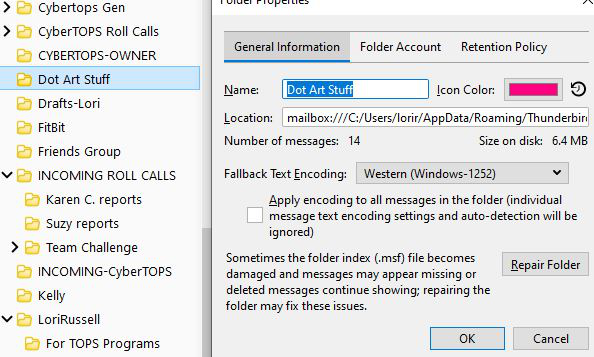
goldenbc said
Toad-Hall said
You have some options and I'll post those options in three separate comments. You can now manually choose a colour for the outline of icon in folder pane.This is done on a per folder basis.
- Right click on the folder and select 'Properties'.
- On the 'General information' tab you will see 'Icon colour' and next to it is a rectangular colour box.
- Click on that coloured ox and you can then select a colour for that folder.
- Click on OK
- Click on OK
I do that on my TB78 and it shows, for example, that a folder is supposed to be pink, but it's not pink. Doesn't matter if I restart TB or not.
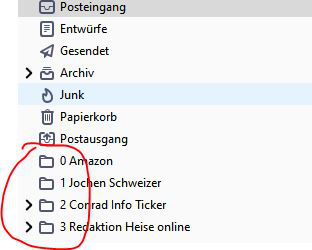
The information about 'coloured icons' is quite clear. The first option - which you have quoted - is about manually choosing an outline colour for a default version 78* folder icon. The image you posted shows that you have already chosen to use a different method - an option where you used code to override the default icon to display an entirely different icon image - a yellow folder image. So the settings you are talking about have no effect on the folder icon because the folder icon is not the default icon used in version 78*.
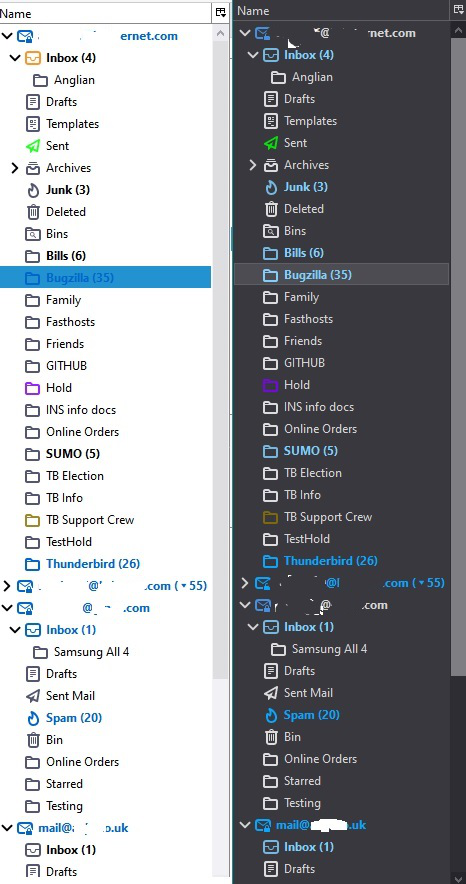
The first image below shows default version 78* icons in both light and dark theme. Manually choosing a colour for the outline of icon in folder pane. I have selected a colour for some of those icons, but most are showing the default setting. This was done on a per folder basis as advised in option 1 method as per quoted by you.
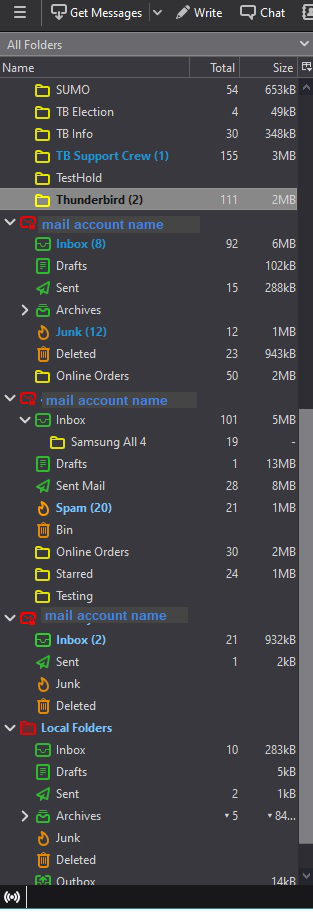
The second image shows how I have used some code to preset default colours for those default icons. This information was set out in the second option. It is possible to set the folder colours so they occur automatically.The method does mean that you will not be able to set them manually This method was selected by the original person who asked the question as their prefered option. So now I do not need nor are able to set an individual colour via Properties.
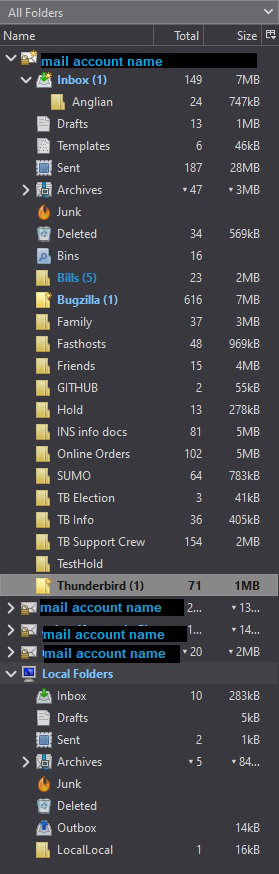
The third image shows how I have used used code and a different set of icons - the icons happen to be those used in a pre 78 version. AS described in the information for the third option. You can completely remove all the new Folder Pane icons and replacing them with the icons used in version 68, then here is method using the 'userChrome.css' file.
There are three options. They are three separate options. Using a 'userChrome.cs' file overrides default code because that is it's purpose.
If you want to have manual control on individual folders, then you cannot use 'userChrome.css' to override thunderbird code. You have to use Thunderbird as it is out of the box and then you can use that first method via 'Properties' which is the default method.