


I had to re-install Windows 10 so I saved the Thunderbird files in AppData, then restored them afterwards, but Thunderbird will not recognize or find them.

I had to re-install Windows 10 onto a SSD. Before doing so, I saved the Thunderbird files in AppData to a backup drive. I restored them after installing Windows and selected Thunderbird from its original location on my D: drive (which had not been overwritten. However, Thunderbird will not recognize or find the profiles. It simply asks me to create a new account. Following the Hamburger menu > Tools > Import it tells me there is nothing to import. The Profiles do exist in AppData. The directory is C:\Users\owner\AppData\Roaming\Thunderbird\Profiles
I had done the same thing for other programs (Chrome) and this has worked fine.
I have not re-installed Thunderbird from the installation file. I was loath to do so because of previous problems.
John Rostron
Chosen solution
Thunderbird must not be running.
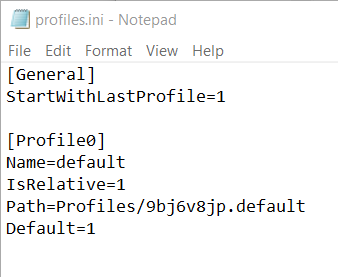
The 'profiles.ini' file which you have in the 'Roaming' > 'Thunderbird' folder is the one currently being used. It points to the wrong place. It was probably created as the default when you reinstalled Thunderbird. Move this 'profiles.ini' file to desktop. You can delete it later when all is working ok.
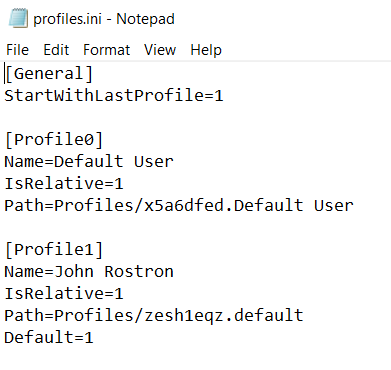
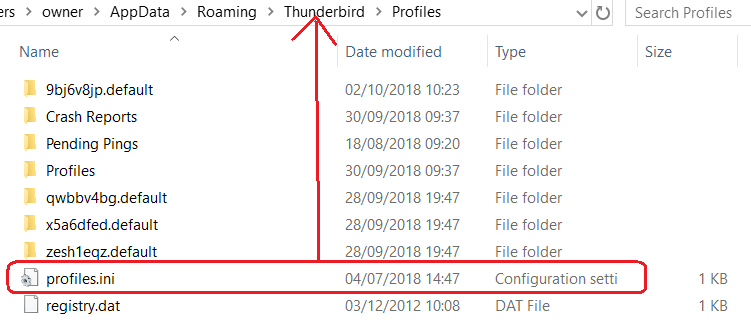
However, the 'profiles.ini' file you currently have in the 'Thunderbird' > 'Profiles' folder is the one you need to use. See image attached.
Move the 'profiles.ini' file you currently have in the 'Thunderbird' > 'Profiles' folder into the 'Thunderbird' folder. It replaces the one you move out to desktop. Start Thunderbird.
Read this answer in context 👍 1All Replies (7)
re :Following the Hamburger menu > Tools > Import it tells me there is nothing to import. You cannot use that to import a thunderbird profile. It says : This wizard.....from other mail programs and common address books formats into Thunderbird.
Please check that all the 'Roaming' >Thunderbird files and folders do not have some Windows applied security permissions that do not allow a file or folder to be accessed. Right click on files and folders and select 'Properties' > 'Security' tab to see you have full access. It is a bit of a lengthy process checking all of them, but I have come across one other person who reported an issue where Windows itself had altered a permission and this caused Thunderbird unable to use that file. Before proceeding you do need to know that your User Account allows access to everything.
Then when you are certain that your account has full permission on every file and folder and you did not need to change anything..do the following.
Please provide the following information to understand what is going on. Access: C:\Users\owner\AppData\Roaming\Thunderbird folder open 'profiles.ini' file Post image showing all contents of 'profiles.ini' file.
Please post an image showing all the contents of:
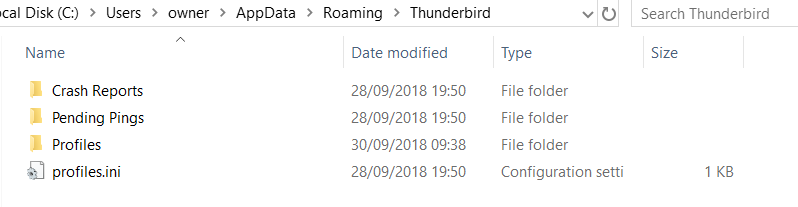
- C:\Users\owner\AppData\Roaming\Thunderbird folder
- C:\Users\owner\AppData\Roaming\Thunderbird\Profiles folder
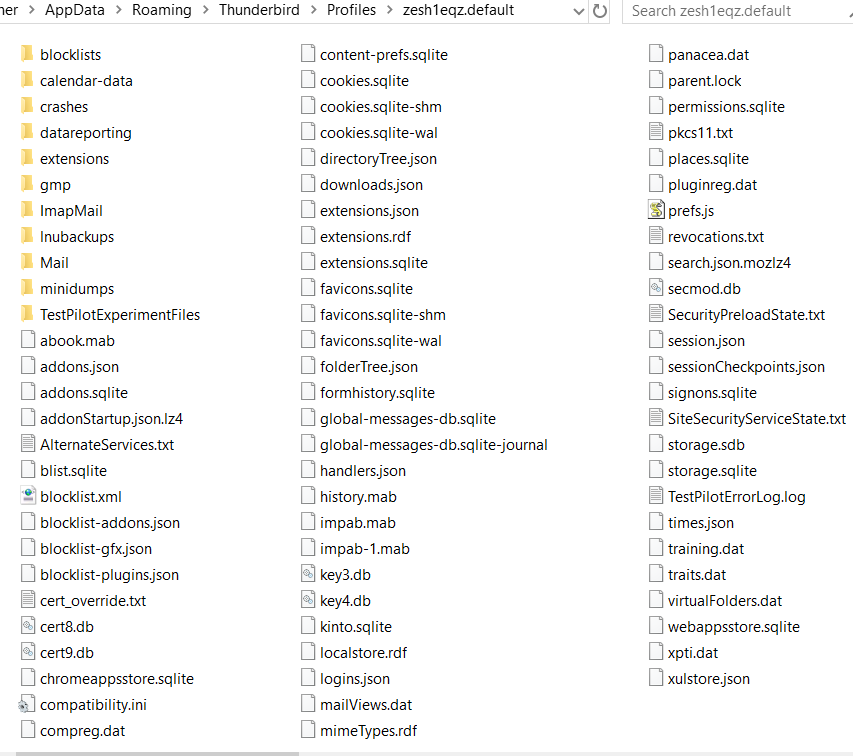
- C:\Users\owner\AppData\Roaming\Thunderbird\Profiles\profile name folder
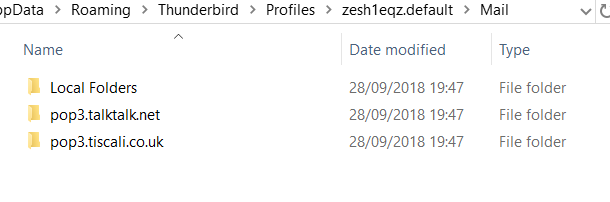
- C:\Users\owner\AppData\Roaming\Thunderbird\Profiles\profile name\Mail folder
I have checked the Security and Permissions of the files and folders in Roaming\Thunderbird and found nothing other than Full Control for SYSTEM , myself (owner) and Administrators.
There are three profiles present. The active profile before re-installation was zesh1eqz.default.
I attach here the images as requested:
Roaming\Thunderbird https://prod-cdn.sumo.mozilla.net/uploads/images/2018-10-02-08-31-45-8ca363.png

Thunderbird\Profiles.ini https://prod-cdn.sumo.mozilla.net/uploads/images/2018-10-02-08-29-18-467e6d.png

My Profile folder https://prod-cdn.sumo.mozilla.net/uploads/images/2018-10-02-08-32-33-104b54.png

Thunderbird\Profiles\Profile.ini https://prod-cdn.sumo.mozilla.net/uploads/images/2018-10-02-08-30-43-7e0b0e.png

Profiles Folder https://prod-cdn.sumo.mozilla.net/uploads/images/2018-10-02-08-30-18-f40d8a.png

Mail Folder https://prod-cdn.sumo.mozilla.net/uploads/images/2018-10-02-08-33-42-74c504.png

John

Modified by John Rostron
You need to invoke the profile manager and specify the location of the profile. In this instance you would go through the new profile button to locate the profile folder on your D: or whatever drive. Once the location is set correctly Thunderbird will use the files.
https://support.mozilla.org/en-US/kb/using-multiple-profiles#w_starting-the-profile-manager
or change the is relative in the profile.ini to 0 and insert the full path to the profile folder instead of the original relative path.
I recommend the use of the profile manager as it is less likely to cause trouble from editing failures like trailing spaces.
I believe this is a simple case of you copy pasting the correct files into the wrong location. I'll send info in next comment.
Chosen Solution
Thunderbird must not be running.
The 'profiles.ini' file which you have in the 'Roaming' > 'Thunderbird' folder is the one currently being used. It points to the wrong place. It was probably created as the default when you reinstalled Thunderbird. Move this 'profiles.ini' file to desktop. You can delete it later when all is working ok.
However, the 'profiles.ini' file you currently have in the 'Thunderbird' > 'Profiles' folder is the one you need to use. See image attached.
Move the 'profiles.ini' file you currently have in the 'Thunderbird' > 'Profiles' folder into the 'Thunderbird' folder. It replaces the one you move out to desktop. Start Thunderbird.
Modified by Toad-Hall
That worked! Easy when you know how.
Thank you Toad Hall for your expertise.
John Rostron
Good to hear you are up and running again.