


I modified my sync settings but local file size does not reduce to save space - help!

Hi there -- I'm using Thunderbird 52.9.1 IMAP on my macbook (capitan) and am having some serious issues with storage.
I received the dreaded "Your startup disk is almost full" notification and ran Disk Inventory X. Seems mail under Thunderbird is taking up a massive amount of space on my machine.
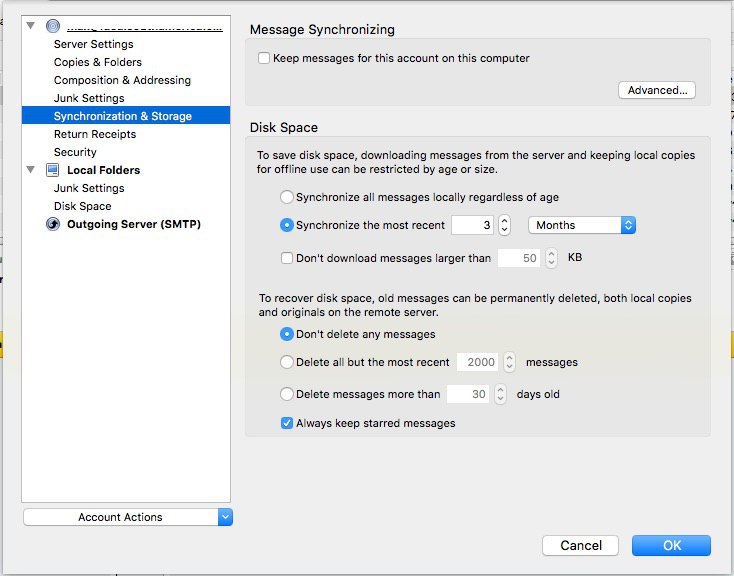
I went into Account Settings->Sync & Storage and modified the setting from "synchronize all messages locally" to "synchronize the most recent" and set it to 3 months. However, I'm not seeing a change in the size of these huge files after this setting is changed, even after restarting thunderbird.
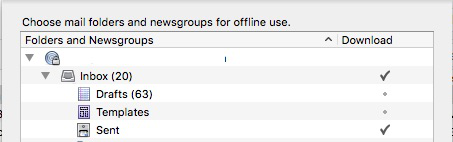
Relevant (?) side note: a number of months back, I had to re-download thunderbird and set up my email again, however, I noticed that my search function was not what it used to be -- keywords that I used to search for to find old mails were not turning up any results and I couldn't figure out why. After playing around with the sync settings, I just realized that "Inbox" and "Sent" were not even being downloaded, which compounds my confusion as to why these files named "INBOX" and "sent" are so massive on my machine when I run Disk Inventory.
As you can probably tell, I'm not too savvy when it comes to this stuff so any help is greatly appreciated. I'm wondering if I delete thunderbird and start all over, resetting all the settings as I want them, if that will do the trick without messing anything up...??
Help!
Modified by LevittM
All Replies (18)
re :I went into Account Settings->Sync & Storage and modified the setting from "synchronize all messages locally" to "synchronize the most recent" and set it to 3 months. However, I'm not seeing a change in the size of these huge files after this setting is changed, even after restarting thunderbird.
It sounds like you are fully downloading emails instead of just headers. This obviously would use more space, but is useful if you ever want to view in offline mode or create a separate backup. https://support.mozilla.org/en-US/kb/imap-synchronization Non-synchronized messages are still accessible within Thunderbird. The only difference is that rather than downloading the entire message, only the message "headers" are downloaded. (Message headers contain information like the sender, recipient(s), subject, etc - everything except the body of the message.) The message body is not downloaded until you click on the message in the message list (which means that if you are not online, you can't read the message).
Changing the settings, does not remove what has previously been downloaded and stored,because this would involve a 'delete' action and you do not want that to occur because it would delete those emails off the server. So, you will not see any change in the actual folders.
Suggest you try the following: If you only want to download headers instead of full email:
- Right click on mail account in folder Pane and select 'Settings'
- Select 'Synchronisation & storage'
- uncheck: 'keep messages for this account on this computer'
Click on OK to save and close Account Settings.
then Unsubscribe from seeing the folders.
- right click on mail account in Folder pane and click on 'Subscribe'
- select folders and click on 'Unsubscribe'
- click on OK
Exit thunderbird.
This should remove everything from the profile and when you subscribe to see folders again, it should download the last three months. Please note, as you continue to download new mail, the folder will still show everything previously downloaded. It does not only keep the recent three months worth of emails.
Check your profile folders. Access:
- C:\Users\<Windows user name>\AppData\Roaming\Thunderbird\Profiles\<Profile name>\ ImapMail\imap gmail account
Note: The AppData folder is folder is a hidden folder; to show hidden folders, open a Windows Explorer window and choose "Organize → Folder and Search Options → Folder Options → View (tab) → Show hidden files and folders".
Check to see if your gmail account has lost all the mbox files (they do not have an extension).
Start Thunderbird.
Now to get everything back as you want it. If you want to download full messages - not just headers in some specific folders
- Right click on mail account in folder Pane and select 'Settings'
- Select 'Synchronisation & storage'
- click on 'Advanced' button
- select only those folders you want full messages stored
- click on OK
Now subscribe to see your folders.
- right click on mail account in Folder pane and click on 'Subscribe'
- select folders and click on 'Subscribe'
- click on OK
Any folder you selected to see full messages will download copies of emails for the last three months in those selected folders.
All other folders will download headers only for the last three months.
Allow some time for this to complete.
Thank you, Toad-Hall! Just reviewing what you've written before I give this a go and noticing the instructions are for a PC and not a mac. Is it much different...? Do you have mac-specific instructions that I can follow?
Thanks again!
try using the file menu to compact the folders. deleted mail is not purged until the folder is compacted. You could have 10 years worth of deleted mail lingering there.
When accessing profile folders: Mac OS X Profile folders are located here:
~/Library/Thunderbird/Profiles/<Profile name>/
The tilde character (~) refers to the current user's Home folder, so ~/Library is the /Macintosh HD/Users/<username>/Library folder.
Show hidden folders in mac: http://kb.mozillazine.org/Show_hidden_files_and_folders#Mac_OS_X
Hi Toad-Hall,
I just tried your step-by-step guide and nothing changed, unfortunately. I wonder what I'm doing wrong? I'm including some screen shots here. A couple from my Disk Inventory X and my settings page.
What other info would you need from me to help me find a solution?
Thank you!!
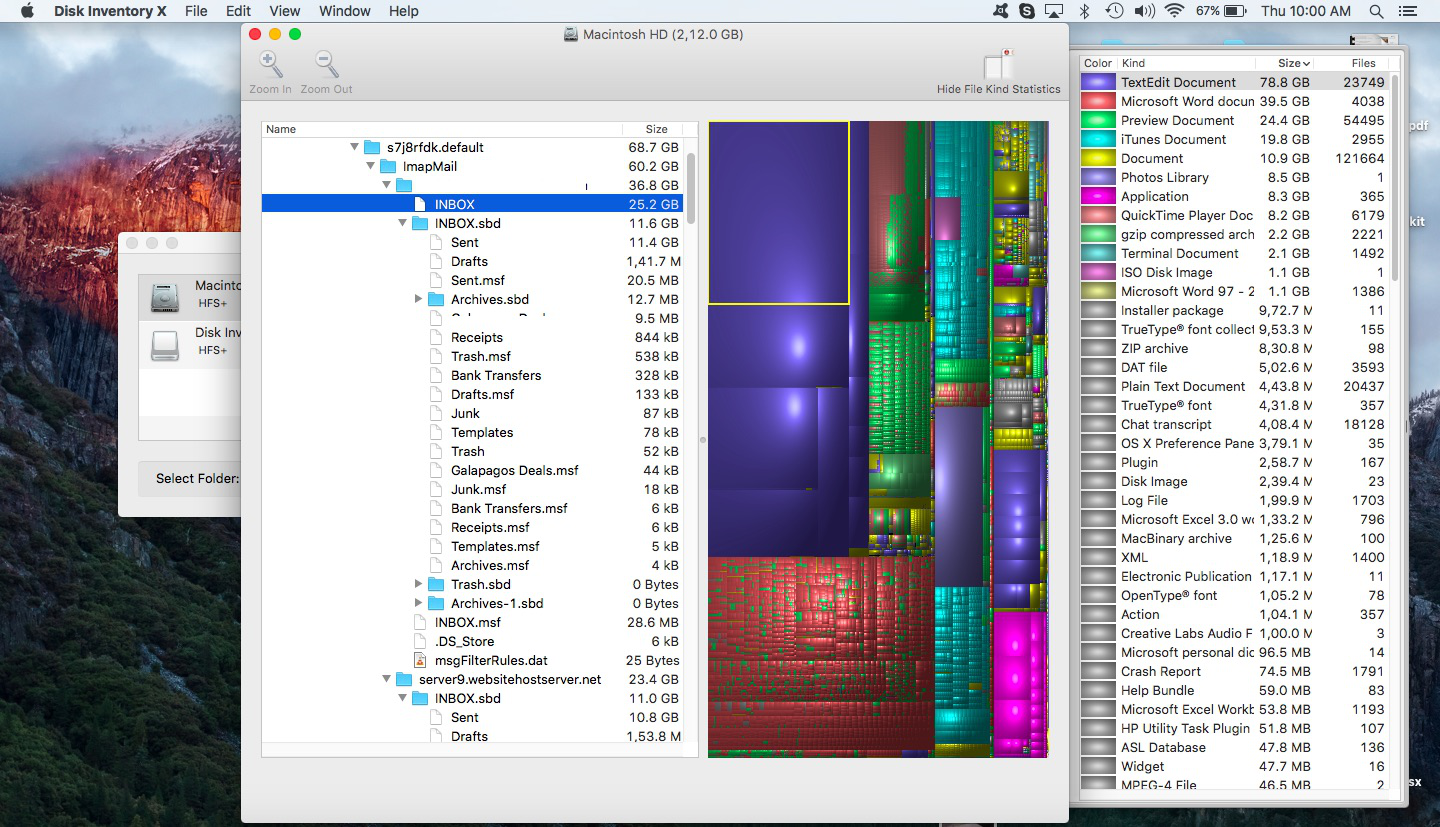
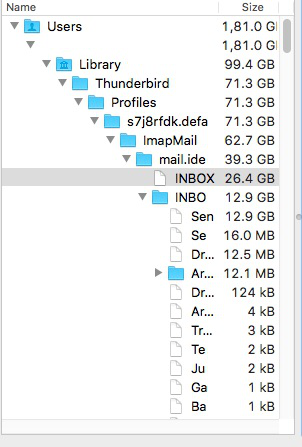
Have you done as Matt suggested ? eg: Right click on folder and select 'Compact'
Unsubscribe from seeing the folders.
- right click on mail account in Folder pane and click on 'Subscribe'
- select all the folders and click on 'Unsubscribe'
- click on OK
Exit thunderbird. Allow a little time for processes to complete,
Access profile folders: ~/Library/Thunderbird/Profiles/<Profile name>/
What do you see in the imap mail account folder ? Please post image:
Hi Toad-Hall -- this one?
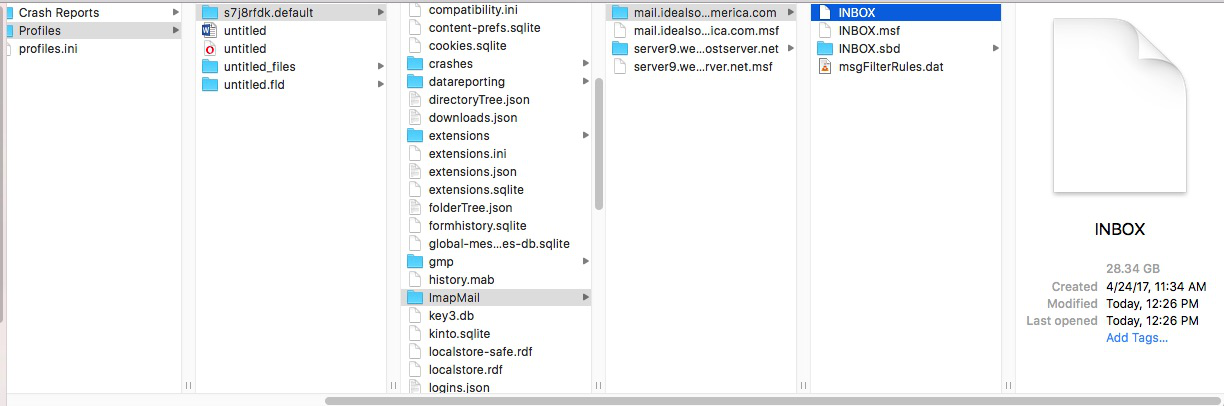
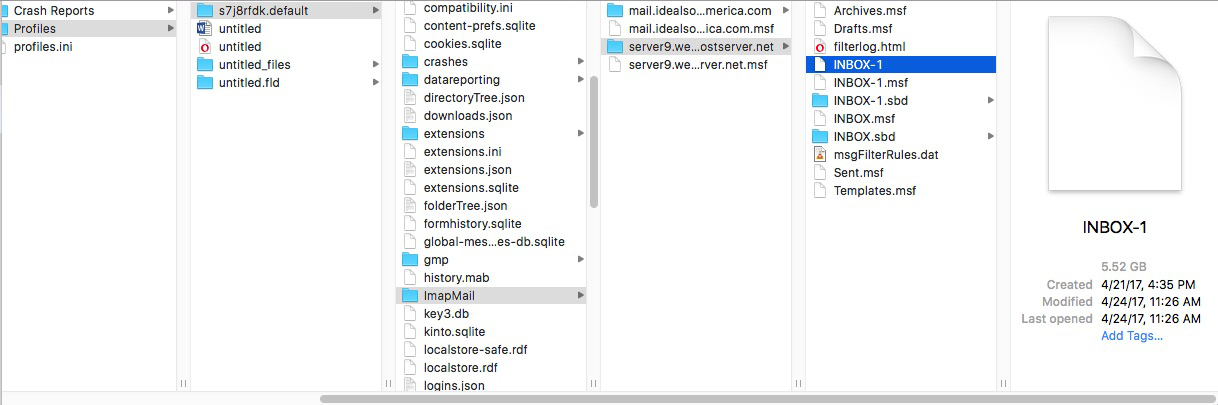
If you now start Thunderbird Can you can still see all of the mail account folders which you Unsubscribed from seeing? Or is the mail account only showing the mail account name with no folders?
Close thunderbird Create a folder on desktop called 'TB Backup'
Access profile mail account name. eg: mail.ide....etc If you have space put a copy of Inbox. Inbox.msf and Inbox.sbd into 'TB Backup' Then delete those three (Inbox. Inbox.msf and Inbox.sbd), so there are no folders and no .msf files. Leaving the msgFilterRules.dat in the mail account name Start Thunderbird.
Subscribe to see folders.
Toad-Hall said
If you now start Thunderbird Can you can still see all of the mail account folders which you Unsubscribed from seeing? Or is the mail account only showing the mail account name with no folders?
I am still seeing some folders that I unsubscribed from (drafts, sent, trash; also inbox but that doesn't seem to be an option to unsubscribe from).
Should I still attempt the backup or do something else first?
OK
Close thunderbird
Create a folder on desktop called 'TB Backup'
Access profile mail account name. eg: mail.ide....etc If you have space put a copy of Inbox. Inbox.msf and Inbox.sbd into 'TB Backup' - as Inbox.sbd contains all your 'Sent', Dratf etc - it should mean all your files get copied. Then delete those three (Inbox. Inbox.msf and Inbox.sbd), so there are no folders and no .msf files. Deleting Inbox.sbd should remove all those subfolders. The only file you need to leave in the mail account folder is the msgFilterRules.dat in the mail account name Start Thunderbird.
re: I am still seeing some folders that I unsubscribed from
Some folders may be auto shown, but as no files exist they will need to be recreated.
Allow some time for this to update.
Then Subscribe to see the folders you need to see.
Once all is done, this time when you check the profile mail account, it should be alot smaller.
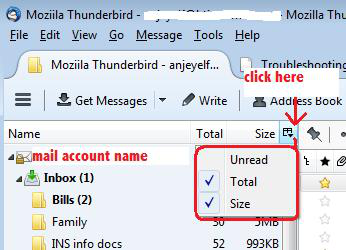
You can also see file size by enabling the 'Folder Pane columns'. On a mac I think it is here: Thunderbird > Preferences > 'Layout' > select 'Folder Pane Columns' Or via 'Menu Bar' : 'View' > 'Layout' >select 'Folder Pane Columns'
then enable the Size' column header - see image
Hi Toad-Hall,
I did as you said, moving those docs to TB Backup on my desktop, then sent those files/folders to Trash but didn't Empty the trash. When I restarted Thunderbird, I'm not really sure what I'm supposed to look over. Those files and folders that I sent to the trash didn't 'reappear' as smaller. Attaching screen shots...
Should I be Emptying the trash before this actually works? I was a little hesitant to do so...!
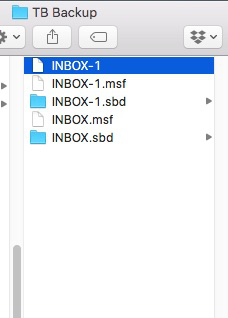
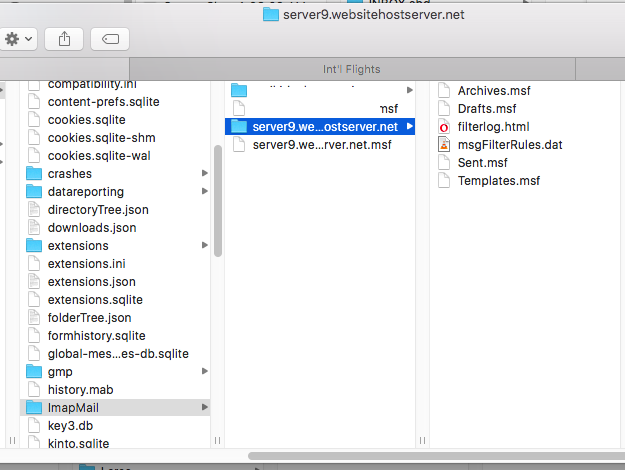
re :, then sent those files/folders to Trash but didn't Empty the trash. When you mean Trash, do you mean the computer Recycle/ Trash or the Trash in Thunderbird? Thunderbird was supposed to be exited - not running. You are supposed to have accessed your profile and deleted all those files and folders. So they would have gone to the computer Recycle/Trash. As you have a backup in 'TB Backup' folder, you could empty that computer Rccycle/Trash folder.
You have a backup in the 'TB Backup' folder - keep it at the moment.
Do this: Please check your Account Settings to make sure that both of your imap mail accounts have same settings as per your image - see below. Make sure the 'advanced' button only selects the folder you want to download full copies.
Unsubscribe from seeing folders.
Then exit thunderbird
Access the profile mail account folder and make sure all those files have gone. If files are still there then delete them. The only file that should be in the mail account name folder is the msgFilterRules.dat file.
Start Thunderbird. Subscribe to see folders. Make sure all folders you want to see are subscribed to be seen.
Synchronising will occur. Headers will be downloaded for those folders you are not fully downloading a copy. In Profile, they will only show up as *.msf files. Full copies will be downloaded for those folders which you have specified in Account Settings > Synchronisation & Storage' > 'Advanced' button. In profile they will show up as mbox (no extension) files as well as *.msf files.
Check that all oldest date of downloaded emails is three months. Please confirm the oldest date is three months.
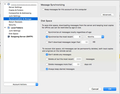
Hi Toad-Hall,
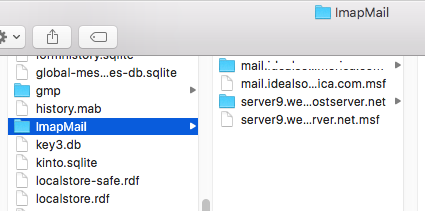
I'm attaching another image. Before I move forward with your instructions, I want to be sure I have everything correct. I have two subfolders under ImapMail: mail.________.com and then the "server". Which should I be backing up? Both? One?
Thanks again for taking the time to walk me through this...!!
I also just happened to see an announcement about Thunderbird 60. Would a re-install of this new version help at all?
Do you have two map mail accounts ? If yes, make sure both have identical Account Settings when it comes to Synchronisation & Storage.
Then exit Thunderbird.
re :I have two subfolders under ImapMail: mail.________.com and then the "server". Which should I be backing up? Both? One?
Perform same action on both. Backup/Copy to 'TB Backup' - perhaps it would be a good idea to create a folder within 'TB Backup' for each account, so you know which is which.
Delete everything as before from profile maila ccount name except for msgFilterRules.dat.
Restart Thunderbird
OK, that's done. I re-ran Disk Inventory X and those crazy-big files are not there (only in the TB backup). I suppose I can test if the "last 3 months" are synchronized by searching for certain keywords. Any other tests? Steps? Can I now delete the "backup"...?
Separate question: since it's only synched for the last 3 months, if I wanted to view an email from, say, 1 year ago -- would it still be accessible, only that I would need to "download" it, since it's only not viewable offline?
On a separate note: thoughts on installing the new Thunderbird after going through this?