


Choppy and slow using picture heavy site

Hi, I use a website called Slickdeals which has a lot of thumbnail photos showing the product on the homepage.
Firefox seems to have a problem with it where Chrome does not.
Scrolling fast throws it off...the screen turns white and I have to wait for the images to load. Also, the scrolling tends to get choppy while using my touchpad scroll.
I've tried disabling hardware acceleration, disabling smooth scrolling, and clearing cache/history.
Sometimes the cursor lags about a second from the arrow to the hand pointer on links to click.
I have fast FIOS internet and a laptop with 16 GB RAM.
Thanks!
All Replies (4)
I would also look at your computer performance. Post a screenshot of the performance tab in task manager. Are you running any security software besides MS Defender? Windows home or pro? If Windows Pro version, try testing in Windows Sandbox (VM) to see if you have the same issue. https://www.howtogeek.com/399290/how-to-use-windows-10s-new-sandbox-to-safely-test-apps/
You can also boot windows into safe mode with networking and run the same test.
Thanks for the response...it is Win 11 Home and I also use Malwarebytes.
I posted the screenshot...just looked into RAM usage because it didn't seem right and determined it was nothing out of the ordinary for win 11.
I performed a clean boot and checked RAM usage and it wasn't much different after startup
People say RAM is meant to be used so IDK. All I have open on this screenshot is firefox, phonelink, and explorer.
Shortly after all this, I found an article saying that Microsoft is looking into making the OS lighter with better RAM functionality.
The computer only shows 13.7 available and supposedly allocates a certain amount to be shared with the onboard graphics...yet my desktop uses onboard graphics and doesn't do the same thing.
The question still is why does Chrome not have the same issue when Firefox is supposed to be a better alternative.
Thanks.
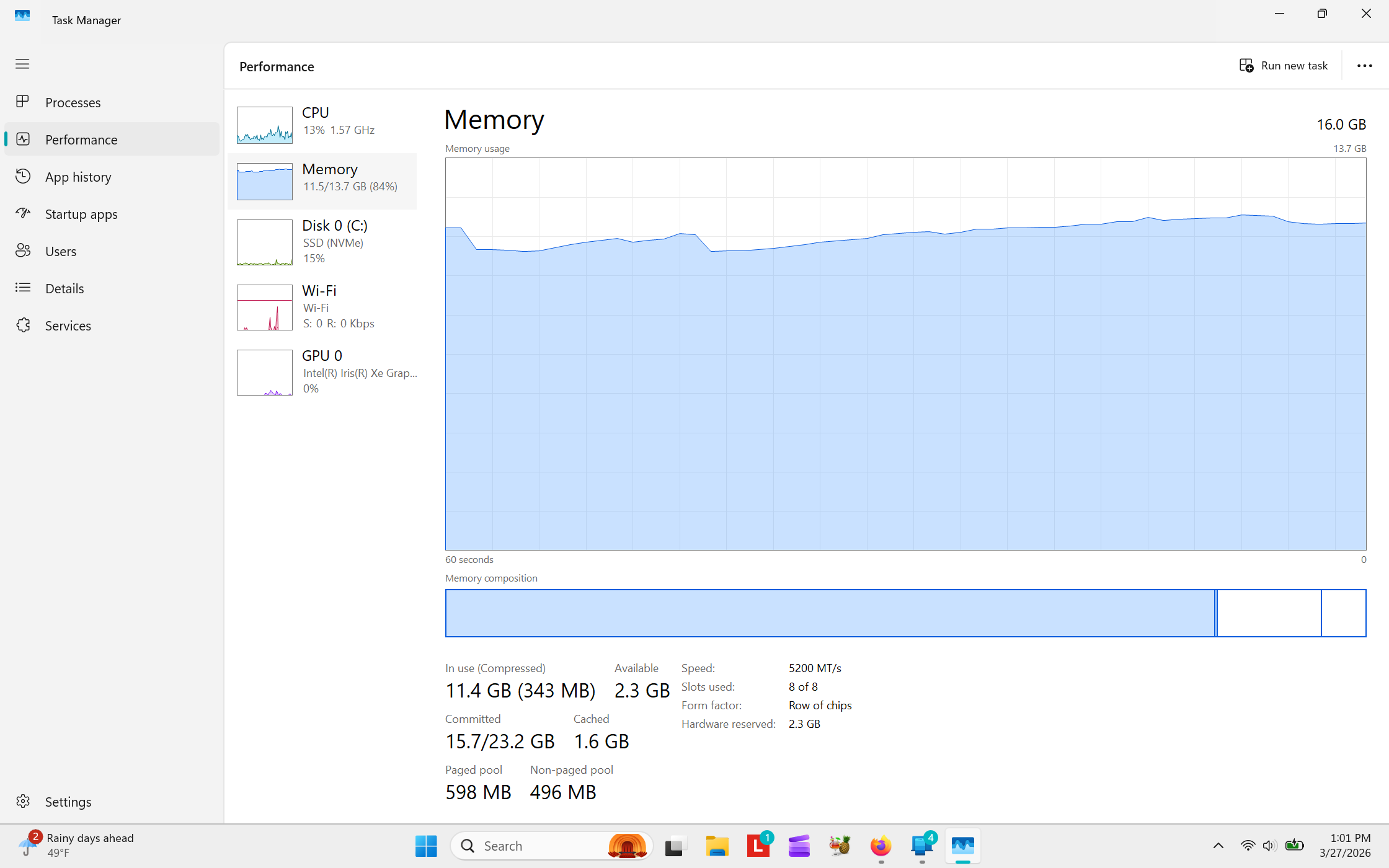
Modified by Travis Thurston
Yeah, windows uses about 8-10 gigs of ram alone which is why the more the better. I really wanted to see the cpu. You can also boot windows into safe mode with networking and run the same test. Give this a try and see if it makes a difference. https://learn.microsoft.com/en-us/sysinternals/downloads/rammap https://www.youtube.com/watch?v=W1QlQ9u2y_8
I also see you're on wifi, just as a test, plug into the network and see if helps.
I'm kind of striking out with your recommendations.
Clearing the cached RAM using RAMMAP didn't fix it.
I couldn't boot into safe mode following directions I found...Lenovo asks you to enter some key that I don't have...when I watched a Youtube video that person's PC didn't.
When I tried a wired connection to my Fios extender (e3200), I couldn't connect. I disabled wifi and the light on the LAN port was lighting up so it seemed like it should have worked.
Thanks for trying to help out though...perhaps I'll go back to using Chrome.