


Firefox completely blank after copying profile after shiwtching OS

I have switched OS, from Windows 10 to Linux Mint, and wanted to copy the Firefox profile to the new OS. I tried using this guide: https://support.mozilla.org/en-US/kb/back-and-restore-information-firefox-profiles
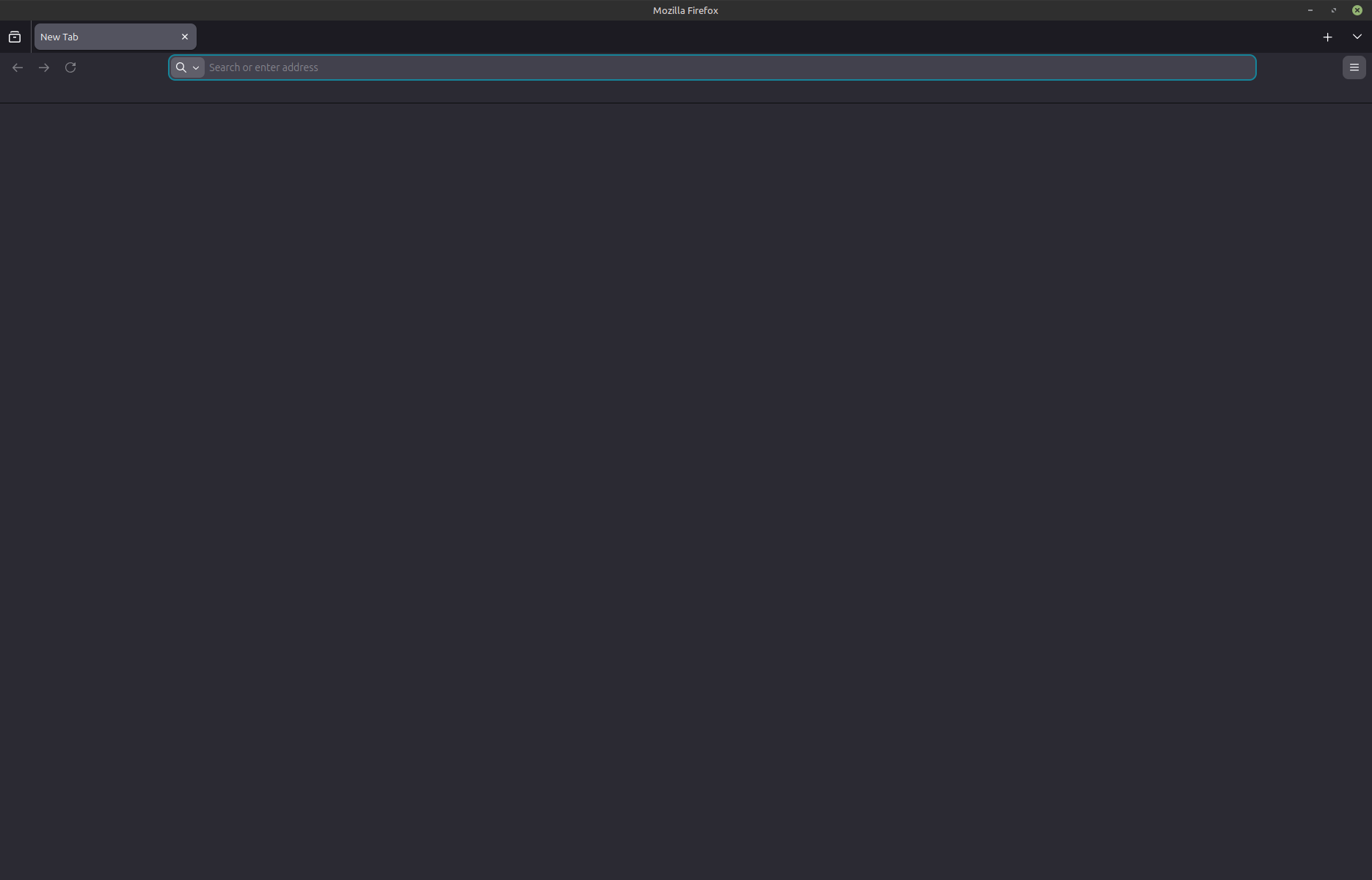
I copied the xxxxxxxx.default-release folder, then switched OS to Linux Mint. After copying the files from the backup folder into the new folder, Firefox launches, but is completely blank. See the attached image. None of the buttons work, nor does the address bar or new folders. I also tried logging in to my Firefox account before copying the files, but that didn't work either.
Default Firefox works fine.
Chosen solution
You can copy certain files with Firefox closed from one profile folder to another/current profile folder to transfer personal data. Note that best is to avoid restoring a full profile folder and only restore important files that are safe to restore/transfer.
- bookmarks and history: places.sqlite
- favicons: favicons.sqlite
- bookmark backups: compressed .jsonlz4 JSON backups in the bookmarkbackups folder
- cookies.sqlite for the Cookies
- formhistory.sqlite for saved autocomplete Form Data
- logins.json (encrypted logins) and key4.db (encryption key/primary password) for logins saved in the Password Manager
- cert9.db for certificates stored in the Certificate Manager
- persdict.dat for words added to the spell checker dictionary
- permissions.sqlite for Permissions and possibly content-prefs.sqlite for other website specific data (Site Preferences)
- sessionstore.jsonlz4 for open tabs and pinned tabs (see also the sessionstore-backups folder)
All Replies (3)
Copying a full profile folder is not a good idea, especially if different operating systems are involved. Some file store absolute file path that aren't compatible. Best is to copy only important data files and reinstall extensions and redo settings (prefs.js is one of those files as well as pkcs11.txt and extensions.json).
cor-el said
Copying a full profile folder is not a good idea, especially if different operating systems are involved. Some file store absolute file path that aren't compatible. Best is to copy only important data files and reinstall extensions and redo settings (prefs.js is one of those files as well as pkcs11.txt and extensions.json).
So is the guide I posted above incorrect?
Regardless, the things I care most about are open tabs and bookmarks. Do you know which files that would be?
Chosen Solution
You can copy certain files with Firefox closed from one profile folder to another/current profile folder to transfer personal data. Note that best is to avoid restoring a full profile folder and only restore important files that are safe to restore/transfer.
- bookmarks and history: places.sqlite
- favicons: favicons.sqlite
- bookmark backups: compressed .jsonlz4 JSON backups in the bookmarkbackups folder
- cookies.sqlite for the Cookies
- formhistory.sqlite for saved autocomplete Form Data
- logins.json (encrypted logins) and key4.db (encryption key/primary password) for logins saved in the Password Manager
- cert9.db for certificates stored in the Certificate Manager
- persdict.dat for words added to the spell checker dictionary
- permissions.sqlite for Permissions and possibly content-prefs.sqlite for other website specific data (Site Preferences)
- sessionstore.jsonlz4 for open tabs and pinned tabs (see also the sessionstore-backups folder)