


System Alert! / Warning: Virus detected! popups

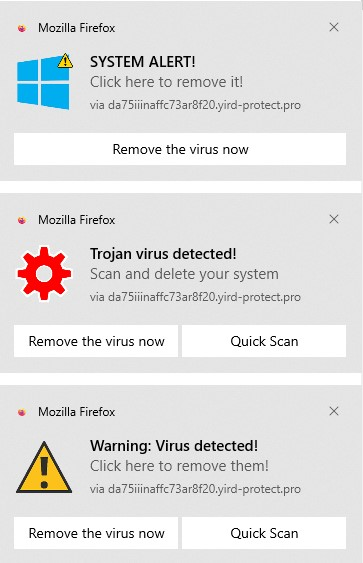
Using the latest Firefox update with Windows 10. I've got three popups in the lower right corner of my screen (see uploaded image), and each refreshes periodically with a musical phrase that sounds like a smartphone notification. Though each says "Mozilla Firefox" in the upper left hand corner, the popups are present whether the browser is open or not. All three say, "via da75iiinaffc73ar8f20.yird-protect.pro".
I've already gone to Settings, cleared my History, made the recommended changes in Permissions and Data, and closed and reopened the browser. The popups remain.
All Replies (3)
Isisombululo esiKhethiweyo
Based on the screenshot and description these are just web push notifications from site(s) you have allowed to send you notifications. Instead of useful information some may send you junk, spam or fake virus/trojan alerts etc. You can revoke the sites from sending you notifications as shown in kb article link below.
1. I went to Settings. 2. I selected "Permissions and data" and scrolled to the Permissions section. 3. In the Permissions section I clicked Notifications. 4. I selected the site shown in the popups and clicked the Remove Website button. 5. I clicked on Save Changes. 6. The popups are still here.
Am I missing a step here? Do I have to turn the computer off and on again once I've made these changes to Settings?
Yeah, you probably need to restart Firefox at least (and restarting the computer surely won't harm).