


Đã giải quyết
Show a widget in navigation bar.

In navigation bar near the top of my home page, the Home Page widget is missing after a hack was corrected by a technician. i want to restore that Home Page widget to its original place in the left-hand section of the bar. So that even if I am in a different program or app--such as my email Inbox--I can toggle to my Home Page by clicking on the Home Page widget. How can i do that? i'm running Windows 11 and a Firefox browser.
In navigation bar near the top of my home page, the Home Page widget is missing after a hack was corrected by a technician. i want to restore that Home Page widget to its original place in the left-hand section of the bar. So that even if I am in a different program or app--such as my email Inbox--I can toggle to my Home Page by clicking on the Home Page widget. How can i do that? i'm running Windows 11 and a Firefox browser.
Giải pháp được chọn
- Click the menu button
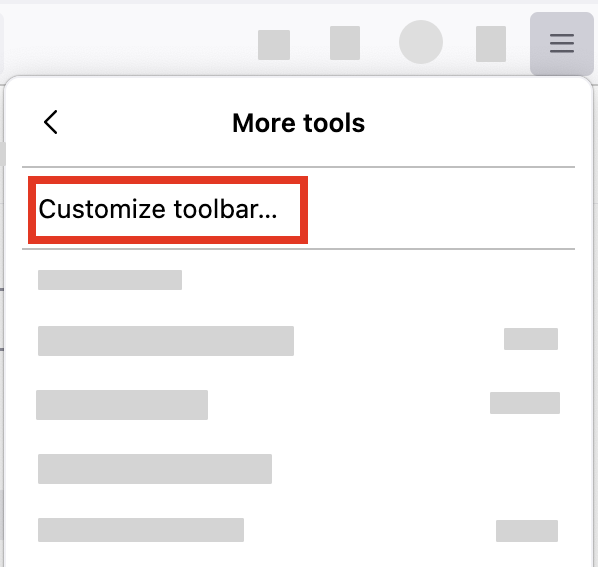
 in the top-right corner, click More tools, and choose the Customize toolbar… option.
- A special tab will open that allows you to drag and drop items, including Home, in or out of the overflow menu and the toolbar.
Tất cả các câu trả lời (4)
You mean the Home Button?
Yes, I mean the Home button. Sorry, I should have said that. Do you have a solution?
Giải pháp được chọn
- Click the menu button in the top-right corner, click More tools, and choose the Customize toolbar… option.
- A special tab will open that allows you to drag and drop items, including Home, in or out of the overflow menu and the toolbar.
You can customize the toolbar to resemble your previous preference using these steps: Customize Firefox controls, buttons and toolbars