


Parts of web pages at fidelity.com display as "not currently available", but load normally with MS Edge

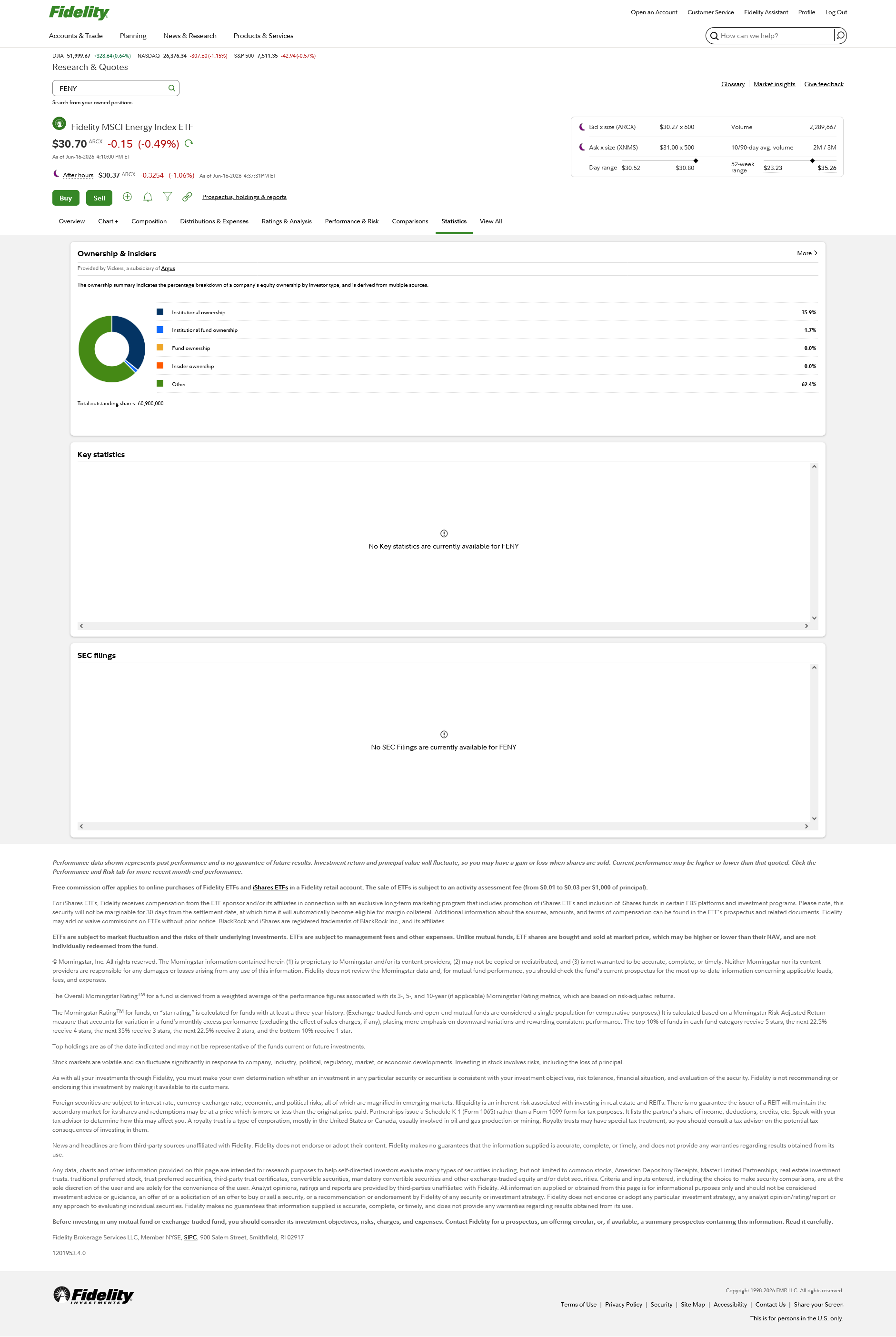
Windows 10, Firefox v152.0: I'm logged in to my account with fidelity.com and visiting a page to get information about an ETF: https://digital.fidelity.com/prgw/digital/research/quote/dashboard/composition?symbol=XXXX (XXXX being any valid ticker symbol; makes no difference what) The information is organized within the page with a set of sub-tabs (?): Overview Chart+ Composition .... (+ 6 more) Much of the information displays normally, EXCEPT: Under "Composition": "not currently available" Under "Distributions & Expenses": "not currently available" Under "Performance & Risk": there are two sections, but only one of them displays normally Under "Statistics": three sections, only one displays normally; the other two "not currently available" (see attached image) I've checked with Fidelity support, and they verified no issues at their end--identified as a browser issue since the site doesn't have this problem using MS Edge I've cleared the cache, I've turned off enhanced tracking protection, I've temporarily enabled all scripts (NoScript extension)... none of these actions helps FWIW, I also enable Privacy Badger and Malwarebytes Browser Guard, but neither claims to be blocking anything
Tất cả các câu trả lời (2)
Giải pháp được chọn
George, there's no troubleshooting data attached to this post, so I'll start with some generic questions — feel free to skip whatever you've already performed, thanks! The first factor to verify on Windows secured connection issues is: What is your antivirus/phishing/malware software or security solution provider, and what happens if you disable it (or its "safe browsing" features)?
Have you tried logging in via Private Window to see any difference? The next best course of action is restarting into Troubleshooter Mode to compare the results.
The steps to go through are from the easier to the complex ones:
- Definitely try clearing cookies and data for the website you experience troubles with (warning: you will be logged out on this website).
- If it also does not help, try running Firefox in Troubleshoot Mode. If the problem doesn't persist, please follow the steps from this article to troubleshoot further.
- If nothing from the above helps, try creating a new Firefox profile and check if the issue persists there. If it doesn't, you can start copying files from your old profile to the new one to identify which one causes the issue. See this article on what files to copy.
Thank you, jbr!
The problem did not occur when running Firefox in Troubleshooting Mode, which suggested an extension was causing the problem. When I disabled just the NoScript extension, again, the problem didn't occur. I removed NoScript, then fetched and installed the latest version of the extension (13.6.23). I was then able to enable specific scripts on the page that didn't fully load, and eventually all displayed properly.
Bottom line, the issue was due to my using an outdated version of the NoScript extension.