


Valid URL opens blank page in FF, same page opens in Edge

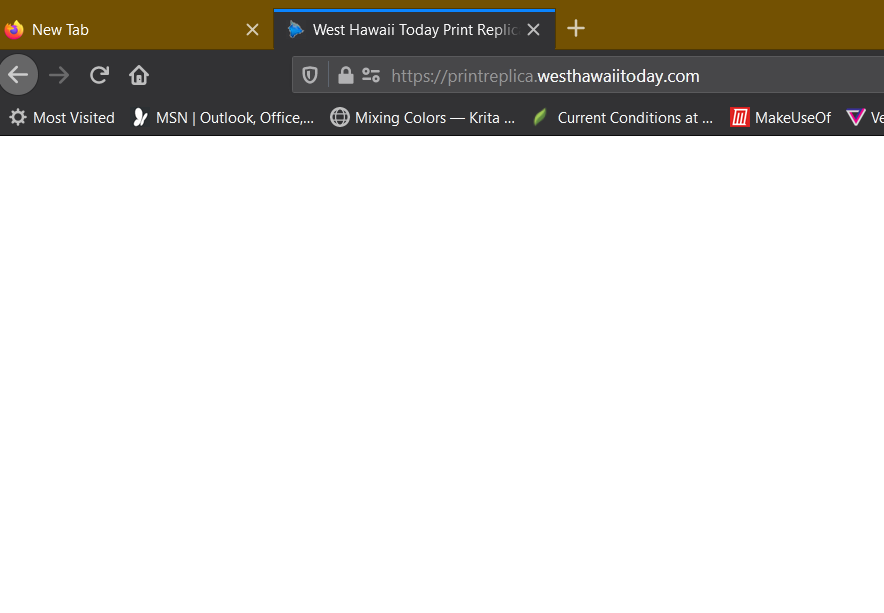
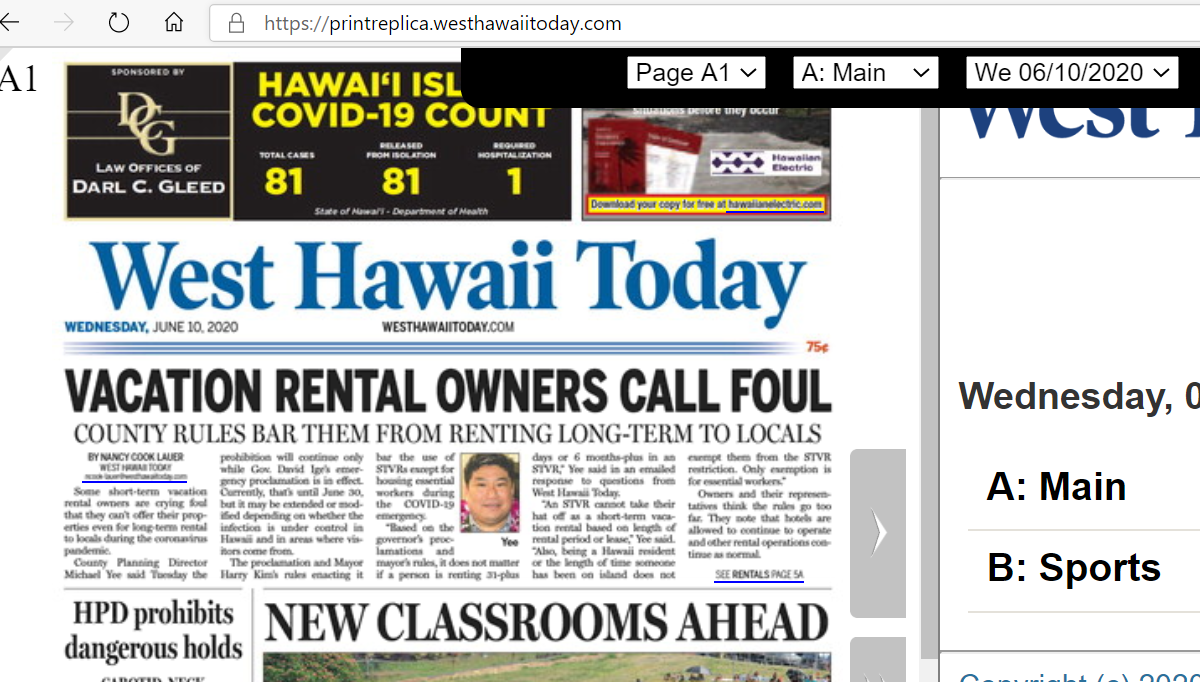
Local paper uses digital "print replica". When I try to open it in Firefox a completely blank white page appears. (That's the image with the brown header, below.) When I enter the same URL in Edge, the page opens as shown in the right-hand screenshot below.
Guess I could keep using Edge, but I'd like to know why Firefox chokes on this.
Thanks for any help or ideas.
Krejt Përgjigjet (3)
Hello, Can you try opening the link in Safe mode. Use Troubleshoot Mode in Firefox Is the problem still there?
Please do let us know.
Starting in Safe Mode allowed the previously blank page to load properly. What steps should I take to see which add-in might be blocking? Thanks for getting me started on fixing this!
If you use extensions ("3-bar" menu button or Tools -> Add-ons -> Extensions) that can block content (Adblock Plus, NoScript, Disconnect, Ghostery, Privacy Badger, uBlock Origin) always make sure such extensions do not block content.
- make sure your extensions and filters are updated to the latest version
- https://support.mozilla.org/en-US/kb/troubleshoot-extensions-themes-to-fix-problems
Firefox shows a blueish highlighted shield icon at the left end of the location/address bar in case Tracking Protection is blocking content. You can click shield icon for more detail and possibly disable the protection. You can check in the Web Console what content is blocked.
- "3-bar" menu button or Tools -> Web Developer
- https://support.mozilla.org/en-US/kb/enhanced-tracking-protection-firefox-desktop
If it works in Safe Mode and in normal mode with all extensions ("3-bar" menu button or Tools -> Add-ons -> Extensions) disabled then try to find which extension is causing the problem by enabling one extension at a time until the problem reappears.
Close and restart Firefox after each change via one of these:
- "3-bar" menu button -> Exit (Power button)
- Windows: File -> Exit
- Mac: Firefox -> Quit Firefox
- Linux: File -> Quit
You can try these steps in case of issues with web pages:
You can reload web page(s) and bypass the cache to refresh possibly outdated or corrupted files.
- hold down the Shift key and left-click the Reload button
- press "Ctrl + F5" or press "Ctrl + Shift + R" (Windows,Linux)
- press "Command + Shift + R" (Mac)
Clear the Cache and remove the Cookies for websites that cause problems via the "3-bar" Firefox menu button (Options/Preferences).
"Remove the Cookies" for websites that cause problems:
- Options/Preferences -> Privacy & Security
Cookies and Site Data: "Manage Data"
"Clear the Cache":
- Options/Preferences -> Privacy & Security
Cookies and Site Data -> Clear Data -> Cached Web Content: Clear
Start Firefox in Safe Mode to check if one of the extensions ("3-bar" menu button or Tools -> Add-ons -> Extensions) or if hardware acceleration is causing the problem.
- switch to the DEFAULT theme: "3-bar" menu button or Tools -> Add-ons -> Themes
- do NOT click the "Refresh Firefox" button on the Safe Mode start window