


Remove/Hide Recent Items

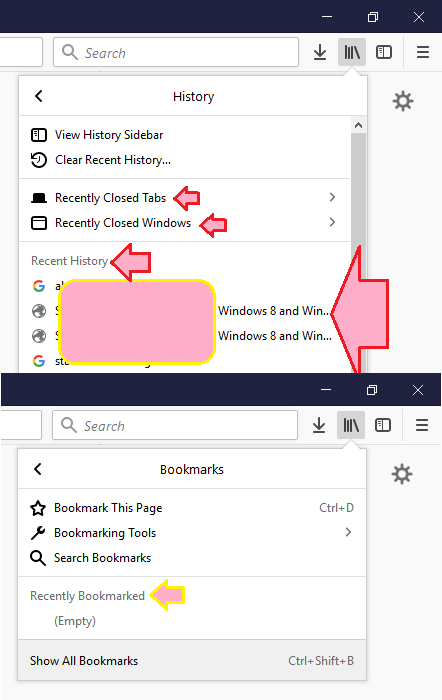
Hey ev1. Need to remove or hide Recent History or Recent Bookmarks from Firefox? In about:config Thanks,
All Replies (4)
You can't do that via about:config. You need to use code in userChrome.css.
Add code to the userChrome.css file below the default @namespace line.
@namespace url("http://www.mozilla.org/keymaster/gatekeeper/there.is.only.xul"); /* only needed once */

#panelMenu_recentBookmarks,#panelMenu_bookmarksMenu {display:none!important;}
label[value="Recent History"],#appMenu_historyMenu {display:none!important;}
label[value="Recent Highlights"],#appMenu-library-recentHighlights {display:none!important;}
#appMenuRecentlyClosedTabs,#appMenuRecentlyClosedWindows {display:none!important;}
You need to create the chrome folder (lowercase) in the <xxxxxxxx>.default profile folder if this folder doesn't exist.
- use a plain text editor (Windows: Notepad; Mac: Textedit) to create a (new) userChrome.css file in the chrome folder (file name is case sensitive)
- paste the code in the userChrome.css file in the editor window
- make sure the userChrome.css file starts with the default @namespace line
If you are on Windows:
- make sure you select "All files" and not "Text files" when you save the file via "Save file as" in the text editor as userChrome.css
Otherwise Windows may add a hidden .txt file extension and you end up with a not working userChrome.css.css.txt file.
- make sure you do not have a double .css.css file extension (userChrome.css.css.css) if it is still not working
You can use the button on the "Help -> Troubleshooting Information" (about:support) page to go to the current Firefox profile folder or use the about:profiles page.
- Help -> Troubleshooting Information -> Profile Directory:
Windows: Show Folder; Linux: Open Directory; Mac: Show in Finder - http://kb.mozillazine.org/Profile_folder_-_Firefox
In case it helps, I have an article and video here about the userChrome.css file: https://www.userchrome.org/how-create-userchrome-css.html
Also, do you want to completely remove the Library button from the toolbar and use the Bookmarks Menu button instead?
The new bookmarks menu button ( ) should work the same way as the old bookmarks menu button (
 ), which was the "right-half" of the inseparable star+book duo.
To add that button, either:
(A) Use the Customize panel (Customize Firefox controls, buttons and toolbars) to drag the icon to the desired spot on the toolbar
(B) Use the method from Bookmarks in Firefox - section entitled: How do I add the Bookmarks Menu button to the toolbar?
- Click the "Library" button:

- Click "Bookmarks"
- Click "Bookmarking Tools"
- Click "Add Bookmarks Menu to Toolbar"
You have created a lot of separate questions about removing/hiding items in Firefox. Maybe consider to combine these in one thread to avoid repeating instructions.
- https://support.mozilla.org/en-US/search/advanced?q=&asked_by=omidsolo&w=2&a=1&sortby=1
- /questions/1198359 Synced Tabs
- /questions/1198355 Customize URL Bar
- /questions/1198447 Bookmarks Settings
- /questions/1198356 about:config key name
Can you give more detail what exactly you are trying to achieve? What kind of things do you want to remove/hide?
Modified by cor-el