


url drop down color

After firefox 48 update, I type on url address bar the url drop down menu highlight yellow, but the text is white cannot read the text part.
Giải pháp được chọn
jscher2000 said
Here's one method: (1) Install the Stylish extension: https://addons.mozilla.org/firefox/addon/stylish/ After you install the extension and use the link/button to restart Firefox: (2) Click the new "S" logo on the toolbar, choose Write new style, then Blank style. A New style tab should open. (3) Paste the following code in the large editing area next to the line number 1:@namespace url(http://www.mozilla.org/keymaster/gatekeeper/there.is.only.xul); .ac-title[selected=true], .ac-separator[selected], .ac-url[selected=true], .ac-action[selected=true] { color: #000 !important; }(4) Click Preview, then test the address bar to check the color. Assuming all is well...
(5) In the Name field, type something relevant, and click Save. You're done with the New style tab.
Thank you. Better.
Đọc câu trả lời này trong ngữ cảnh 👍 0Tất cả các câu trả lời (12)

It could be an issue with one of your add-ons.
Could you test in safe mode? https://support.mozilla.org/en-US/kb/troubleshoot-firefox-issues-using-safe-mode
Done that already. Nothing to do with add ons.
Could you attach a screenshot of the issue, please.
And make a test with a clean profile: https://support.mozilla.org/en-US/kb/profile-manager-create-and-remove-firefox-profiles
Here is what it looks like.
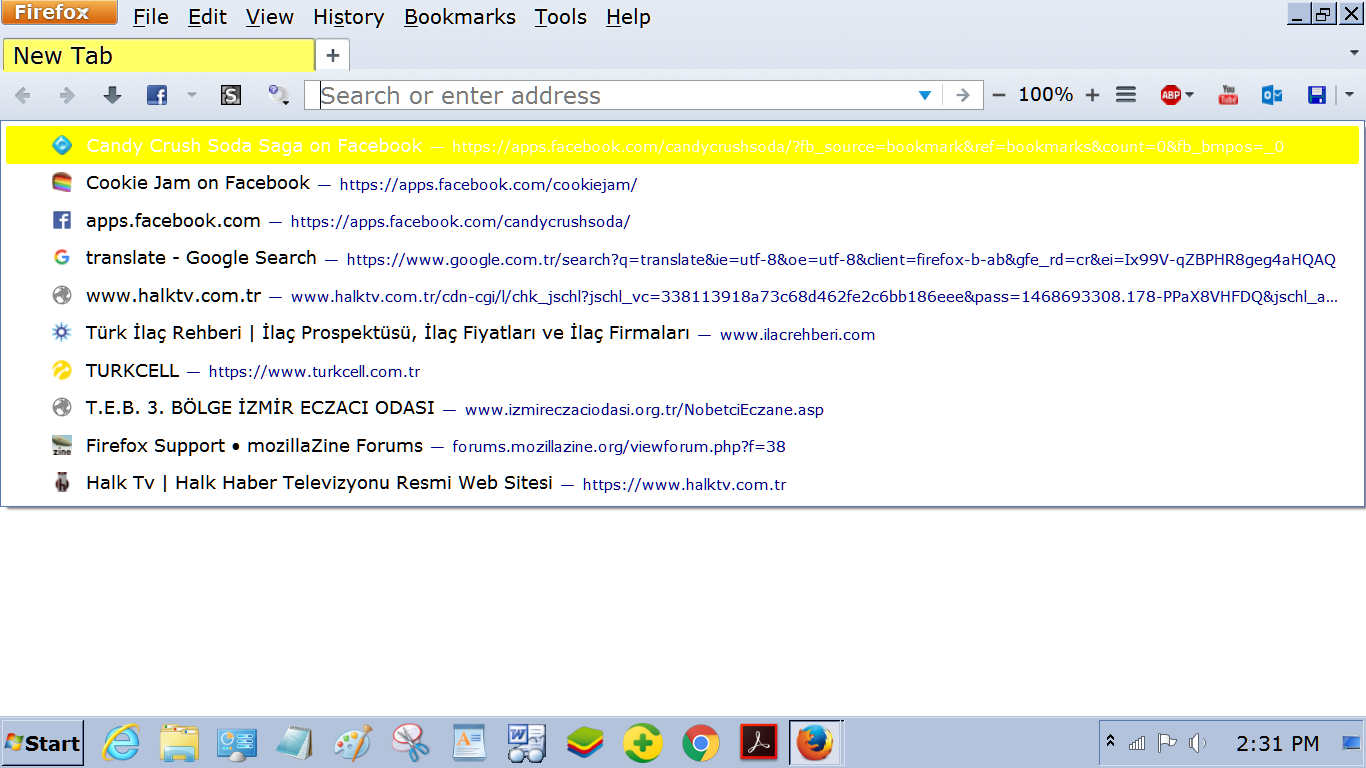
Same issue with a fresh profile?
I'm not sure where that yellow highlight color is coming from. If you copy/paste the following internal address to the address bar and press Enter, then use Find to look for selected you should find some style rules similar to these:
chrome://browser/skin/browser.css
.autocomplete-richlistitem[selected=true] { background-color: hsl(210, 80%, 52%); } .ac-title[selected=true], .ac-separator[selected], .ac-url[selected=true], .ac-action[selected=true] { color: hsl(0, 0%, 100%); }
That gives white on blue
@media not all and (-moz-windows-default-theme) { .autocomplete-richlistitem[selected=true] { background-color: Highlight; } .ac-title { color: inherit; } .ac-separator, .ac-url, .ac-action { color: -moz-nativehyperlinktext; } }
That refers to other active colors in the theme.
For comparison, how does the search bar look, or "trees" such as the folder list in the bookmark dialog?
jscher2000 said
I'm not sure where that yellow highlight color is coming from. If you copy/paste the following internal address to the address bar and press Enter, then use Find to look for selected you should find some style rules similar to these: chrome://browser/skin/browser.css .autocomplete-richlistitem[selected=true] { background-color: hsl(210, 80%, 52%); } .ac-title[selected=true], .ac-separator[selected], .ac-url[selected=true], .ac-action[selected=true] { color: hsl(0, 0%, 100%); } That gives white on blue @media not all and (-moz-windows-default-theme) { .autocomplete-richlistitem[selected=true] { background-color: Highlight; } .ac-title { color: inherit; } .ac-separator, .ac-url, .ac-action { color: -moz-nativehyperlinktext; } } That refers to other active colors in the theme. For comparison, how does the search bar look, or "trees" such as the folder list in the bookmark dialog?
I want highlight yellow and text black though.
You can use a custom style rule to override the white to black. Custom style rules can be applied using either the Stylish extension or a userChrome.css file. Since it's very late here, I'm going to provide a sample rule but hoepfully someone else can fill in all the details.
@namespace url(http://www.mozilla.org/keymaster/gatekeeper/there.is.only.xul);
.ac-title[selected=true],
.ac-separator[selected],
.ac-url[selected=true],
.ac-action[selected=true] {
  color: #000 !important;
}
jscher2000 said
You can use a custom style rule to override the white to black. Custom style rules can be applied using either the Stylish extension or a userChrome.css file. Since it's very late here, I'm going to provide a sample rule but hoepfully someone else can fill in all the details.
@namespace url(http://www.mozilla.org/keymaster/gatekeeper/there.is.only.xul);
.ac-title[selected=true],
.ac-separator[selected],
.ac-url[selected=true],
.ac-action[selected=true] {
  color: #000 !important;
}
can you tell me where to put that?
Here's one method:
(1) Install the Stylish extension: https://addons.mozilla.org/firefox/addon/stylish/
After you install the extension and use the link/button to restart Firefox:
(2) Click the new "S" logo on the toolbar, choose Write new style, then Blank style. A New style tab should open.
(3) Paste the following code in the large editing area next to the line number 1:
@namespace url(http://www.mozilla.org/keymaster/gatekeeper/there.is.only.xul);
.ac-title[selected=true],
.ac-separator[selected],
.ac-url[selected=true],
.ac-action[selected=true] {
  color: #000 !important;
}
(4) Click Preview, then test the address bar to check the color. Assuming all is well...
(5) In the Name field, type something relevant, and click Save. You're done with the New style tab.
Giải pháp được chọn
jscher2000 said
Here's one method: (1) Install the Stylish extension: https://addons.mozilla.org/firefox/addon/stylish/ After you install the extension and use the link/button to restart Firefox: (2) Click the new "S" logo on the toolbar, choose Write new style, then Blank style. A New style tab should open. (3) Paste the following code in the large editing area next to the line number 1:@namespace url(http://www.mozilla.org/keymaster/gatekeeper/there.is.only.xul); .ac-title[selected=true], .ac-separator[selected], .ac-url[selected=true], .ac-action[selected=true] { color: #000 !important; }(4) Click Preview, then test the address bar to check the color. Assuming all is well...
(5) In the Name field, type something relevant, and click Save. You're done with the New style tab.
Thank you. Better.