


thunderbird outlook connection issue

i have a problem in the connection we need to have remote session
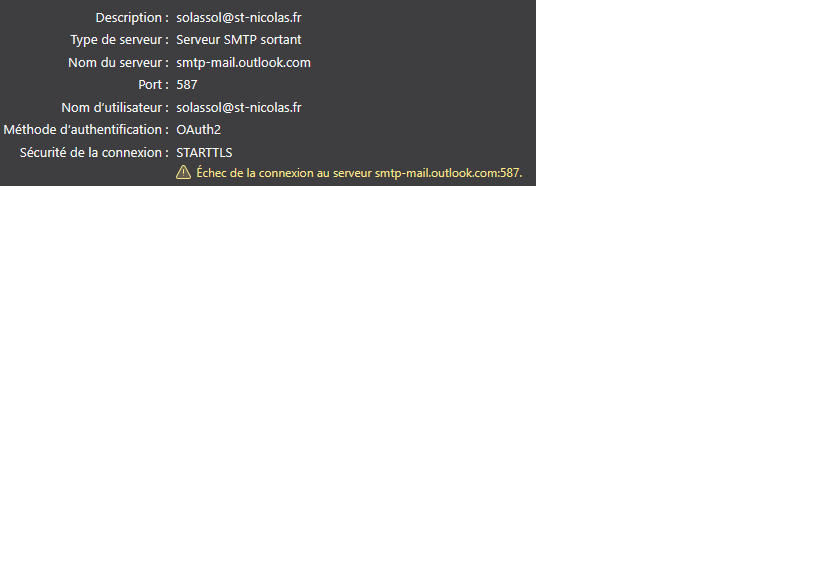
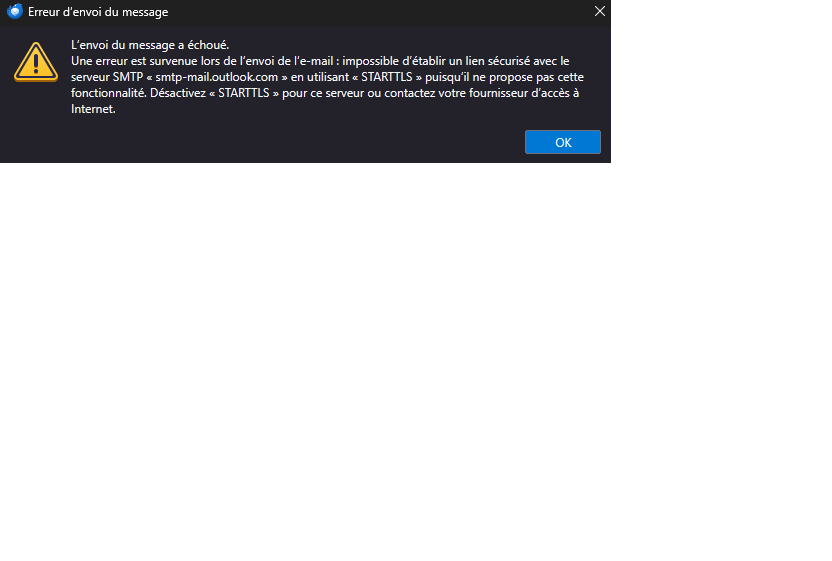
• Client : Mozilla Thunderbird (version utilisée) • Serveur SMTP : smtp-mail.outlook.com • Port : 587 • Sécurité : SSL/TLS • Authentification : OAuth2 • Message d’erreur exact indiquant un timeout / échec de connexion SMTP • Confirmation que : o le compte fonctionne en webmail o le service Microsoft est accessible o le problème persiste malgré un changement de réseau (si testé)
Modified by Wayne Mery
എല്ലാ മറുപടികളും (18)
Hi
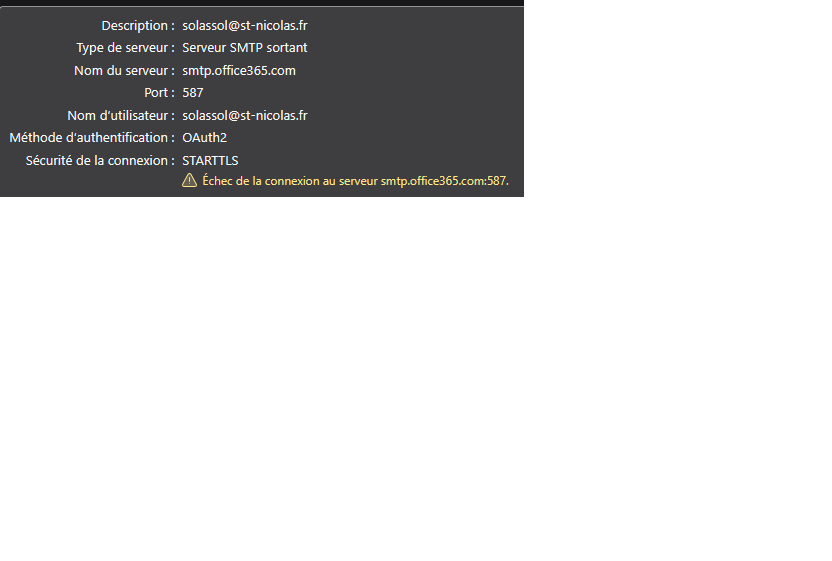
In your list, you mentioned using SSL/TLS, but your screenshot shows the server is set to STARTTLS on Port 587.
You can try these configurations:
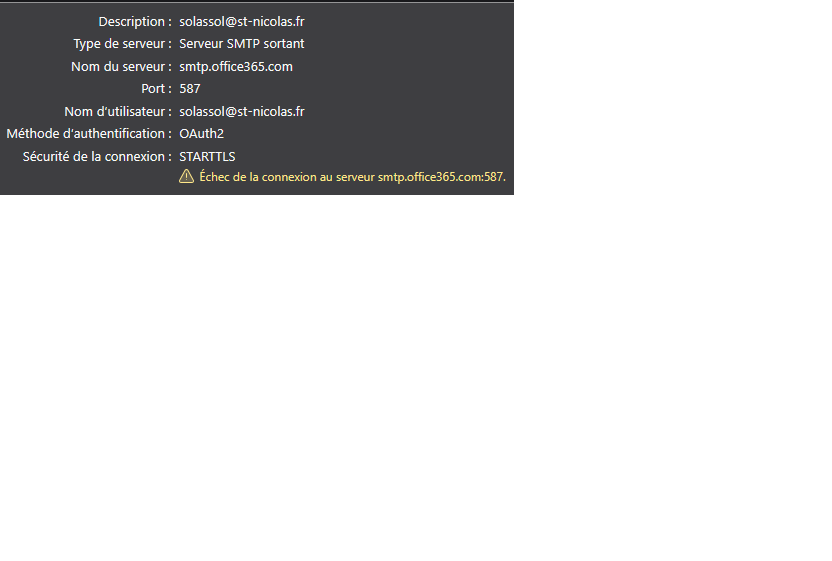
Option A
Server Name: smtp.office365.com Port: 587 Connection Security: STARTTLS Authentication Method: OAuth2 User Name: Your full email address
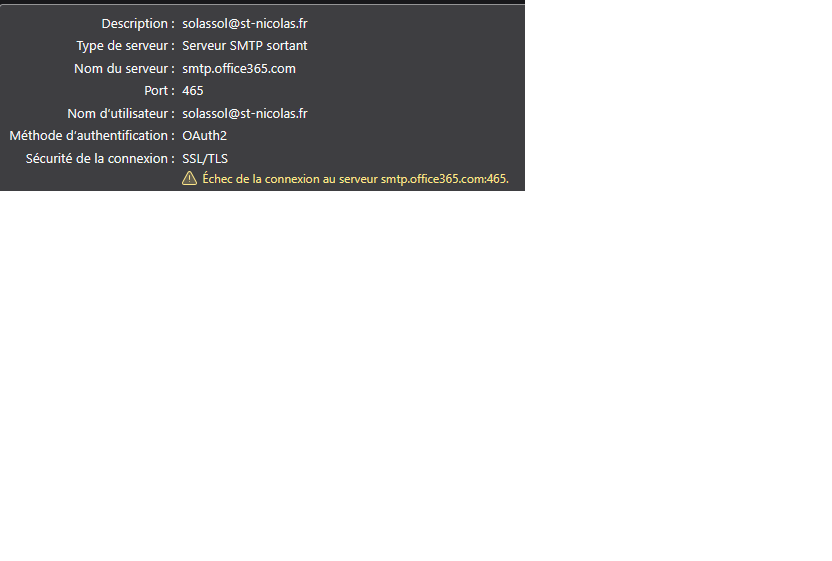
Option B (Alternative):
Server Name: smtp.office365.com Port: 465 Connection Security: SSL/TLS Authentication Method: OAuth2
Check your Antivirus if have "Mail Shields" or something like that and cause the timeout you are seeing. Try disabling your Antivirus for 5 minutes just to test the connection.
Just for your information, I use Microsoft 365 for Education, could that make a difference or not necessarily?
Is an Education (School) account?
Maybe your school's IT department might have Security Defaults Policy enabled?
This affects all account types. I'm the tenant admin. We even tested it with Microsoft and we don't understand why it's blocked.
Have you verified if Authenticated SMTP is enabled for these mailboxes in the Microsoft 365 Admin Center?
Even with OAuth2, the connection will time out if this isn't checked. You can find it under: Active Users > Select User > Mail > Manage email apps. Sometimes toggling it off and back on again forces the sync if it's stuck.
and you can try to disabling IPv6 inside Thunderbird. Go to Settings > General > Config Editor. Search for network.dns.disableIPv6 and set it to true. Restart Thunderbird and test.
Since Authenticated SMTP is enabled, the next step is to check the Entra ID Sign-in logs. You can go to Entra ID > Monitoring > Sign-in logs.
Filter by the user's email and look for "Client App: Authenticated SMTP" or "Resource: Office 365 Exchange Online."
If there is a failure, there will be a Request ID and a specific Error Code (e.g., 50126 or 53003). This code will tell you exactly which security policy is killing the connection. Look for the SMTP connection attempt at the exact time of the timeout. Does it show a 'Failure'? If so, what is the Error Code?
I don't see anything in the logs. I hope I'm in the right place. (Photo attached.)
I even changed the configuration back to smtp-mail.outlook.com, but it's still the same. (Photo attached.)
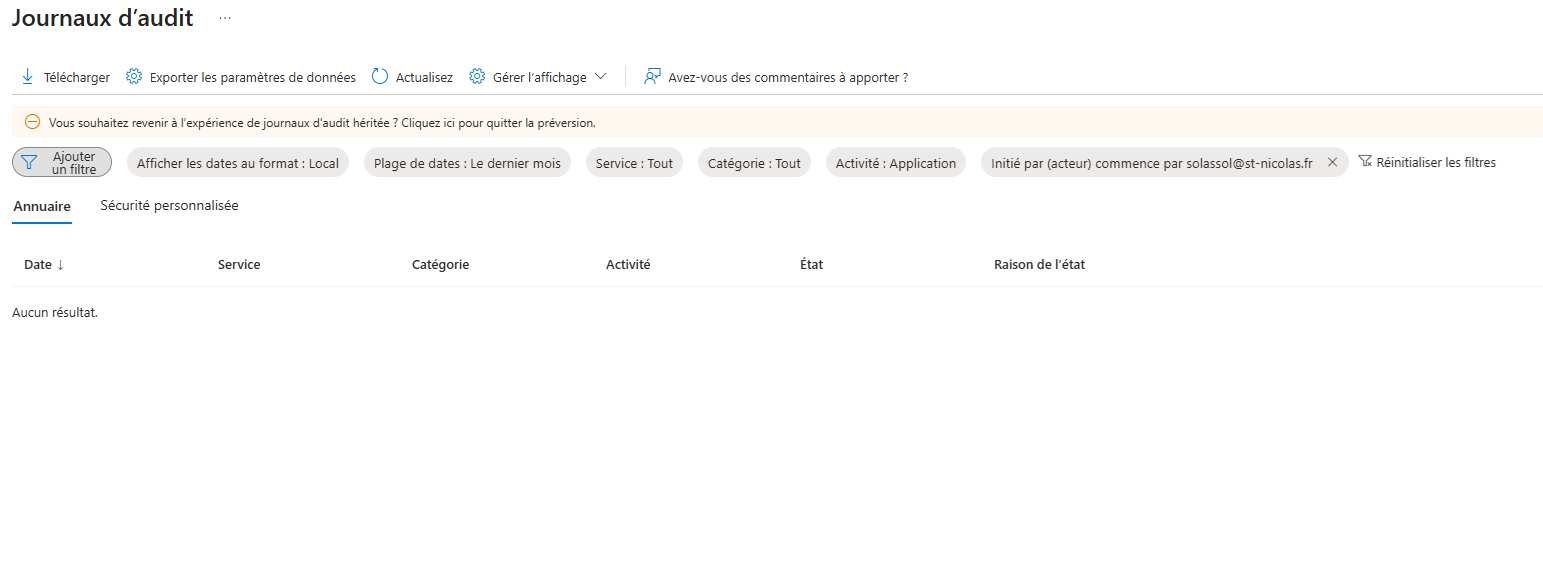
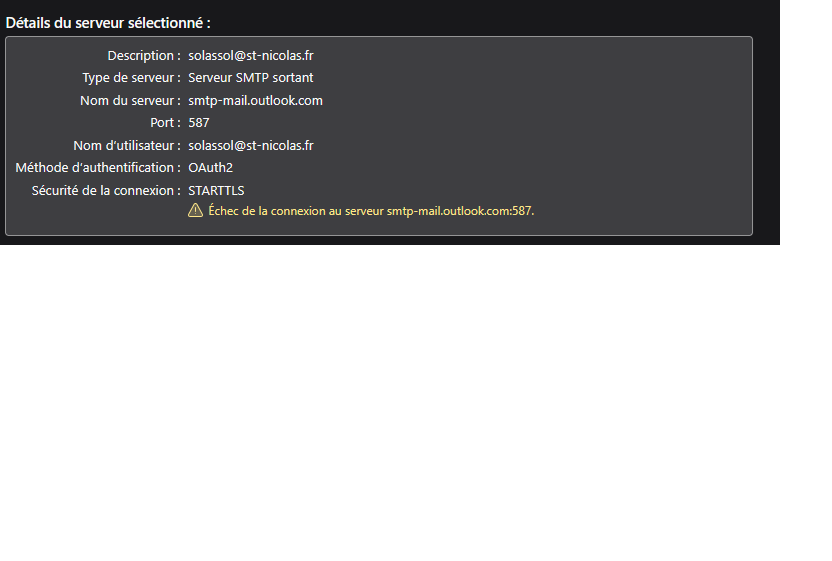
So if there are no entries in the Sign-in logs at the time of the connection attempt, it means Thunderbird’s traffic isn't even reaching Microsoft's authentication service.
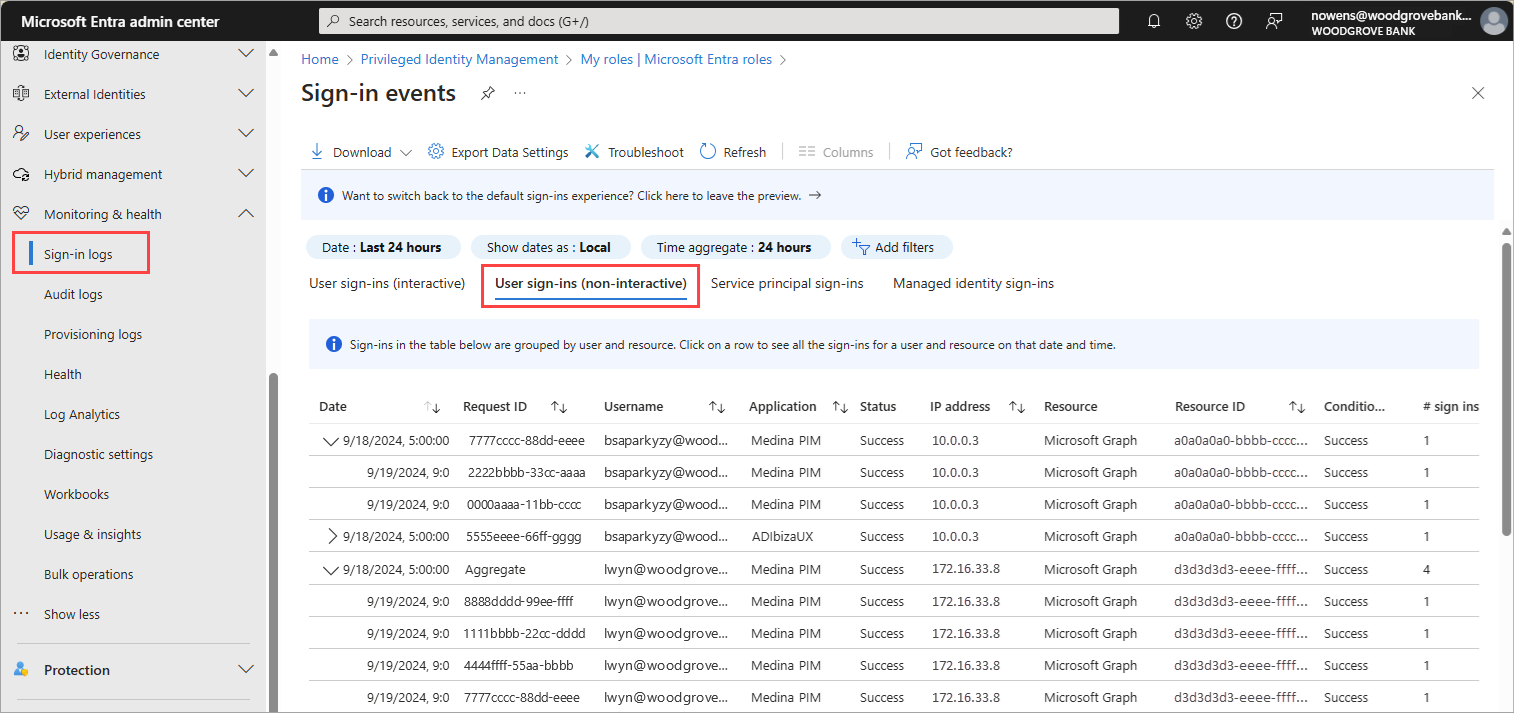
Can you check the Non-interactive tab in the Sign-in logs. If it's still empty, the traffic is definitely being blocked locally or by a network firewall.
To check firewall you can try a test with a PowerShell command to see if the port is even open on your network:
Test-NetConnection smtp.office365.com -Port 587
or
Test-NetConnection smtp-mail.outlook.com -Port 587
If "TcpTestSucceeded" is False, the problem is in your local network/firewall.
Here is the result :
PS C:\> Test-NetConnection smtp.office365.com -Port 587 ComputerName : smtp.office365.com RemoteAddress : 40.99.155.50 RemotePort : 587 InterfaceAlias : Ethernet SourceAddress : 192.168.X.X TcpTestSucceeded : True
PS C:\> Test-NetConnection smtp-mail.outlook.com -Port 587
ComputerName : smtp-mail.outlook.com
RemoteAddress : 40.99.217.70
RemotePort : 587
InterfaceAlias : Ethernet
SourceAddress : 192.168.X.X
TcpTestSucceeded : True
lets go back to basics here;
Is JavaScript enabled in Thunderbird? Are cookies enabled? Are the authentication tokens getting beck to Thunderbird? (this is an issue mostly in Linux, but those with development environments, web servers or with security software that blocks access to the localhost connector it crops up on al platforms. Anything that consumes HTTP/HTTPS packets arriving and the localhost can cause issues. see https://support.mozilla.org/en-US/kb/automatic-conversion-google-mail-accounts-oauth20
The article refers to google, but the oauth basic issues are the same just more complicated for Microsoft as they have their "modern Authentication".
1. Did you check the "Non-interactive" sign-in logs specifically? (see pic)
2. Can you try to connect a laptop/pc to a mobile phone hotspot? if it works, it proves the issue is the school's firewall/ISP.
If you are still stuck, you might ask at https://thunderbird.topicbox.com/groups/enterprise with details of what you've tried that haven't worked.