


Downgraded from Thunderbird 160 (64-bit) release to 153.7.0esr (64-bit). Backed up the profile before doing the change. No new profile was created yet all old emails and filters are gone. Help

Noticed that the latest version of the regular release was not working and I had not received any emails since the update. Decided to try the ESR version and from the info it seemed like it was possible to downgrade. So I backed up the profile and did the change. Brought Thunderbird back up and it was like a new installation. Cannot access 20 years of saved emails and it had no knowledge of the 3 email addresses I monitor. All filters are gone. Yet the time stamps on the files in the profile folder are mostly old, so it did not create a new profile. Help.
All Replies (5)
Isisombululo esiKhethiweyo
Open the Thunderbird profile folder via Help > Troubleshooting Information > Profile Folder > Open Folder, then quit Thunderbird. The recently created profile folder "xxxxxxxx.esr" is now displayed in Windows Explorer. Move one level up in the folder hierarchy to open the folder "Profiles". Try to identify your old profile folder "xxxxxxxx.default release", open it, search for the file "compatibility.ini" and remove it. Close the Explorer.
Now open the Thunderbird profile manager: press the Windows Key + R on the keyboard. A Run dialog will open. In the Run dialogue box type: thunderbird -P https://support.mozilla.org/en-US/kb/profile-manager-create-and-remove-thunderbird-profiles#w_start-the-profile-manager-when-thunderbird-is-closed
The little profile manager window will open: select your old profile and hit "Start Thunderbird". Thunderbird should open your old profile with your accounts, folders, messages, address books, calendars, ...etc.
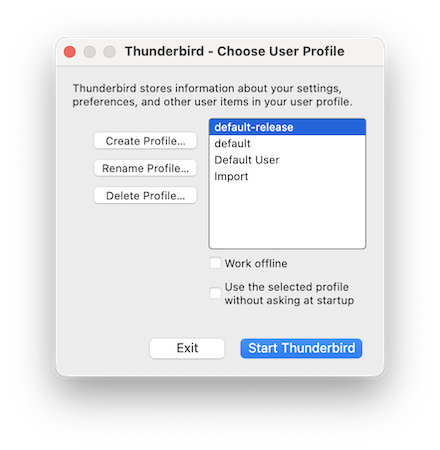
Thanks, that did work. It did bring up another tab to back up the profile though.
I spoke too soon. It did bring back all of the info for the email accounts that I use, but it did not bring back any of the local information, which is where all of my archives are kept. What else can I do. Thanks again for your help.
One other thing. It also did not bring back any of the filters.
put.it.in.writing.now said
....but it did not bring back any of the local information, which is where all of my archives are kept.
Do you mean the "Local Folders", the "special account" which has no identities associated with it? This puzzles me since if you have chosen your old profile in the profile manager everything should be back as it was before. So this is more complicated than I could judge from your description. Please show a screen shot with the contents of the folder "Profiles" in ...\AppData\Roaming\Thunderbird\
Also open the file "profiles.ini" which you'll find in the folder Thunderbird and take a screen shot of its contents. Remember: if you have used a profile with v160 release and want to open it with v153.7.0esr you get the error message that this profile has been modified by a more recent version of Thunderbird. The message offers two options : Create a new profile or quit Thunderbird. ì just reproduced the same scenario: when I got this message I closed it, deleted the compatibility.ini file in the v160 profile, then started v157.3.0esr which opened the v160 profile without an error message.