


I have problems with my Orcon emails and they say it is Thunderbird.

On Saturday morning 27 June 2026 I tried to login my Orcon email account via Thunderbird (which I have been using for a long time). But my login didn't work, I got a message saying "login to POP3.orcon.net.nz with username habitation failed." On 30th June 2026 I reported the problem to Orcon.
Orcon gave me the following settings for Thunderbird. I have done that and even made a new account: Incoming Server Type: IMAP Mail Server: imap.orcon.net.nz Port: 143 SSL: Off Authentication: On (username and password required)
Outgoing SMTP Server: Mail Server: smtp.orcon.net.nz Port: 25 SSL: Off Authentication: Off
Since then I have spent many hours and going around in circles with Orcon's Technical Support to resolve this, but no luck. They blame Thunderbird. I used Thunderbird Troubleshoot Mode. The message that comes up reads: login to server mail orcon.net.nz with username habitation failed. Please can you check that your server settings above are correct? And if there is a bug? Irma
All Replies (72)
Rick said
Ed, if the account is set up as POP in Thunderbird, won’t deleting it lose messages?
No - When you remove a pop account, the data in /profile name/Mail/pop account remains.
So when you remove the account via 'Account Settings', then remove the stored passwords via 'Settings' > 'Privacy & Security' , exit Thunderbird and then restart Thunderbird (to ensure all prefs and file etc are updated), you can recreate a new POP account for email address and then set up the Account Settings' > account name >'Local directory:' to point to the original folders and see all emails again.
But if emails are still on server then an IMAP account will still locate those emails. Either way, the emails should not be lost and it should be possible to recover even if only visible in Local Folders account. But that is a Separate topic.
IMAP accounts can only display whatever is on the server. It's like a mirror image. IMAP account folders synchronise with server in order to display whatever is on server - unlike POP - Pop does not synchronise with server - it only has access to server Inbox in order to download mail to pop Inbox. You can choose whether to leave messages on server or not.
IMAP account can fully download emails and this is very useful as it means you can then create a backup of the entire profile including emails which is completely independent of the server. IMAP account can also only download headers and this may save you space on your computer - in which case it downloads emails when you select to read them and stores in a temp folder to facilitate viewing. Or variants as well - but that's another topic. The point is this, if you delete an email via webmail, it will get removed from your imap account when it synchronises with server and vis versa.
Please check everything I've listed below in the order listed. Do not assume anything.
Firewall The firewall is either controlled by the default on computer or controlled by an Anti-Virus you installed. It's important you do not want your own computer blocking any ports etc that Thunderbird need to use. Access the Firewall and make sure the Thunderbird program is set up as an allowed program. If using Windows OS, you would typically find it installed in this location:
- C://Program Files/Mozilla Thunderbird/thunderbird.exe
VPN: Please double check - many Anti-Virus products now have their own VPN and in some cases it does get auto enabled and server will not like VPN as it hides your IP address and server may think you are a hacker. In Thunderbird IF you actually created an imap account - access Account Settings and remove it.
In Thunderbird
- Settings > Privacy & Security
- scroll down to Passwords section
- Click on 'Saved Passwords'
- Do you see any mention of your orcon account where username = orcon email address.
- If yes, then remove all of them.
Exit Thunderbird - wait a few moments and then restart Thunderbird and create the account. Then when you create new account and enter : Your name, your email address and password Thunderbird should locate the correct settings but servers do alter their requirements and you cannot guarantee that Thunderbird has been informed, so you may need to manually check every detail. You may also discover thunderbird put the entire email address in the username field because virtually all servers want full email address as username - but orzon may be one of those that only wants the first part of email address - the bit before the '@' sign. So you might get an initial fail due to something being incorrect.
You can click on the 'advanced config' to manually edit things.
The orcon.net server settings are: Account Type: IMAP
- Server name: mail.orcon.net.nz
- Port: 993
- Connection Security: SSL/TLS
- Authentication Method: Normal Password
- Username :enter the first part of your Orcon Email address, without the @orcon.net.nz.
It's important to get the spelling correct, all lowercase and do not add any full stops or spaces etc
- Password: must be exactly the same password you use to access webmail account, it is case sensitive
Outgoing mail server (SMTP):
- server name: mail.orcon.net.nz
- port: 587
- Connection Security: STARTTLS
- Authentication Method: Normal Password
- User Name, enter the first part of your Orcon Email address, without the @orcon.net.nz.
- Password: must be exactly the same password you use to access webmail account,it is case sensitive
Then 'Test' connection and create the account.
Hi Rick Was my last screenshot any help for you? Irma

Irma van der Linden said
Hi Rick Was my last screenshot any help for you? Irma
Your question must be meant for Ed. I know little about ports.
Toad-Hall and I have both suggested that you try using only the first part of your e-mail address (the part before the @ sign) as your username. Have you tried it?
Have tried it several times before. Tried it again this morning (hoping that MAYBE Orcon has found the problem and didn't tell me - wishful thinking): no luck.

Have you set up the Firewall to allow the Thunderbird program ? If no then please do it before you create the mail account because it's vitally important to know you have set it up - post an image showing you have done this.
Also what Anti-Virus are you using?
Did you remove any account you created from Account Settings and then access the saved passwords and completely remove anything for that account/email address ? If no then please do it.
Please follow my previous instructions to create the account and post images showing you are actually using the correct server settings and username because so far all images you have posted confirm you were using wrong settings, so I would not expect it to work.
Hi See screenshot re Firewall/Anti Virus
Not sure how to do the removing etc. Screenshots 9, 9a, 9b show you what I get now when I open Thunderbird.
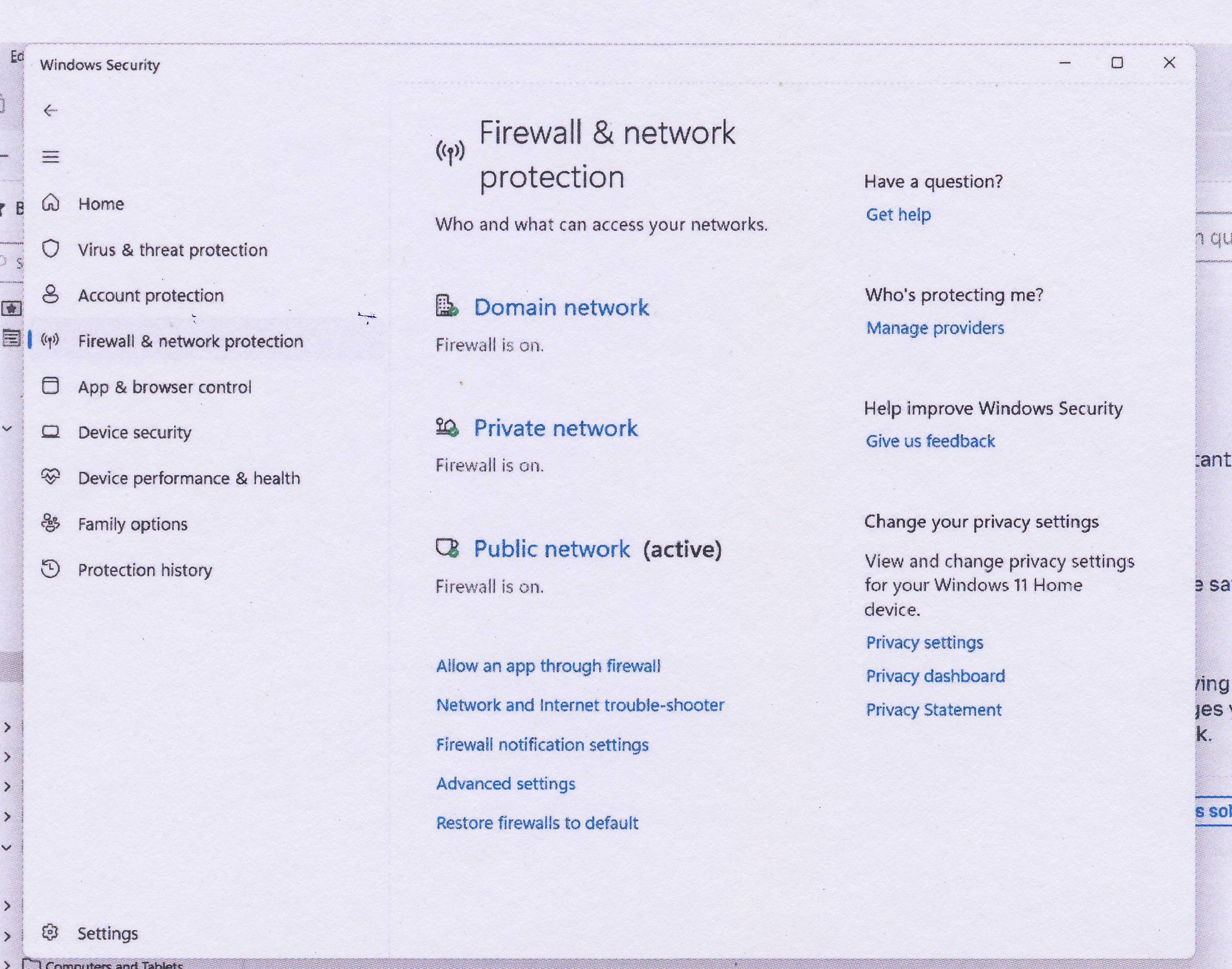
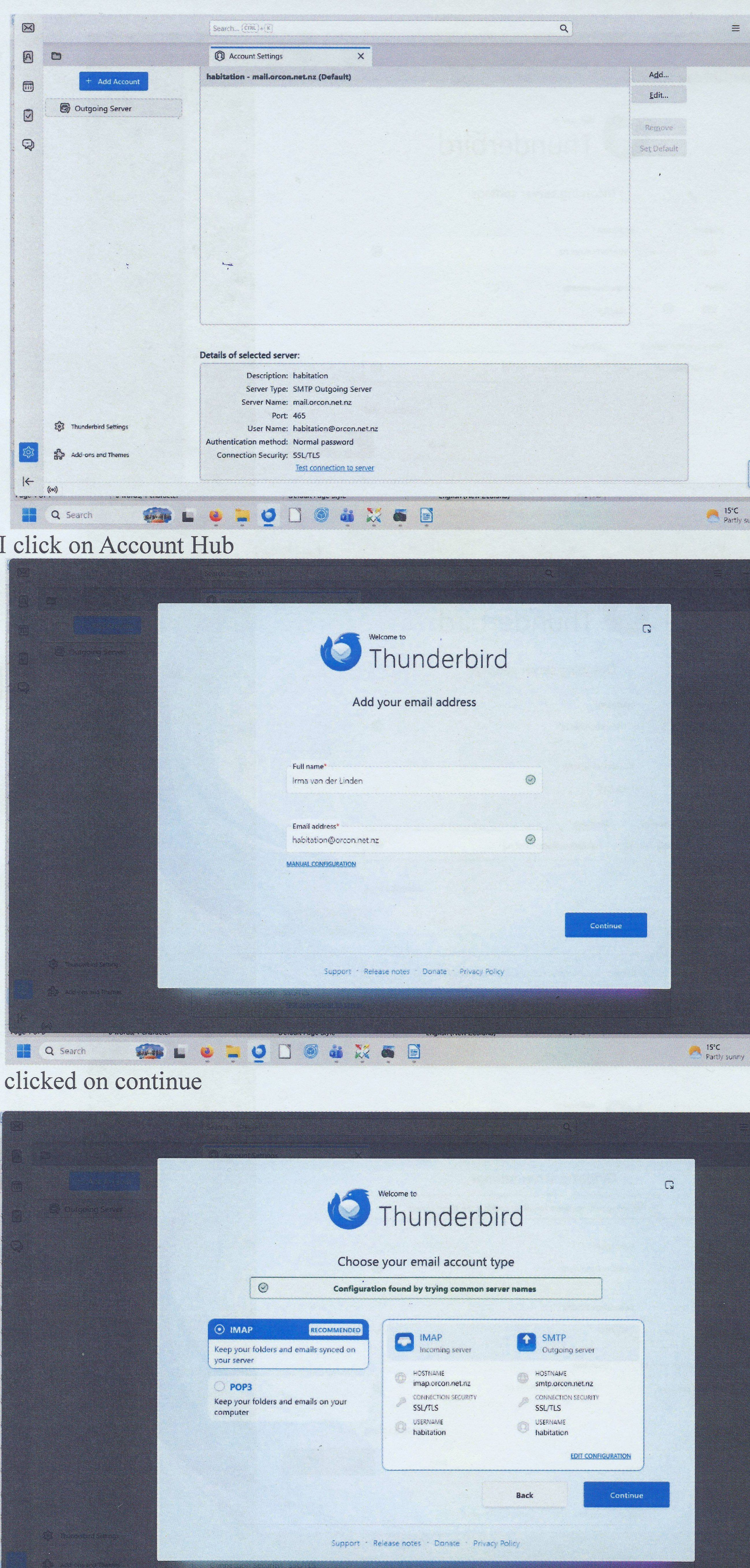
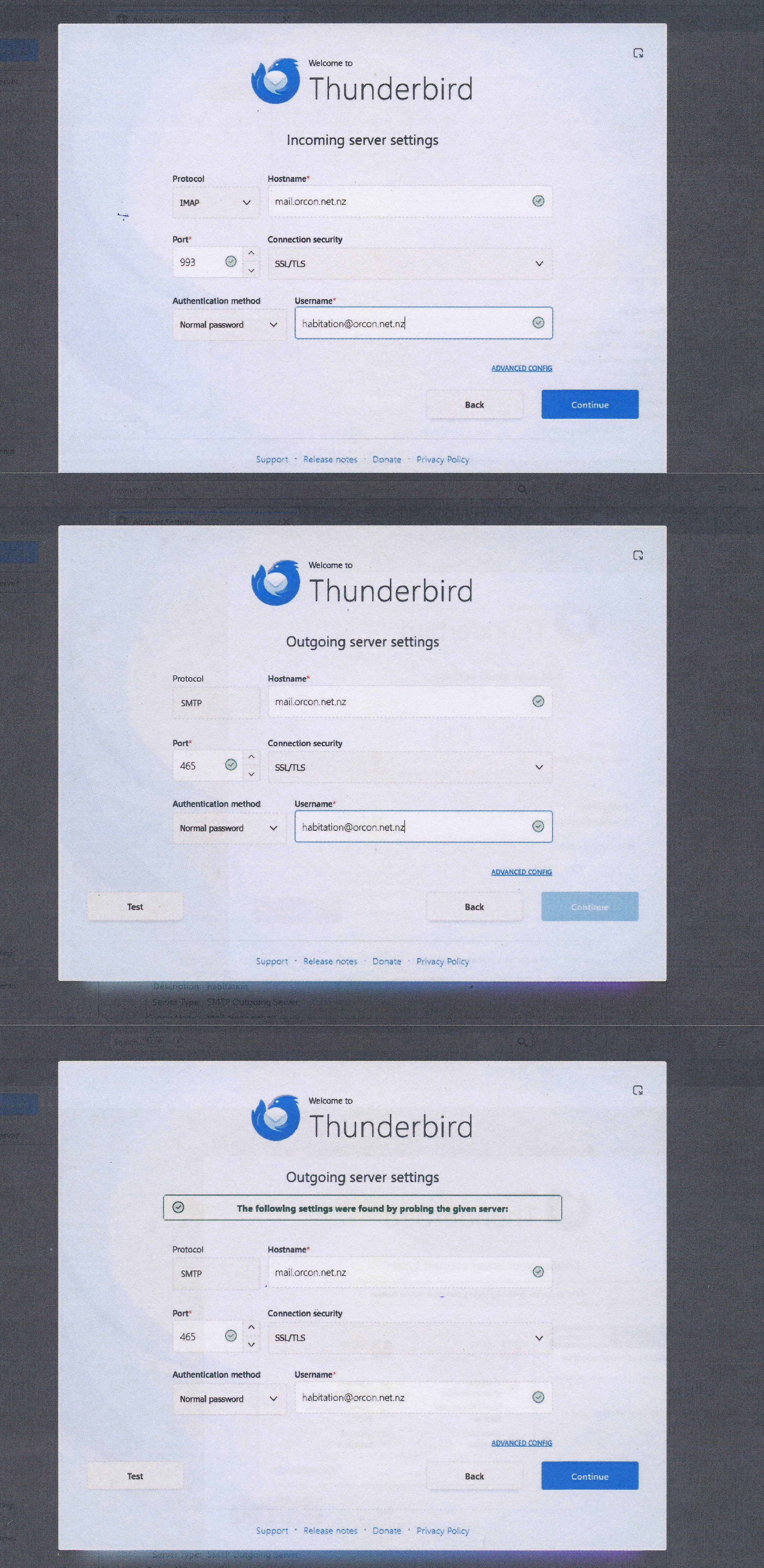
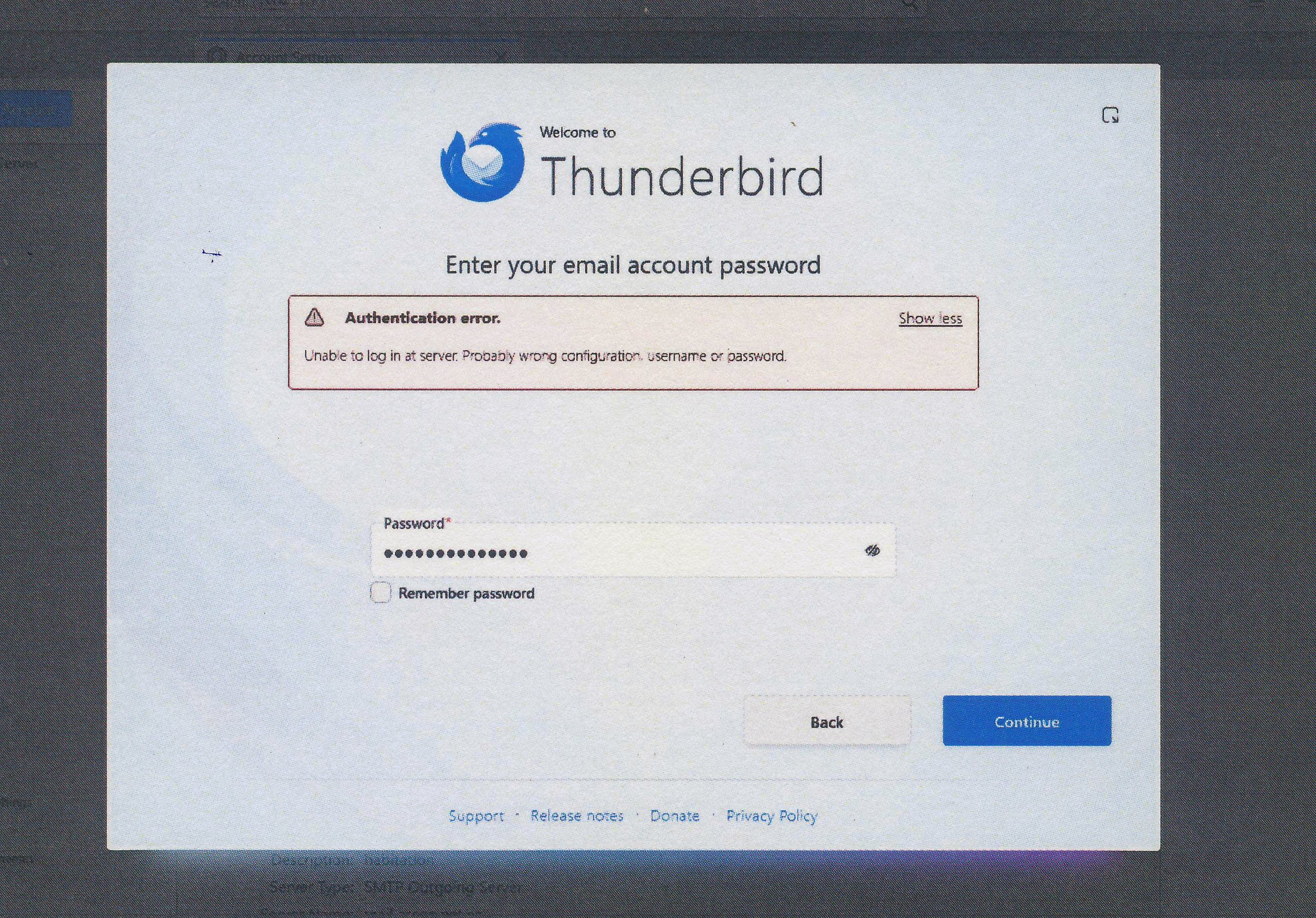
re :See screenshot re Firewall/Anti Virus
Image does not show that you have allowed Thunderbird program. In that Firewall image did you click on 'Allow an app through Firewall' ? If no then click on it. Then you have to set the Thunderbird program as an allowed program. Then post an image showing you have done it. So we can see that the Thunderbird program is now an allowed app.
Once we certain Thunderbird program is not being blocked by Firewall.....
RE creating mail account
You posted a load of good images showing that you seem to have entered wrong data. Let's try using the 'Manual Configuration' option and NOT the auto configuration via 'Continue'.
Please be absolutely certain that the password you use is correct. You must be able to use it to access webmail account via a browser. So test that first.
- Enter name
- Enter email address
- click on 'Manual Configuration'
Then check you have the following:
- Protocol: IMAP
- Server name: mail.orcon.net.nz
- Port: 993
- Connection Security: SSL/TLS
- Authentication Method: Normal Password
- Username :enter only the first part of your Orcon Email address, the bit before '@orcon.net.nz'.
It's important to get the spelling correct, all lowercase and do not add any full stops or spaces etc
- Password: must be exactly the same password you use to access webmail account, it is case sensitive
Outgoing mail server (SMTP):
- server name: mail.orcon.net.nz
- port: 587
- Connection Security: STARTTLS
- Authentication Method: Normal Password
- User Name, enter the first part of your Orcon Email address, without the @orcon.net.nz.
- Password: must be exactly the same password you use to access webmail account,it is case sensitive
When you have manually entered all the required data - post an image so we can see what you have entered.
Then click on 'Test' connection - post an image showing the results.
Ilungisiwe ngu Toad-Hall
Greetings - once this becomes solved, please be sure to mark one of the comments as solving the problem. Thanks.
Hi Toad-Hall I can't find Thunderbird in that list of Allow an app .... see screenshot11
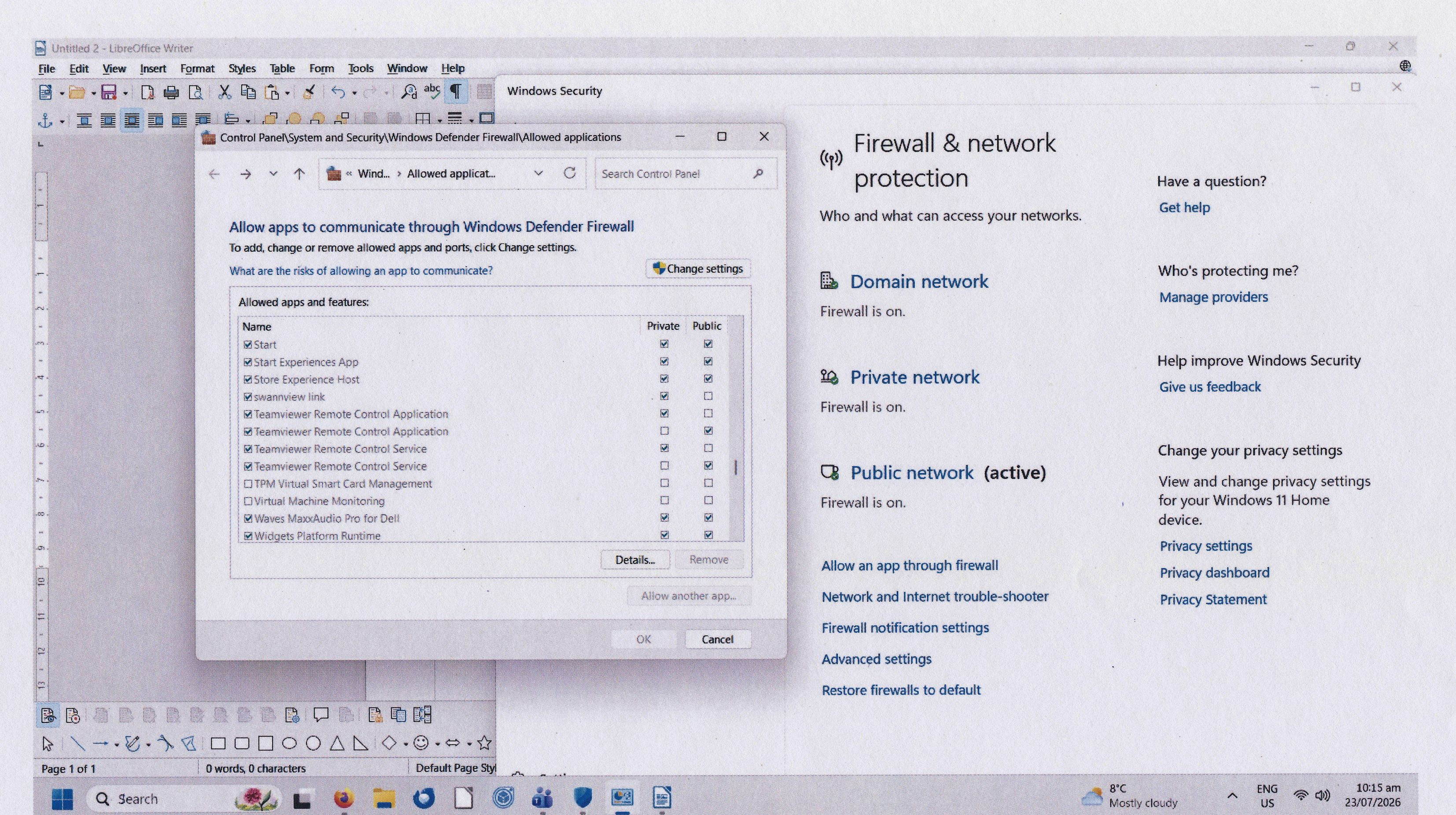
HI Toad-Hall
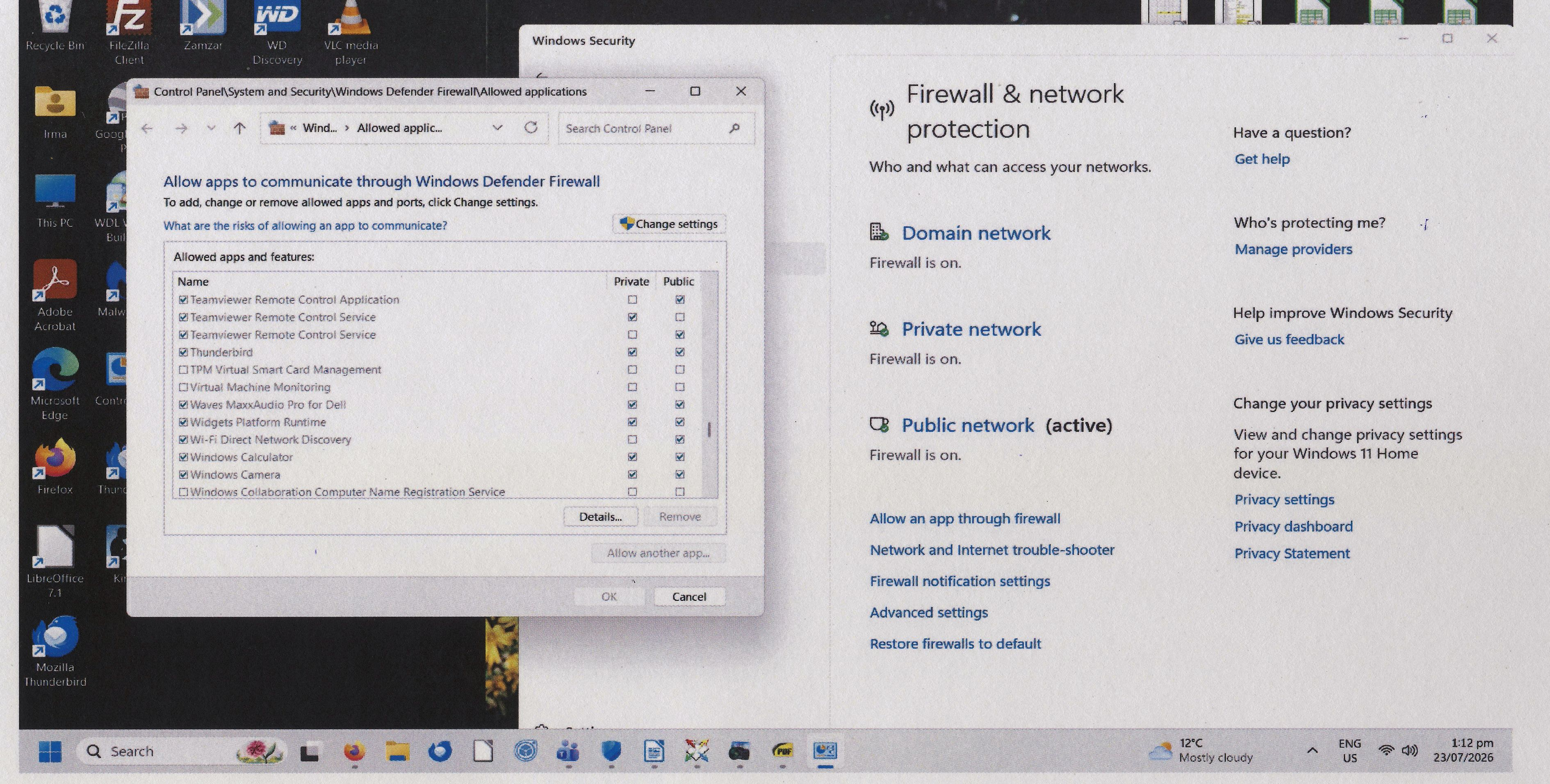
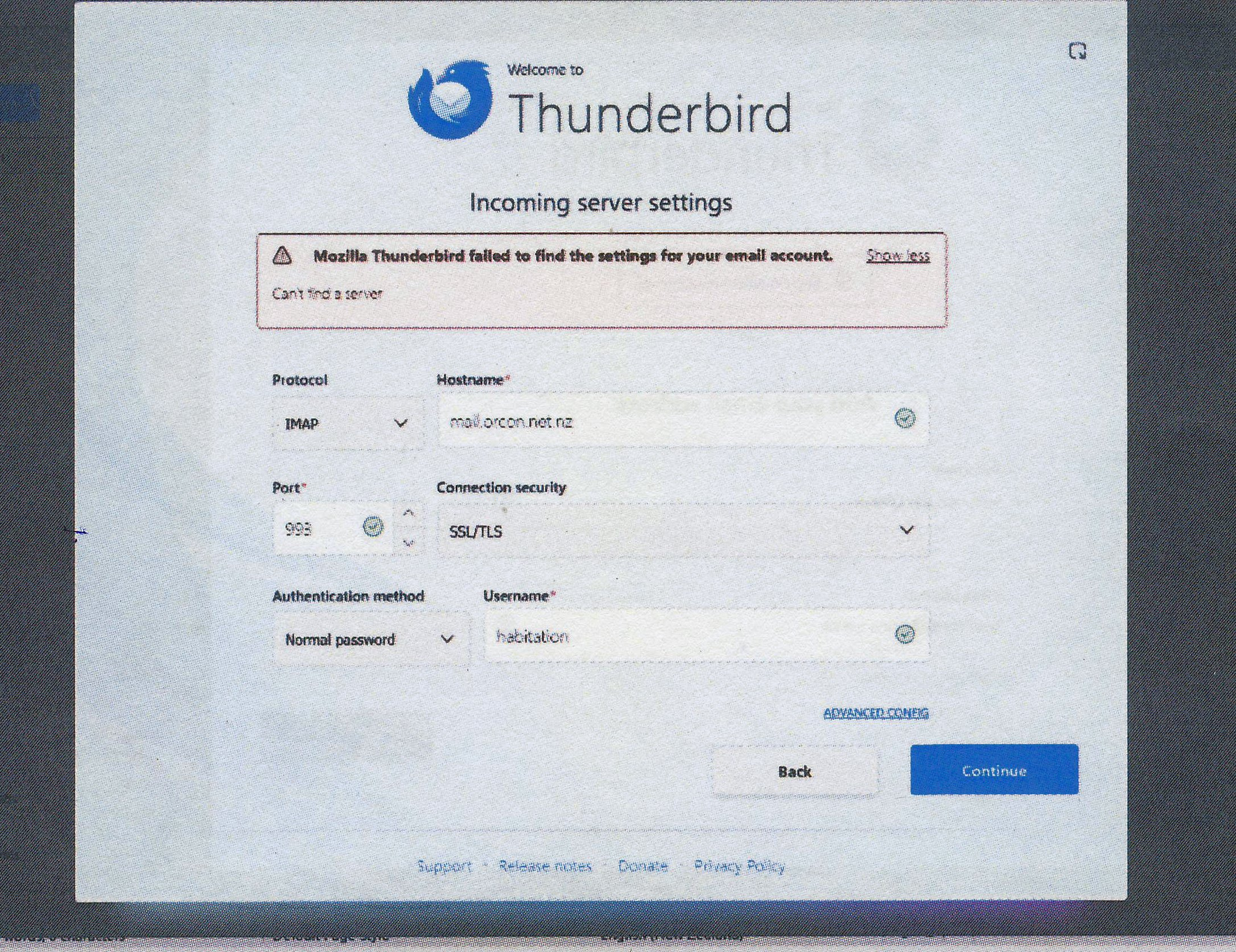
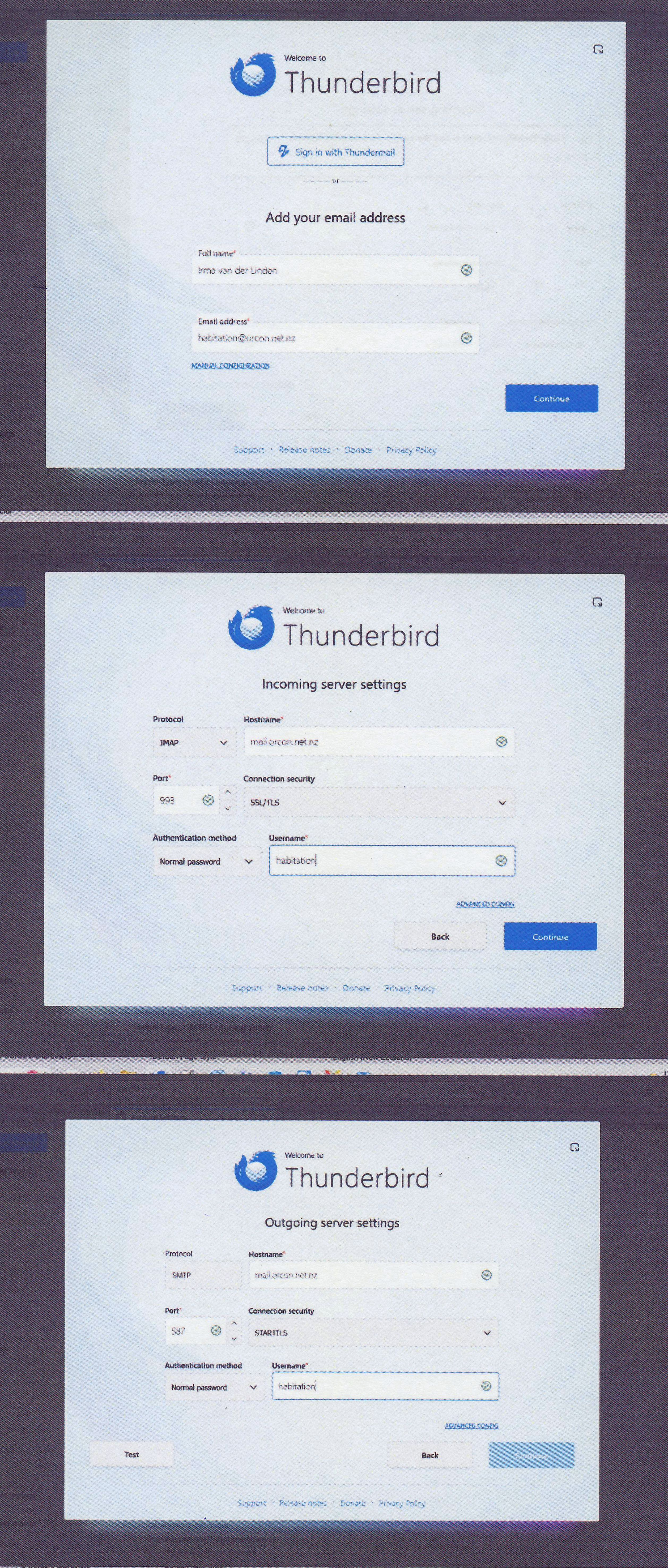
I have added Thunderbird to the Firewall to make sure it is not blocked. See screenshot12 and after that I tried as you specified see screenshot 13 and 13a.
- Ngaphambili
- 1
- 2
- 3
- 4