


Updates keep making my bookmarks toolbar disappear

I'm on a desktop using Windows 11. I apply Firefox updates pretty quickly whenever I'm notified one has been published. The last 5 or so updates have made my Bookmarks Toolbar disappear. Sometimes I'm able to retrieve is, and all bookmarks are still intact, but then the next update disappears it again. *Holding pleading hands to the heavens* Whyyyyyyyy?
Tất cả các câu trả lời (3)
Hi mossum, Sorry to hear that. That can be caused because your Firefox is creating new profiles. If Firefox starts up after an update without your bookmarks and other settings, check whether your data is available in a different profile:
Inside Firefox, type or paste about:profiles in the address bar and press Enter/Return to load it. The About Profiles page will open. This page should list at least one profile and could list many.
The profile that Firefox is currently using will show:
This is the profile in use and it cannot be deleted.
Please do not delete anything here; don't use any Remove buttons.
Do you have another profile named default or default-longnumber listed on this page? If so, you can check whether it is the one you were using recently by clicking its Launch profile in new browser button.
If it isn't what you want, simply close that new window.
If it IS what you want, click the Set as default profile button for that profile on the about:profiles page. Firefox will use it automatically at the next startup.
For more information see Recover user data missing after Firefox update or reinstall.
Note: If your bookmarks are not available in another Firefox profile, see Recover lost or missing Bookmarks for other solutions.
Thank you but it's not my Bookmarks that are missing. I can dig around and find them. What keeps disappearing is my Bookmarks TOOLBAR.
Tool bar
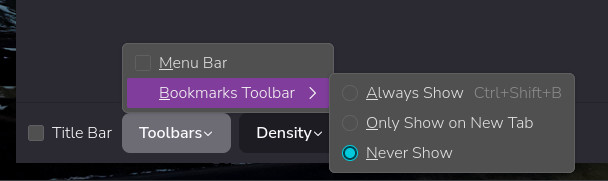
Right click toolbar > Customise toolbar
Toolbar menu > Bookmarks Toolbar >Always show
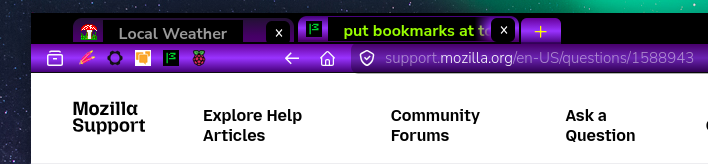
There is always the option to have bookmarks on the main url bar, if you don't have many, as you can drag the Bookmarks toolbar to the main bar and then disable the Bookmarks toolbar as I have done.
The other image is of my bookmarks on my URL bar
Note: it is a great idea to make a back up of your settings :)
Được chỉnh sửa bởi amoun vào