


Bank website always adds password but the passwords have never been saved! And they're incorrect!

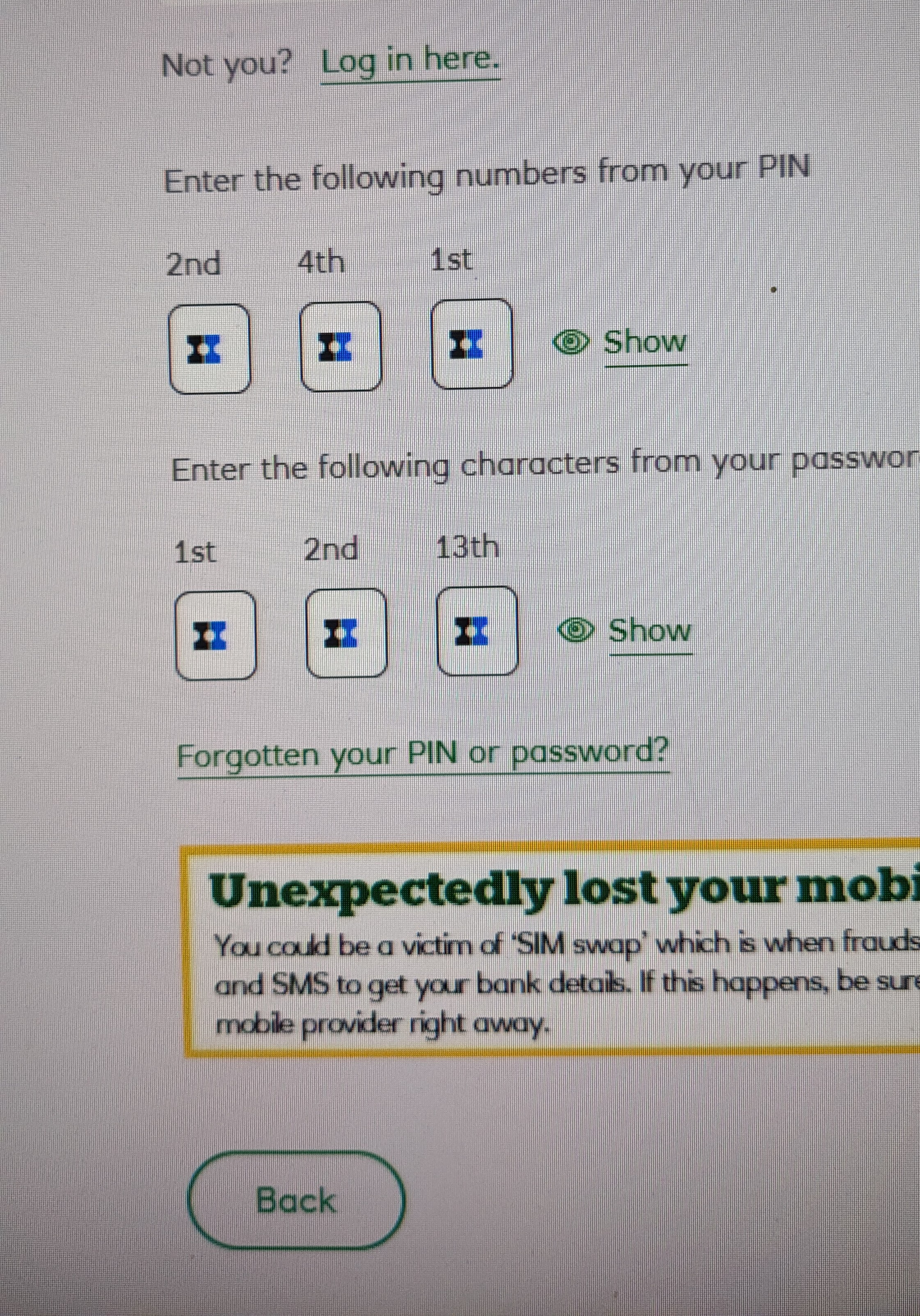
My bank website asks for pin and password codes but each character option displays the fancy Firefox symbol which I can;t delete. The passwords for the site have never been saved but I can't enter the correct password characters because I can't override the symbol. I'm having to access this bank account on Chrome unfortunately. Most frustrating because the website is not listed in "Saved passwords" so I can't edit it! Thanks Mike Bathgate
Tất cả các câu trả lời (1)
Giải pháp được chọn
Hi!
Thanks for describing the problem. Here are some steps you can try:
1.Disable Autofill: - Go to Settings > Privacy & Security > Passwords. - Uncheck the options for autofilling or suggesting passwords. - Refresh the webpage and try entering the password again.
2. Check your saved passwords: - Even though it says the page is not saved, double-check in Settings > Privacy & Security > Passwords > Saved passwords. Sometimes the page is saved under a different domain. - If you find the entry, delete it.
3. Clear your cache: - Go to Settings > Privacy & Security > Cookies & Website Data > Clear Data. - Clear your cookies and cached data, then try again.
4. Check Extensions: - Some extensions (e.g. password managers) can interfere with input fields. Go to Add-ons & Themes > Extensions and temporarily disable them.
5. Private Window: - Open a private window (Ctrl+Shift+P) and try entering your password. This will disable extensions and saved data.
I hope this helps you solve the problem!
Vexi