clicking a link in an email opens link twice. (Opera Browser)

Hi,
Thunderbird started doing this few days ago
I click on any link in an email and my UAC opens up asking for permission to open the link, i click on "YES". After doing so, another UAC opens up and asks for permission for the second time.
Is this a bug or is there a setting that can be applied to fix this?
Best,
Tất cả các câu trả lời (1)
Giải pháp được chọn
First of all, are you double-clicking the links in Thunderbird? That would cause this.
Otherwise, follow all these instructions. Where I say Firefox, replace that with Opera Browser.
If you are are using Windows 8 or 10:
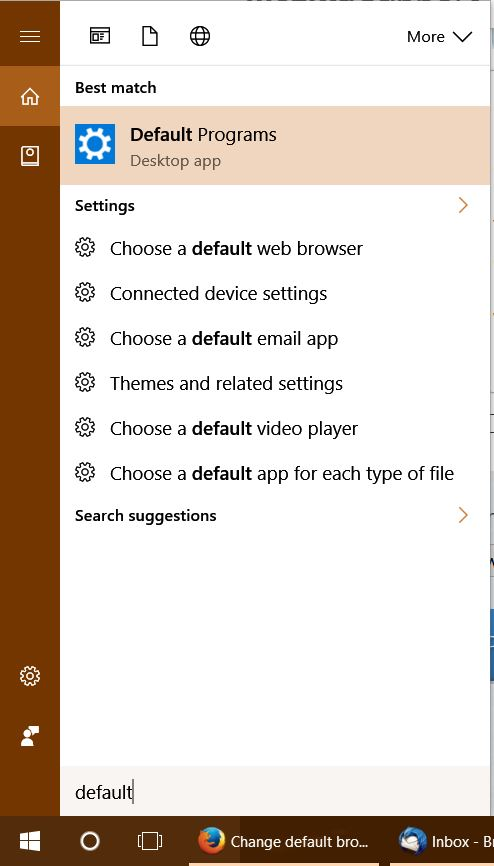
1. Type "default" into Cortana search, then click on the search result Default Programs. See my first screenshot below.
2. Under Choose default apps, change the E-mail to Thunderbird, and the Web browser to Firefox.
3. Scroll down to the bottom of that window and click on Set defaults by app.
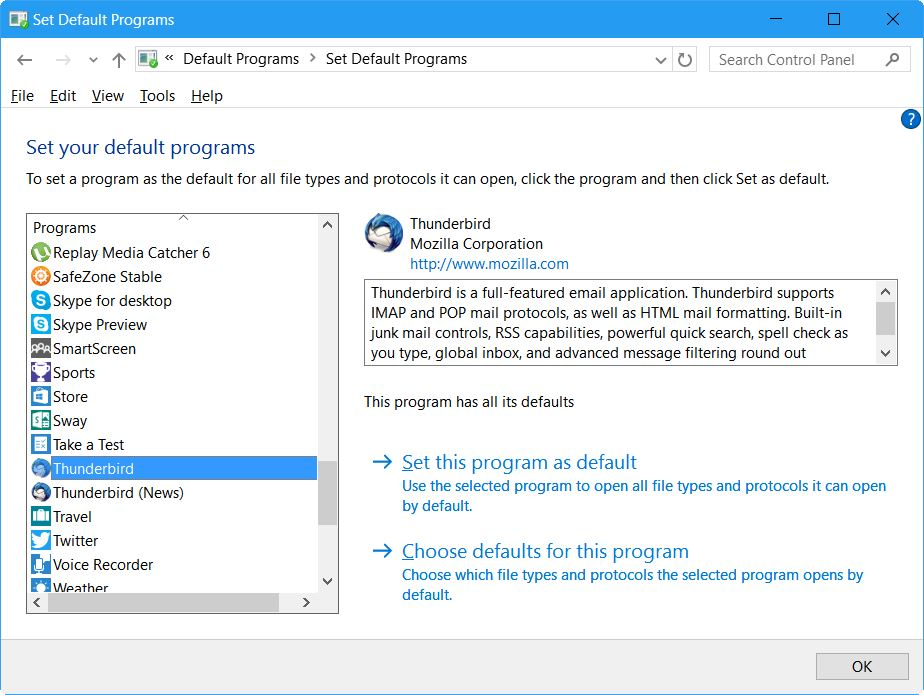
4. You will now see a screen like my second screenshot below. Find and select Firefox, then click on Set this program as default on the right side. Do the same thing for Thunderbird in the list.
5. Click OK on that window, and close the other windows.
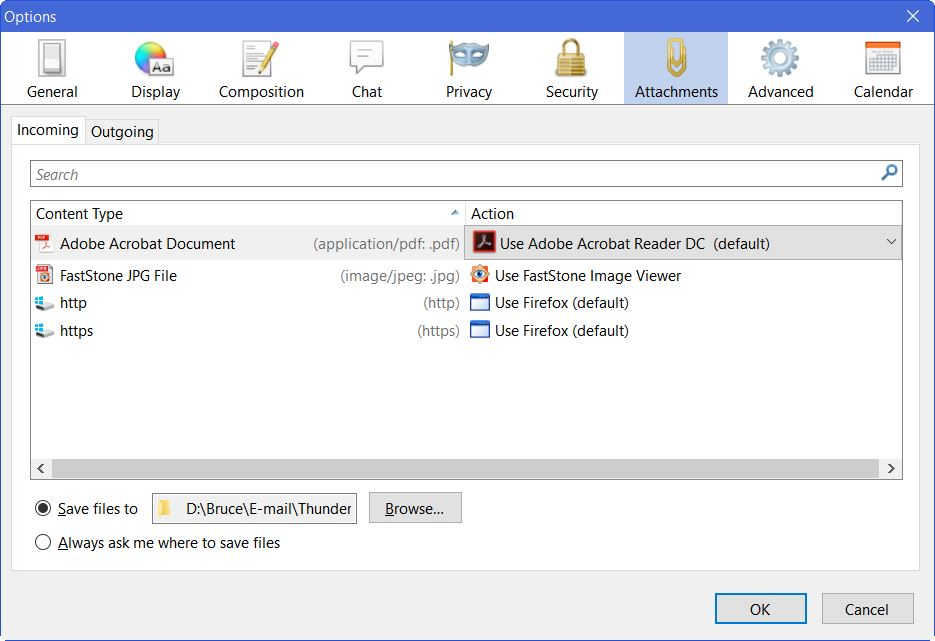
6. Open Thunderbird and go into the program options. From the menu bar click Tools: Options: Attachments section: Incoming tab. Or from the "three bar" menu button on the top right, click Options: Options: Attachments section: Incoming tab.
You will see a window like I show in my third screenshot below.
7. Find the lines for http and https and delete them. Click OK on the options window to close it.
8. Click on a webpage link in an e-mail. You will be asked what program to use to open the link with. Choose Firefox, and to remember the decision.
That should do it. This covers all the bases.
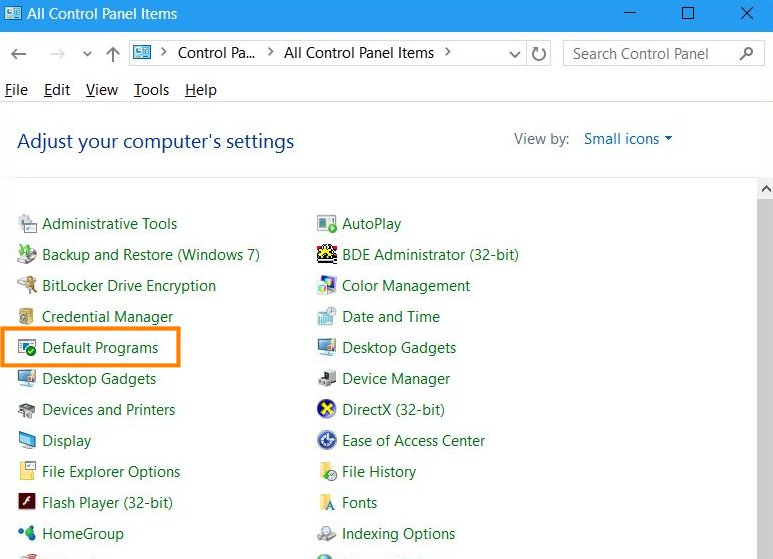
If you are using Windows 7 (or earlier), then skip steps 1-3. To see the window in step 4, open the Control Panel, view it by small icons, then click on Default Programs, as depicted in my forth screenshot below. Then continue on with the steps.