


The firefox built in VPN won't load any websites, help please?
I've been using firefox for a little while- maybe three months now. I'm no expert on any of the config options. I run firefox using the built in VPN that my friend showed me how to enable, and I've been using it since. But now, as of roughly today, whenever I enable the VPN, no websites will load. At all. When I turn it off, they load instantly. But whenever I turn it on, it just gets stuck loading forever and ever, never actually getting anywhere. I tried enabling network.dns.disableIPv6 in the config page, because that's what I saw on a mozilla support page- nothing. Didn't do anything. The browser.ipprotection.enabled is still on, and I didn't change anything in settings. There was a firefox update very recently, but everything still worked with the VPN on. I just updated my computer, but I don't think that's it either because it wasn't loading things earlier today either. Not sure how to fix this. Please help?
എല്ലാ മറുപടികളും (13)
Hello,
You can try these fixes : First, go to menu > privacy & security, then scroll down to DNS over HTTPS, then set it to off. After that, try using the built in VPN again.
Next, check your 50GB data limit. If hit, the VPN may fail to function, until the monthly allowance of 50GB resets, monthly.
Next, try clearing network cache and cookies. *Keep in mind that this will sign you out of some websites, so make sure you have all your account info saved* To do so, go to settings > privacy & security, then find the Cookies and Site Data section and click clear data. After that, check cache and cookies, and click clear.
Lastly, try switching server locations for the built in VPN, and testing each server.
dessertdish said
Hello, You can try these fixes : First, go to menu > privacy & security, then scroll down to DNS over HTTPS, then set it to off. After that, try using the built in VPN again. Next, check your 50GB data limit. If hit, the VPN may fail to function, until the monthly allowance of 50GB resets, monthly. Next, try clearing network cache and cookies. *Keep in mind that this will sign you out of some websites, so make sure you have all your account info saved* To do so, go to settings > privacy & security, then find the Cookies and Site Data section and click clear data. After that, check cache and cookies, and click clear. Lastly, try switching server locations for the built in VPN, and testing each server.
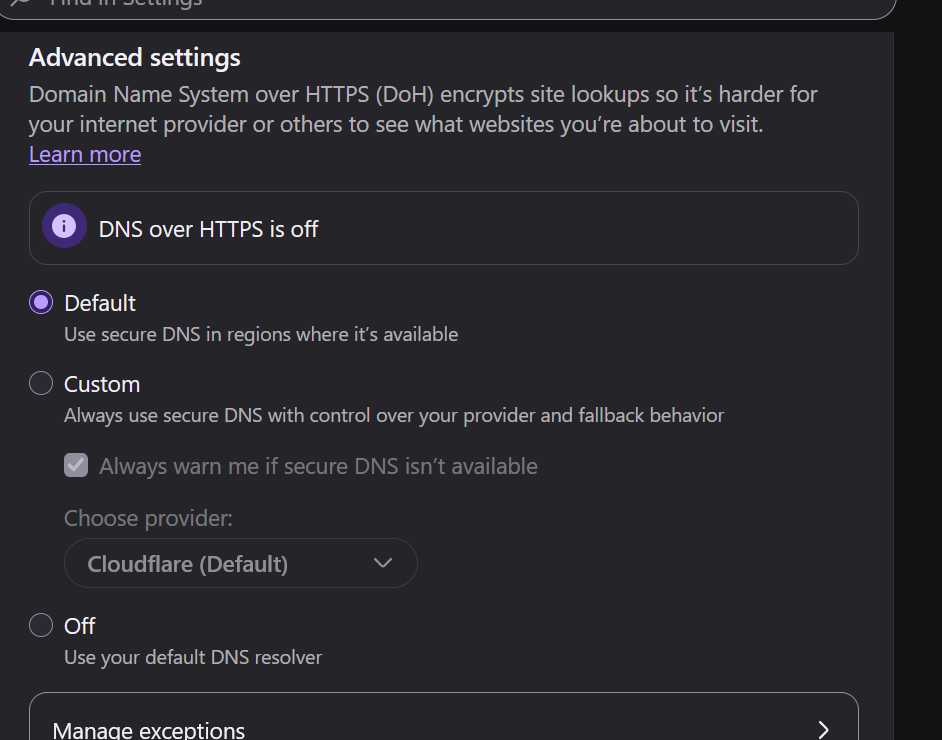
For some reason, the DNS over HTTPS was already off. I never turned it off, it just was like that. I included a screenshot of what it shows, and that was the what I saw when I got there. I didn't touch anything. My 50GB limit is only at 45.1, meaning I only used 4.9 out of the 50. Besides, it reset this month, and it would be very hard to use 50GB of data in 8 days. Anyway, that's not it. I tried switching locations and out of the ten or so I tried, none of them worked. I CAN try them all of you think one of them would work, but I kinda doubt it. I tried clearing my cache and cookies, then completely ending firefox and starting it up again, and that didn't work. just signed me out of everything. Not really sure what to do now. Thank you for replying though, especially so soon after I originally made the post.
Hello,
Since the previous fixes didn't work, you can try these additional ones : Go to about:networking#dns, and click clear DNS cache button. After that, restart firefox, and re-enable the VPN and test again.
Next, go to about:config again, then search for "network.dns.disableIPv6" and set it to false if true. After that, restart Firefox and test. If it doesn't work, re-enable it.
dessertdish said
Hello, Since the previous fixes didn't work, you can try these additional ones : Go to about:networking#dns, and click clear DNS cache button. After that, restart firefox, and re-enable the VPN and test again. Next, go to about:config again, then search for "network.dns.disableIPv6" and set it to false if true. After that, restart Firefox and test. If it doesn't work, re-enable it.
Nope. Nothing worked. I went to the about:network#dns and pressed the button, but it didn't seem to do anything. I ended firefox and started it up again. No change. I disabled network.dns.disableIPv6, ended, started again, nothing. I even tried clearing the DNS again with network.dns.disableIPv6 disabled, but no change. I re-enabled it since you said to.
Here are some additional methods : Search command prompt in windows start, and then run it as admin. After that, run this command : CheckNetIsolation LoopbackExempt -a -n="Mozilla.Firefox" After that, close command prompt, and try using VPN again.
Also, as a question, when you cant load the website, what error does it give? A screenshot would be preferred if there is an error. If it is a blank page, you may ignore this.
That sounds like you enabled the feature without it actually being available to you.
That means if your connection to the service endpoints is no longer feasible (that happens outside of supported regions), no traffic will go through.
What is your geographical location?
dessertdish said
Here are some additional methods : Search command prompt in windows start, and then run it as admin. After that, run this command : CheckNetIsolation LoopbackExempt -a -n="Mozilla.Firefox" After that, close command prompt, and try using VPN again. Also, as a question, when you cant load the website, what error does it give? A screenshot would be preferred if there is an error. If it is a blank page, you may ignore this.
It literally just won't load. If I'm on the new tab page and I try to load a bookmark, it just stays on the new tab page and will be stuck loading forever. If I'm on a page, turn it on, and try to go to a different page, same thing.
jbr said
That sounds like you enabled the feature without it actually being available to you. That means if your connection to the service endpoints is no longer feasible (that happens outside of supported regions), no traffic will go through. What is your geographical location?
Washington, USA.
Hi chance,
Washington, USA is within a supported region for Firefox's built-in VPN, so this doesn't appear to be a simple location-availability issue.
Since you've already tried changing locations, clearing the DNS cache, and checking the DNS settings, I wouldn't recommend repeating those steps. I also wouldn't run the CheckNetIsolation command without establishing that it's relevant to your problem.
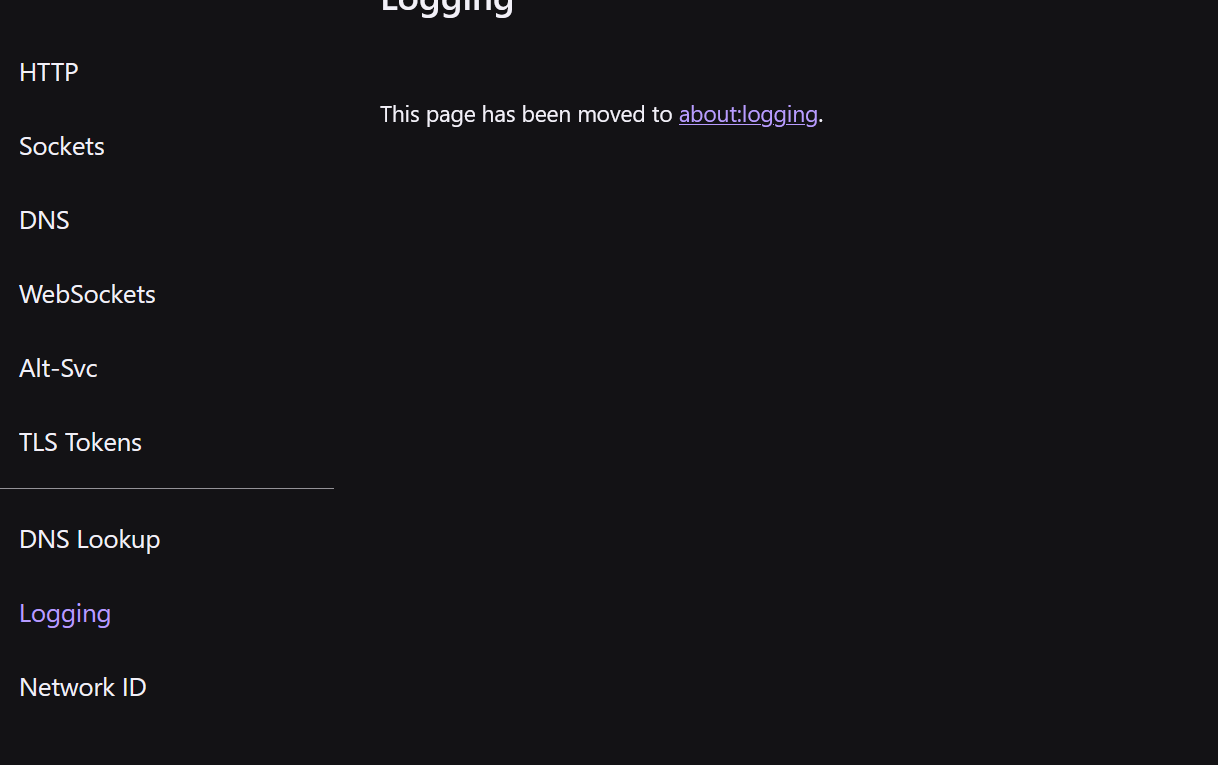
Could you check whether Firefox has any connection errors recorded? Open about:networking, select the Logging section if available, and let us know whether any errors appear when you enable the VPN and try to load a website.
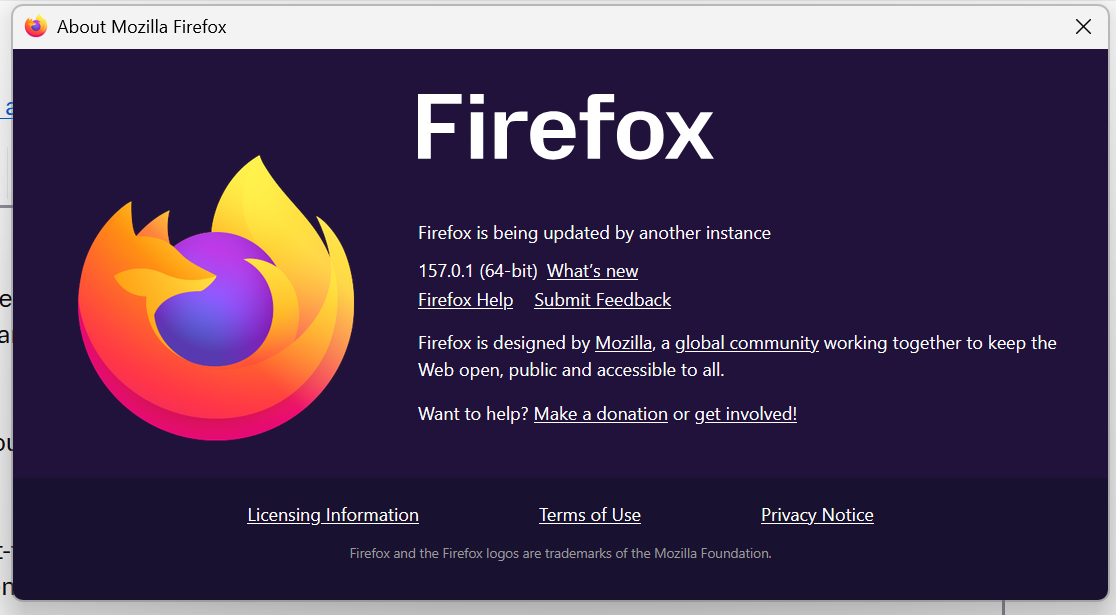
It would also help to know your exact Firefox version (Menu > Help > About Firefox) and whether you're using Windows 10 or Windows 11.
The official guide to the built-in VPN is here: https://support.mozilla.org/en-US/kb/built-in-vpn
Max said
Hi chance, Washington, USA is within a supported region for Firefox's built-in VPN, so this doesn't appear to be a simple location-availability issue. Since you've already tried changing locations, clearing the DNS cache, and checking the DNS settings, I wouldn't recommend repeating those steps. I also wouldn't run the CheckNetIsolation command without establishing that it's relevant to your problem. Could you check whether Firefox has any connection errors recorded? Open about:networking, select the Logging section if available, and let us know whether any errors appear when you enable the VPN and try to load a website. It would also help to know your exact Firefox version (Menu > Help > About Firefox) and whether you're using Windows 10 or Windows 11. The official guide to the built-in VPN is here: https://support.mozilla.org/en-US/kb/built-in-vpn
Thanks, I'll check out the guide in a sec. I'm on windows 11, and though I have 0 idea what I'm looking at, I put in a screenshot of what pops up when I opened clicked About Firefox. I went to about:networking, but when I went to the Logging tab it said it was moved to about:logging. i included a screenshot of what that looks like. I clicked start logging, turned on my VPN, tried going to a website (it didn't load), turned it off, went back to about:logging and stopped logging. It opened a new tab with a bunch of information that I don't understand and have 0 clue what I'm looking at, but I included a screenshot of that as well.
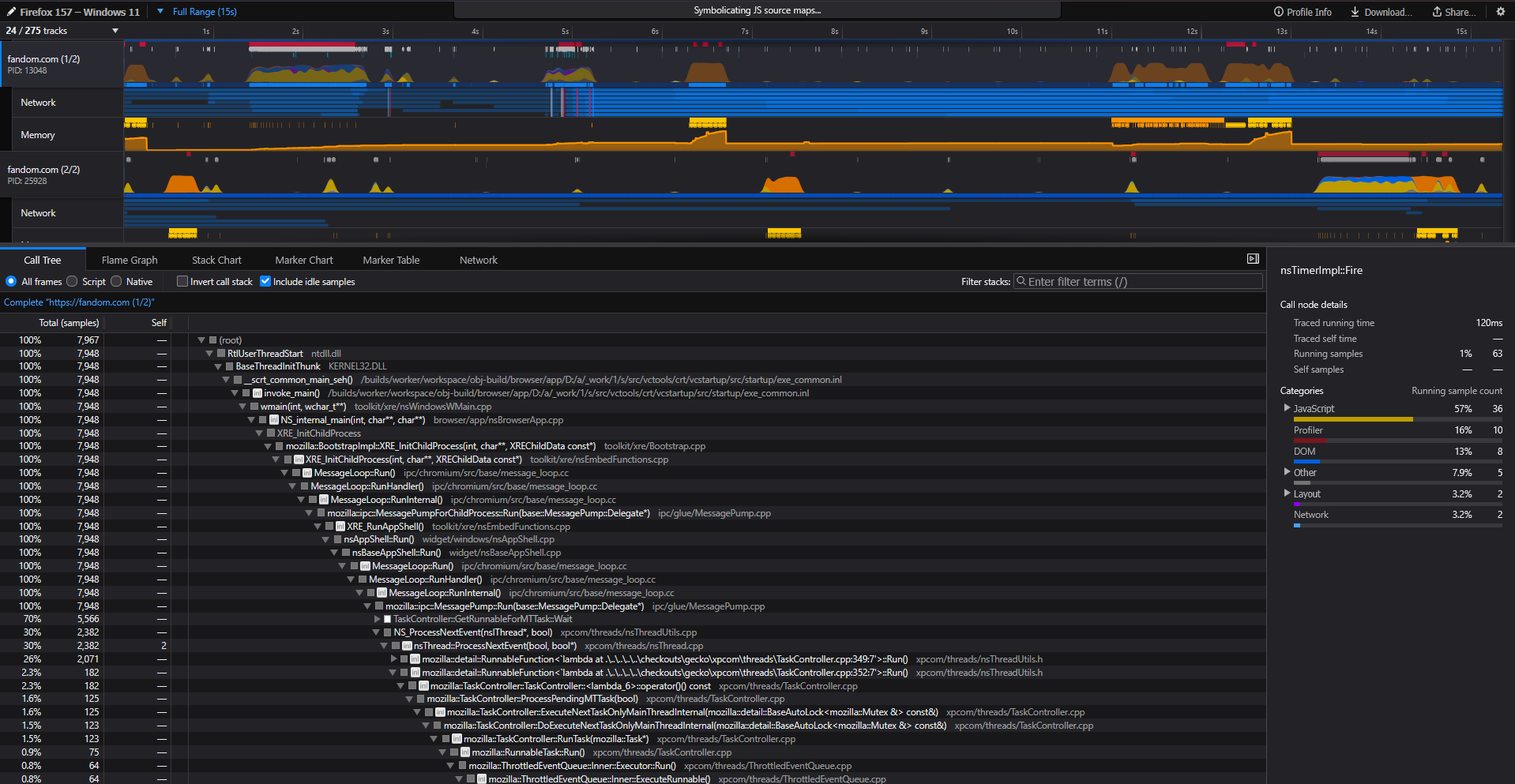
Hmh that's actually quite good steps, you'd only need to upload the captured profile (there's "Share…" button top right that would give you a permalink to that recording back for sharing). It however would get anonymized a lot so the actual connection endpoints would be blanked out.
Could you please try some simpler site like example.com when testing it, to avoid complex fraud prevention, human verifications, content delivery optimizations, routing magic etc. (fandom's not a good site for troubleshooting this per se…)
It might be more readable to log the old skool way just to a file, demo here: 🎥 zensnap.io/video/70040112-fce4-47a7-a08c-e17c850da163 (needs confirming both the file, and seting the log modules shown for the capture) — the resulting log file, readable as a plain text, could have some "error" lines about anything pertaining to "vpn" or "masque" if you search in the content.
Do you use any system (software) or networking (hardware) filtering or security solution, that might be blocking your access to the necessary endpoints?
jbr said
Hmh that's actually quite good steps, you'd only need to upload the captured profile (there's "Share…" button top right that would give you a permalink to that recording back for sharing). It however would get anonymized a lot so the actual connection endpoints would be blanked out. Could you please try some simpler site like example.com when testing it, to avoid complex fraud prevention, human verifications, content delivery optimizations, routing magic etc. (fandom's not a good site for troubleshooting this per se…) It might be more readable to log the old skool way just to a file, demo here: 🎥 zensnap.io/video/70040112-fce4-47a7-a08c-e17c850da163 (needs confirming both the file, and seting the log modules shown for the capture) — the resulting log file, readable as a plain text, could have some "error" lines about anything pertaining to "vpn" or "masque" if you search in the content. Do you use any system (software) or networking (hardware) filtering or security solution, that might be blocking your access to the necessary endpoints?
This is me trying the share option on the top right: https://share.firefox.dev/4zu2URV
I have the file for the old skool way, but I don't know how to include it since it's a text file and not an image, and thus it won't let me add it.
Apologies, Josh Dih is my very old mozilla I account I used forever ago. I accidentally signed into it. It'll take a second for it to be accepted by moderators, so I'll just say what it said again. Here's the link from sharing it, I only went to example.com which actually did load immediately even with the VPN on: https://share.firefox.dev/4zu2URV
I have the text file, but I don't know how to upload it because it's a text file and not an image, and therefore it won't let me upload it.
Modified by chance