


Изменить цвет выделения строки в панели "закладки"

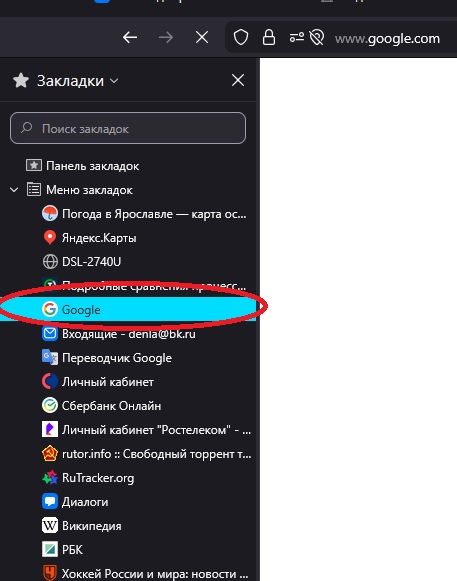
Сегодня обновил Mozilla FireFox до версии 146.0 (64-разрядный). После обновления в панели "закладки" (cntrl+B) появился ненужный мне цвет выделения только что открытой мною вкладки (смотри скриншот). Как поменять данный цвет на менее контрастный ? У меня включена "темная тема", цвет выделения - ядовито-голубой. Хочу изменить его на другой более мягкий цвет. Как это я могу сделать?
Today I updated Mozilla Firefox to version 146.0 (64-bit). After the update, the highlight color of the tab I just opened appeared in the bookmarks bar (Cntrl+B) in an unwanted way (see screenshot). How can I change this color to a less contrasting one? I have the "dark theme" enabled, and the highlight color is a bright blue. I want to change it to a softer color. How can I do this?
All Replies (11)
Здравствуйте, Денис!
Спасибо за сообщение! Эта проблема рассматривается как баг 2005430. Сейчас план заключается в том, чтобы изменить цвет на более мягкий.
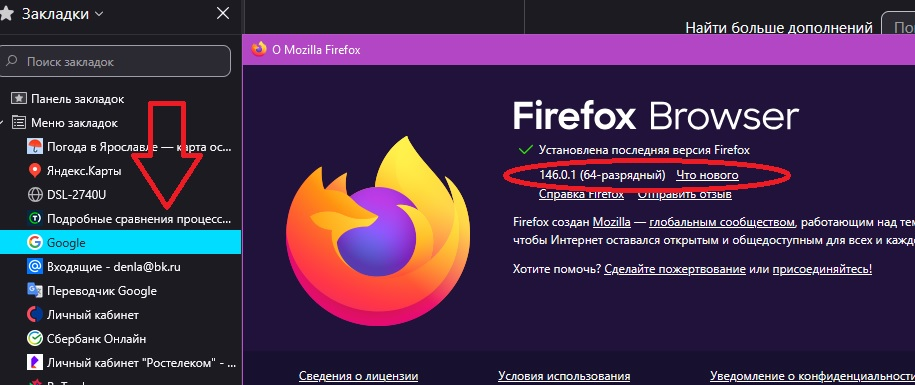
Не помогло. Я обновился до 146.0.1., контрастный цвет не поменялся на более темный. Что я делаю не так?
It didn't help. I updated to 146.0.1, but the contrast color didn't change to a darker one. What am I doing wrong?
Denys said
TyDraniu is wrong, the fix will not land before v147 at least.
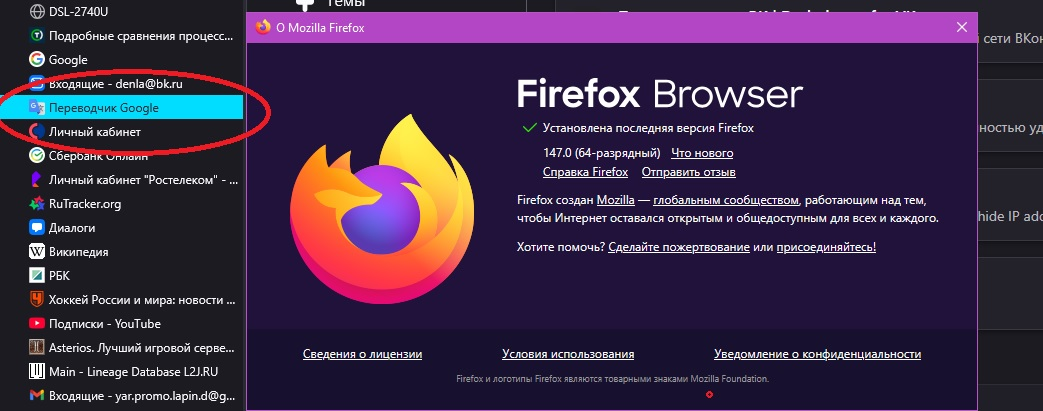
Update 147.0 didn't help...
Unfortunately, you'll have to wait for the version 148, as reflected in the bug flags. The developers decided the fix was not safe enough to uplift it, so it stayed in v148 (which was in Nightly back then, and is currently in Beta).
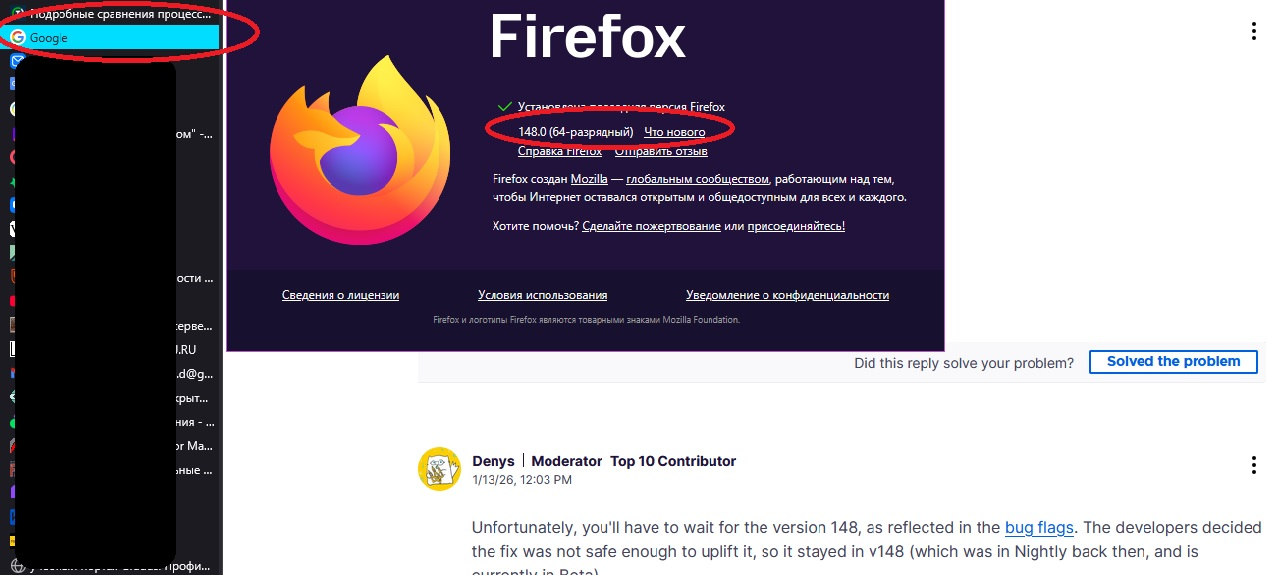
As you can see from the bug, the fix has been backed out and now the bug is pending another look. Unfortunately, currently there's no timeline to share.
Hello
A similar question https://support.mozilla.org/en-US/questions/1555274 for information purposes.
Agent virtuel said
Hello A similar question https://support.mozilla.org/en-US/questions/1555274 for information purposes.
I'm not a programmer, just a regular user. I didn't understand any of the advice in the thread you mentioned. Is there a detailed guide for beginners on how to restore the old color? Or should I wait for a fix in an update?
Hello
If you wich to test.
treechildren::-moz-tree-row(hover) { background-color: rgba(51, 50, 57, 1) !important; } treechildren::-moz-tree-row(selected) { background-color: rgba(51, 50, 57, 1) !important; outline: none !important; } treechildren::-moz-tree-row(selected, focus) { background-color: rgba(51, 50, 57, 1) !important; } treechildren::-moz-tree-image(selected), treechildren::-moz-tree-twisty(selected), treechildren::-moz-tree-cell-text(selected) { color: white !important; } treechildren::-moz-tree-image(selected, focus), treechildren::-moz-tree-twisty(selected, focus), treechildren::-moz-tree-cell-text(selected, focus) { color: white !important; }
Copy/paste the code into your notepad Save Type: All files userChrome.css
Create a chrome folder Move userChrome.css to your chrome folder
Go to your profile folder https://support.mozilla.org/en-US/kb/profiles-where-firefox-stores-user-data#w_how-do-i-find-my-profile
Move your chrome folder to your profile folder
Go to configuration editor https://support.mozilla.org/en-US/kb/about-config-editor-firefox Enter a search term toolkit.legacyUserProfileCustomizations.stylesheets and double-click on the preference to set its value to true
And restart Firefox
Additional informations https://www.userchrome.org/how-create-userchrome-css.html