


Unable to send e-mail - please help

Hi I am Unable to send e-mails (only receive) after adding a 3rd account to my thunderbird, a microsoft e-mail (the other 2 are gmx and my old work e-mail). This is my private laptop. I tried tons of troubleshootings incl. deleting passwords, triple checking all settings (they are all correct), but I always get a pop up with "Login to server smtp.office365.com with username ... failed" when trying to send an e-mail. When I click on enter new password it just tries to send the e-mail again, which fails, so unable to enter anything.
All Replies (4)

Hi berlinshc,
I deeply understand that password loop can be very frustrating, especially after you have already taken the time to delete passwords and verify your settings.
Also, for the fact that you can receive emails but not send them means your inbound connection (IMAP) is working, but your outbound connection (SMTP) is getting blocked by Microsoft's security protocols. Microsoft 365 requires a specific modern authentication mechanism (OAuth2) to send mail. When Thunderbird tries to use a standard password for SMTP, Microsoft rejects it, trapping the application in an automatic loop before you can type anything new.
Here is how to break the loop and fix the configuration:
Step 1: Clear the Blocked Outbound Token
- Click the Application Menu (three horizontal lines in the top right) and select Settings.
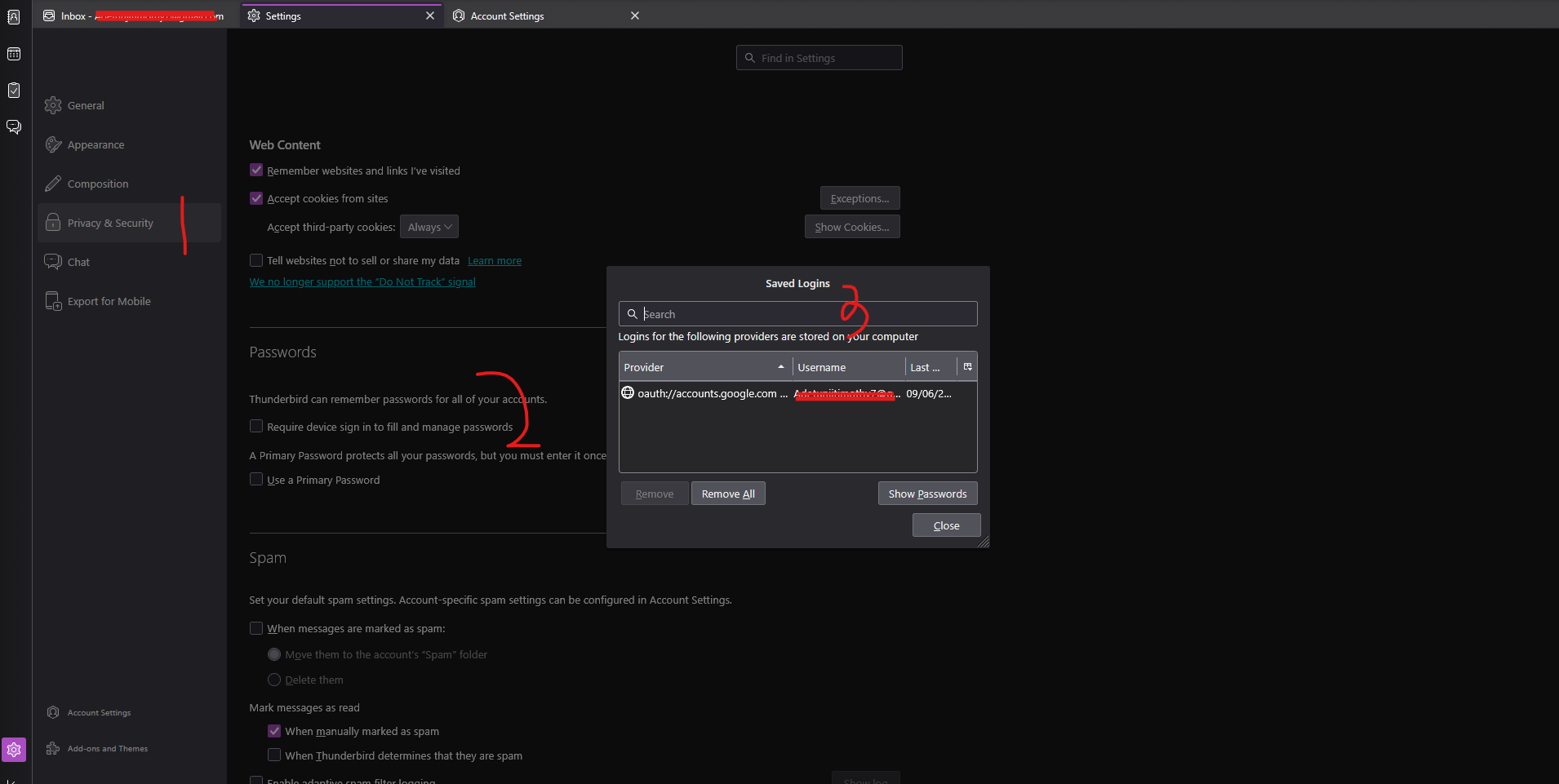
- Go to Privacy & Security on the left menu.
- Scroll down to Passwords and click Saved Passwords....
- In the search box, type smtp.office365.com.
- Select the entry for your Microsoft username, click Remove, and close the window.
Step 2: Update Outbound Server Settings:
- Right-click your Microsoft account name in the left folder pane and select Settings.
- Scroll to the bottom of the left column and click Outgoing Server (SMTP).
- Select the smtp.office365.com server from the list and click Edit....
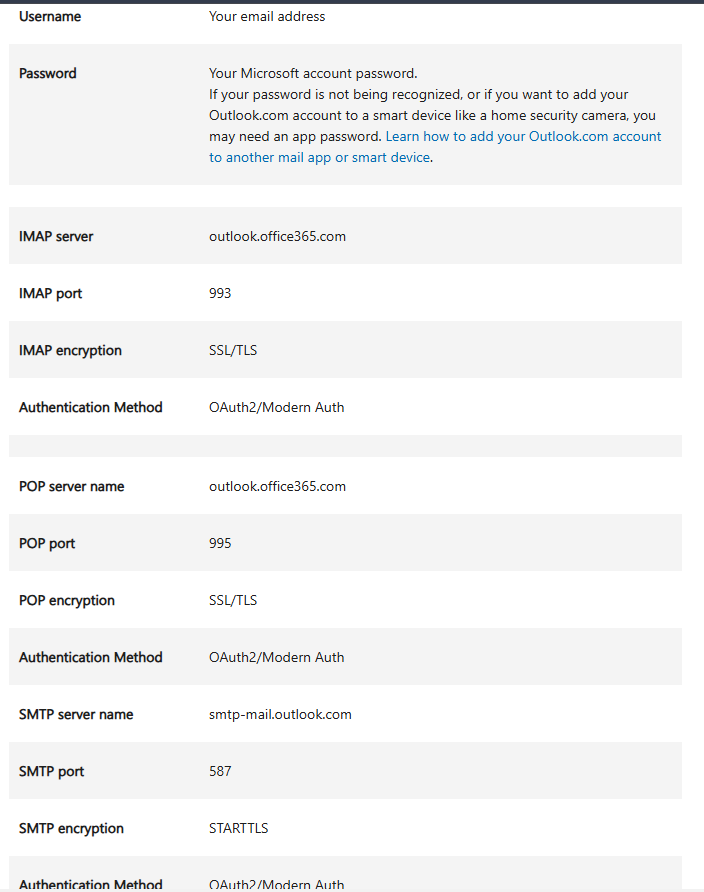
- Configure these fields exactly as follows (Check screenshot for full details):
- Server Name: smtp.office365.com
- Port: 587
- Connection security: STARTTLS
- Authentication method: Change this to OAuth2
- User Name: Your full Microsoft email address
Then, Click OK.
Step 3: Check Inbound Settings
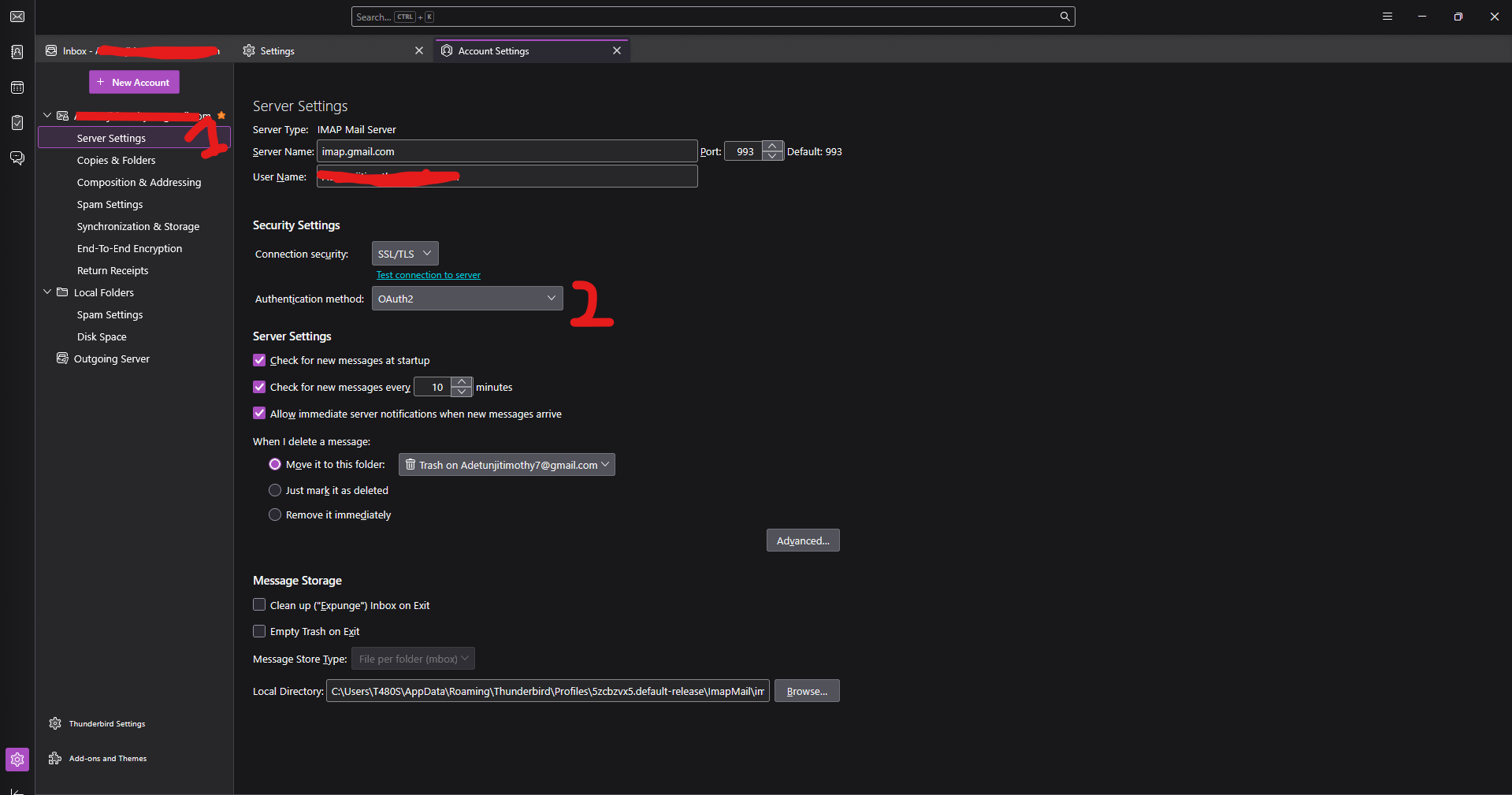
- On the left side of the Settings window, click Server Settings directly underneath your Microsoft account name.
- Ensure the Authentication Method under Security Settings here is also set to OAuth2 so both lanes match.
# Step 4: Complete the Token Handshake
- Close the Settings tab, open a fresh compose window, and send a test email.
- A secure Microsoft login window will pop up.
- Enter your password, complete your multi-factor authentication if prompted, and click Accept/Allow.
Thunderbird will save the secure token, and your email will send immediately without popping up a password box again. Let me know if this gets your outgoing mail moving!
Thank you but none of this works unfortunately. I have already tried all of the above. We asked Claude and it may have to do something with admin
Hi berlinshc,
Oh!! Kindly note that if this is a work email on your personal laptop, your company's IT department is actually the one blocking the connection.
Companies often lock down their security settings to stop third-party apps from accessing their systems. When Thunderbird tries to get a secure login token, your company's server blocks the sign-in pop-up from appearing, trapping you in that endless retry loop.
Because this is a server-side block, no setting inside Thunderbird can bypass it. You will need to reach out to your company’s IT helpdesk and ask them to whitelist the app
Thank you! It's a group e-mail set up that someone else set up for me, so yes I think you are right and although he ticked a box already it still does not work unfortunately, so he will keep digging....