


doesn't receive nor send mail after Configuration of Thunderbird

I must be doing something wrong. I am new to thunderbird, migrated from Eudora since I can't send mail with Eudora anymore.
I tried to configure Thunderbird as much as possible like Eudora, but ... it doesn't receive nor send mail. On the surface it looks fine, it seems thunderbird logs into the server, it seems it sends mail and checks for new mail, only I don't receive anything, nor send anything even though it looks it does. So what am I doing (or is going) wrong? (I can still receive mail with Eudora and today I checked and received 54 mails, none with Thunderbird)
Modified by Wayne Mery
Chosen solution
I reinstalled it but the result is the same, it has the same configuration as before, I uninstalled it again, and installed it on a different drive. THAT made it a new install and downloaded all the messages immediately
Read this answer in context 👍 0All Replies (15)
I now start to wonder how to retrieve the mails from the previous installations, I also wonder if my problems had to do with this [Eudora mail to Thunderbird mail]

henny said
I now start to wonder how to retrieve the mails from the previous installations, I also wonder if my problems had to do with this [Eudora mail to Thunderbird mail]
Correct link: https://support.mozilla.org/en-US/questions/1228297
Another page that may be helpful: http://kb.mozillazine.org/Thunderbird_:_Issues_:_Import_From_Eudora
I'm sorry that I do not know anything about migrating from Eudora. If you have specific questions, I may be able to help.
henny said
The current operation on 'Inbox' did not succeed. The mail server for account [edited] @gmail.com responded: Could not parse command. But that seems only true for gmail.
And no such message for your other account? No error messages at all from your non-gmail account, right?
The activity manager is done, but I am not sure about the activity manager, is that the bar at the bottom of Thunderbird? If so, that is visible and tells me it's logging into the different accounts (sometimes, sometimes it just shows a blue line(?)
I'm not sure what you are referring to. Probably just a progress bar.
Modified by James
henny said
I reinstalled it but the result is the same, it has the same configuration as before, I uninstalled it again, and installed it on a different drive. THAT made it a new install and downloaded all the messages immediately
I cannot explain why receiving messages works on a different drive but not your first one. Since you chose this as the solution, maybe you have enough information to accomplish what you need.
henny said
I now start to wonder how to retrieve the mails from the previous installations
Do you mean messages stored in local folders? The general idea is simple: in the file system, not Thunderbird, copy (do not move) message folders from the local folders in your profile in previous installations to local folders in your profile in the new installation. Re-start Thunderbird.
Let's discuss more details when you are ready to try this.
- I cannot explain why receiving messages works on a different drive but not your first one. Since you chose this as the solution, maybe you have enough information to accomplish what you need.
The only sensible explanation I can think of is that as long you install it on the same drive Thunderbird retrieves from somewhere the previous install. (most likely the registry, I checked and there are many references to Thunderbird, a few to the previous installation) So as long as you install it on the same drive, it will find the previous configuration.
- Do you mean messages stored in local folders? The general idea is simple: in the file system, not Thunderbird, copy (do not move) message folders from the local folders in your profile in previous installations to local folders in your profile in the new installation. Re-start Thunderbird.
Let's discuss more details when you are ready to try this.
I am ready to do this, but first I have to find where the local folders of the present and the previous installations are. On the drive where I installed the present installations there are no local folders. I think I found the backup of the previous installation but I can't find where it installs them now. Ah, I saw that when you right-click the local folders in Thunderbird, there is settings and when you click that, you get the path to where they are stored (not where I expected them, preferably I don't want them on the c-drive since when windows crashes and you have to reinstall windows, they are gone)
henny said
I cannot explain why receiving messages works on a different drive but not your first one. Since you chose this as the solution, maybe you have enough information to accomplish what you need. The only sensible explanation I can think of is that as long you install it on the same drive Thunderbird retrieves from somewhere the previous install. (most likely the registry, I checked and there are many references to Thunderbird, a few to the previous installation) So as long as you install it on the same drive, it will find the previous configuration.
Yes, this is a basic fact of Thunderbird. The application and the user profiles are stored in different locations. In most cases, a new installation of Thunderbird will use existing profiles. Some upgrades of Thunderbird create a new profile.
I am ready to do this, but first I have to find where the local folders of the present and the previous installations are. On the drive where I installed the present installations there are no local folders. I think I found the backup of the previous installation but I can't find where it installs them now. Ah, I saw that when you right-click the local folders in Thunderbird, there is settings and when you click that, you get the path to where they are stored (not where I expected them, preferably I don't want them on the c-drive since when windows crashes and you have to reinstall windows, they are gone)
Let's review the situation. You could not receive messages in Thunderbird on Drive 1. We were not able to fix that problem. You installed Thunderbird on Drive 2 and created a new profile there. Messages are received on Drive 2. Now you want to make Drive 2 your main/only installation of Thunderbird. So you want to transfer messages that were stored locally on Drive 1 to your profile on Drive 2.
Is that right?
If so, I would first compare the incoming server settings of the accounts on the two drives. There may be some difference that explains why one installation receives messages and the other one does not.
Find your profiles by opening Thunderbird > Help menu > Troubleshooting information > look for "Profile folder" in the left column of the first table > click on "Show in ..." next to it.
Find the Mail/Local Folders folder in Profile 1 (on Drive 1). Copy (do not move) to an external drive or staging area on your internal drive all the sbd folders and all the files that have the same name as an .msf file. You do not have to copy the .msf files or the mozmsgs folders.
When you believe that you have all your locally stored mail in the staging area, copy all the folders and files from the staging area to Mail/Local Folders in Profile 2.
Re-start Thunberbird on Drive 2. Thunderbird will need some time to re-index your mbox files.
Let me know how it went.
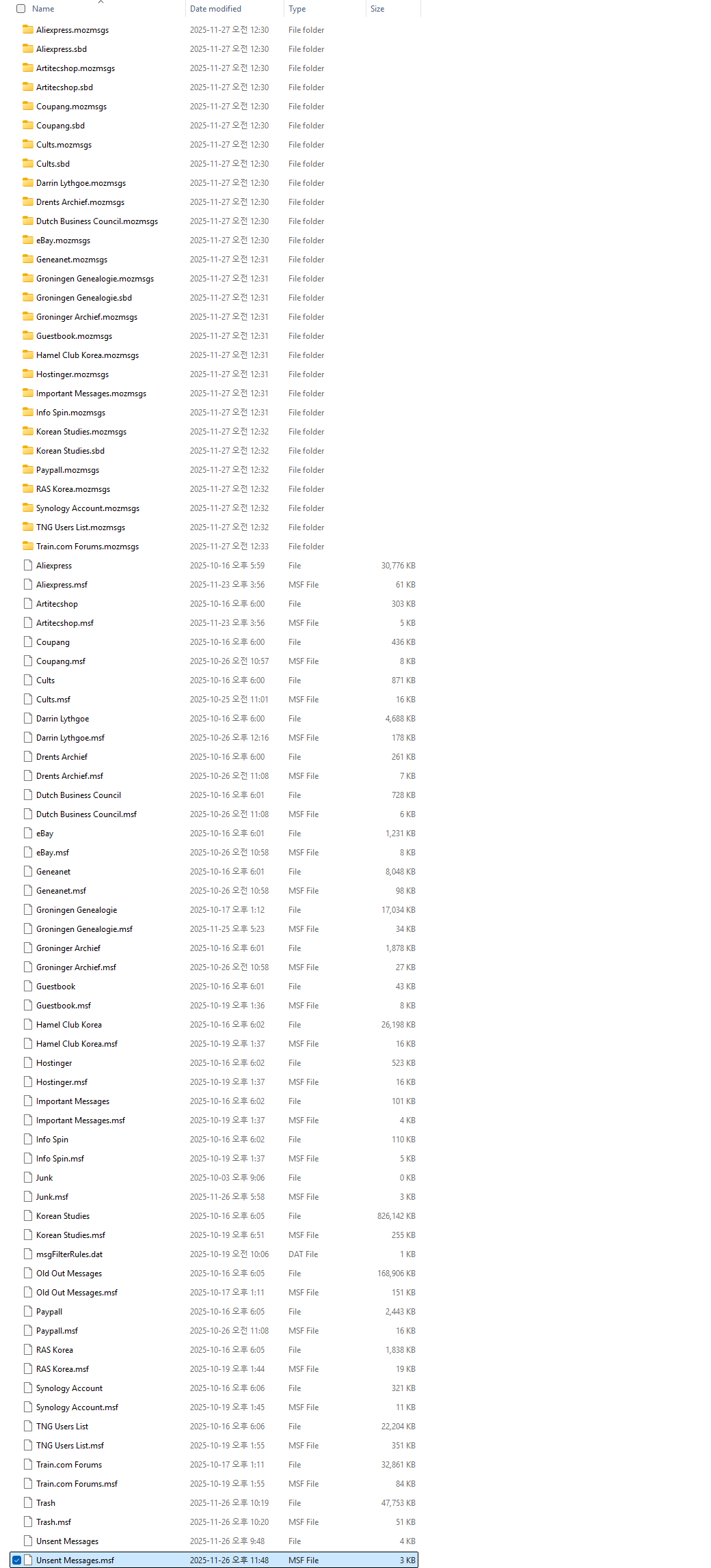
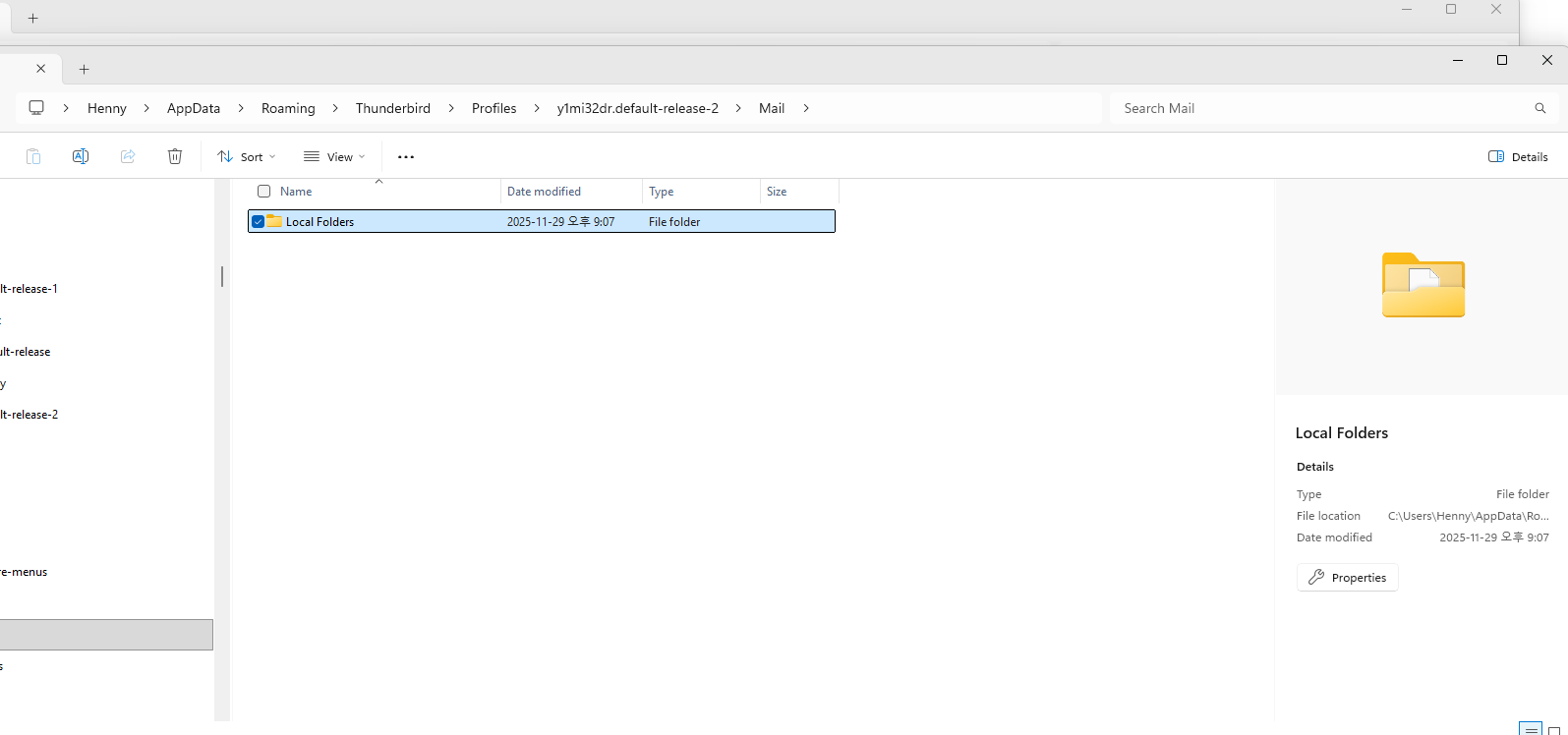
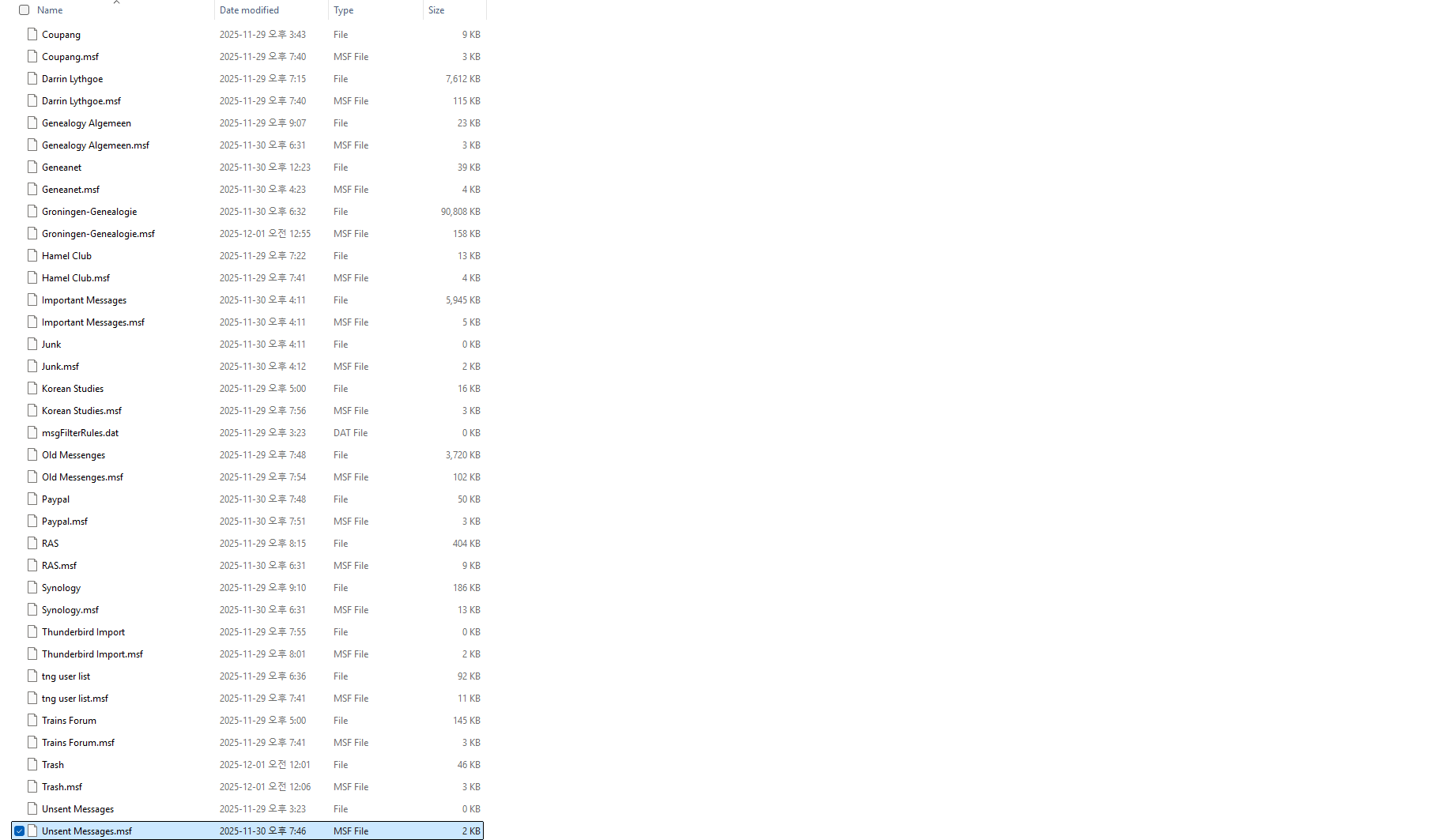
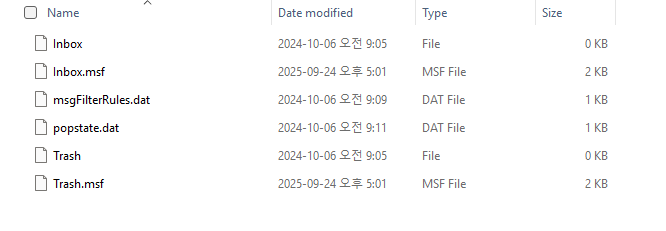
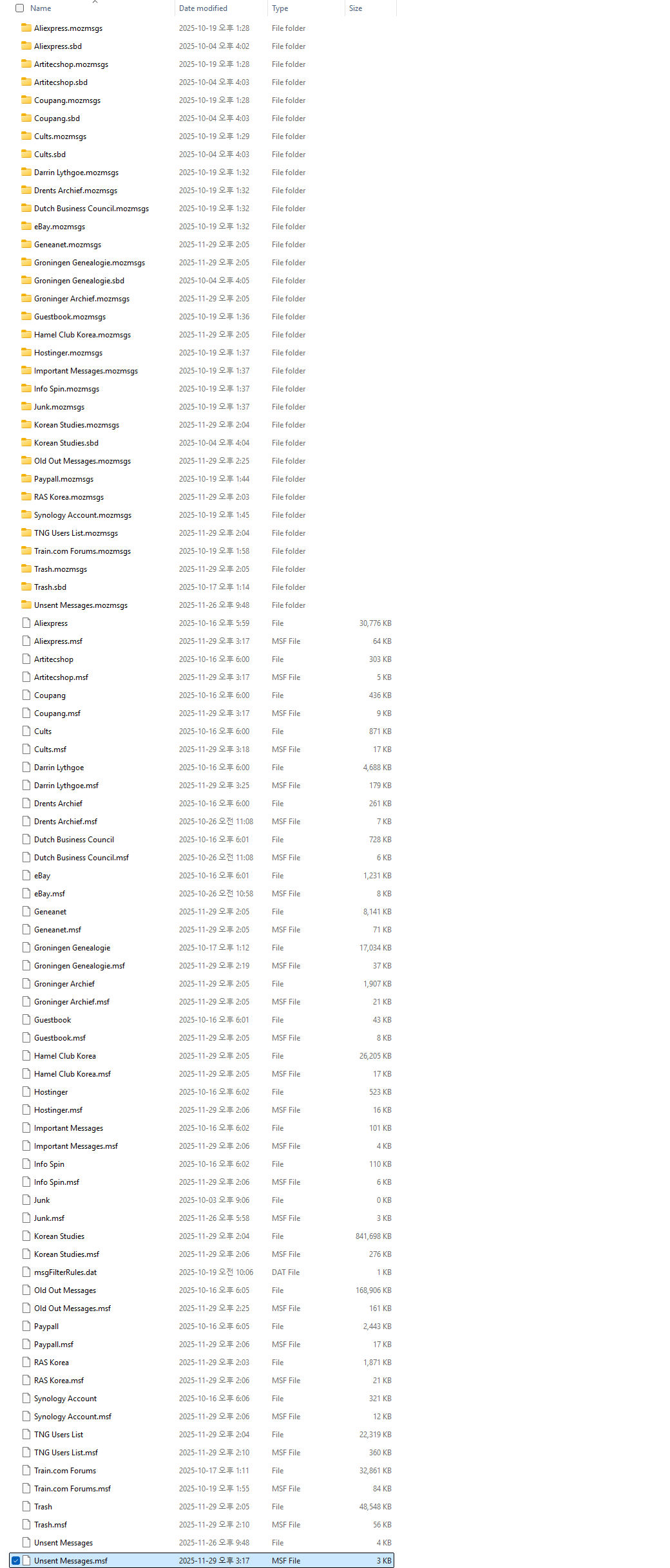
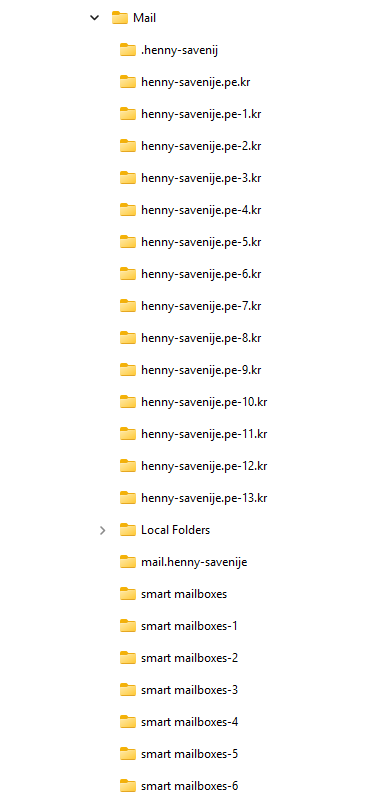
The difference is quite striking, on disk 2 (E:) (although all the profiles are stored on C:) under mail, I only find "local folders" with what you see in de first image, but what I guess in one of the other profiles (there are a few) I see what I think is disk 1 (D:) what you see in the "local folders" directory in image 2 but under mail if find a whole lot more directories (image 3) maybe the result of trying to set up different profiles, they just contain the standard mail boxes (image 4) As you can also see the working installation doesn't have any sub directories (or folders, when I started working with computers [1984] these were called directories, now folders?) so I am unsure if I am looking at the right thing but this opened when I clicked the link you mentioned,
Would you please confirm or correct my understanding of the current situation in my last message?
I thought that we were just trying to help you receive messages. Now I see that your installation is quite messy. You say that you have many profiles. (Do you really? See below.) In one profile, the same account is set up thirteen times. I cannot understand much else from your description. You will want to understand what you have and maybe clean it up before we proceed.
I suggest that we go one step at a time and stay together.
If you have not made a back-up copy of the Thunderbird folder/directory that holds your profiles lately, you should do that now.
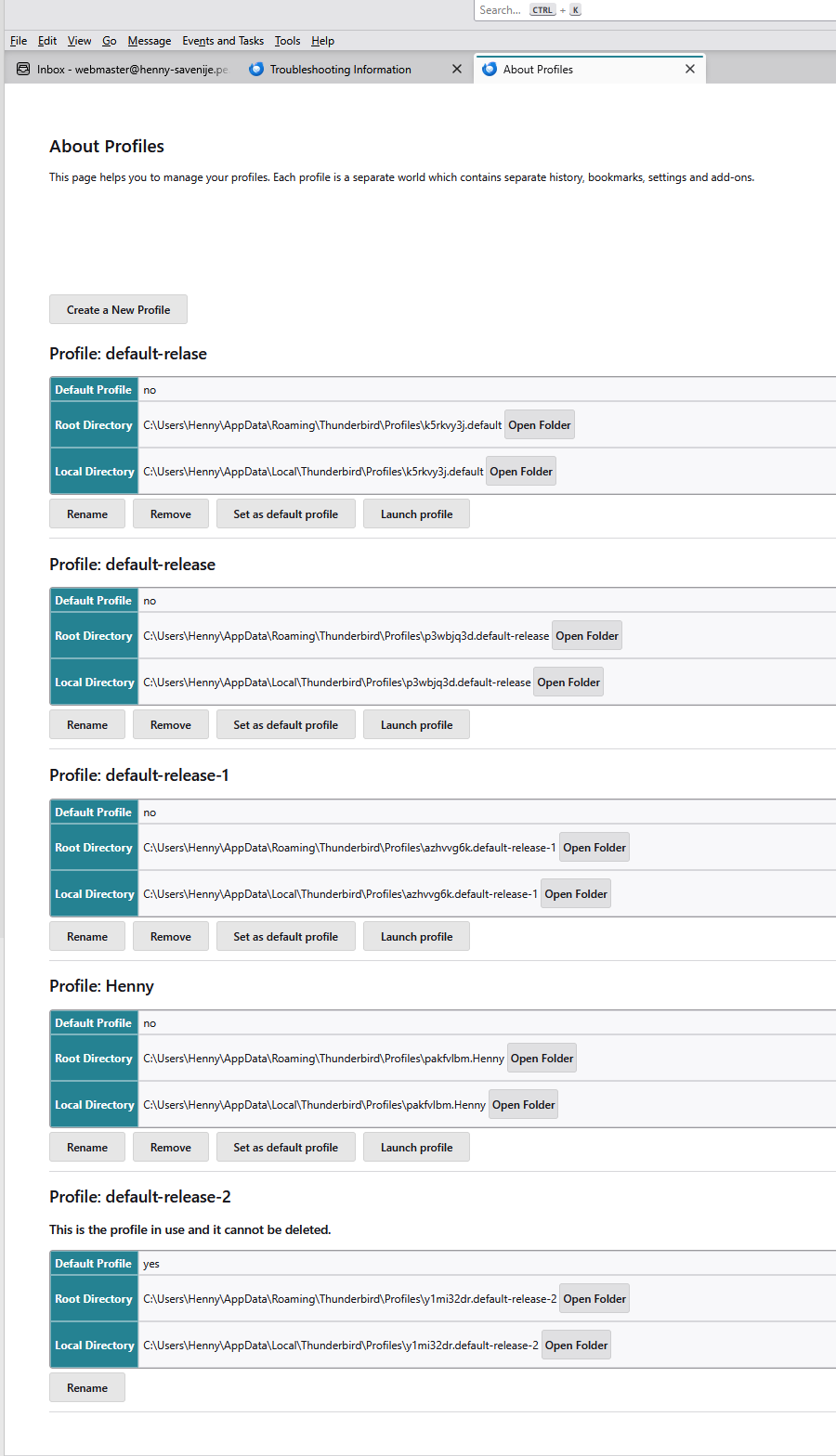
Then, you're going to have to take an inventory of your profiles. In Thunderbird, under the Help menu, select "Troubleshooting info". On the next screen, scroll down in the first table until you see "Profiles". Click on "about:profiles" next to it.
You will then see information about all your profiles. To learn about each one, you can do two things:
- Launch it and see what messages are in it.
- Click on "Show in [...]" in the root directory row of each profile.
I suggest that you take these steps for each profile, catalogue your profiles, and determine which ones have messages in them that you want to keep, which ones you can safely delete, and which, if any may be usable. Using an existing profile would be better than creating a new one and transferring all your messages, as long as that profile is in good shape.
Or maybe you don't have many profiles at all because you may be using "profile" to mean "e-mail account". Are you?
Let's make sure we are using the right terms so we can understand each other. A profile contains all the files specific to a Thunderbird user: IMAP folders, POP inbox, local folders, smart searches, message filters, passwords, et cet. It can have many e-mail accounts in it. A user can have many profiles, but use only one at a time. For most users, there is no reason to have more than one profile.
Now, how many profiles do you have?
Is the profile that has thirteen copies of your account the one that we have been trying to get to receive messages?
Do you know why there are so many copies of the account?
(Microsoft has preferred "directory". Apple has preferred "folder". I don't know, but I have the impression that "folder" is becoming more common in Windows now. I use a Mac.)
Rick said
Would you please confirm or correct my understanding of the current situation in my last message?
Of course I understood
I thought that we were just trying to help you receive messages. Now I see that your installation is quite messy. You say that you have many profiles. (Do you really? See below.) In one profile, the same account is set up thirteen times. I cannot understand much else from your description. You will want to understand what you have and maybe clean it up before we proceed. I suggest that we go one step at a time and stay together.
Of course, NOW I have only ONE profile, I see in the older situation there was something amiss.
Alright, I was just trying to understand and also let you know what I found
If you have not made a back-up copy of the Thunderbird folder/directory that holds your profiles lately, you should do that now.
Done
Then, you're going to have to take an inventory of your profiles. In Thunderbird, under the Help menu, select "Troubleshooting info". On the next screen, scroll down in the first table until you see "Profiles". Click on "about:profiles" next to it. You will then see information about all your profiles. To learn about each one, you can do two things:I am not sure what you mean with launch it, launch it with what? if I do right click I get all kind of options but launch is not one of them, "open with" however is
- Launch it and see what messages are in it.
* Click on "Show in [...]" in the root directory row of each profile.
Same here, "show in " is not one of the options at least not with explorer,
I suggest that you take these steps for each profile, catalogue your profiles, and determine which ones have messages in them that you want to keep, which ones you can safely delete, and which, if any may be usable. Using an existing profile would be better than creating a new one and transferring all your messages, as long as that profile is in good shape.
I tried to open a few of the files with notepad in the subdirectories of "local folders" in the p3wbjq3d.default-release (which looks like the one I have been using the last time before this installation) and those files look like gibberish,
Or maybe you don't have many profiles at all because you may be using "profile" to mean "e-mail account". Are you?
I think we are talking about different things, I was just looking at the folders "directories" which I think were previous profiles (I have no idea how Thunderbird organizes things but to me it looks like profiles)
Let's make sure we are using the right terms so we can understand each other. A profile contains all the files specific to a Thunderbird user: IMAP folders, POP inbox, local folders, smart searches, message filters, passwords, et cet. It can have many e-mail accounts in it. A user can have many profiles, but use only one at a time. For most users, there is no reason to have more than one profile.
Understood
Now, how many profiles do you have?
In my present situation only one, in the older one, obviously also one. </blockquote>
Is the profile that has thirteen copies of your account the one that we have been trying to get to receive messages?
Yes, and as far as I can see, this: C:\Users\Henny\AppData\Roaming\Thunderbird\Profiles\p3wbjq3d.default-release\Mail\Local Folders is what I need, the rest could be deleted,
Do you know why there are so many copies of the account?
I think because in that installation we tried to solve the email getting problem and I deleted and
(Microsoft has preferred "directory". Apple has preferred "folder". I don't know, but I have the impression that "folder" is becoming more common in Windows now. I use a Mac.)
Ah, now I understand why we are using different terminology, I think "launch" and "show" belong in the same category.
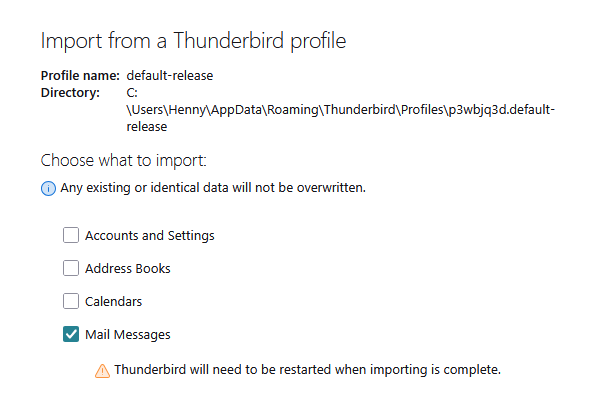
I see thunderbird has the option import/export after deleting the subdirectories the import went smoothly, I had some tidying up to do and transfer messages to existing local folders and move the ones which didn't exist before but that was a breeze, thanks a lot for your help and patience (see first two images)
However I have one more problem with my installation on my other computer (in another location)
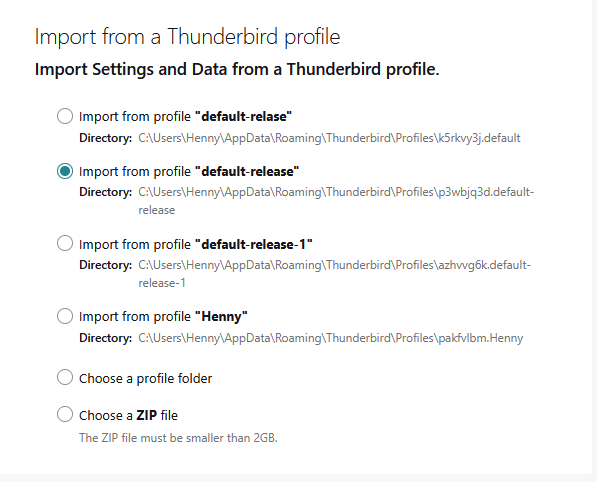
The top bar (see image 3) is unresponsive. Whatever I click there, nothing happens, I can't even close Thunderbird in that way, I tried to find a solution in the helpfiles but only the F11 command comes up and that's not applicable. There might be something in the (in Mozilla firefox we would call that the :about page) which I did find in the other location (and here I can't) but that's so technical that I fail to understand it, is there anything I miss doing?

Modified by henny
Good morning, Henny.
I will start with the most important things, then respond to the rest: How is your new profile working? Can you send and receive messages? How many accounts are in it?
I do not know why your unified toolbar is unresponsive. I suspect that one of your many add-ons may cause that problem. See if the toolbar is responsive in troubleshooting mode (under the Help menu).
Now for the rest …
I wrote: "Would you please confirm or correct my understanding of the current situation in my last message?"
You responded: "Of course I understood". But I was asking you to tell me if I understood correctly.
I had suggested that "we go one step at a time and stay together." I would not have suggested importing an old profile into a new one. Importing a profile may have imported problems.
Alright, I was just trying to understand and also let you know what I found
That's fine. The more information, the better.
I am not sure what you mean with launch it, launch it with what? [...] "show in" is not one of the options
My directions would have guided you to "launch" and "show":
In Thunderbird, under the Help menu, select "Troubleshooting info". On the next screen, scroll down in the first table until you see "Profiles". Click on "about:profiles" next to it.
I think we are talking about different things, I was just looking at the folders "directories" which I think were previous profiles (I have no idea how Thunderbird organizes things but to me it looks like profiles)
In the file system, profiles are at the top level of the "Profiles" directory.
Rick said
Good morning, Henny.
I don't know where you reside but I live in South-Korea and received this message when I was about to go to bed, nevertheless, good morning to you too 😁
I will start with the most important things, then respond to the rest: How is your new profile working? Can you send and receive messages? How many accounts are in it?
To begin with, it works like a charm (almost like Eudora before I had the problems) Now I am not sure what you mean with accounts but I have only one profile and three email addresses, after all, I only imported the mail, not the rest as you could see from the images in the previous post.
I do not know why your unified toolbar is unresponsive. I suspect that one of your many add-ons may cause that problem. See if the toolbar is responsive in troubleshooting mode (under the Help menu).
Yes, that was one of the first things I tried and it remains unresponsive I might try to uninstall the add-ons but I think that will make no difference either, since the minimize and close program buttons are not accessible either.
Now for the rest …
I wrote: "Would you please confirm or correct my understanding of the current situation in my last message?" You responded: "Of course I understood". But I was asking you to tell me if I understood correctly.
😒 One of the many problems in communications in general, I read too fast and misinterpret things, my bad and sorry for that.
I had suggested that "we go one step at a time and stay together." I would not have suggested importing an old profile into a new one. Importing a profile may have imported problems.
Yes, but I think I wanted this done since it took me already so much time, and I think this was the sollution to import only the mail, which is what I wanted. Not the other profiles
My directions would have guided you to "launch" and "show":
I may have misread again, but there were no options like that,
In Thunderbird, under the Help menu, select "Troubleshooting info". On the next screen, scroll down in the first table until you see "Profiles". Click on "about:profiles" next to it.
alright, see image 1
Ah, and now I see launch, but then it asks me to close thunderbird well, it's moot point, I think I can delete all those old profiles, I have all the mail I need and both installations work fine (except for unified toolbar)
but I see you can't help me with that (understandable, different operating system) Thanks for all the help, at least I know now that the unified toolbar is called, didn't know that after working with computers since 1984 😊
To begin with, it works like a charm (almost like Eudora before I had the problems) Now I am not sure what you mean with accounts but I have only one profile and three email addresses, after all, I only imported the mail, not the rest as you could see from the images in the previous post.
Good!
Each e-mail address represents one account. Your original problem could have had something to do with the many duplicate accounts that you had. That is only a guess. I have no specific hypothesis. In any case, it's good that you did not import accounts. I overlooked that in your screenshot.
I was also worried about add-ons. Apparently, the import process imported your add-ons too. I still wonder if they are causing problems with your unified toolbar. So I wanted to install add-ons one at a time in your new profile.
both installations work fine (except for unified toolbar) but I see you can't help me with that (understandable, different operating system)
I doubt that the difference in operating system matters. I suggest that you start a new discussion about that problem. More people will see it and, I hope, respond.
Good work, Henny. It's been good working with you.