


Saving login cookies for specific sites

I was was reviewing my FF settings to help a friend mimic some of my privacy and autoplay options (including settings in about:config regarding animations, autoplay, media, video, etc), and without deliberately changing anything related to my cookies permissions, I somehow messed them up my daily logins. I clear cookies and browsing data when I close the browser, but allow a half-dozen trusted sites only to keep their cookies. Despite my best attempt to save them as exceptions under
Settings > Privacy and security > Browsing data > Manage exceptions
I now have to login every time. Trying to figure out what I changed--or a helpful cat may have changed while walking across the keyboard and interrupting--and how to change it back. I've been reviewing the support articles but can't find my answer.
FF 160.0b5, MacOS 26.7.1
I may be slow in responding because I'll be away from this computer for the rest of the day, but I really appreciate tips on how to navigate this again.
All Replies (2)
Isisombululo Esikhethiwe
It moved!
Until recently, Cookie permission, the one set under
Settings > Privacy and security > Browsing data > Manage exceptions
was doing double duty: it BOTH controlled whether sites could set first and third party cookies during your session AND whether the cookies would be cleared at shutdown if you were using that feature. But they were separated a few versions ago.
Updated Exception List
During the update, Firefox duplicated the exceptions list from the classic list to the new list, but after that, you need to add your exceptions to the new list. There are two methods:
(1) Settings page
The new list can be found under:
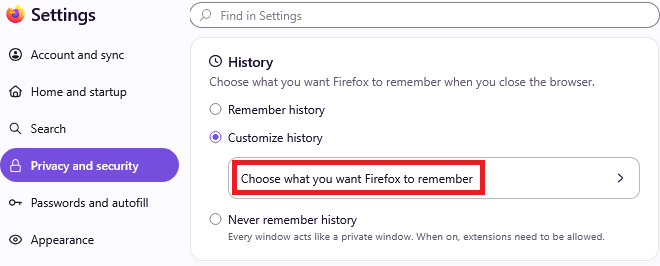
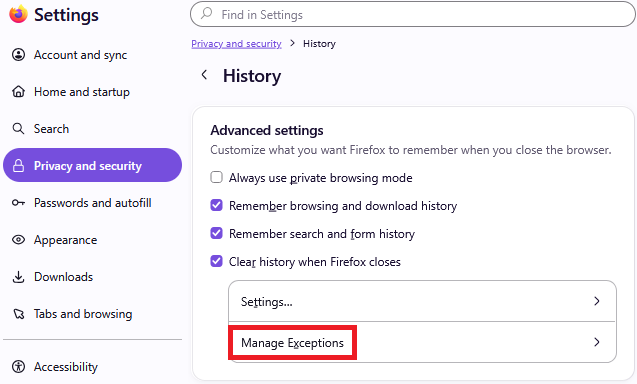
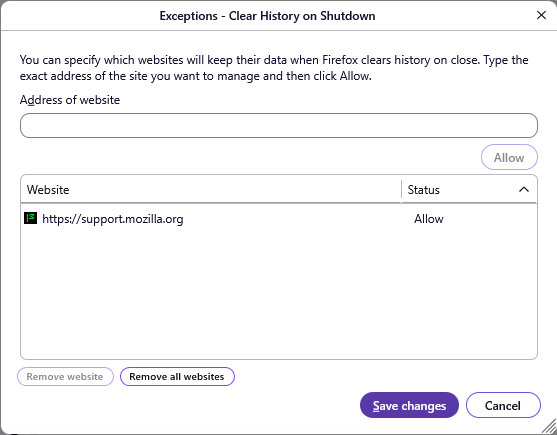
Settings > Privacy and security > History > Choose what you want Firefox to remember > Manage Exceptions
Adding an "Allow" permission here, similar to the old dialog, will preserve the cookies that otherwise would be cleared when Firefox closes.
(2) Page Info dialog
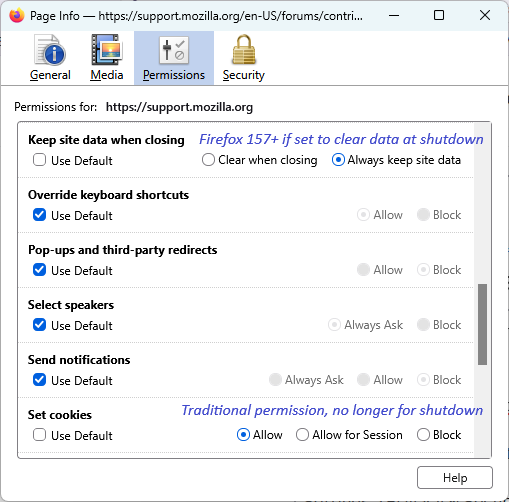
While on a page, you can open the Page Info dialog using Command+i (on Windows & Linux, Ctrl+i).
When Firefox is set to clear data when it closes, you will also notice an additional item to create an exception, labeled "Keep site data when closing":
As with the classic "Set cookie" permission, to customize the new permission, un-check "Set default" and then you can choose "Always keep site data." There may be cases where this is an incomplete solution because the exception is set for the host name (for example, www.google.com) while some cookies are set on the base domain (for example, google.com). In that case, you would still need to use method #1.
Okulungisiwe ngu jscher2000 - Support Volunteer
jscher2000 - Support Volunteer said
It moved! ............ (1) Settings page The new list can be found under: Settings > Privacy and security > History > Choose what you want Firefox to remember > Manage Exceptions Adding an "Allow" permission here, similar to the old dialog, will preserve the cookies that otherwise would be cleared when Firefox closes.
THIS is exactly what I needed, thank you!
Now that lots of sites want several pages to login, trying to shove special offers and the like at you even without pop up ads, this is another key element of keeping the internet usable for me. I really, really appreciate the clear and detailed answer. It is my fault for not recognizing something so important popping up in an update--but there are so many updates on the beta channel, most of which are not especially important to me, that the signal to noise ratio is too low to read the full documentation every time.
Again, thank you!