


Issue with Firefox and accessing Google

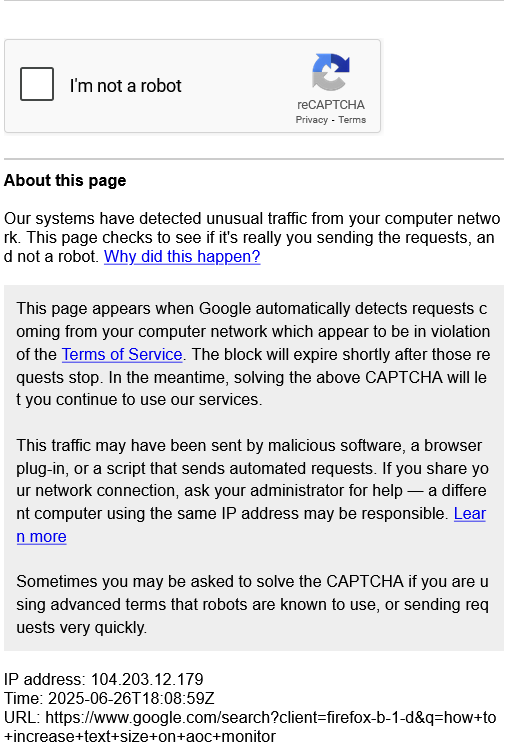
All of a sudden for the past few weeks or so, I keep getting the message in the attached screenshot when entering words in the search bar and clicking on Google. This never happened before in all the years I've been doing this, so what's up with it and can it be fixed? Thanks.
Isisombululo esikhethiwe
When you search through the Google home page, instead of Firefox's address bar, you still get the CAPTCHA? This usually indicates that a setting change or add-on has modified information that is normally sent to Google with a new request. This could be a block on cookies, or a change to referring page information, or perhaps some other unusual modification.
To rule out add-ons, could you test in Firefox's Troubleshoot Mode? In that mode, Firefox temporarily deactivates extensions, hardware acceleration, any userChrome.css/userContent.css files, and some other advanced features to help you assess whether these are causing the problem.
If Firefox is running:
You can restart Firefox in Troubleshoot Mode using either:
- "3-bar" menu button > Help > Troubleshoot Mode...
- (menu bar) Help menu > Troubleshoot Mode...
and OK the restart. A small dialog should appear. Click the Open button.
If Firefox is not running:
Hold down the Shift key when starting Firefox. (On Mac, hold down the option/alt key instead of the Shift key.) A small dialog should appear. Click the Open button.
Note: Don't use the Refresh without first reviewing this article to understand what will be deleted: Refresh Firefox - reset add-ons and settings.
Any improvement?
Ref. Use Troubleshoot Mode in Firefox
Funda le mpendulo ngokuhambisana nalesi sihloko 👍 0All Replies (12)
Hi Doug
This is not an issue with Firefox but a message from Google. The message does seem to be very clear with describing what has happened and how to clear it.
Thread continues here: https://support.mozilla.org/questions/1519747
Yes, it's using Duck Duck Go in the Firefox browser, then opening Google. Or, if I'm trying a Google search on Chrome, there is no issue.
Hi Doug, what method are you using to go from DuckDuckGo to Google?
Entering Google in the search bar in duck, then doing the search from the Google webpage
If you try a link to https://www.google.com/ from this forum or your email, does that also work?
How about https://www.google.com/search?client=firefox-b-1-d&q=puppies
Yes, both options work with no issue.
Don't know if my prior thread posted. Both those options work. However, an update. On the question about if going thru duck duck go to the Google home page and then entering a search, the captcha occurred then too
Isisombululo Esikhethiwe
When you search through the Google home page, instead of Firefox's address bar, you still get the CAPTCHA? This usually indicates that a setting change or add-on has modified information that is normally sent to Google with a new request. This could be a block on cookies, or a change to referring page information, or perhaps some other unusual modification.
To rule out add-ons, could you test in Firefox's Troubleshoot Mode? In that mode, Firefox temporarily deactivates extensions, hardware acceleration, any userChrome.css/userContent.css files, and some other advanced features to help you assess whether these are causing the problem.
If Firefox is running:
You can restart Firefox in Troubleshoot Mode using either:
- "3-bar" menu button > Help > Troubleshoot Mode...
- (menu bar) Help menu > Troubleshoot Mode...
and OK the restart. A small dialog should appear. Click the Open button.
If Firefox is not running:
Hold down the Shift key when starting Firefox. (On Mac, hold down the option/alt key instead of the Shift key.) A small dialog should appear. Click the Open button.
Note: Don't use the Refresh without first reviewing this article to understand what will be deleted: Refresh Firefox - reset add-ons and settings.
Any improvement?
I appreciate your help! Putting Firefox in troubleshoot mode fixed the problem. So, now that we know it's probably an add on or extension, how can I make the change permanent? Should I re-run troubleshoot mode and click refresh?
Refresh is a little drastic. If you have extensions that you know block specific kinds of content or modify network requests, you could turn those off individually and see whether that helps. Some extensions support individual site exceptions, so that would be an alternative to turning them off completely.
Thanks for all your help. Much appreciated!