


Folers list and inbox list have gone to double space.

My list of folders on the left, and my list of inbox emails at the top, have both gone to double space. This takes up a lot of room, and I cant see everything I used to. How can I change them back to single space. I did use "control +" to try to make the body of the email bigger so that it's easier to read (aged 79), but the folders don't change when I reduce the font size.
Isisombululo esiKhethiweyo
Thank you both. Density did it. Folders list and inbox list are now back to normal. I had changed the font size using the menu bar, but it changed everything on the page, so that limited my screen view. Doing 'control+' just changed the current email in the bottom of the screen, which is what I was after. Happy Granny.
All Replies (3)
Sounds like your Density setting may have altered.
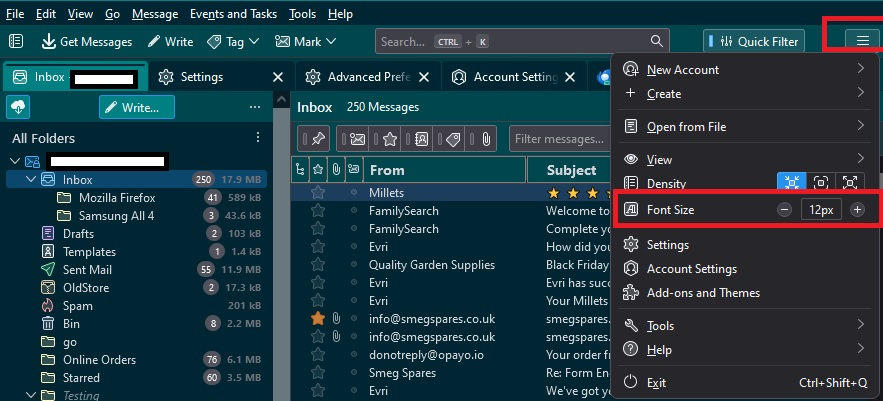
- Menu app icon (3 lines) located top right on Unified toolbar
- Click on it and look for 'Density'
- There are 3 settings: Compact, Default and Relaxed.
- Click on the relevant icon - suggest you try 'Compact' and see if it works for you.
To alter Font Size in the general UI eg: Folder Pane, Menus, Message List
- Menu app icon (3 lines) located top right on Unified toolbar
- Click on it and look for 'Font Size'
- Click on the + or - icons to alter the pixel size.
Note: a very large Font Size may need you to alter the Density.
To alter the Font Size you see in emails and when you compose messages:
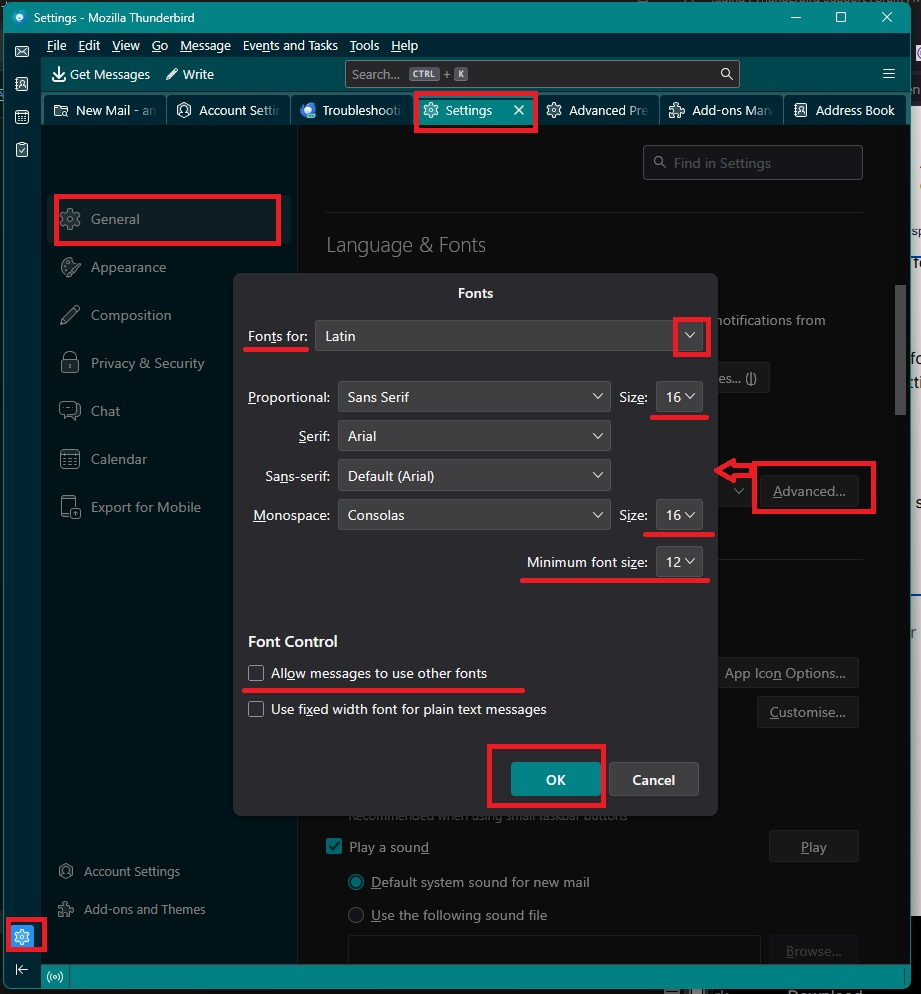
- Settings > General
- 'Language & Fonts' section
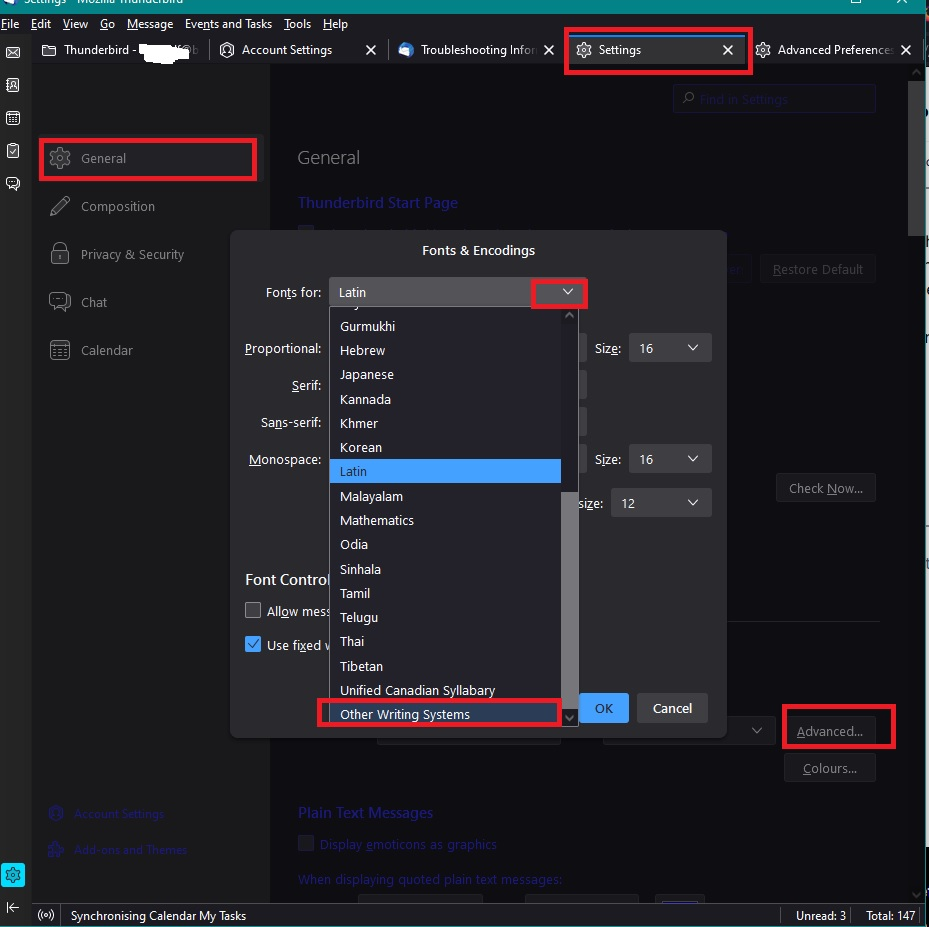
- Click on 'Advanced' button
- 'Fonts for: select 'Latin'
- Set Proportional size to a size that suits readability eg: 16px
- Set Monospaced Size to the same size.
- Set Minimum Font Size to a size that is a bit smaller - never set it larger eg: 12px
Then do the exact same for 'Fonts For' select 'Other Writing Systems' (usually bottom of drop down list)
If you want to force fonts to use whatever you have selected eg: Arial
- Uncheck 'Allow messages to use other fonts.
- Click on 'OK'
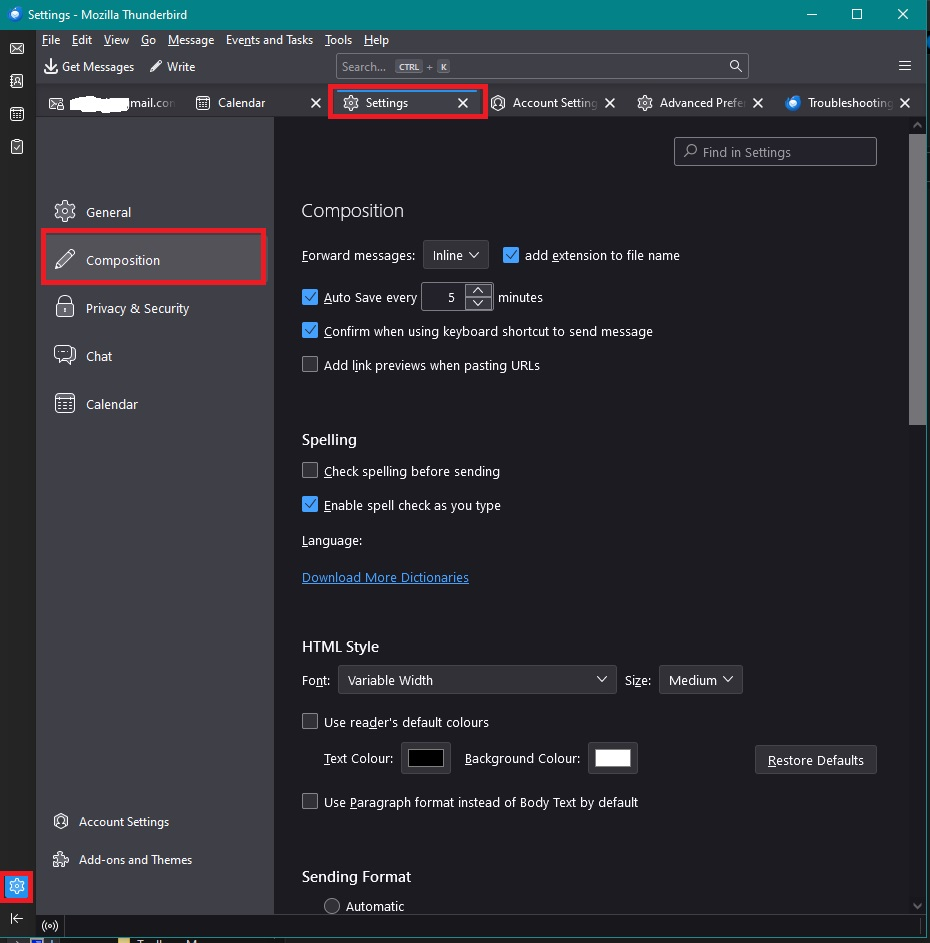
Note: the Proportional font size you selected will now be your 'Medium' setting and is used when composing. So make sure the following is selected.
- Settings > Composition
- HTML Style section
- Font : Variable width Size: Medium
That means it uses those sizes for you, but does not force them on others who read your emails, so they can choose whatever suits them.
I've added a couple of images that may help you. Do not be too concerned with colour differences as I've set those up. Some images may be for earlier versions but the options you select are in same location and identical. If image looks too small - in this Support Question, located the thumbnail image , click on it to see it much larger.
First image shows where to find 'Density' and 'Font Size' Additional images help with Settings > General Font size for emails and compose.
Hope all this info will help you sort out all your visual issues. If it does then please mark this comment as the Chosen Solution.
Oops. I was responding and see Todd-Hall has already done so. Sorry.
Ilungisiwe ngu david
Isisombululo esiKhethiweyo
Thank you both. Density did it. Folders list and inbox list are now back to normal. I had changed the font size using the menu bar, but it changed everything on the page, so that limited my screen view. Doing 'control+' just changed the current email in the bottom of the screen, which is what I was after. Happy Granny.