


Command Error 12
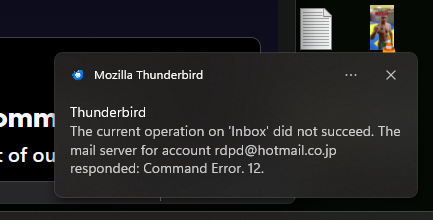
Just installed Thunderbird on Windows 11. Have two accounts: UN1@hotmail.co.jp and UN2@hotmail.co.jp. I created them in exactly the same way, but one of them works without problem, the other shows me "Command Error 12". After searching for a solution on the forum, I understand that none of the suggestions work. The error repeats. What can it be and is there a way to fix this error?
Isisombulu esikhethiweyo
Thank you all to help me with this difficult (for me) problem. The problem solved halfway by itself. I honestly tried to follow all the steps you suggested, but nothing worked. So I decided to reinstall the Windows completely and then install Thunderbird. And this helped! After installing TB the problem account tried to be naughty a couple of times, but then everything started working smoothly (don't know why...). It still works today. What was surprising was that the account started working on another computer that it had not worked on before. Thanks once again!
Funda le mpendulo kwimeko leyo 👍 0All Replies (8)
Hello there Giha.
The most effective way to stop Thunderbird from sending is to use default methods.
Thunderbird Privacy Tweak: Hiding Client Info
Open Settings: Click the hamburger menu (three horizontal lines) in the top-right corner and select Settings. Access the Config Editor: Scroll to the very bottom of the General tab. Under the "Indexing" or "Language" section, look for the Config Editor... button. Search the Preference: In the search bar at the top, type or paste:
mail.server.default.send_client_info Toggle to False: Double-click the entry (or click the toggle icon) so the value changes from true to false.
Restart: Close and reopen Thunderbird to ensure the changes take effect
Command error 12
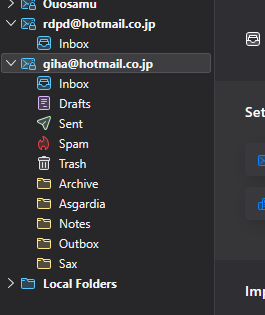
What PC are you using to experience this issue? What is your current Thunderbird version? These errors keep repeating—how often? Can you send me a screenshot?
Are there other issues? What other antivirus programs are there? Can you turn off email scans or so-called SSL scans? It's between the server and Thunderbird that is having issues here
It can solve itself after period s of time it solves itself. After the server traffic gets calm. Or after provider updates are finished.
Why this error The software is having wrong instruction from the provider that blames thunderbird and the server block s that after .
Use After a conflict with Microsoft software(such as id login), the system becomes confused by nearly identical email account names, stops responding, and displays Command Error 12 Can you change the account/email name?
https://support.mozilla.org/en-US/kb/how-to-make-screenshots
Ilungisiwe ngu Googlethunderbird.
Thank you for your reply! I use Lenovo desktop (all-in-one) with Windows 11 with only stock antivirus. Thunderbird version is 149.0.2. There are no other issues, except that sometimes TB refuses to connect to some accounts and forces me to log in to them again, even though I haven't changed anything in the TB settings or account settings. After turning off SSL scans nothing good happened, alas...
Hello there Giha.
Trying some soft fixe-s. We can start with some simple steps. First, close Thunderbird normally on your Lenovo AIO as we discussed. Then, shut down the computer completely; this will clear the cache and fix minor glitches. The issue is likely an outdated 'handshake' or authentication token. Your Lenovo's settings might be out of date, and following these steps should refresh the connection so you can communicate with Microsoft/Outlook
Update Authentication settings Should restarting prove unsuccessful, your configuration may be legacy. Navigate to Account Settings > Server Settings (SMTP) and ensure the Authentication Method is configured as OAuth2. All active accounts must utilisez OAuth2 or a more recent standard
Reinstalling account
After trying fixes and nothing did work.
Try not to delete the complete application
But try to delete the account and reinstall it again.
Right-click your email address in the sidebar. Select Settings > Account Actions > Remove Account. Restart Thunderbird.
Add the account again. Thunderbird’s automatic setup is now very good at detecting the correct OAuth2 settings for Microsoft accounts.
Ilungisiwe ngu Googlethunderbird.
Thank you, I will try all you suggested, but I think that the problem not with TB itself. I tried to use other computer with TB, also I tried to use other mail client (Mailspring), also I tried to create the problem account on my phone (FairEmail). The problem persist. I can only use this account online, via the web version...
Disclaimer: This is from the Google AI response. which I assume it gets from here https://support.mozilla.org/en-US/questions/1064915
Common Fixes for Command Error 12 Thunderbird Fix: Go to Settings > Config Editor, search for mail.server.default.send_client_info, and toggle the value to false.
As you said;
After searching for a solution on the forum, I understand that none of the suggestions work. The error repeats. What can it be and is there a way to fix this error?
I have no way of knowing what you actually looked at or tried and you do not say. Reading further in this topic does not enlighten me so I am offering the most obvious solution.
Note this issue appear to date back some 13 years see https://bugzilla.mozilla.org/show_bug.cgi?id=741374#c14
Otherwise, a log on the activity may be required to determine what exactly triggers the bad command response from the server. https://wiki.mozilla.org/MailNews:Logging#Gecko_Logginghttps://wiki.mozilla.org/MailNews:Logging#Gecko_Logging
Ilungisiwe ngu Matt
Hello there Giha
Were sorry I apologize that a definitive solution has not yet been reached. The fact that this issue remains outstanding is understandably causing some frustration.
Greetings googlethunderbird.
Look athe info in this link: https://learn.microsoft.com/en-us/answers/questions/5764982/outlook-com-email-command-error-12 Also: https://support.microsoft.com/en-gb/topic/-bad-command-12-error-occurs-and-imap-capability-commands-are-not-offered-in-an-exchange-server-2013-environment-c2628c34-4fe3-ce28-402f-443d7aa127e5
Did you try the info supplied by Matt ? Thunderbird Fix: Go to Settings > Config Editor, search for mail.server.default.send_client_info, and toggle the value to false.
re: Have two accounts: UN1@hotmail.co.jp and UN2@hotmail.co.jp.
1. check the following first. In your 'Microsoft Account' accessed via a browser: both email addresses will be displayed and one of them should be set up as the 'primary' account. You can choose which is set up as 'primary'.
The password you use to access the 'Microsoft Account' should be same password used for both email addresses. For third party email clients, Microsoft will also only permit smtp sending via whatever email address is set up as 'primary' in the Microsoft Account. Note: whilst both accounts can access and download mail using individual email address/username, smtp sending for both accounts should only use the email address/username of the one set as primary.
Once that is set up ok
2. In Thunderbird: Check everything is ok in server settings. I'm assuming you have set up all the 'Authentication Method' as 'Oauth'. Check the smtp for both accounts is set up to use whatever was set as primary account.
3. Check to see if the problem account needs a new oauth token.
- Settings > Privacy & Security
- Passwords section
- click on 'Saved Passwords'
- Look for any lines where the 'username' = problem account.
- select each relevant line and clickon 'Remove'
- Click on 'Close'
- Exit Thunderbird, wait a few moments and restart Thunderbird.
You should get a prompt to enter username and password and then a prompt to allow Thunderbird access tot he account, which you allow. That creates a new oauth token.
Did that work ?
Isisombululo esiKhethiweyo
Thank you all to help me with this difficult (for me) problem. The problem solved halfway by itself. I honestly tried to follow all the steps you suggested, but nothing worked. So I decided to reinstall the Windows completely and then install Thunderbird. And this helped! After installing TB the problem account tried to be naughty a couple of times, but then everything started working smoothly (don't know why...). It still works today. What was surprising was that the account started working on another computer that it had not worked on before. Thanks once again!