


Windows 10 reached EOS (end of support) on October 14, 2025. For more information, see this article.

Search Support

Avoid support scams. We will never ask you to call or text a phone number or share personal information. Please report suspicious activity using the “Report Abuse” option.

Learn More

How to show a list of only the Inboxes as in Favoutites in Outlook MS standalone app

  • 2 iimpendulo
  • 0 inale ngxaki
  • Impendulo yokugqibela ngu Dr.Watson

more options

How can I duplicate below in TB / BetterBird ?

We all know and see from left side of TB / BettreBird open app screen is the list of email accounts one has. In Outlook 2016 and onwards one can add just the Inbox of each mail account I have to a list called 'Favourites' and this resides above all the mail accounts and displays as a list of all the 'Inboxes' only. This means I just have to click on each respective inbox an it displays just that....all the mails in the Inbox. Currently I just have the list of account names where, when a mail is received and the corresponding circled number of mails shown I have to open the account to see the drop down then select the Inbox to get to the list of emails.

I am sure I am missing the solution.

Thanks for assistance.
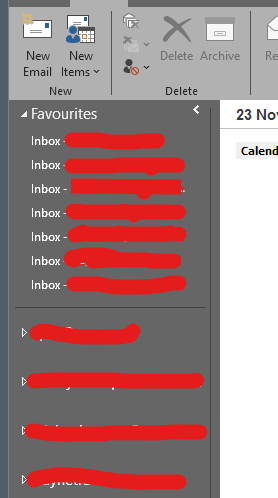
How can I duplicate below in TB / BetterBird ? We all know and see from left side of TB / BettreBird open app screen is the list of email accounts one has. In Outlook 2016 and onwards one can add just the Inbox of each mail account I have to a list called 'Favourites' and this resides above all the mail accounts and displays as a list of all the 'Inboxes' only. This means I just have to click on each respective inbox an it displays just that....all the mails in the Inbox. Currently I just have the list of account names where, when a mail is received and the corresponding circled number of mails shown I have to open the account to see the drop down then select the Inbox to get to the list of emails. I am sure I am missing the solution. Thanks for assistance.
Iqhotyoshelwe imifanekiso ekwisikrini

All Replies (2)

more options

The following methods might be helpful:

Method A: Using Favorite Folders:

Step 1: Right-click a folder on the Folder Pane. > Tick "Favorite Folder".

Step 2: (In menu bar) "View" > "Folders" > Tick "Favorite Folders".

---

Method B: Using Unified Folders:

(In menu bar) "View" > "Folders" > Tick "Unified Folders".

more options

Thanks , will give it a go.

Buza umbuzo

You must log in to your account to reply to posts. Please start a new question, if you do not have an account yet.