


Disable RLU items in dialog items
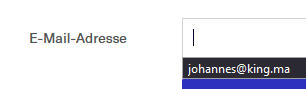
I have all save logons and password disabled. Yet when my password manager or I have entered a text in a logon the next time it appears in a dropdown box next to the item.
How do I disable this clear violation of privacy?
Giải pháp được chọn
That could be the form filler built into Firefox. Click in the field, enter a character or two and STOP ! Using the arrow keys, highlight an unwanted entry. Then press Shift + Delete
Repeat as needed.
Type about:preferences#privacy<enter> in the address box. The button next to History, select Use Custom Settings.
Turn on Remember My Browsing And Download History At the bottom of the page, turn on Clear History When Firefox Closes. At the far right, press the Settings button. Turn on Cache and Form And Search History and whatever else you want.
Đọc câu trả lời này trong ngữ cảnh 👍 1Tất cả các câu trả lời (1)

Giải pháp được chọn
That could be the form filler built into Firefox. Click in the field, enter a character or two and STOP ! Using the arrow keys, highlight an unwanted entry. Then press Shift + Delete
Repeat as needed.
Type about:preferences#privacy<enter> in the address box. The button next to History, select Use Custom Settings.
Turn on Remember My Browsing And Download History At the bottom of the page, turn on Clear History When Firefox Closes. At the far right, press the Settings button. Turn on Cache and Form And Search History and whatever else you want.