


FIREFOX 95: Mic and camera NOT ALLOWED

I went to Privacy and Security permissions and in the box "Settings Camera Permissions" it appears to me that I'm only allowed to remove permissions, not add them. The box says that it contains the list of websites that have asked permission to use my camera. The box is empty.
I tried putting the desired website in the line on top, thinking I might add it, then tried alternatively both "enter" and "save", and nothing was added to the box below. The box remained empty.
Tất cả các câu trả lời (10)
Did you get Firefox from the Microsoft Store? Can you update to 95.0.2 and try again.
https://www.mozilla.org/en-US/firefox/all/#product-desktop-release
Update: I just verified, you cannot add sites to that section. You will have to go the site you want to allow and then try it.
Được chỉnh sửa bởi jonzn4SUSE vào
Firefox 95.0.2 updated using Firefox not Google play.
I went to the site (https://discord.com) then tried to add microphone via the settings/privacy,security/permissions which did not work either.
If I could, I'd enter this as a level 1 bug, a major functionality failure.
Did you get this prompt? see screenshot
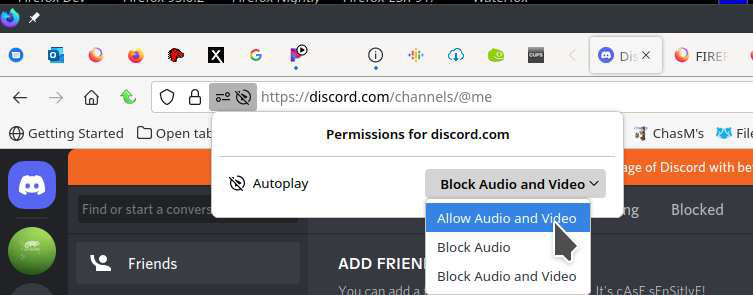
Được chỉnh sửa bởi jonzn4SUSE vào
No. Would it be considered a pop up?

See How to manage your camera and microphone permissions with Firefox and Site Permissions panel.
If going to the https://discord.com/ website doesn't prompt you to set camera or microphone permissions, you can open the Page Info window , as explained in the View site information with Page Info article (On Windows you can use the [CTRL + i] keyboard shortcut) and then change the Permissions settings for Use the camera and Use the Microphone to Allow.
The image you included: "Settings - Microphone Permissions" does not show up on screen, under, or over...I've been saying this all day. Maybe this will be the ah ha moment. No part of the permissions has any activity, does nothing or respond to anything, does not matter if I am at discord or Firefox Home page.
The "If the Menu bar is enabled, click Tools and select Page Info from the drop-down menu. " is dead help. It does not exist in version 95.0.2 64bit

Try ctl+i to get the Page Info window then the Permissions tab.
I opened the Settings - Microphone Permissions and did the Ctrl i and got this: default-src chrome:; script-src chrome: 'sha512-X8+p/CqXeMdssOoFOf5RV+RpkvnN9pukQ20acGc7LqMgfYLW+lR0WAYT66OtSTpFHE/Qgx/ZCBs2RMc4QrA8FQ=='; img-src chrome: moz-icon: https: data:; style-src chrome: data: 'unsafe-inline'; object-src 'none'
Use the ctrl + i keyboard shortcut to open the Page Info window while the https://discord.com/ site is open. Choose the Permissions tab, go to Use the camera at the bottom, uncheck the checkmark for "Use Default" and select "Allow". Do the same for the Use the microphone setting.
You must be on the https://discord.com page to open the Page Info window.
Được chỉnh sửa bởi AliceWyman vào
I edited this section of the How to manage your camera and microphone permissions with Firefox article to include the following information, in case it helps:
Use Firefox's Page Info Permissions dialog to change camera and microphone permissions
If a page does not prompt you for permission, you can use the Permissions panel in Firefox's Page Info window for the site to set a custom permission for the Use the camera or Use the microphone setting. (One way to open the Page Info window for a website is to use the keyboard shortcut Ctrl + I while you are on the page; for other ways, see the View site information with Page Info article.) In the Page Info window, select Permissions at the top:
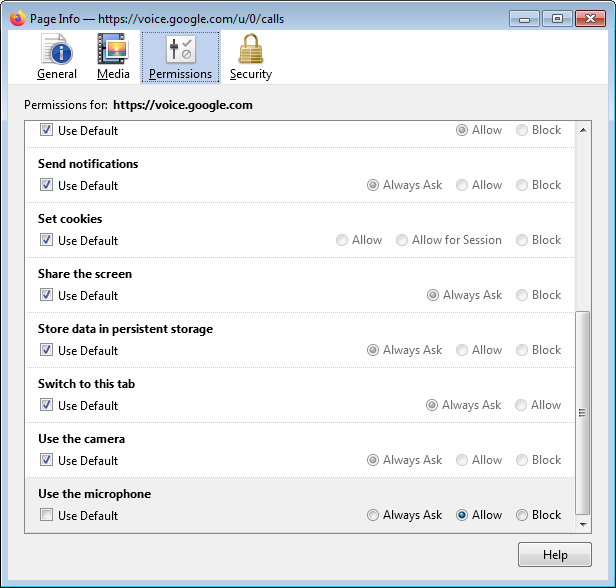
To set a custom permission, uncheck Use Default for the setting and then choose Allow or Block.
Được chỉnh sửa bởi AliceWyman vào