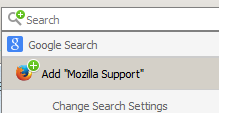
how remove search engine add suggestion from firefox

how remove search engine suggestion when visiting random pages , also another problem with private browsing new tab page is still on , also why you cannot put blank page on new tab on normal new tabs instead blank with that cog
Tất cả các câu trả lời (2)

If you want to add that search engine, allow it. Otherwise ignore it.
With Firefox 41 (and higher), it's no longer possible to customize the page shown in a new tab via changing the preference browser.newtab.url in about.config. Because of the fact that hijackers abused the preference in the past, Mozilla decided to remove it (see bug 1118285). Fortunately, by removing it, Mozilla also introduced a new API to bring this functionality back to life as an add-on. This add-on allows the user to choose a certain page in a new tab.
New Tab Override (browser.newtab.url replacement) https://addons.mozilla.org/en-US/firefox/addon/new-tab-override/
This is also available using Classic Theme Restorer (Customize Australis) {web link} Restore squared tabs, appmenu, add-ons bar, small button view and more on Australis UI (Windows/MacOSX/Linux + Fx 29+).
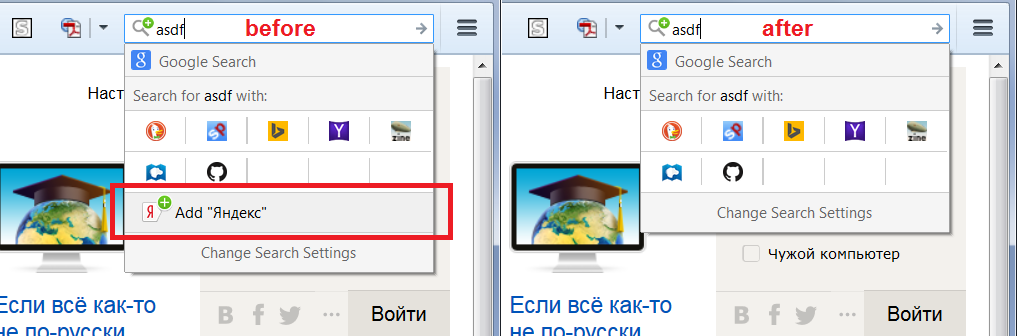
You can use a custom style rule to suppress that item. For example, this style rule will hide that row (but there will still be a green + on the magnifying glass, so hopefully that's okay):
#PopupSearchAutoComplete .addengine-item {
  display: none !important;
}
I have attached a screen shot illustrating the effect.
Would you like the "step by step" for that or are you already familiar with applying custom style rules to Firefox's interface, using either the Stylish extension or a userChrome.css file?