Whatsapp not loaded

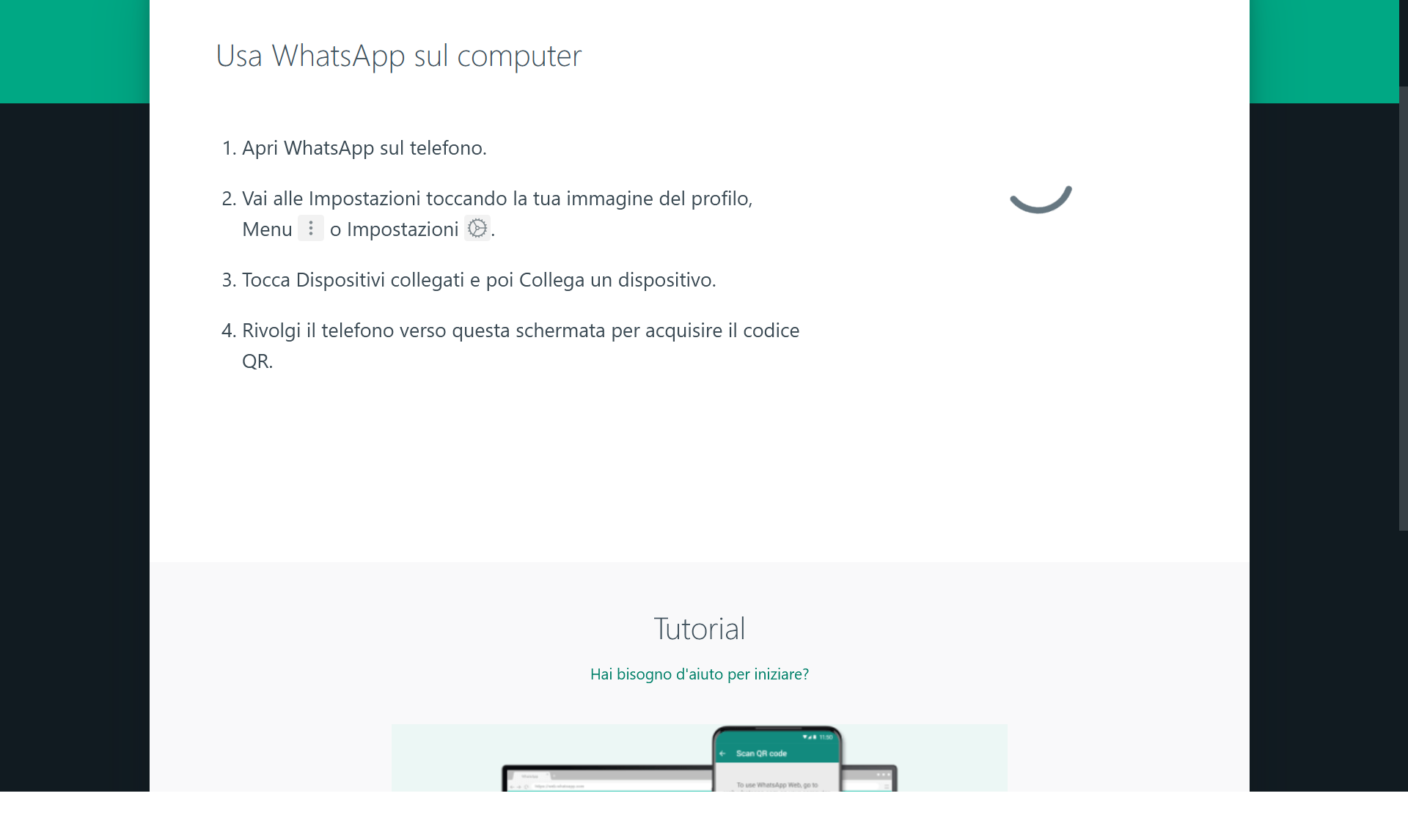
despite the solutions found in this help, whatsapp web still won't let you load with Firefox (the QR-CODE doesn't come out)
Ndryshuar nga serastrof
Krejt Përgjigjet (3)
Start Firefox in Troubleshoot Mode to check if one of the extensions ("3-bar" menu button or Tools -> Add-ons -> Extensions) or if hardware acceleration or if userChrome.css/userContent.css is causing the problem.
- switch to the Default System theme: "3-bar" menu button or Tools -> Add-ons -> Themes
- do NOT click the "Refresh Firefox" button on the Troubleshoot Mode start window
- https://support.mozilla.org/en-US/kb/diagnose-firefox-issues-using-troubleshoot-mode
- https://support.mozilla.org/en-US/kb/troubleshoot-extensions-themes-to-fix-problems
You can try these steps in case of issues with webpages:
You can reload webpage(s) and bypass the cache to refresh possibly outdated or corrupted files.
- hold down the Shift key and left-click the Reload button
- press "Ctrl + F5" or press "Ctrl + Shift + R" (Windows,Linux)
- press "Command + Shift + R" (Mac)
Clear the Cache and remove the Cookies for websites that cause problems via the "3-bar" Firefox menu button (Settings).
"Remove the Cookies" for websites that cause problems:
- Settings -> Privacy & Security
Cookies and Site Data: "Manage Data"
"Clear the Cache":
- Settings -> Privacy & Security
Cookies and Site Data -> Clear Data -> [X] Cached Web Content -> Clear
- https://support.mozilla.org/en-US/kb/clear-cookies-and-site-data-firefox
- https://support.mozilla.org/en-US/kb/how-clear-firefox-cache
See also:

Try disabling Tracking Protection for the site.
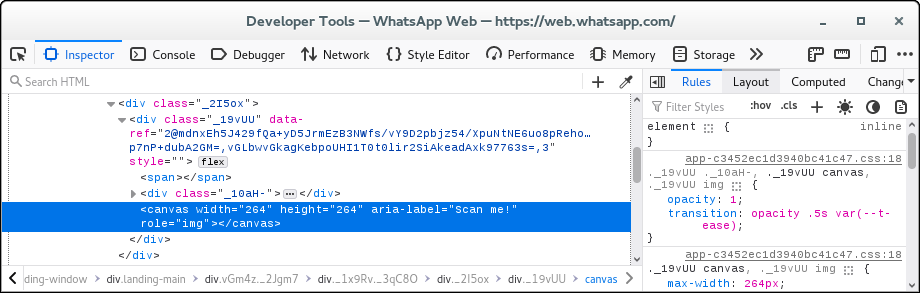
Note that the QR code is drawn on canvas.
You can check the Web Console (Tools -> Web Developer) for messages about blocked content and about the presence of mixed or unsafe content.
You can check the Network Monitor to see if content is blocked or otherwise fails to load.
If necessary use "Ctrl+F5" or "Ctrl+Shift+R" (Mac: Command+Shift+R) to reload the page and bypass the cache to generate a fresh log.