


I can't login to yahoo mail with version 148.0

Hi. From 27 feb I can't login to yahoo mail through mozilla thunderbird.
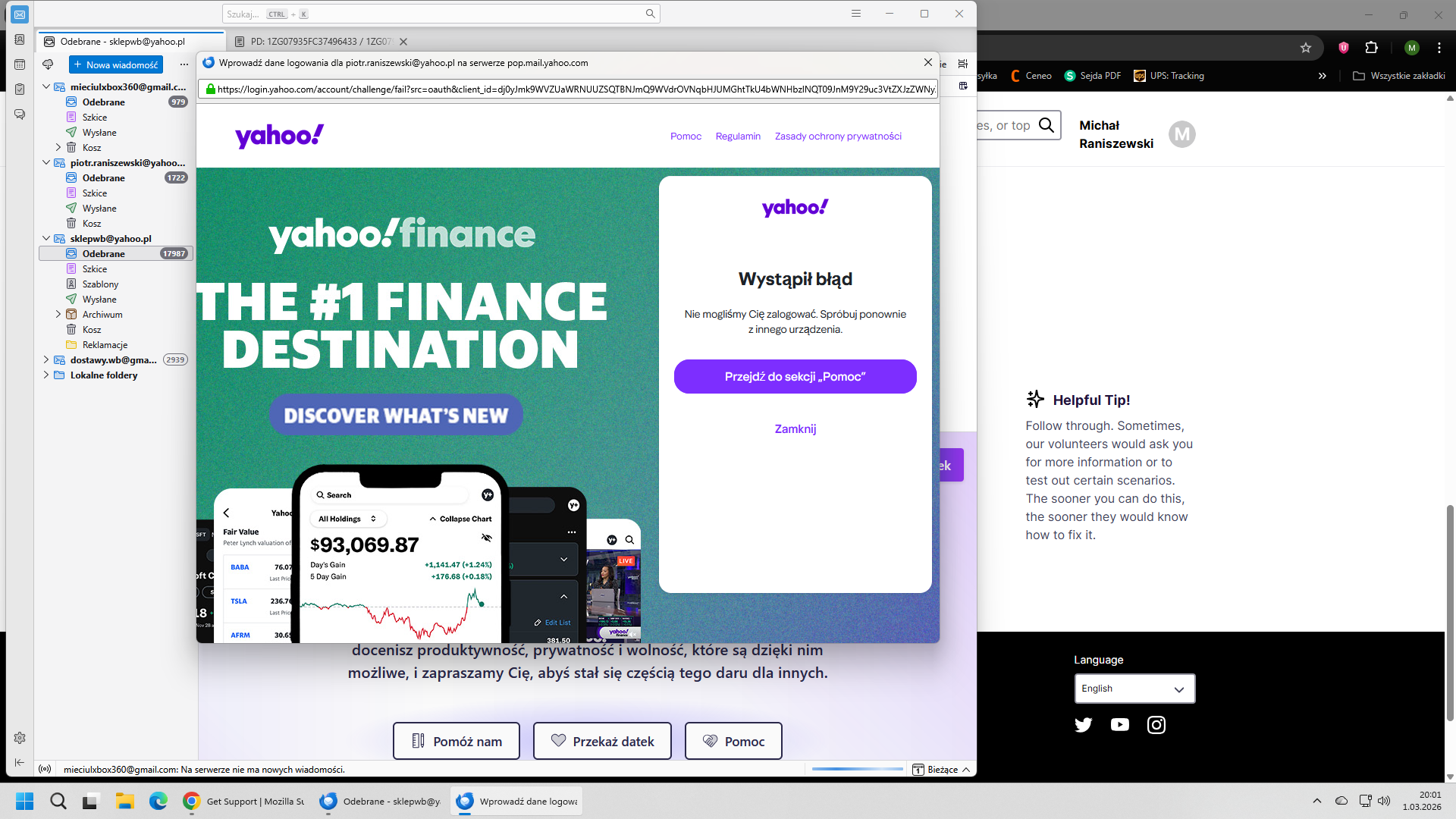
When I start thunderbird, new windows is opened with this link
When I tried to login I see this information:
An error occurred.
We couldn't log you in. Please try again from a different device.
This is very strange, because I tried it on another PC and this is the same. It looks that yahoo even didn't try to check password, because this is not matter if I wrote correct password or different - I see the same information.
Please help. I have two yahoo mail account and this is the same.
Both accounts works well on another e-mail client and I can access to my account without any problem by browser. This is only thunderbird problem.
Diubah oleh Wayne Mery
All Replies (1)
The reason you are unable to login to your account, is Thunderbird version 148.0 has a code change to meet new OAuth2 authentication requirements from Yahoo, ATT and AOL, a new protocol called PKCE. This requires you to reauthenticate (login) to your account, even though the authentication method remains OAuth2. Also, if a you have more than one account using OAauth2 authentication (in any combination of Yahoo, ATT and AOL), then additional problems can occur. (Work is in progress to avoid this problem in the future. Please refer to https://support.mozilla.org/en-US/kb/thunderbird-and-yahoo.)
The steps and questions below should help you, and your response to this email will be greatly appreciated, so we can help you and other users.
B. If you have not yet been successful, Please tell us:
B1. With the password that failed with Thunderbird, can you log into the account(s) using the mail provider’s web interface (webmail)? (Note: you must use the account password, not an “app password” that was created by yahoo) B2. What are the full domain name(s) of all the affected account(s)? (for example yahoo.co.uk) B3. Are cookies enabled in Thunderbird at Settings > Privacy & Security > “Accept cookies from sites …” B4. Are you able to login using Thunderbird after you do the following
- Settings
- Config Editor
- Click 'Accept the risk and continue' if that appears
- Find mailnews.oauth.usePrivateBrowser (screen shot below - you can paste it into the search field)
- Click the two-headed arrow icon to toggle false to true
* Restart Thunderbird (make sure it has fully shut down before starting it up)
- Retry the login
C. If you were not successful after B4…
C1. Can you see the entire oauth dialog panel - no action buttons are missing? C2. No authentication dialogs are hidden behind what you currently see? C3. You don’t have the preference javascript.enabled set to false in Settings > Config editor? C4. Are you in the country in which you normally use the account? (rule out geoip) C5. (related to #4 above) Are you using a VPN? C6. Is the authentication method in Account Settings set to oauth? C7. Are you using MFA/2FA? (enabling multi-factor authentication / two-factor authentication in your mail provider settings might be blocking you) C8. Are you running a webserver on your computer? Or is any program listening on port 80 [1]? C9. If you are using Windows, does it help to start Windows in Safe Mode with networking enabled? See https://support.microsoft.com/en-us/windows/windows-startup-settings-1af6ec8c-4d4a-4b23-adb7-e76eef0b847f. If you feel the instructions are too complicated, printing them often helps.
[1] check for program listening on port 80:
- macOS and Linux, a terminal window - sudo netstat -an | grep LISTEN | grep :80\D
- Windows, in a command/dos window - netstat -an | findstr LISTEN | findstr ":80[^0-9]"
If you are really stuck, sending us screen shots might help.
