


invoking/executing the "search by image" extension

I've downloaded the Firefox-recommended "search by image" extension. I can't figure out how to actually use it. Watched several videos, but none of those included the "how to use it" aspect.
If someone has time to respond to this, I'll very much appreciate detail and completeness - I'm afraid I'm not very intuitive.
Thanks in advance
Alle Antworten (5)

Assuming this is the extension you are referring to: https://addons.mozilla.org/en-US/firefox/addon/search_by_image/
1. Go to a page with the image you want to reverse image search. (This also works with local files on your device) 2. Click on the "search by image" extension icon 3. Select the platform you want to conduct the reverse image search with 4. The extension will show a message telling you to select an image, so click on the image you want to search. 5. The extension will open a new tab with the search results using the platform you selected.
Thank you, Mark In my case there is no "search by image" icon. When I click on the "jigsaw" icon near Firefox top right, it offers two options: AdBlock and "Search by Image". When I click on the latter it brings up a selection menu of different search engines. Regardless of whether I select "All" or a specific one there is no apparent change in the FireFox screen; no new window opens.
???
"In my case there is no "search by image" icon" You said there was the option "Search by Image" after clicking on the "jigsaw" icon. That's the same thing I'm referring to. It's just that I had pinned the extension to my toolbar before listing these steps.
The extension won't work if you are on a page that Firefox prevents extensions from modifying, such as a blank new tab or support.mozilla.org (it's a notable exception).
To clarify, after you select a search engine, there should be the message "Select an image" that appears at the bottom of the screen. It's not a new window. (Screenshot 1)
Another way is to right click on the image (if the website allows) and there will be an option to Search by Image. (Screenshot 2)
If what I'm saying doesn't match what you see, please send an example link so I can try to reproduce the issue. Lastly, you can create a bug report at https://github.com/dessant/search-by-image/issues.

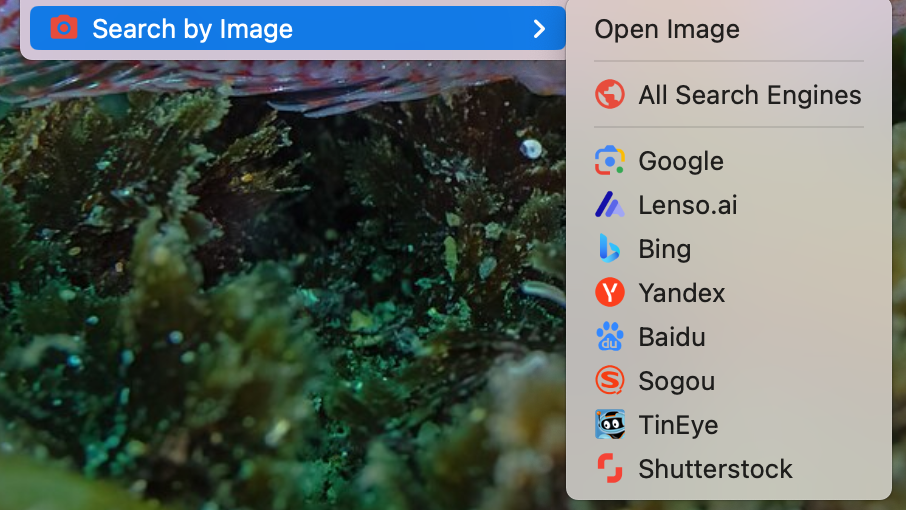
Again apologies for delay - lots going on here.
I collect .jpg images from the WWW to add to my own shots of places we've traveled. Chrome was previously my default browser, which as you probably know comes with reverse image search. So I was accustomed to just dragging an image file into the search window. Now, however, I'm actively trying to wean myself away from anything Google - using Firefox and DuckDuckGo instead.
Can this "search by image" Firefox extension operate similarly?
======================================================
Getting back to your suggestions: • when I open new Firefox page, click on the "jigsaw", and then on "search by image" the window seems to not change at all. Nothing additional appears at the bottom of the same window.
• if I try to drag and drop an image into the "search window" - it doesn't drop
• if I right click on an image, the resulting selection menu does not include anything explicitly related to a reverse search/search by image process
So - I'm not sure what sort of link I should send
Thanks again for your patience
'when I open new Firefox page, click on the "jigsaw", and then on "search by image" the window seems to not change at all." As I said, extensions are not allowed to modify blank new tabs.
"if I try to drag and drop an image into the "search window" - it doesn't drop" Yes, because unlike Google Search, DuckDuckGo Search doesn't have a reverse image search feature.
"if I right click on an image, the resulting selection menu does not include anything explicitly related to a reverse search/search by image process" I assume you are right clicking on the image when in File Explorer/Finder. The extension is a Firefox extension, so it only works inside Firefox.
You need to open the image with Firefox so the image is a tab, then right click on the image.