


How to keep the browser from messing with the language of websites?

I speak more than one language and want to have transparency and control of the content. Therefore I always want to see any website in it's native language first.
My preferred situation then would be to have a menu in the tab where I may choose a translation. In the case of a multi-lingual site I want to have those languages as additional options on top - with an indicator for the sites default language. So I may first choose the sites language, then (possibly) into which that is translated into.
But at present I can use only the settings of preferred language for multi-lingual sites, never knowing what language was the base for the content. (Presumably the most accurate content of the website.) And I can add languages for translation and sort them, while - weirdly - I cannot delete them later as there's no control element for getting rid of (maybe accidentally) downloaded ones.
Is there a solution already? Did I miss something in the settings? And: Where is the „translation panel“ to which the settings „Translations - More translation settings“ refer to in the block „Never translate these sites“?
Alle Antworten (4)
Correction for 3rd paragraph, last sentence: And I can add „website languages“ for multi-lingual websites and sort them, while - weirdly - I cannot delete them later as there's no control element for getting rid of (maybe accidentally) chosen ones. Sorry for the mixup.
Edit: I added the picture of the settings - I swear those 7+ hours ago there were no trashcans visible, just the touch-symbol and the name. I can't say whether the Linux-distribution updated Firefox, it is freshly installed and I'm not yet used to it. But anyhow, now the first problem is solved, my thanks to @jbr
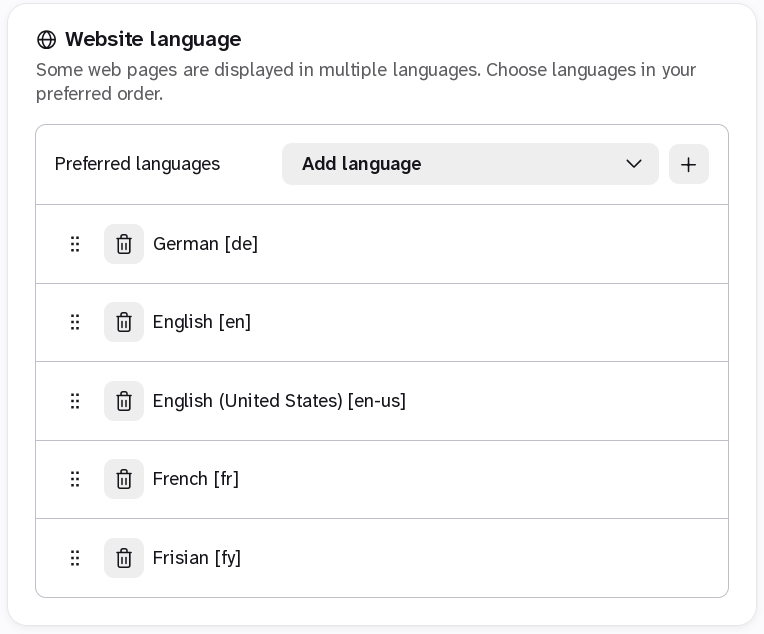
Geändert am von ulancier
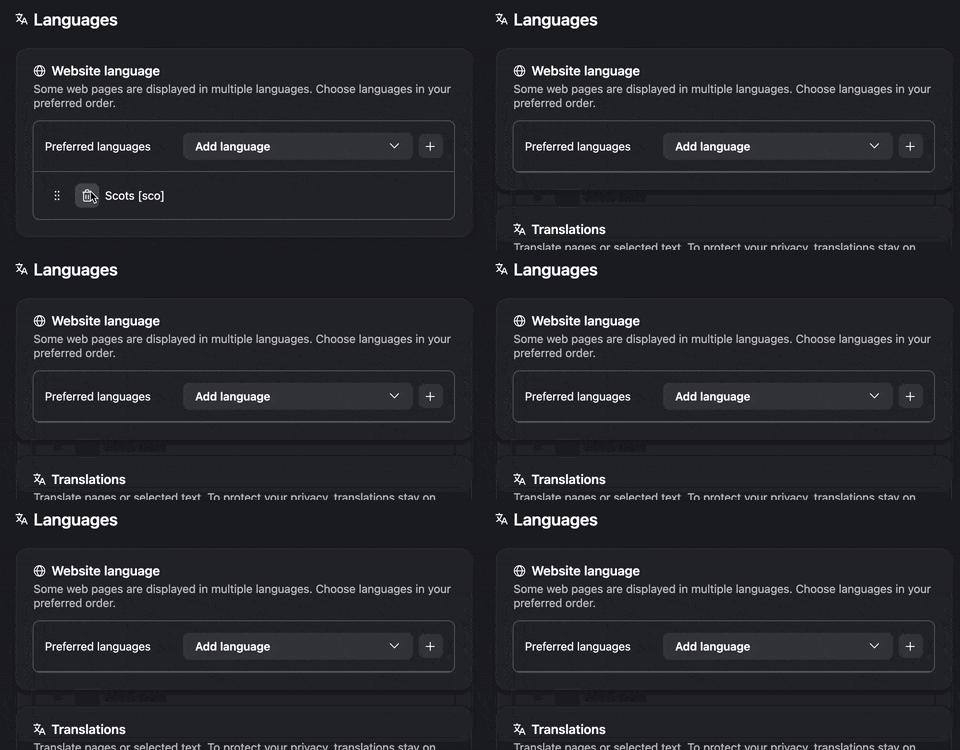
The trashcan removes them:
jbr said
The trashcan removes them:
There's a trashcan in the translation settings, yes, but not in the preferred language selection. (I tried to correct my original post but couldn't find an edit option, so I added a comment.) But thanks for the swift reaction!
That doesn't sound right. Can you post a screen shot where you're stuck? This GIF above is for Website Languages as you can see, e.g. HTTP Accept–Language content negotiation header — which you supposedly want empty to not signal any preference to international websites.
(You can always wipe it via about:config but I'd rather stick to the expected workflow in case there's something broken for you.)