How can I view my mail ordered by size of attachment?

I've installed Thunderbird 115.4.1 on my ancient Macbook pro, in hope of getting to grips with my gmail (which I previously read using Firefox web gmail). There are over 20,000 messages, and I want to find and delete ones with BIG attachments. Is there a way to order my view by attachment size?
The sort-by option lets me choose 'attachments', so emails with attachments are listed above those without, but the list is still ordered by date, and the attachment size is shown only per email when the message is selected.
Any clues much appreciated.. thanks Alan
Ausgewählte Lösung
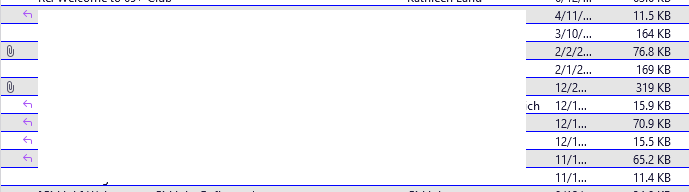
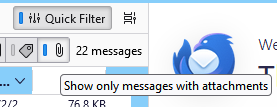
If the Size column is enabled (right-click any column button to enable columns), the message (including attachments) size is shown as in the 1st attached picture. Sort by size by clicking the Size column button. To show only messages with attachments, click the paper clip icon on the Quick Filter Bar (2nd picture).
Diese Antwort im Kontext lesen 👍 1Alle Antworten (1)
Ausgewählte Lösung
If the Size column is enabled (right-click any column button to enable columns), the message (including attachments) size is shown as in the 1st attached picture. Sort by size by clicking the Size column button. To show only messages with attachments, click the paper clip icon on the Quick Filter Bar (2nd picture).