Can't integrate old profile in Thunderbird (Linux)

I am a bit of a noob, and probably out of my depth, so please bear with me. It also is a bit of a confusing situation so I hope that I can explain it clearly.
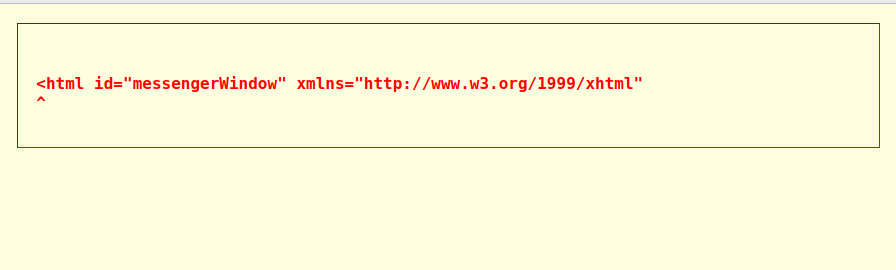
A while ago, Thunderbird stopped working. Whenever I tried starting it up, I got an error message saying that Thunderbird wasn't responding. I thought there might be a problem with some update so I decided that I would reinstall the program. As I went to back up my profile, I found out that there were actually two profile folders where in the past I would only find one. I chose to back up both, and procede with de- and re-installing Thunderbird. After doing so I tried to integrate the old profiles back into the new installation. At first, I chose the largest of the to profile maps and copied it where I found it before the re-installation. I created a new profile using the old profile folder through the User Profile menu. This seemed to work! However, I noticed something. I have two e-mail accounts running in this profile. One IMAP and one POP. I noticed that the POP account was missing about a years worth of old e-mails. As if it stopped saving them at some point. I figured they must be in the other profile folder I found before the re-installation. I tried creating a new profile with this profile but when starting up Thunderbird afterwards I once again got the 'Thunderbird isn't responding' message. So I reverted back to the first profile I made, the one with the missing e-mails. Appart from those e-mails, it seemed to be working well. To get back what was missing, I tried copying the files in the "inbox.sbd" of the back up that wasn't responding into the back up that was responding, thinking that if it messed something up, I could just CTRL + Z my way out of trouble. It seemed that there were three locations in the functioning back up that I could copy the files into, each having the server name of the e-mail account that I was missing e-mails from. I tried copying the files in each of them, each time removing the files through 'undo' before trying the next location. As this seemed unsuccesfull I tried restarting Thunderbird again (having removed the copied files from all locations) which resulted in the following error message:
In a pink screen that I have never seen before. After this I tried removing all profiles and starting again with a fresh copy of the backed up profile folder as I figured I might have accidentally changed something in the profile folder I was using. This however keeps giving the same error message.
Clearly, I messed something up. But I don't know what. Can anybody help? One last thing I noticed that in the 'Mail' folder within the profile folder, there where three folders with the server name before, now there is only one. I guess this is a clue?
All help is welcome!
Alle svar (3)
You mention 'Linux' Depending upon where you got the Thunderbird installation/download program it will determine where the profile will be located.
Did you install Thunderbird from the official website: https://www.thunderbird.net/en-US/thunderbird/all/
Or did you install Thunderbird using 'Snap' or 'Flatpak' ?
re: As I went to back up my profile, I found out that there were actually two profile folders where in the past I would only find one. I chose to back up both,
But where did you locate the profile folders ? Where was the original .thunderbird folder located? I'm wondering what exactly you copied/backed up.
You would normally backup the .thunderbird folder because it would contain everything. So are you talking about different locations where you found a .thunderbird folder?
If you used download from official website then the .thunderbird folder would be here: ~/.thunderbird
If you downloaded Thunderbird using Snap then the .thunderbird folder is here:
- home/alistair/snap/thunderbird/common/.thunderbird
If you used Flatpak, it would have set up a new profile in:
- ~/.var/app/org.mozilla.Thunderbird/.thunderbird
Once you have told us where the original Thunderbird stored the .thunderbird folder... We need to know where you got the most recent Thunderbird download so we understand where the current .thunderbird folder is located.
Then I would need to know if you copied the .thunderbird folder OR whether you accessed the .thunderbird folder and just copied the actual profile name folders that look a bit like this: 123abcD.default
Then upload an image showing the current contents of the .thunderbird folder, so we can see all the profile name folders that are current. Make sure the image shows the complete directory.
Regarding the 'profile name' folders you backed up:
Upload images showing contents of 'Mail' folder in each profile.
Again make sure we can see directory, so we know which profile is which and what it contains.
Dear Toad-Hall,
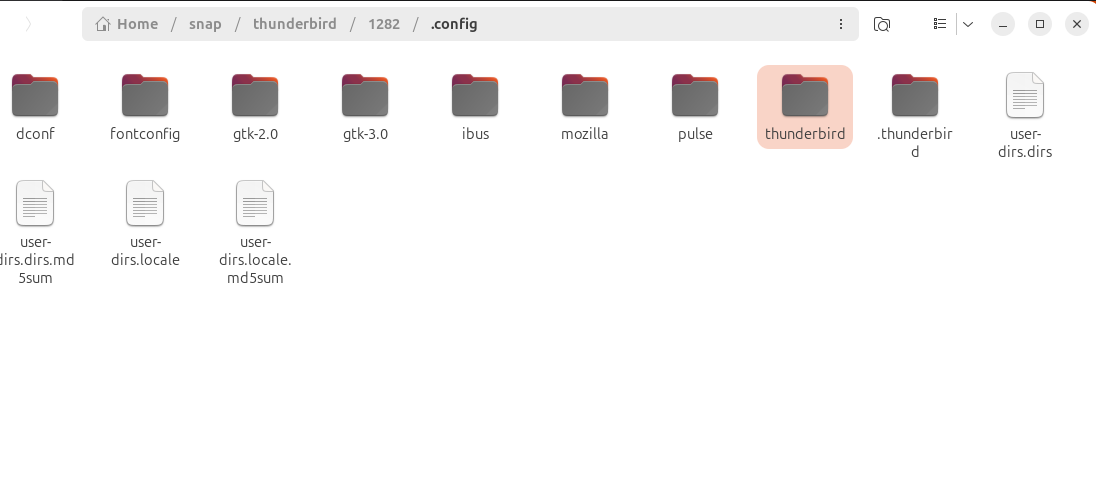
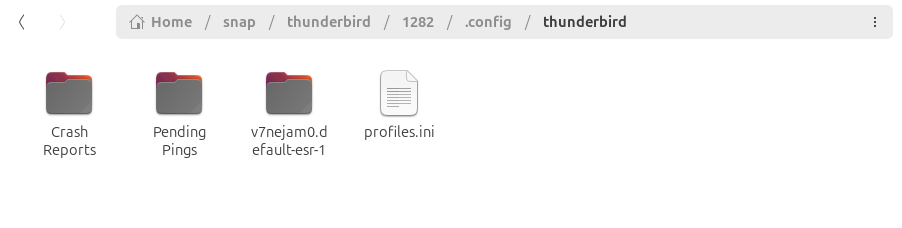
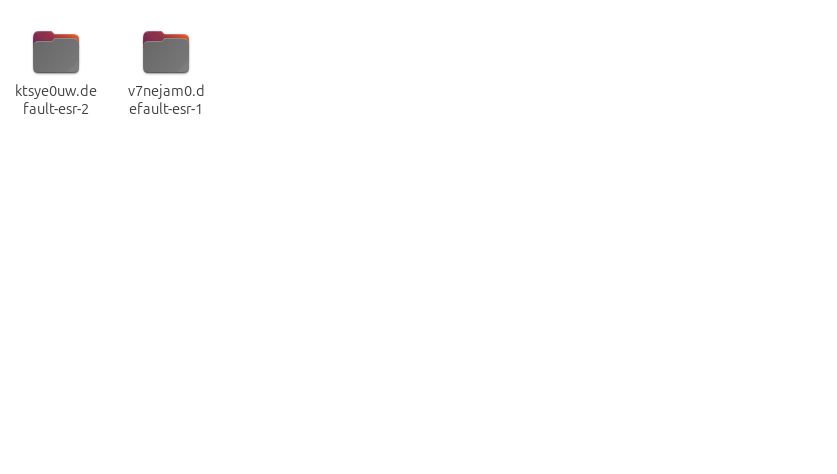
Thanks for your answer and sorry for taking so long to reply. I've managed to solve part of the problem but in a way I don't quite understand so there are still some questions left unanswered. First I'll answer your questions and then get into the current state of affairs. - I've installed Thunderbird through Snap - The profilefolders I've copied were the actual profile name folders. While online I found that they should be found in the '.thunderbird' folder, they were actually in the 'thunderbird' folder. The '.thunderbird' folder was and is empty. I've attached a screenshot showing the location of both folders (1), the contents of the 'thunderbird' folder at the present time (2) and the two thundenderbird name profiles I found in the 'thunderbird' folder when the application stopped working (3). This last one doens't show the correct directory any more as the screenshot is from the drive I use to back them up.
Now on to the current situation. I somehow managed to get my Thunderbird application functioning again.
I did this by:
- de- and then re-installing the application through Snap
- copying one of the thunderbird name profiles into the 'thunderbird' folder that was created through the reinstallation.
- while the files were being copied from my external disk to the 'thunderbird' folder, I used the User Profile menu (through the terminal) to create a new profile with the folder that was being transfered.
- When promted, I would start Thunderbird which would not recognize the folder I was copying and would ask me to set up a new profile, which I did.
- Then I restarted Thunderbird. As was to be expected, it synced with the e-mailaddress I used in the previous step (which is an IMAP account). But it also incorporated most of the e-mails in my other (POP) account, which must have come from the data I copied into the 'thunderbird folder'.
I don't really know why this worked but it did so I am gratefull for that. The only issue is that I am still missing about a years worth of e-mails from the POP account. I've tried manually merging the two profile name folders and then using the merged folder in the procedure above but this didn't seem to have any effect. I'm also a bit hesitant to mess around with it to much in case I screw it up again.
So the two questions I still have are: - Why did what I did work? - Is there any way to restore the missing e-mails?
I'm guessing they are still somewhere inside the second profile name folder
I hope my explanation is clear, I did my best. Thanks in advance for any suggestions!