

Unable to open web page, "application/octet-stream " error

I'm trying to open a web page, which worked perfectly until about a week ago. The address is: https://xdaforums.com/f/xiaomi-poco-x3-pro.12163/
I now get a popup window, which tells me that I'm trying to open a "application/octet-stream (377 bytes)" and gives me the option of "open with" or "save file".
I don't want to do either, just view the page as before.
الحل المُختار
You can try these steps in case of issues with webpages:
You can reload webpage(s) and bypass the cache to refresh possibly outdated or corrupted files.
- hold down the Shift key and left-click the Reload button
- press "Ctrl + F5" or press "Ctrl + Shift + R" (Windows,Linux)
- press "Command + Shift + R" (Mac)
Clear the Cache and remove the Cookies for websites that cause problems via the "3-bar" Firefox menu button (Settings), click the padlock icon (Clear cookies and site data) for the domain in the selected tab.
"Remove the Cookies" for websites that cause problems:
- Settings -> Privacy & Security
Cookies and Site Data: "Manage Data"
"Clear the Cache":
- Settings -> Privacy & Security
Cookies and Site Data -> Clear Data -> [X] Cached Web Content -> Clear
- https://support.mozilla.org/en-US/kb/clear-cookies-and-site-data-firefox
- https://support.mozilla.org/en-US/kb/how-clear-firefox-cache
Start Firefox in Troubleshoot Mode to check if one of the extensions ("3-bar" menu button or Tools -> Add-ons -> Extensions) or if hardware acceleration or if userChrome.css/userContent.css is causing the problem.
- switch to the Default System theme: "3-bar" menu button or Tools -> Add-ons -> Themes
- do NOT click the "Refresh Firefox" button on the Troubleshoot Mode start window
- https://support.mozilla.org/en-US/kb/diagnose-firefox-issues-using-troubleshoot-mode
- https://support.mozilla.org/en-US/kb/troubleshoot-extensions-themes-to-fix-problems
You can check for issues with Enhanced Tracking Protection. Firefox shows a purple shield instead of a gray shield at the left end of the location/address bar in case Enhanced Tracking Protection is blocking content.
- click the shield icon for more detail and possibly disable the protection
You can check the Web Console for relevant-looking messages like blocked content.
- https://support.mozilla.org/en-US/kb/enhanced-tracking-protection-firefox-desktop
- https://support.mozilla.org/en-US/kb/total-cookie-protection-and-website-breakage-faq
- https://support.mozilla.org/en-US/kb/trackers-and-scripts-firefox-blocks-enhanced-track
All Replies (6)
Does it still happen in Troubleshoot Mode?
No, already tried that.
More information - the site works perfectly with Microsoft Edge and Google Chrome. It's a Firefox PC desktop problem.
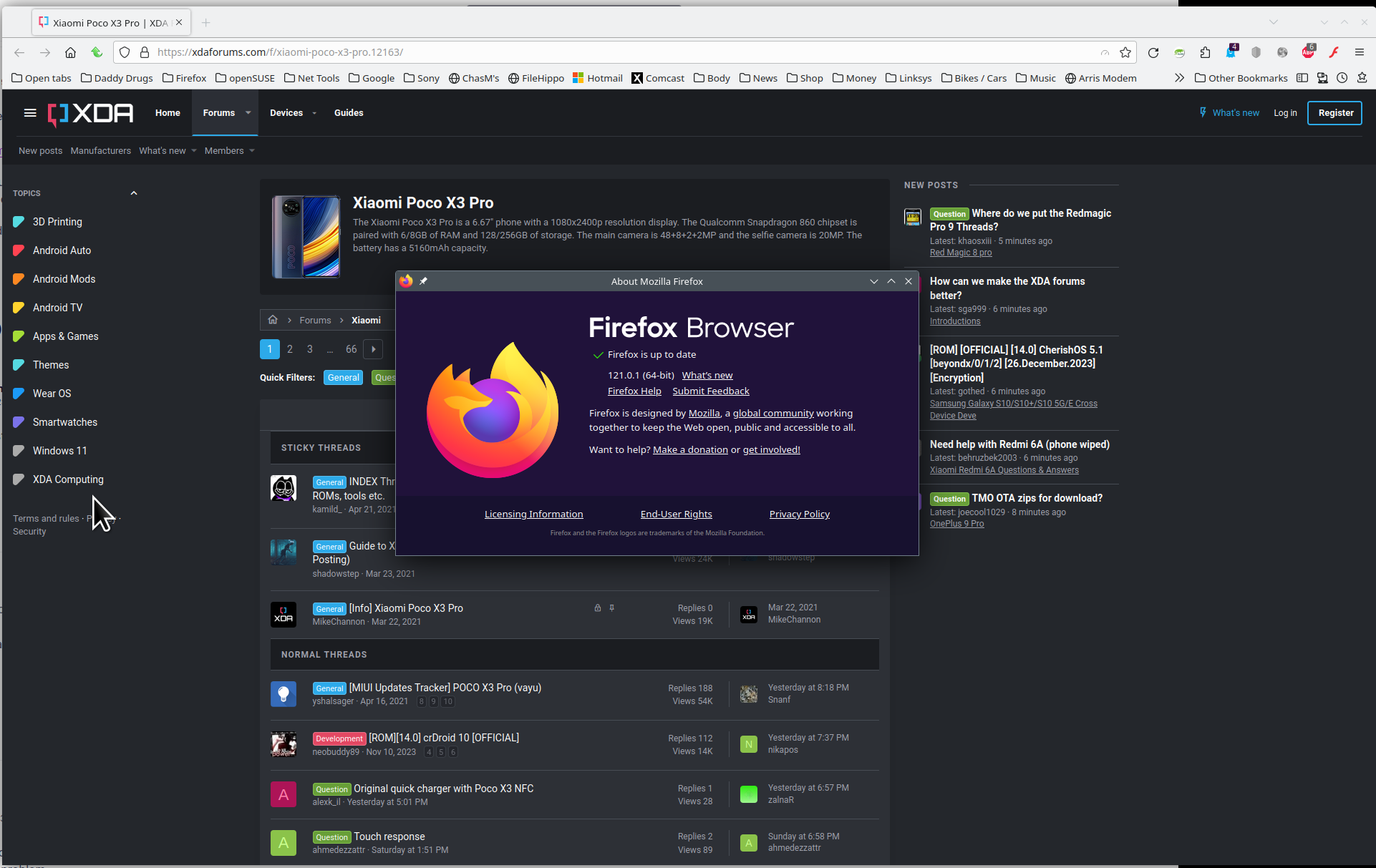
Works for me. see screenshot Can you post a screenshot?
الحل المُختار
You can try these steps in case of issues with webpages:
You can reload webpage(s) and bypass the cache to refresh possibly outdated or corrupted files.
- hold down the Shift key and left-click the Reload button
- press "Ctrl + F5" or press "Ctrl + Shift + R" (Windows,Linux)
- press "Command + Shift + R" (Mac)
Clear the Cache and remove the Cookies for websites that cause problems via the "3-bar" Firefox menu button (Settings), click the padlock icon (Clear cookies and site data) for the domain in the selected tab.
"Remove the Cookies" for websites that cause problems:
- Settings -> Privacy & Security
Cookies and Site Data: "Manage Data"
"Clear the Cache":
- Settings -> Privacy & Security
Cookies and Site Data -> Clear Data -> [X] Cached Web Content -> Clear
- https://support.mozilla.org/en-US/kb/clear-cookies-and-site-data-firefox
- https://support.mozilla.org/en-US/kb/how-clear-firefox-cache
Start Firefox in Troubleshoot Mode to check if one of the extensions ("3-bar" menu button or Tools -> Add-ons -> Extensions) or if hardware acceleration or if userChrome.css/userContent.css is causing the problem.
- switch to the Default System theme: "3-bar" menu button or Tools -> Add-ons -> Themes
- do NOT click the "Refresh Firefox" button on the Troubleshoot Mode start window
- https://support.mozilla.org/en-US/kb/diagnose-firefox-issues-using-troubleshoot-mode
- https://support.mozilla.org/en-US/kb/troubleshoot-extensions-themes-to-fix-problems
You can check for issues with Enhanced Tracking Protection. Firefox shows a purple shield instead of a gray shield at the left end of the location/address bar in case Enhanced Tracking Protection is blocking content.
- click the shield icon for more detail and possibly disable the protection
You can check the Web Console for relevant-looking messages like blocked content.
"Clear the Cache" worked great. Thanks a lot for the response!