


Why can I not send emails from my account?

Why can I not send emails from my account?
All Replies (2)
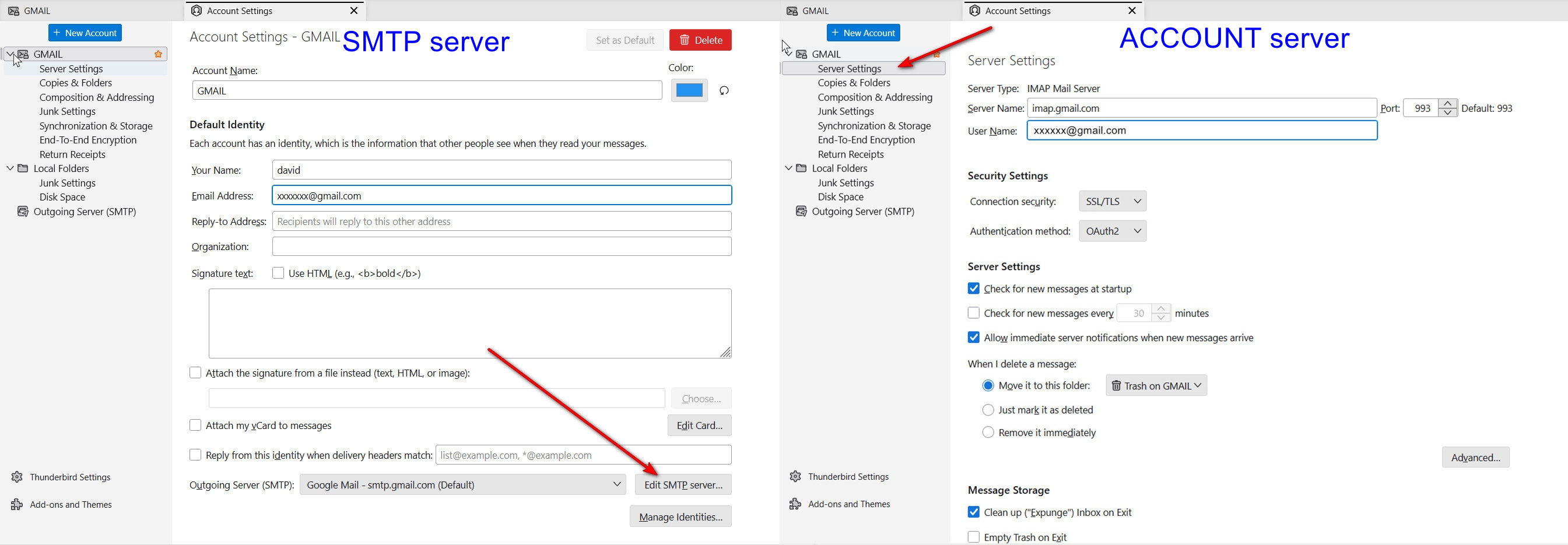
Probably because the password is wrong or the setup is incorrect. If you share screenshot of error messages, plus of server settings pane and SMTP server settings pane, someone may have suggestions. I included a screenshot of where to locate that information.

I’ve spent hours and hours trying to find solution to not being able to send emails. I worked my way through Google’s AI. This worked. I can send emails now. I hope it does for you.
If clearing the password history did not stop the error, it means Thunderbird is still linked to a misconfigured or corrupted SMTP server profile, or your main email identity is mapped to the wrong outgoing slot.When you delete passwords but Thunderbird fails to send without popping up a fresh password request, it implies it isn't even attempting a handshake anymore because the internal profile is broken. Perform this complete physical reset of the Outgoing Server profile to clear the backend loop:
1. Completely Re-create the SMTP Server EntryEditing an existing profile can sometimes fail if the file data inside Thunderbird becomes corrupted. You must delete the entry entirely and build a fresh one.
Open Thunderbird and select ≡ (menu) > Account Settings. Scroll to the bottom of the left column and click Outgoing Server (SMTP). Select your mail.shaw.ca profile from the list. Click Remove. ( .Click Add... and type everything manually: Description: YOUR ISP Fresh MailServer Name: mail.YOUR ISP.ca Port: 587 Connection Security: STARTTLS Authentication Method: Normal password User Name: Your YOUR ISP username WITHOUT @YOUR ISP.ca (e.g., if your email is test@YOUR ISP.ca, type test).Click OK.
2. Formally Map Your Email Account to the New Server Building the server entry is not enough; you must explicitly link your specific @YOUR ISP.ca email address to the newly created profile.Stay inside the Account Settings window. Scroll back up the left column and click directly on your primary @YOUR ISP.ca account name (at the very top of the list). Look at the bottom-right side of that panel for the Outgoing Server (SMTP): dropdown box. Click the dropdown menu and select the YOUR ISP Fresh Mail profile you just built in Step 1. Close the Account Settings tab.
3. Clear and Force the New Session Handshake Close Thunderbird completely.Wait 10 seconds, then reopen Thunderbird. Compose a short test email to yourself and click Send. Thunderbird will now force a direct connection using the fresh profile path and will prompt you to enter your YOUR ISP webmail password. Type it in carefully, check the box to "Use Password Manager to remember this password", and hit enter.